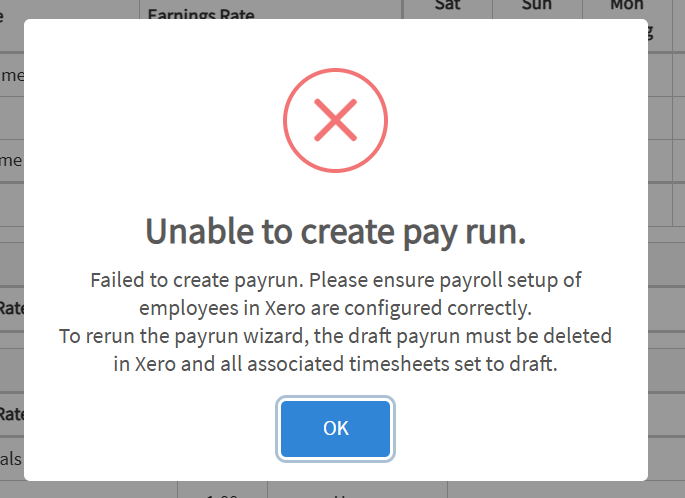
Reference guide for troubleshooting common errors encountered when running the Payrun wizard.
Payrun Wizard Errors
Errors when completing the payrun wizard.
1. Unable to Overwrite Manual Timesheet Entries and Draft Payrun
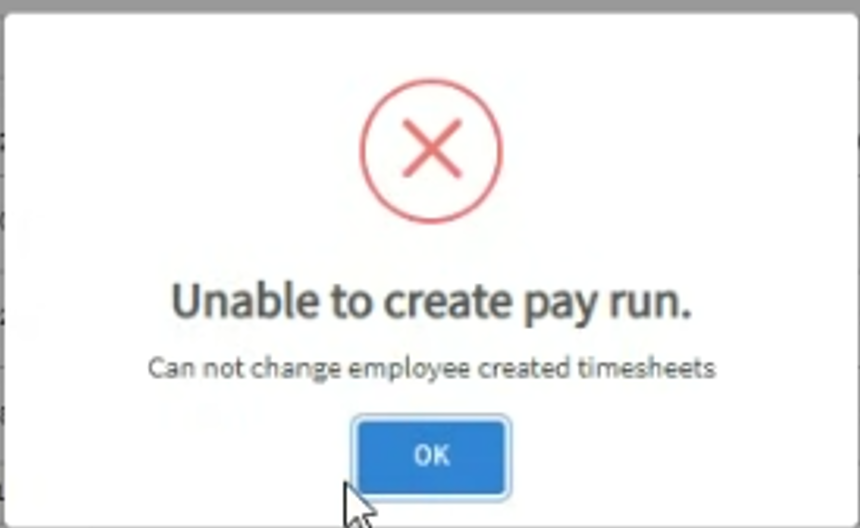
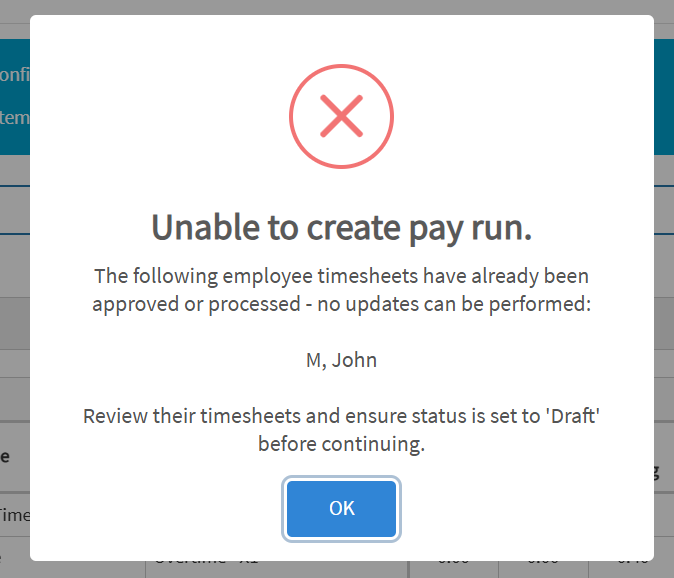
Cause: A staff member manually entered timesheet data either directly in Xero (browser) or via the Xero Me portal which conflicts with timesheets generated by the Payroll Plus wizard.
Timesheet already exists and approved in Xero prior running the Payroll Plus wizard.
Fix:
- If the timesheet was entered via the browser: delete the timesheet directly in Xero.
- If the timesheet was entered via Xero Me: the staff member must delete the entry from the Xero Me app themselves.
- Note: Simply terminating (not delete) the timesheet from the browser is not sufficient in this case the error will persist when completing the Payroll Plus wizard unless the entry is removed from Xero Me directly by the employee that has entered it.
2. Rate per unit/Rate Type Error
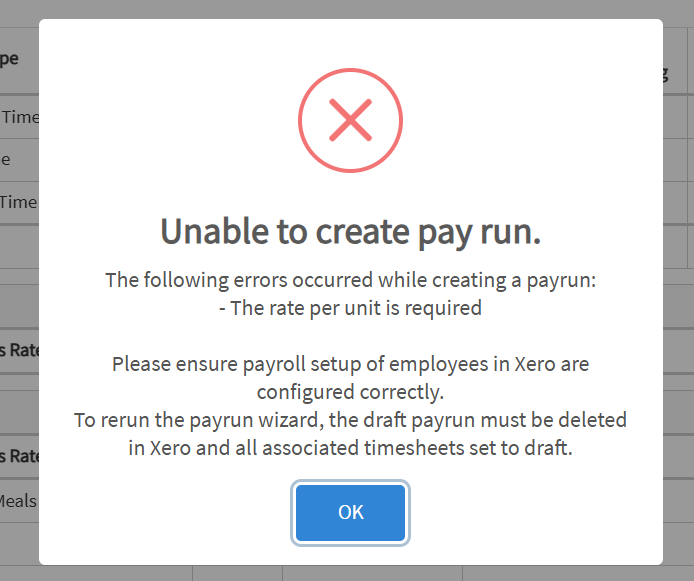
Cause #1: An allowance pay item is set to a multiple of the employee’s ordinary earnings rate, but is not correctly configured on the employee’s pay template.
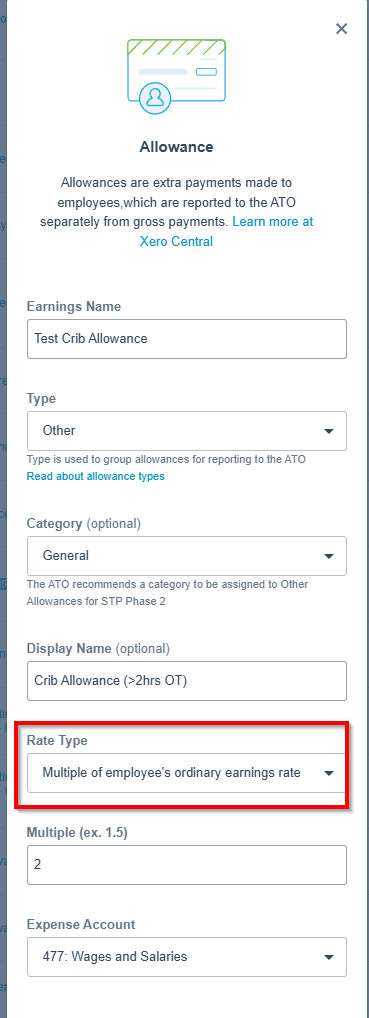
Fix:
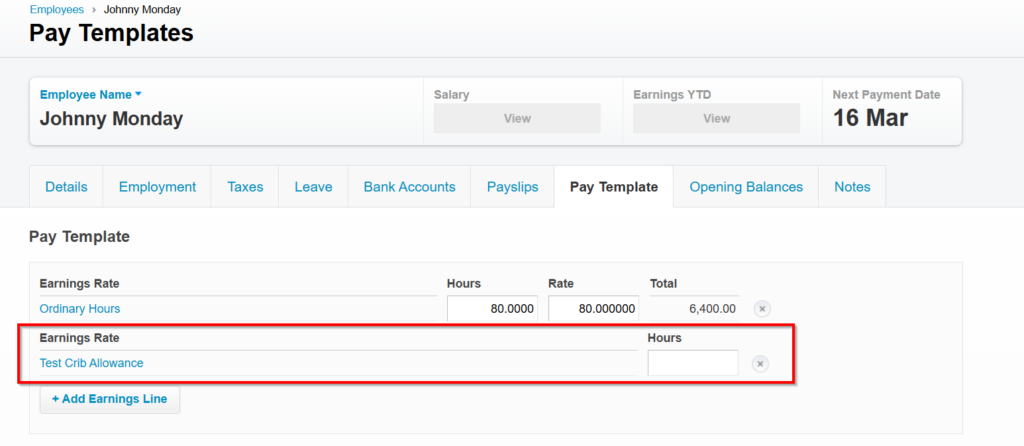
- Ensure the pay item is included on the employee’s pay template in Xero.
- The Hours field can be left blank.
Cause #2: An earnings rate pay item has missing rate per unit values.
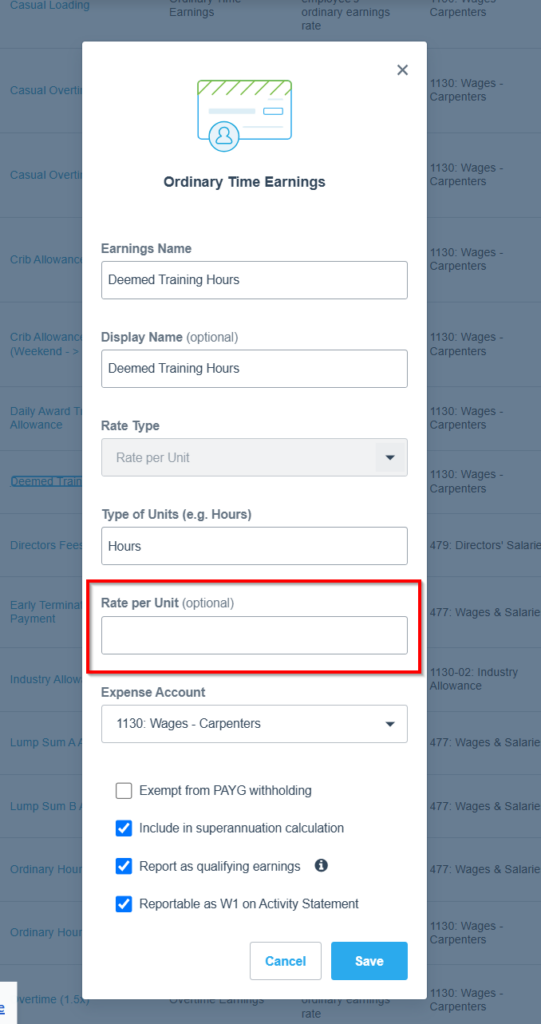
Fix:
Ensure that pay item has rate per unit entered or for all the required employee’s pay template if they have specific rates.
3. Missing Superannuation Fund
Cause: Superannuation Fund has not been set up for the employee in Xero.
Fix:
- Add the superannuation fund for the required employee(s) in Xero.
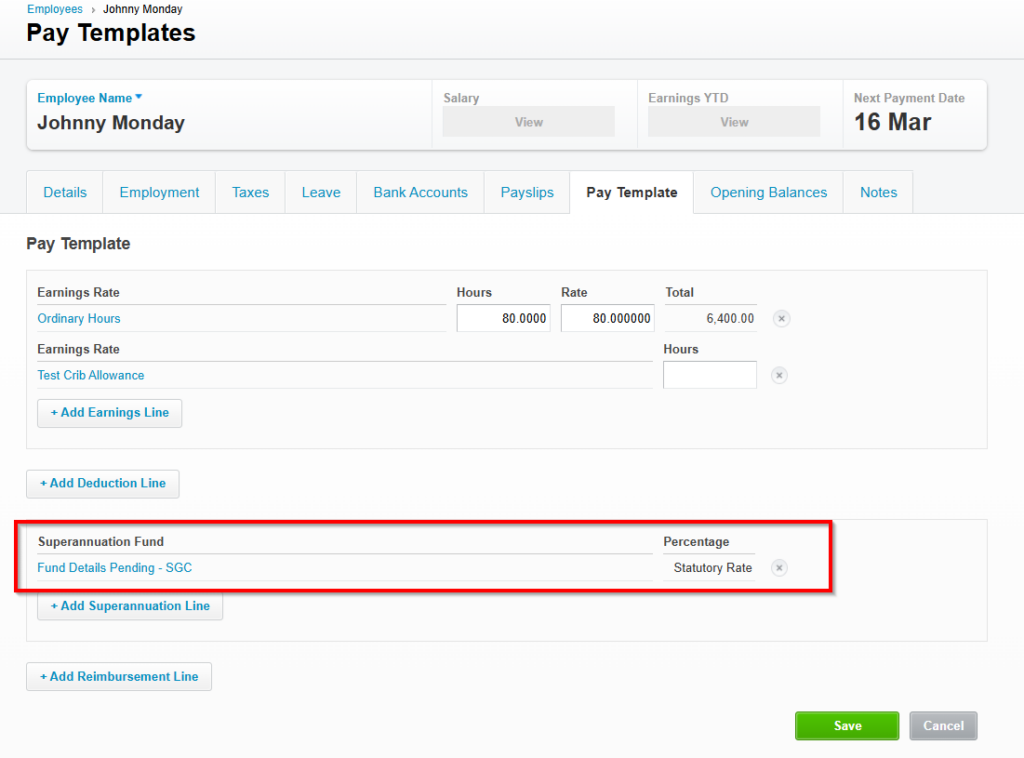
NOTE: Cleanup required before restarting the Payrun Wizard:
If a pay run in Payroll Plus encounters an error, OneCore may still create a draft pay run and approved timesheets. However, the pay run will not be successfully recorded in OneCore and some items may be missing on the draft payrun, and Payroll Direct Costs will not be generated.
To successfully reprocess the pay run:
- Fix the errors (ex. missing pay items, pay item’s rate per unit, superannuation fund etc). Contact Support if error cannot be identified.
- In Xero, delete the generated draft pay run.
- Revert the associated approved timesheets to DRAFT status and DELETE the associated timesheets. Ensure the selected date range matches the pay cycle that needs to be reprocessed.
- Once the errors have been corrected and the draft records removed, restart the Payroll Plus Pay Run Wizard to recreate the pay run and timesheets with the correct information.
Reference KB Article: Payroll Plus Xero – How to unlink and reprocess a payrun – Interfy Help
Payroll Direct Cost Errors
Errors on the generated payroll direct costs when the payrun wizard has been completed
1. Employee has no access to Project
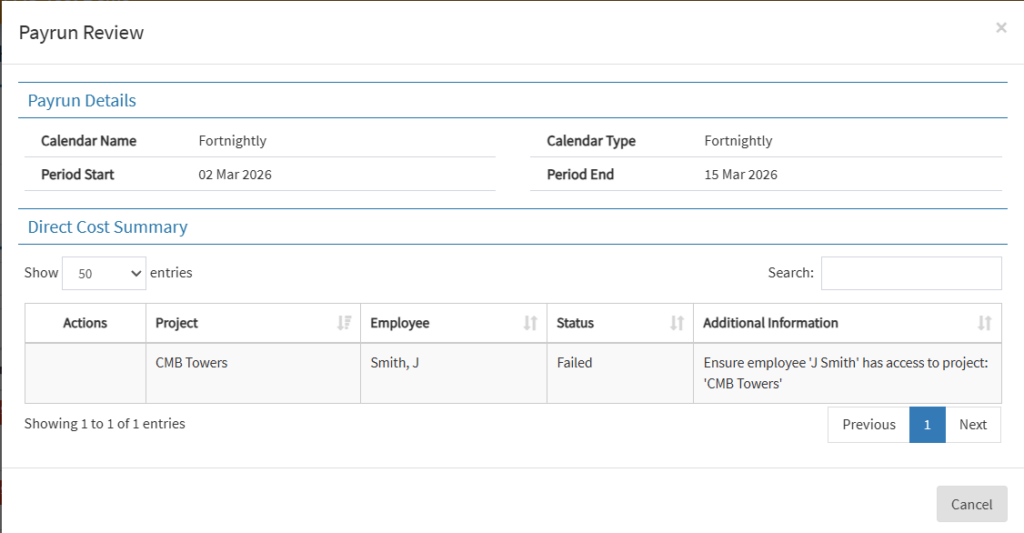
Cause: The employee is not assigned to the project associated with the direct cost (applies when the direct cost is per employee).
Fix:
- Add the employee to the required project(s) in Procore.
2. Missing Rate
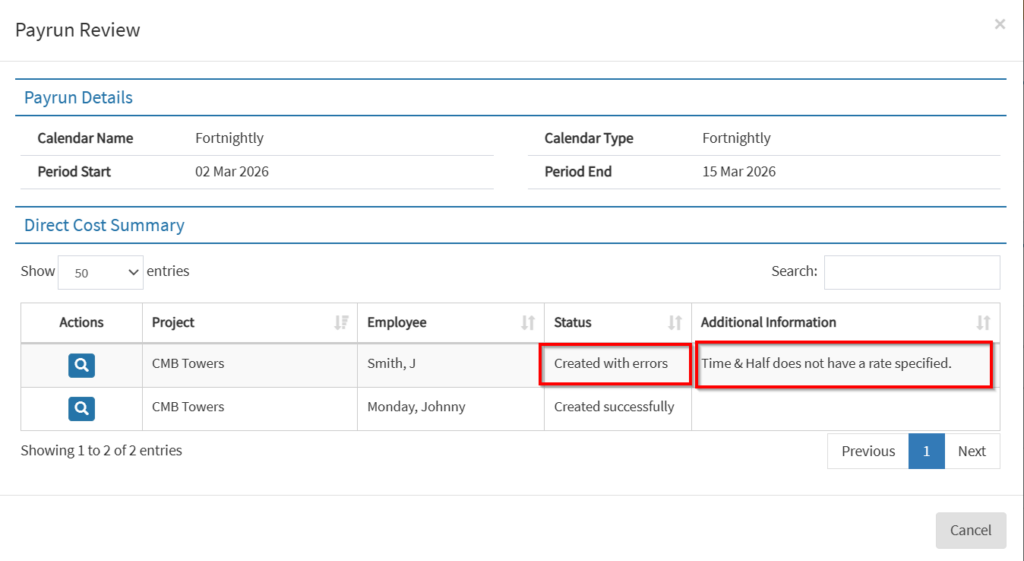
Cause: A required rate is missing from the employee’s pay template or linked cost profile.
Fix:
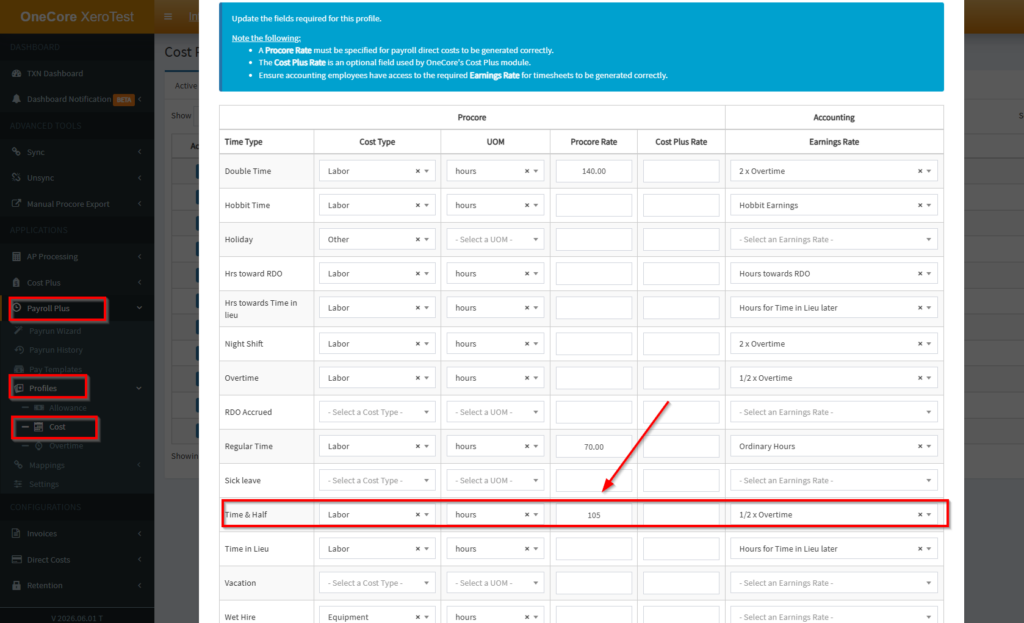
- Check the employee’s assigned pay template (both base and project pay template).
- Check the linked cost profile.
- Add the missing rate under the assigned cost profile.
3. Unable to Create Direct Cost — Insufficient Access/Permission
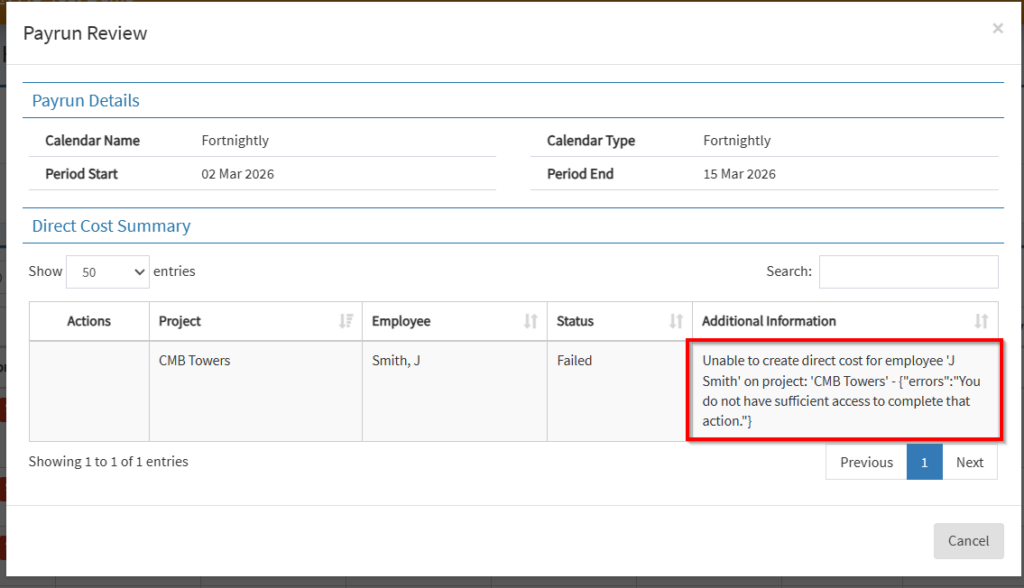
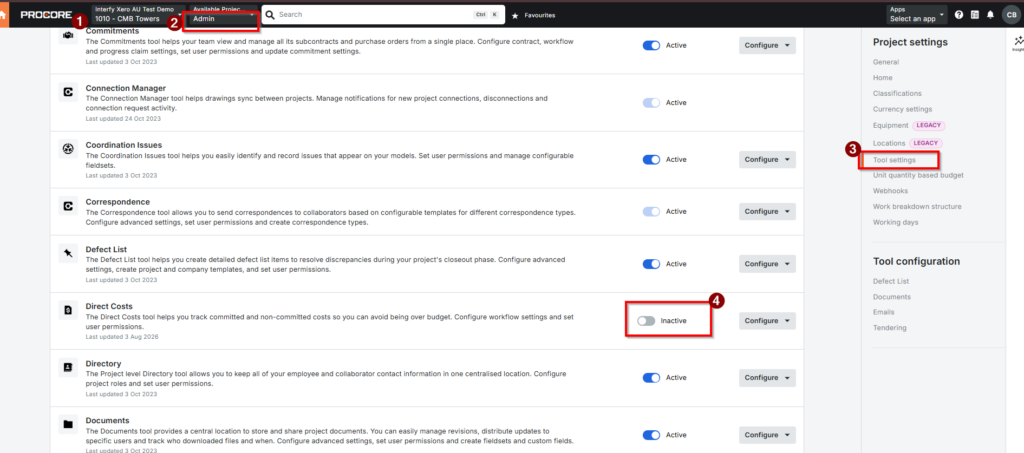
Cause: The direct cost tool is not enabled for the relevant project(s) in Procore.
Fix:
- Ensure the direct cost tool is enabled for each required project in Procore.
Replay Payroll Direct Costs
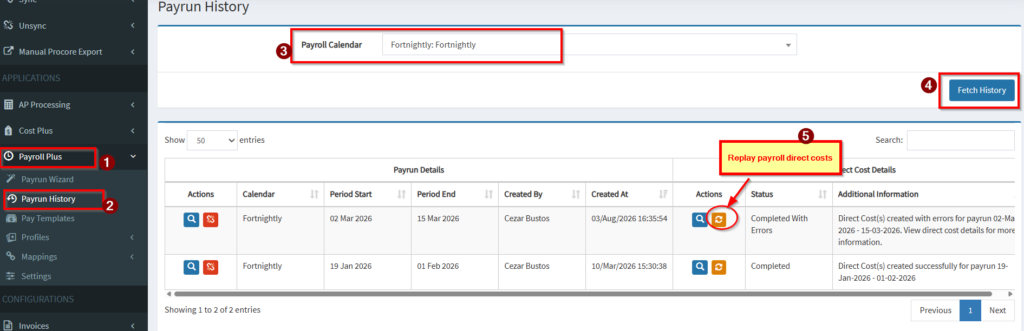
In OneCore > Payroll Plus, navigate to Pay Run History. Select the relevant pay frequency (this can be left blank and all previous successfull payruns will be listed)
Click Fetch History. Once the pay runs are displayed, select the applicable pay run and click the Replay button to resync any failed Payroll Direct Cost entries.