
Once the profiles are set, the next step is to create pay templates. Pay templates allow for configuration of pay structures for employees or projects by associating the relevant profile. This ensures that payroll calculations are accurate and consistent.
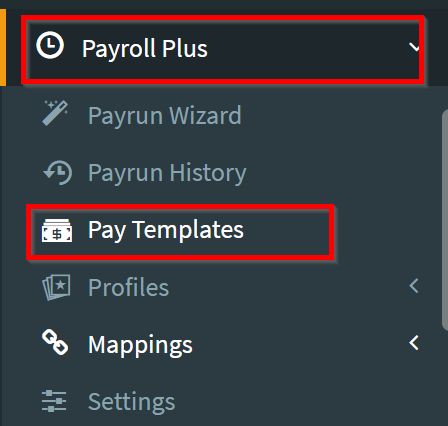
1. Navigate to Pay Templates
2. Click on the + icon in the Cost Profiles table
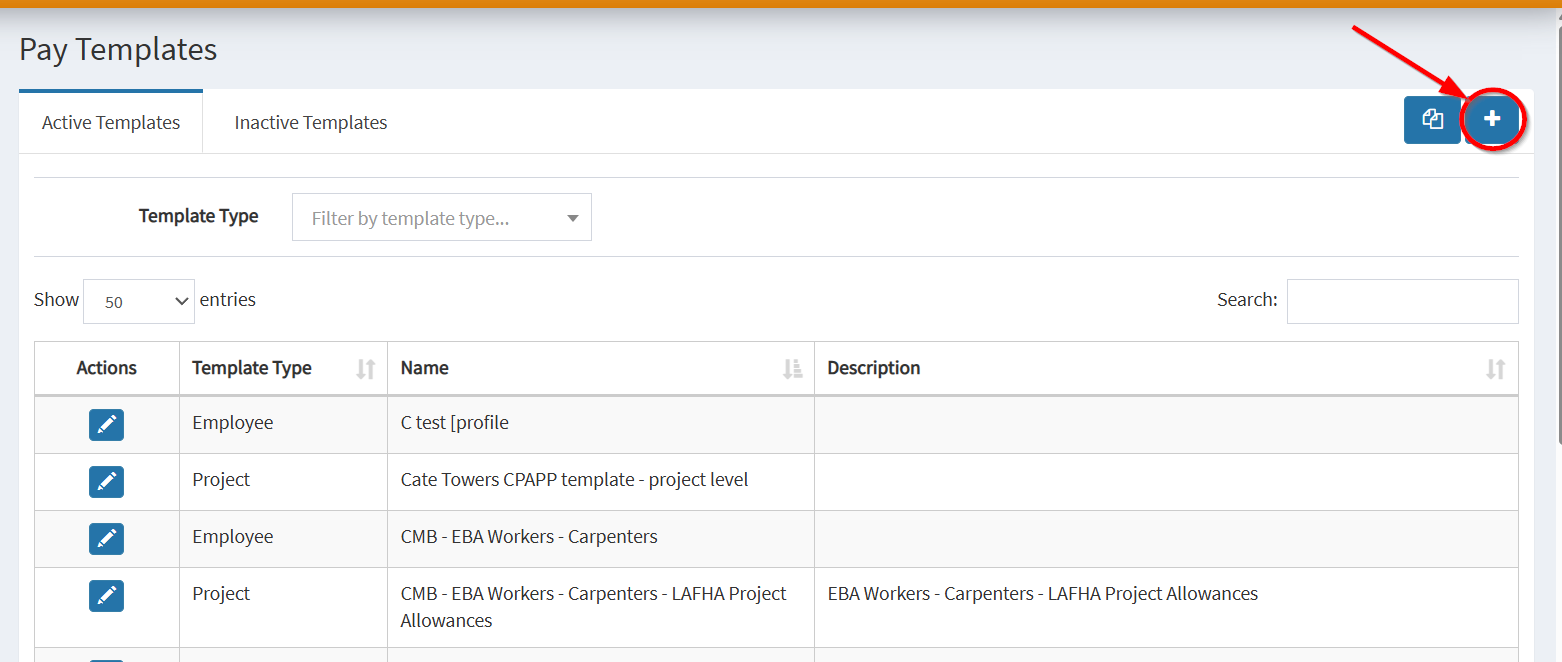
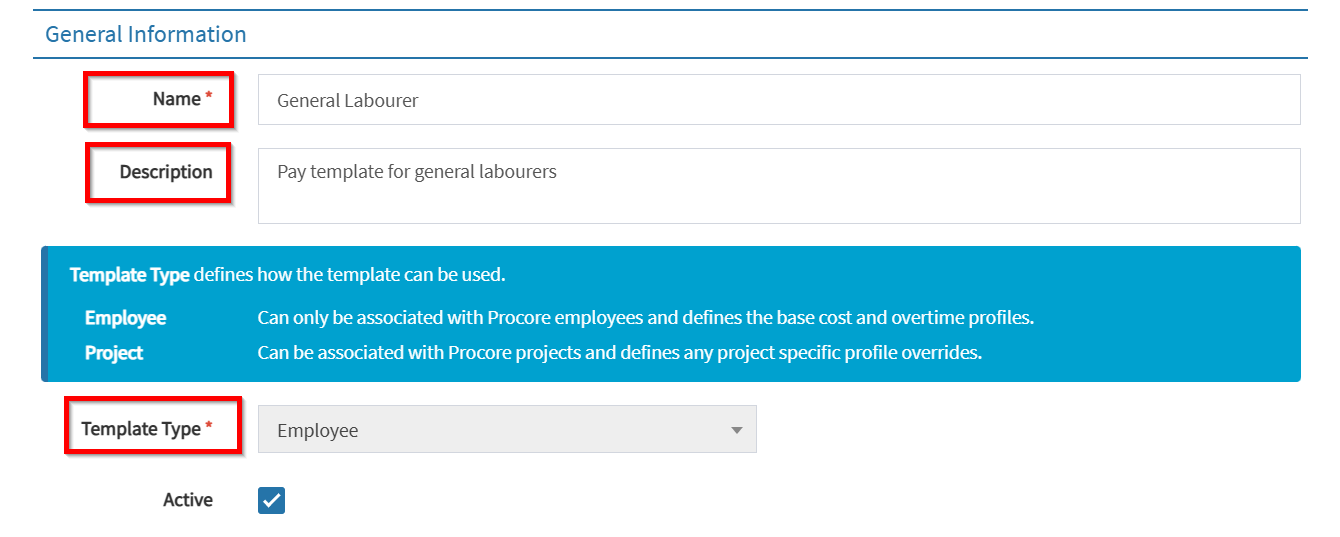
3. Create a pay template by inserting the values accordingly. Here is a list of fields for your reference.
General Information
- Name and Description – Specify the name and description of the template
- Configure Template Type – Set the template type
- Employee – Can only be associated with Procore employees and defines the base cost and overtime profiles
- Project – Can be associated with Procore projects and defines any project specific profile overrides
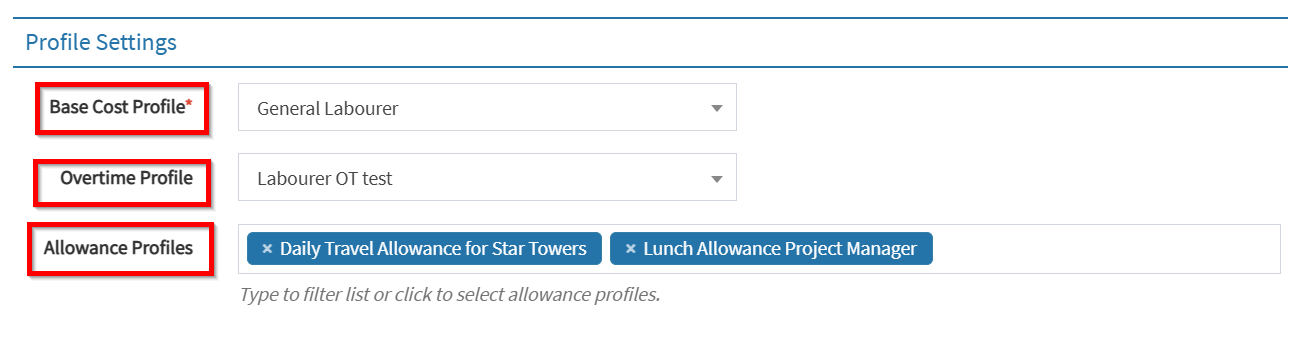
Profile Settings
- Base Cost Profile – Link a cost profile to the pay template for standard cost settings
- Overtime Profile – Associate an overtime profile to manage overtime rules and calculations
- Allowance Profiles – Attach allowance profiles to handle various allowances based on predefined rules
4. Hit Save
