
Vendors:

Vendors has three options: General Settings, Vendor Mapping, Customer Mapping and Inactive Vendors & Contacts.
General Settings
General Settings allows you to:
- Update the Procore Vendors, QuickBooks Vendors and QuickBooks Customers lists in OneCore.
- Basic configurations
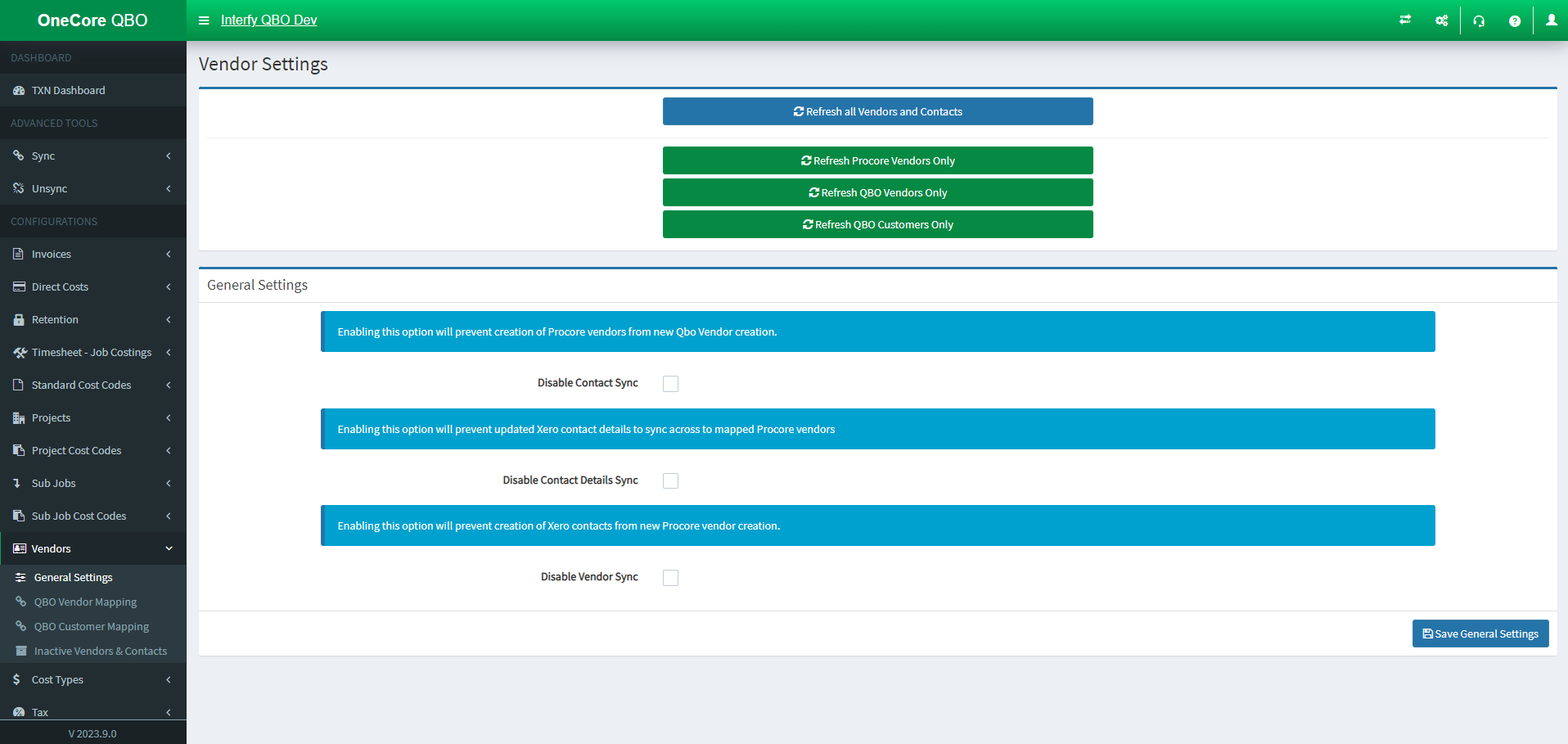
- Refresh all Vendors and Contacts: Update the Procore Vendors, QuickBooks Vendors and QuickBooks Customers lists in OneCore.
- Disable Contact Sync: Enabling this option will prevent creatin of Procore vendors from new QuickBooks vendors creation
- Disable Contact Details Sync: Enabling this will prevent updated QuickBooks Contact to sync across to mapped Procore Vendors
- Disable Vendor Sync: Enabling this option will prevent creation of QuickBooks Contacts from new Procore vendor creation
QBO Vendor Mapping
NOTE: One Procore vendor only can be mapped to either QBO Vendor or QBO Customer.
Vendor mapping allows you to:
- Establish mapping relationship between Procore vendor and QuickBooks vendor
- Delete mapping
- Auto-map by name
- Exporting vendors
- Details of particular vendor
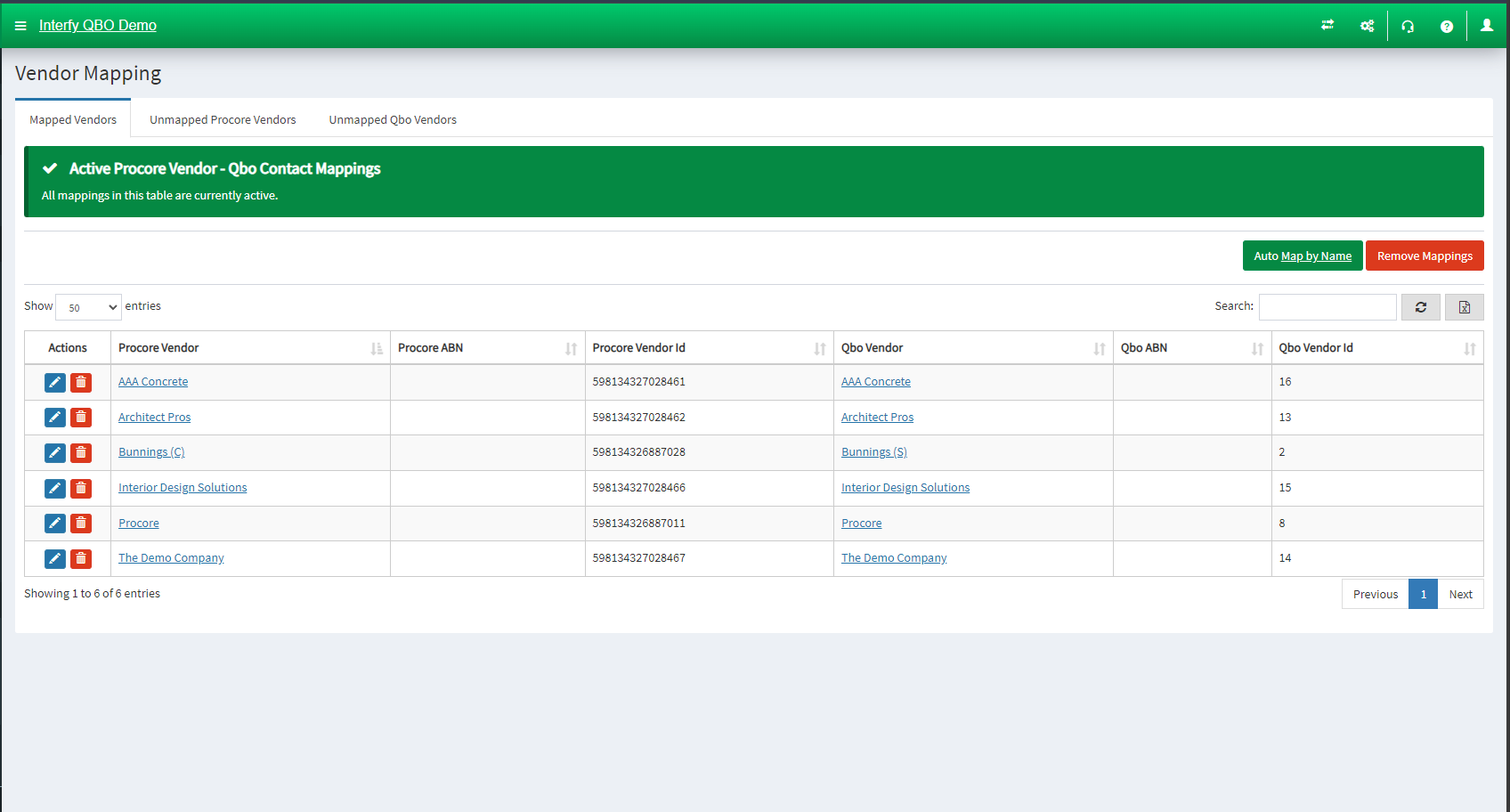
- Mapped Vendors: Shows the current active vendors
- Unmapped Procore Vendors: Establish the mapping here
- Unmapped Qbo Vendors: Establish the mapping here
QBO Customer Mapping (HCC)
NOTE: One Procore vendor only can be mapped to either QBO Vendor or QBO Customer.
Customer mapping allows you to:
- Establish mapping relationship between Procore vendor and QuickBooks Customer
- Delete mapping
- Auto-map by name
- Exporting vendors
- Details of particular vendor
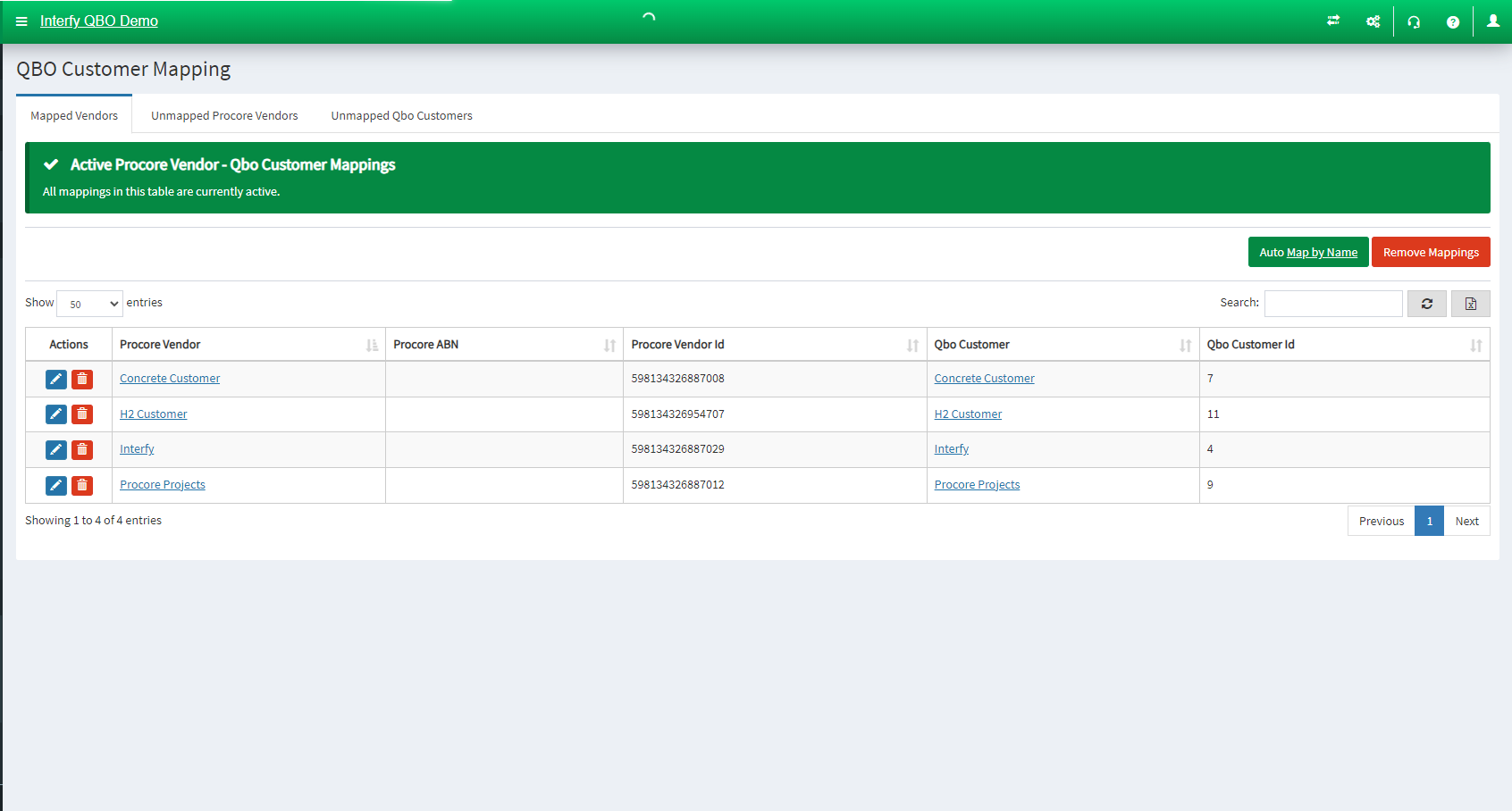
- Mapped Customers: Shows the current active customers
- Unmapped Procore Vendors: Establish the mapping here
- Unmapped Qbo Customers: Establish the mapping here
Inactive Vendors & Contacts
Inactive Vendors & Contacts page allow you to:
- Observe the inactive or archived contacts by their respective platforms which are not available for mapping in OneCore.
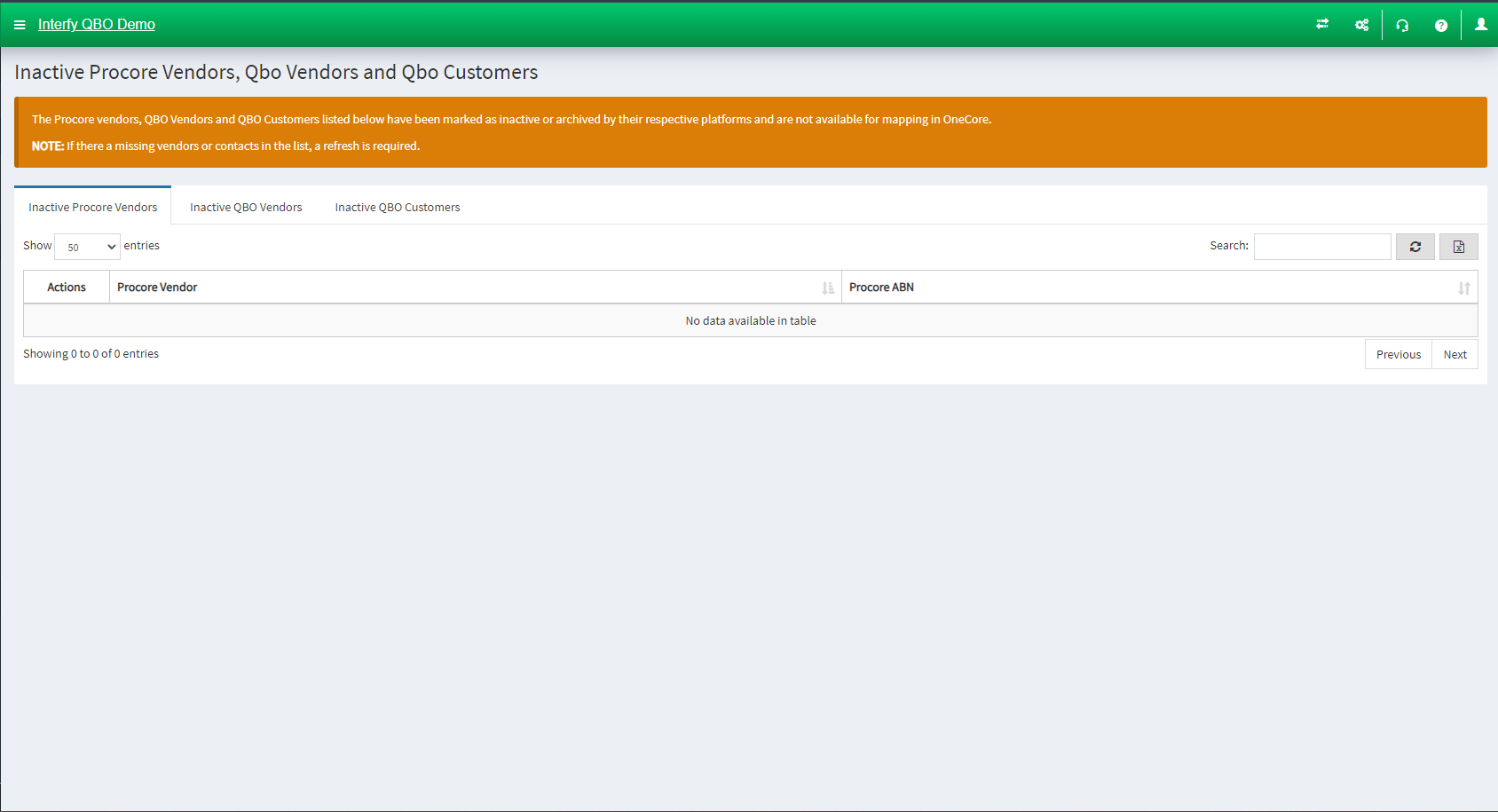
- Inactive Procore Vendors: Shows the current inactive Procore Vendors
- Inactive QBO Vendors: Shows the current inactive QuickBooks Vendors
- Inactive QBO Customer: Shows the current inactive QuickBooks Customers
Cost Types:

Cost Types has two options: General Settings and Cost Type Mapping.
General Settings
General Settings allows you to:
- Set the QuickBooks classes to be able to track cost types in Procore
- Update the list of Procore cost types in OneCore.
- Configure the main QuickBooks class to link Procore’s Cost Type
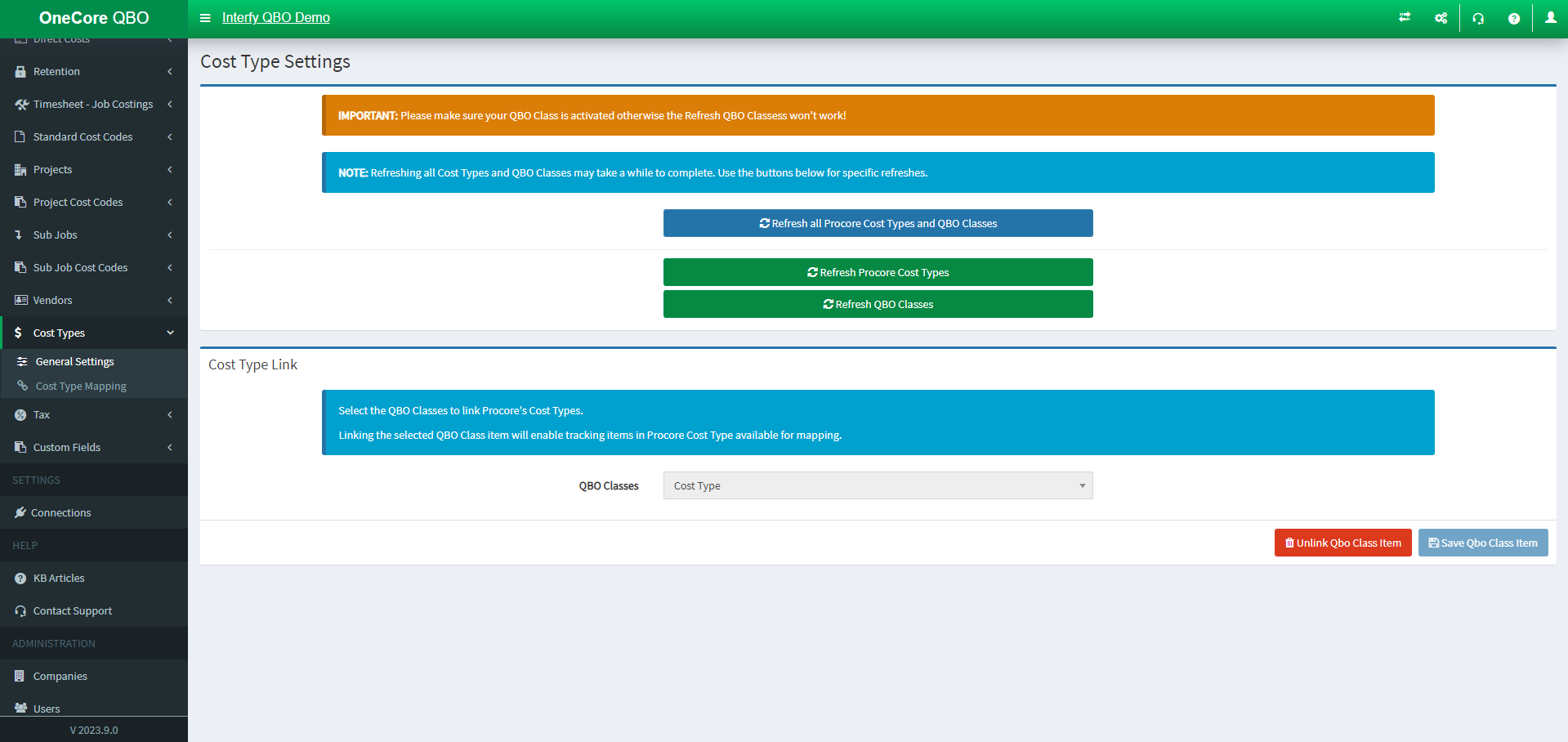
- Refresh all Procore Cost Types and QBO Classes: Update the Procore Cost Types, QuickBooks Classes lists in OneCore.
Cost Type Link
- QBO Classes: Select the QBO Class to link Procore’s Cost Types
Click ‘Save Qbo Class Item’ once you have selected the class.
Cost Type Mapping
Cost Type Mapping allows you to :
- Map a Procore cost type to a QBO sub-class based on the selected Cost Type Link.
- Delete the cost type mapping
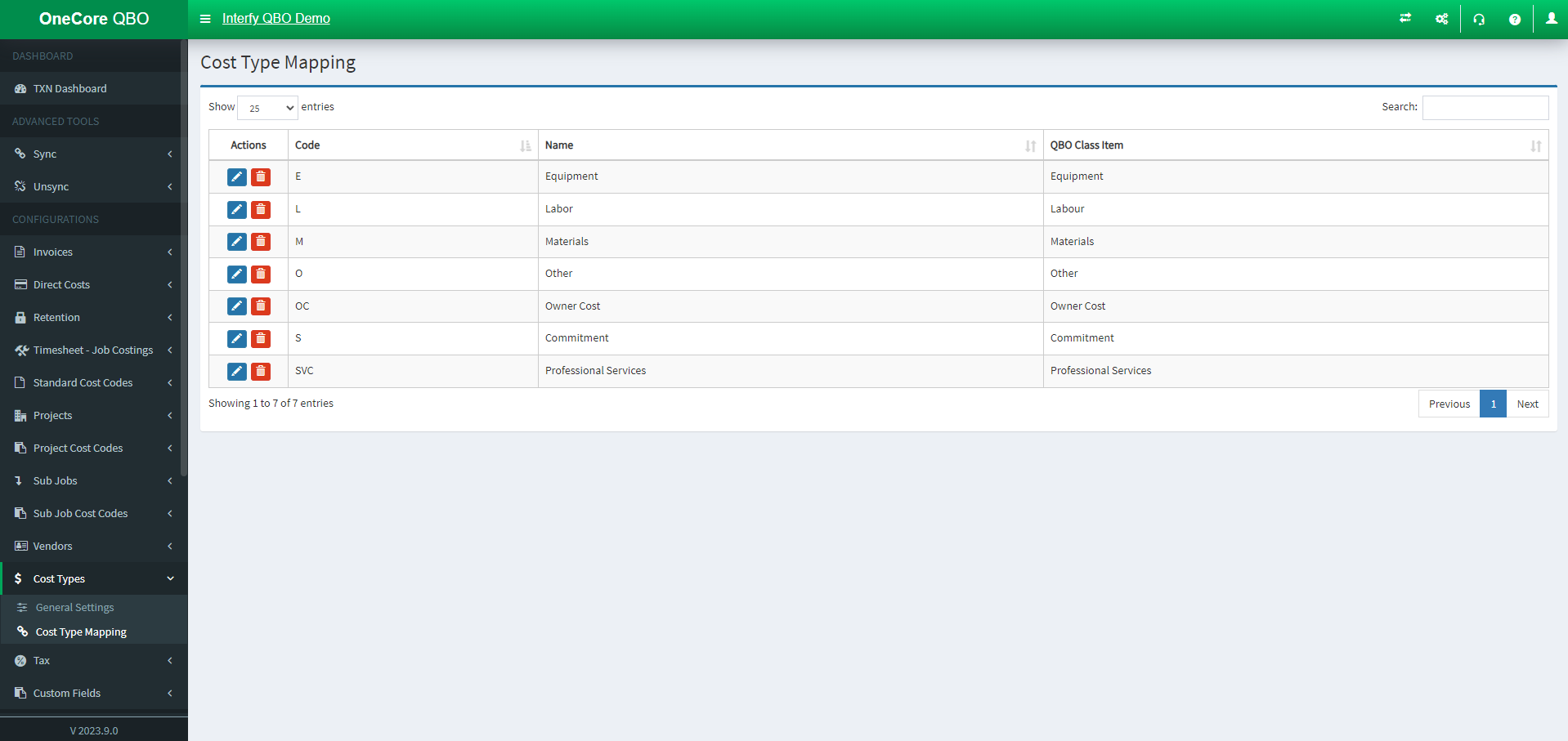
- Pen Icon: Establish your mapping here.
- Trash Icon: Delete your mapping
Tax:
Tax has two options: General Settings and Tax Mapping.
General Settings
General Settings allows you to:
- Update the Tax Codes and Rates in OneCore
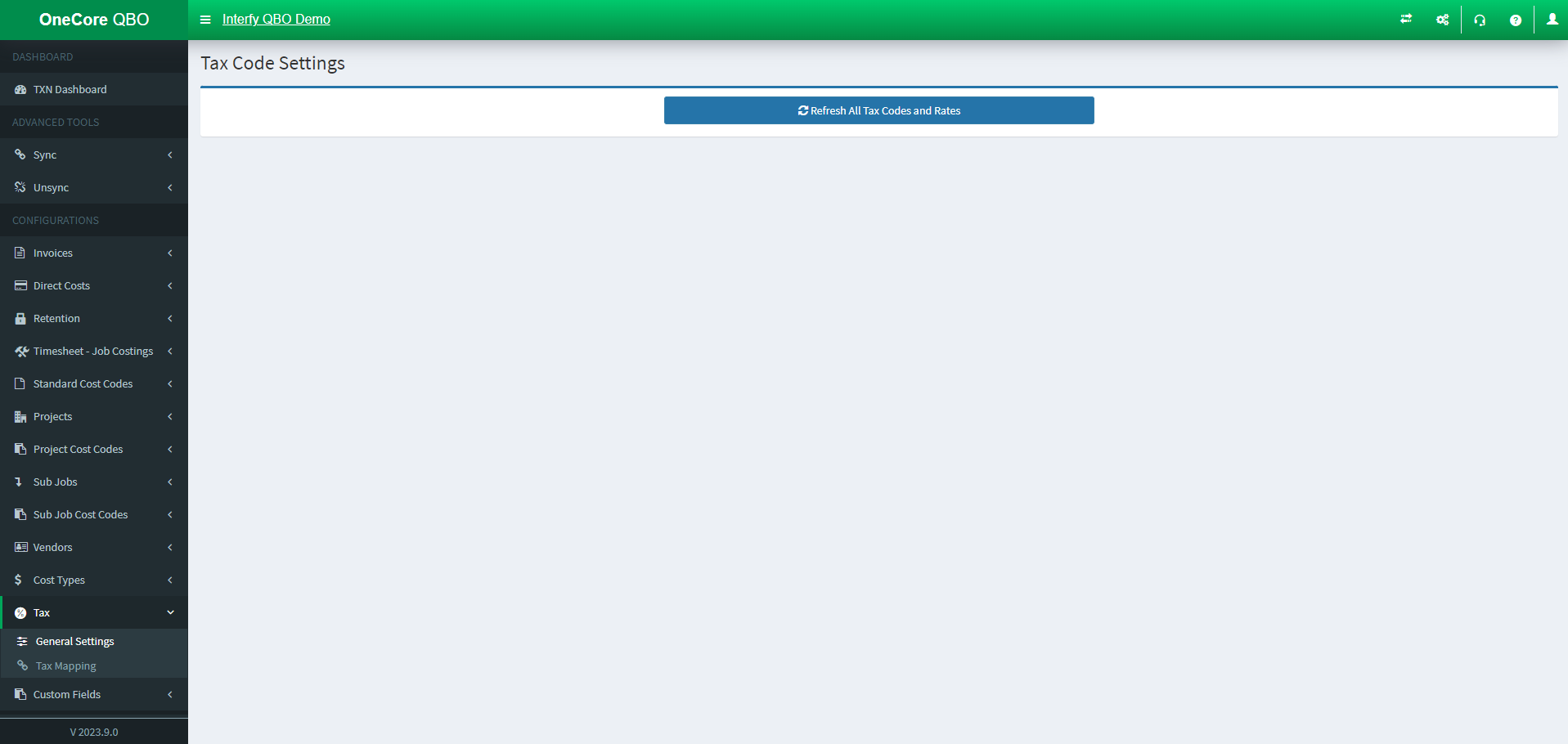
- Refresh all Tax Codes and Rates: Update the Tax Codes and Rates lists in OneCore.
Tax Mapping:
Tax Mapping allows you to:
- Enable the taxable field in QBO Bill to use for Procore Commitment and Reverse Direct Cost claims respectfully
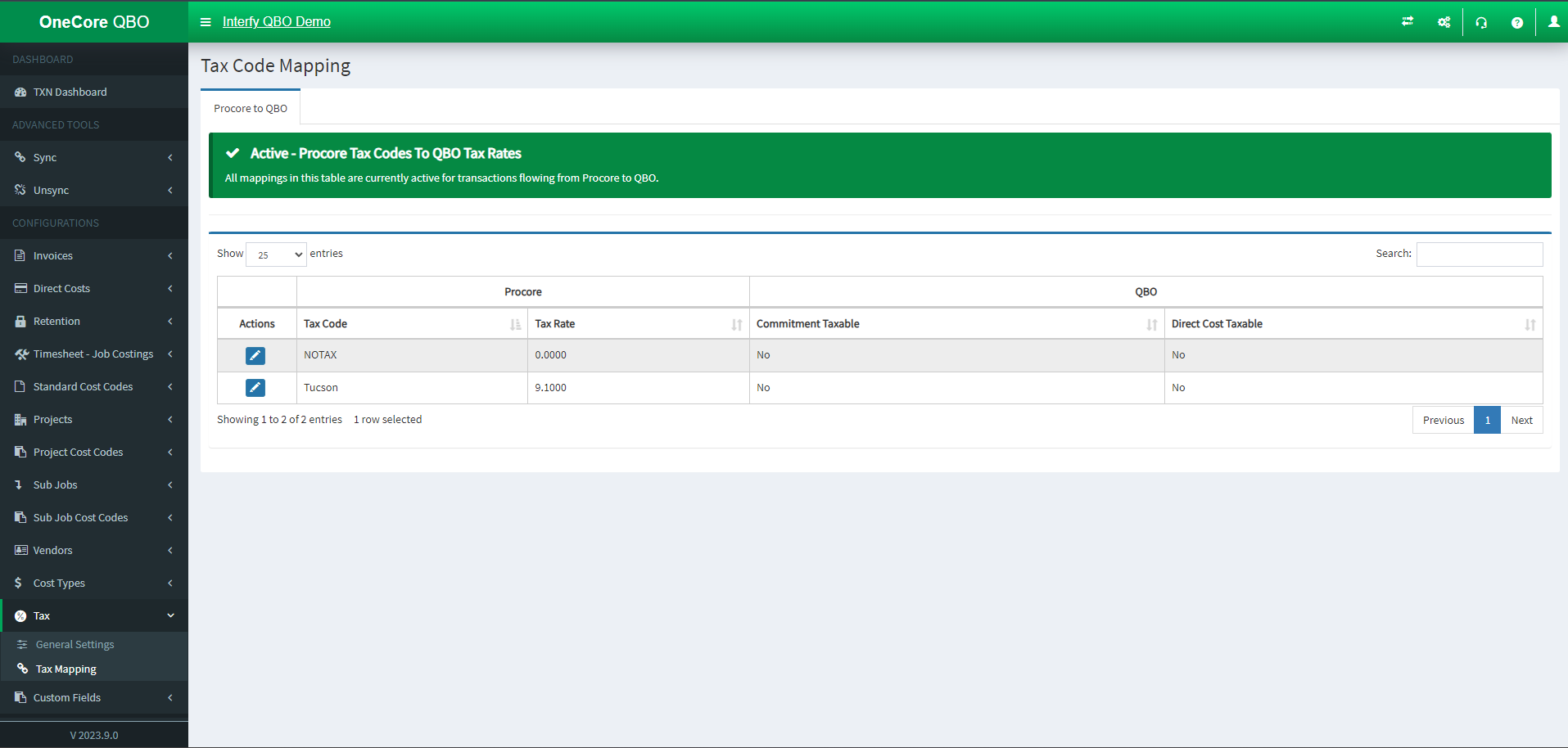
- Pen Icon: Activate/ deactivate your taxable field
- Commitment: Check to activate the taxable field in Procore Commitment
- Reverse Direct Cost: Check to activate the taxable field in Reverse Direct Cost