OneCore now has a new feature that makes it easy for users to map projects automatically when they create them. Here’s how to do it:
In OneCore, think of the main customer in QuickBooks Online (QBO) as a company in Procore. And, consider a sub-customer in QBO as a project under that company in Procore.
If you already have a custom field created in Procore, you may skip the “Creating Custom Fields” step.
Just a reminder: Make sure you’ve mapped your customers in OneCore QBO. If not, the default QBO customer will be used.
Creating Custom Field in Procore
1. Navigate to Procore company level
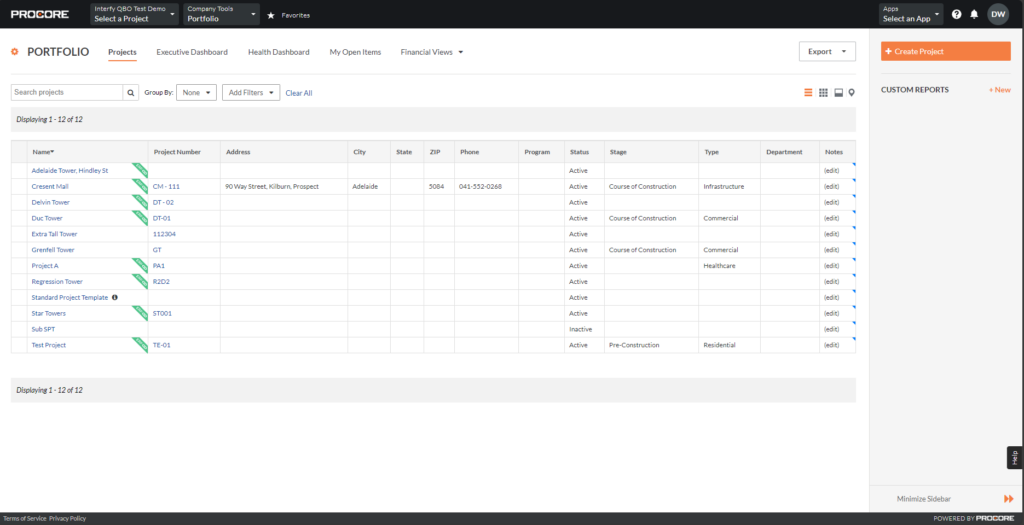
2. Navigate to Company Tools > Admin
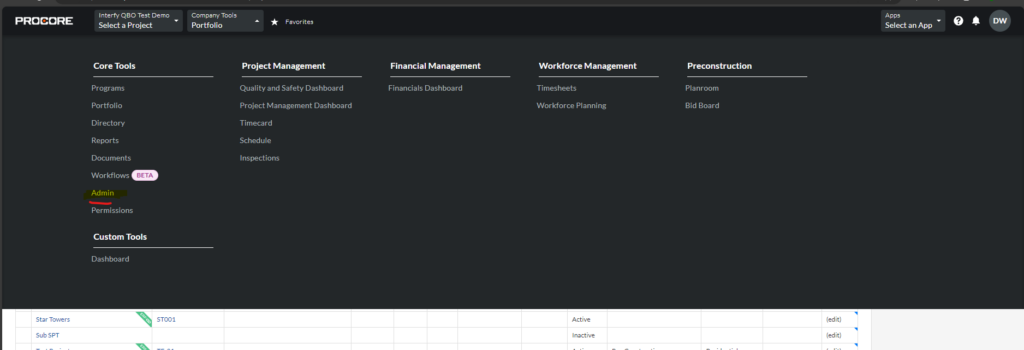
3. Go to Project Settings > Fieldset
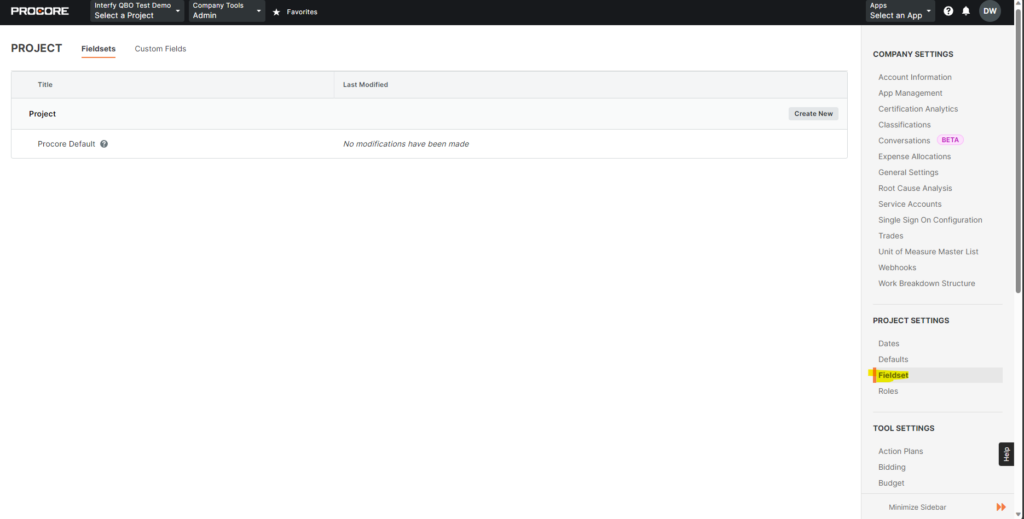
4. Go to Custom Fields > + Create Custom Field
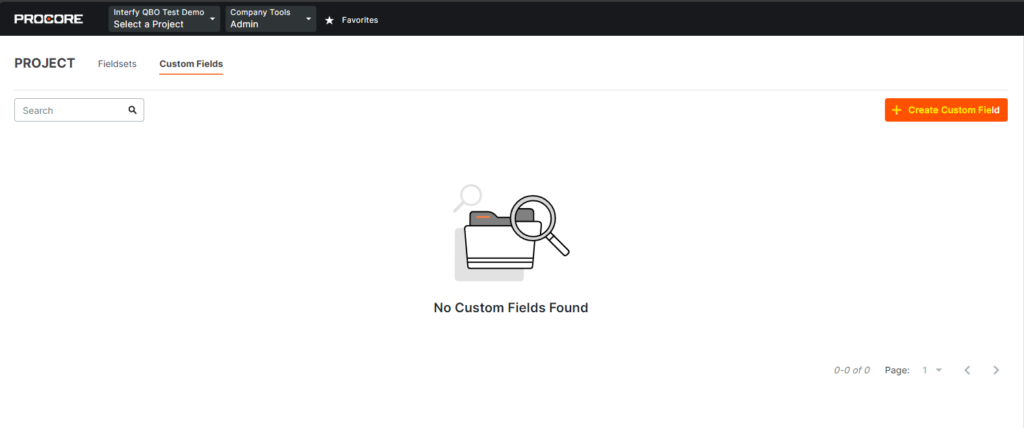
5. Enter the Custom Field as follows:
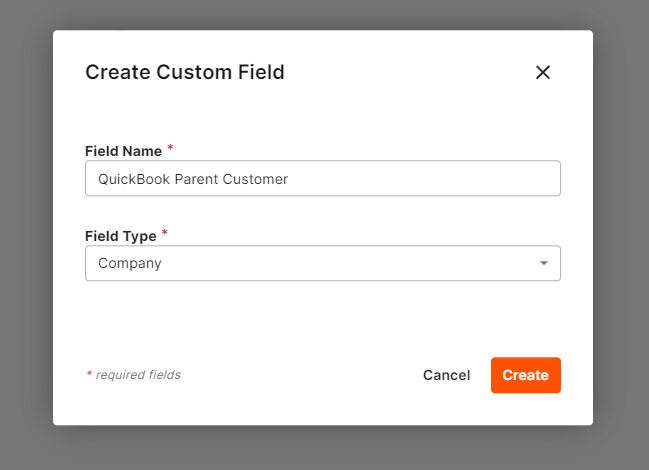
6. Navigate to Fieldsets
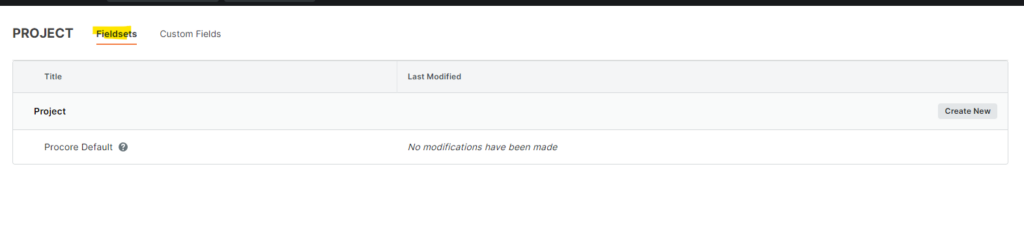
7. Click Create New
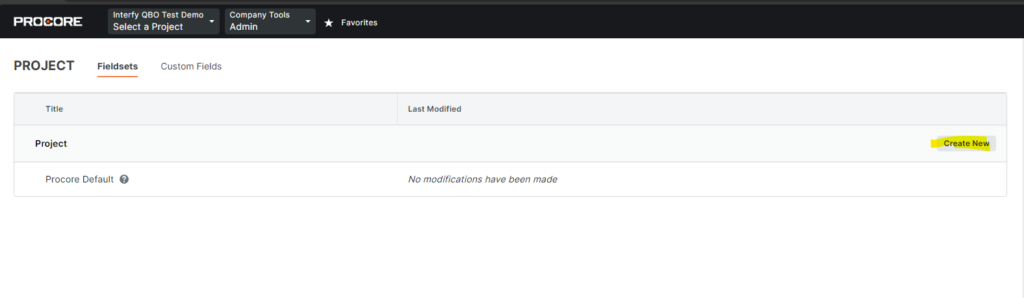
8. Populate the Name as follows:
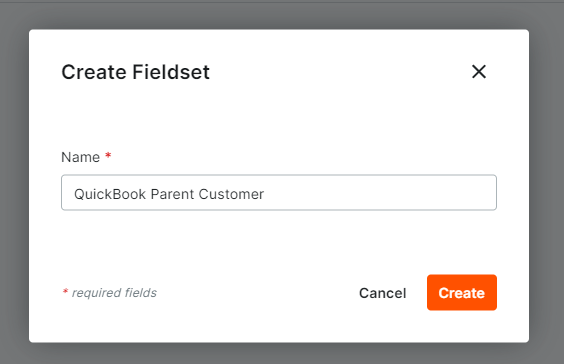
9. Click Create, and you will be redirected to the “Edit Fieldset page.“
10. Within the Edit Fieldset page, scroll to the bottom, click “Add Custom Field”
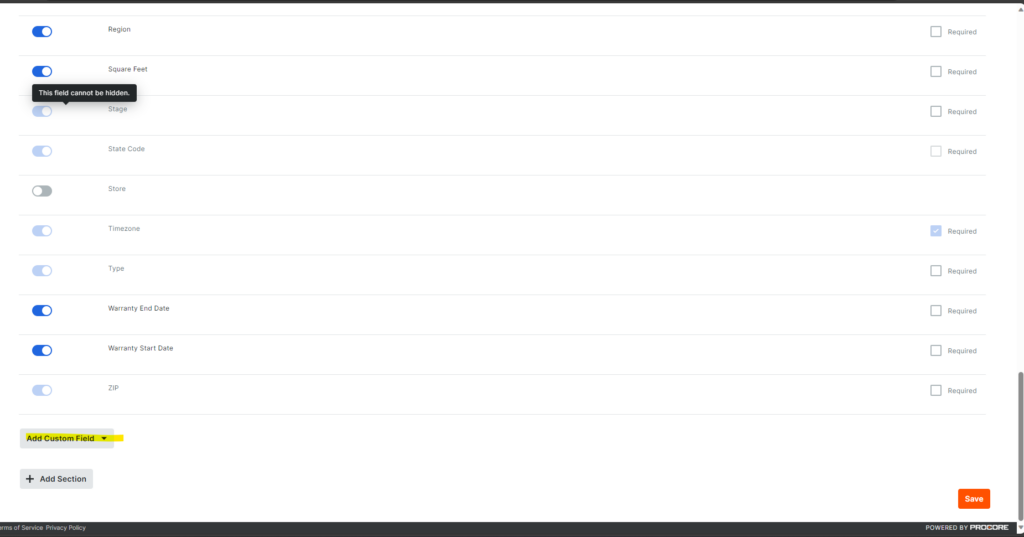
11. Click Choose From Existing

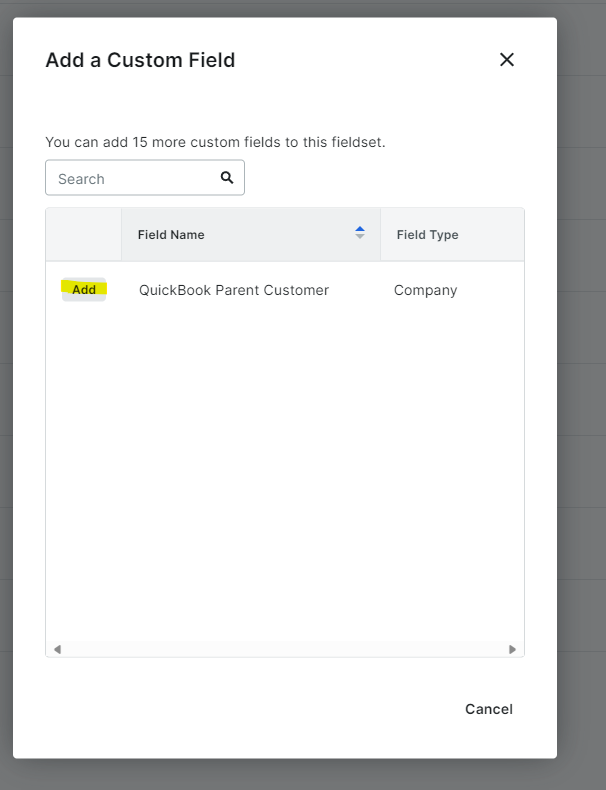
12. Click the Add button based on the Field Name you just created just now.
13. Click Add
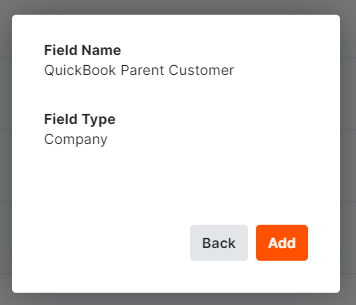
14. Click Save after checking the field is populated

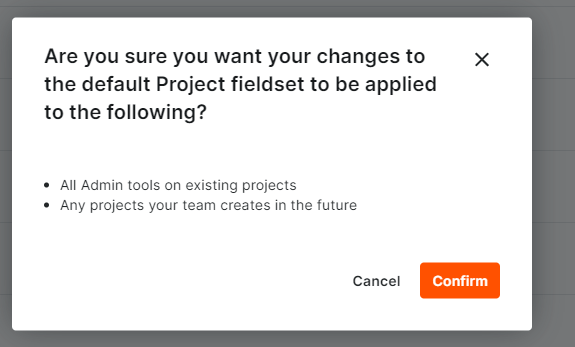
15. Click Confirm.
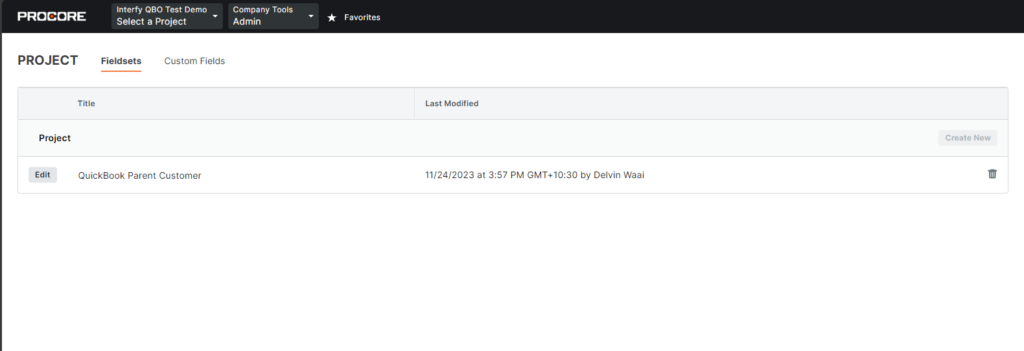
16. You shall see the record like this in the Fieldsets.
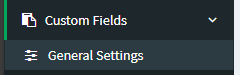
17. Navigate to OneCore QBO > Custom Fields > General Settings
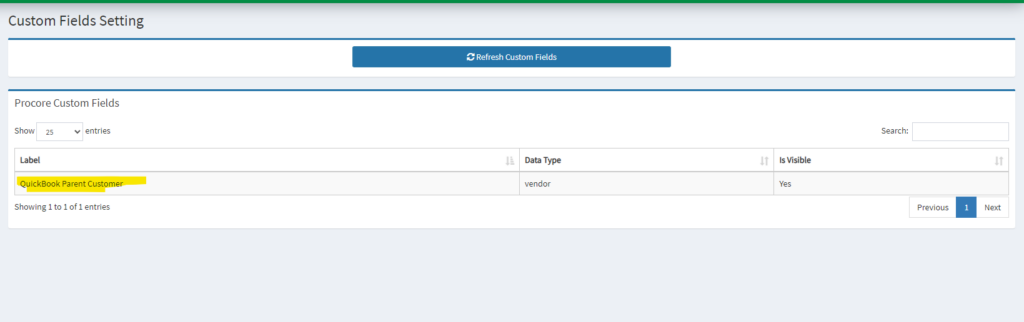
18. Click Refresh Custom Fields to pull the latest data from Procore.
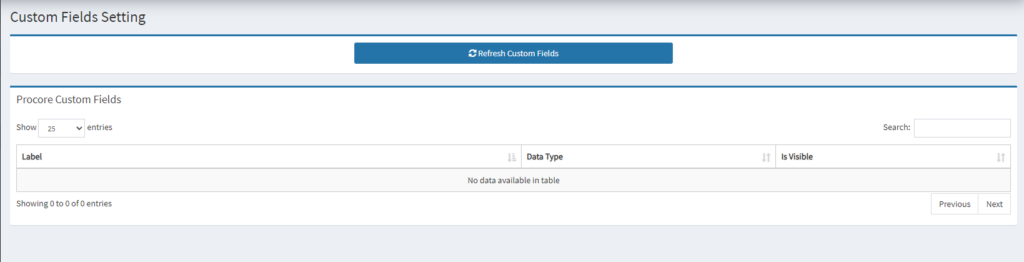
19. When refreshed successfully, you shall see the table recorded as follows:
20. Go to Projects > General Settings
21. Configure the Custom Field Settings accordingly, click Save Settings
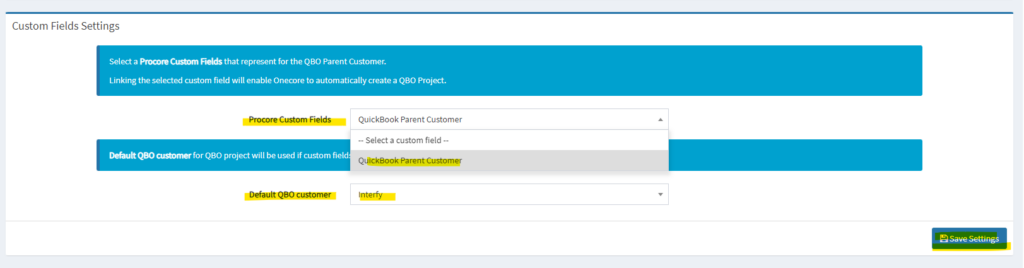
Procore Custom Fields: The field you just created in Procore previously where it will represent the QBO Parent Customer
Default QBO Customer: If a custom field in the Procore project is not set, we will use the default from here.
Setup the Project Mapping
Tips
1. In OneCore, Go to Projects > General Settings
2. Configure the Custom Field Settings accordingly if it is not being configured yet, click Save Settings
Procore Custom Fields: The field you just created in Procore previously where it will represent the QBO Parent Customer
Default QBO Customer: If a custom field in the Procore project is not set, we will use the default from here.
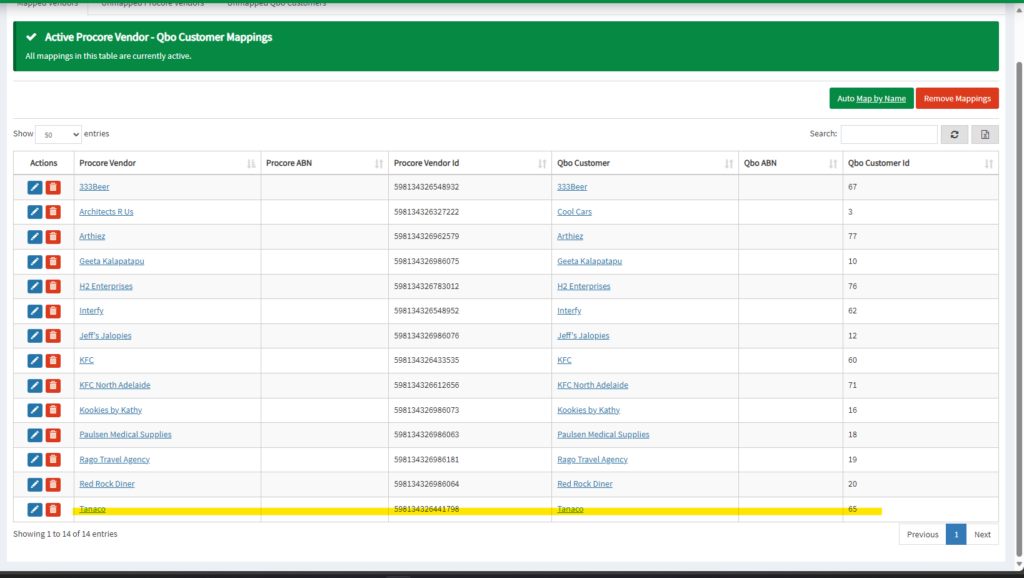
Suppose I want to create a Procore Project under a QBO Parent Project called Tanaco, I first have to validate if there’s a customer mapping between them. Here’s how you can do the checking.
1. In OneCore QBO, go to QBO Customer Mapping
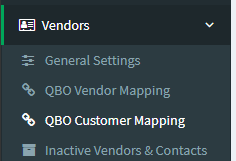
2. Make sure your customer is properly mapped. In the picture below, I have the Procore Vendor (Tanaco) mapped to QBO Customer (Tanaco)
2. Navigate back to the Procore company level.
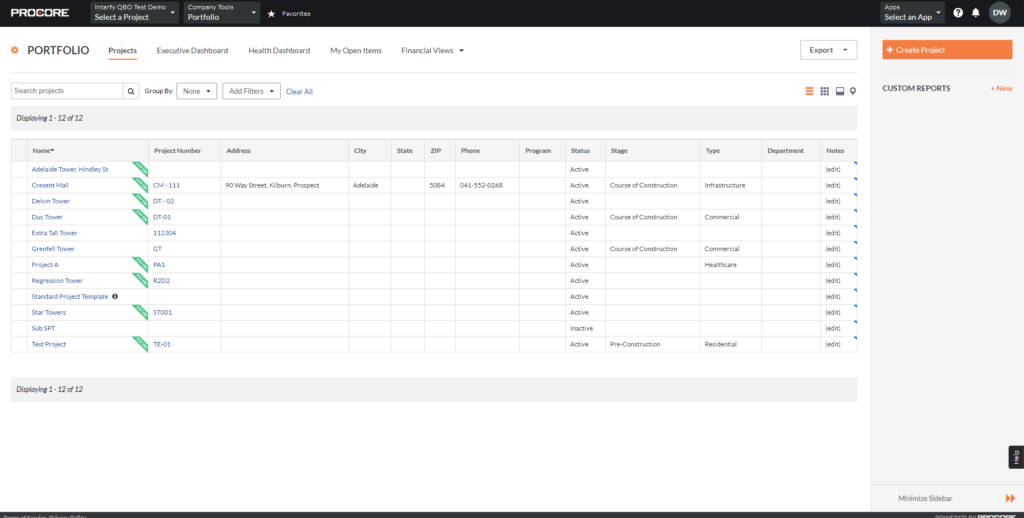
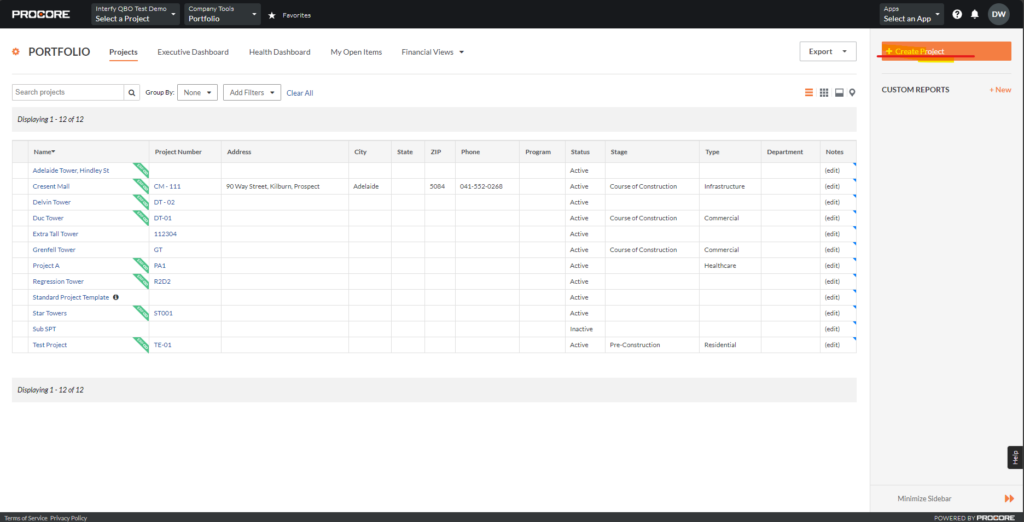
3. Click Create a Project
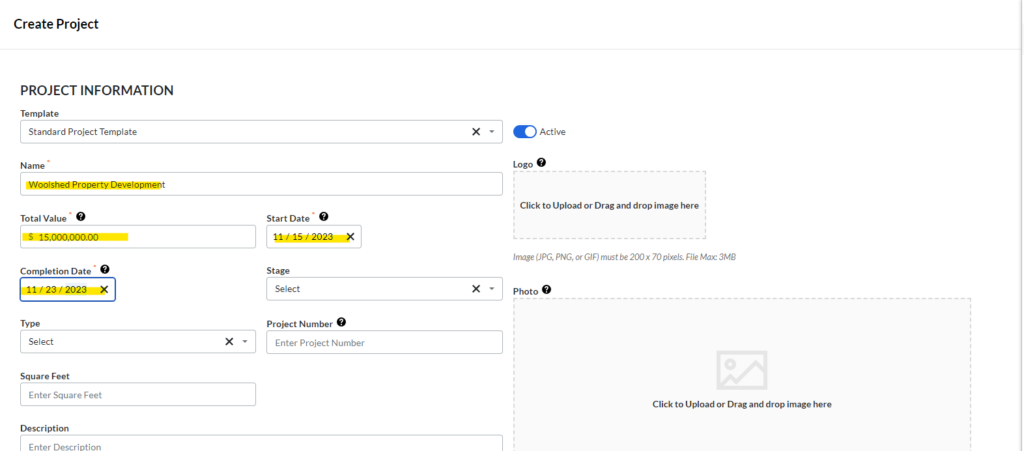
4. Filling up the necessary details about the project.
5. Scroll to the bottom
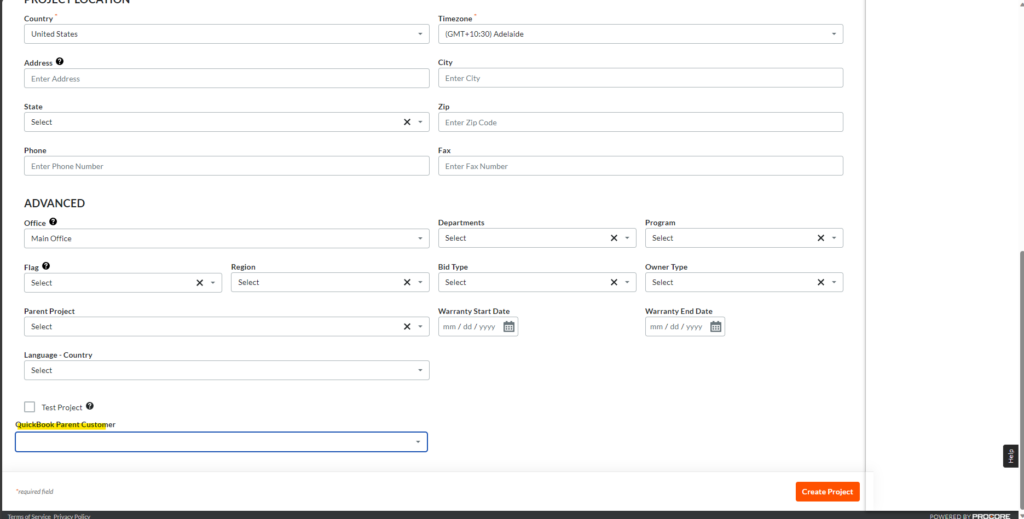
6. Select Tanaco as the Parent Customer.

7. Click Create Project

8. You shall receive a New Project Created notification.
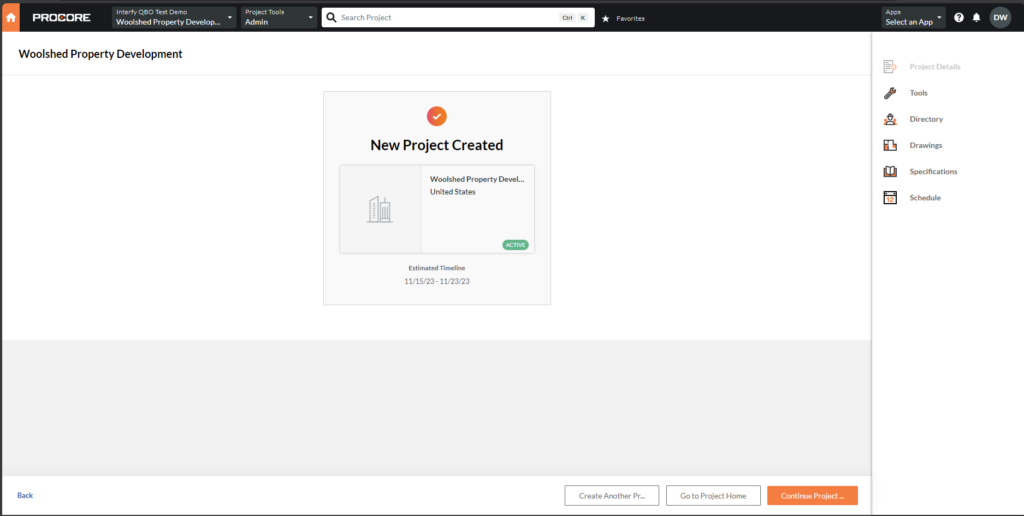
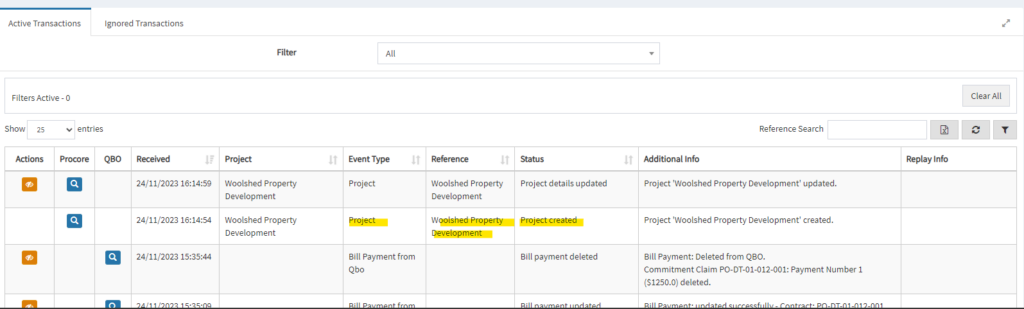
9. Navigate to OneCore > Txn Dashboard

10. In the Dashboard table, you should see the Project-created transaction being processed.
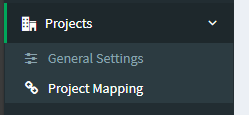
11. Go to Projects > Project Mapping
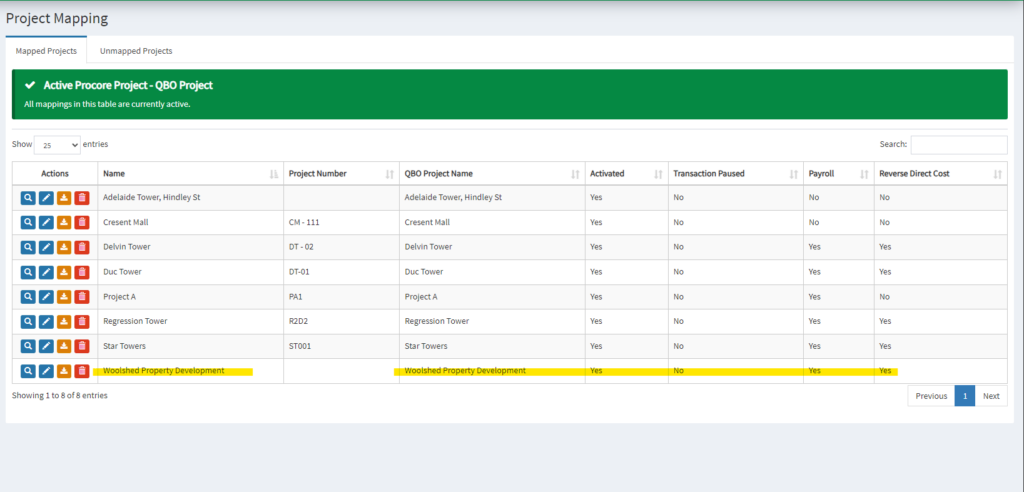
12. In Project Mapping, you can see the record in the table, with all the statuses being configured by OneCore.
Converting Sub-customer to a Project
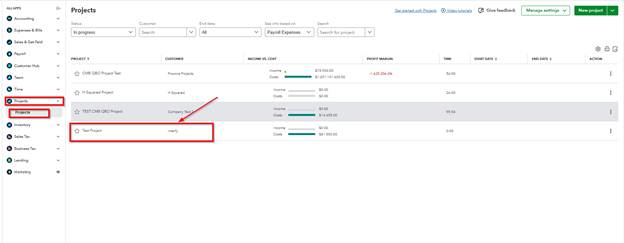
If you require using QBO Projects instead of QBO sub-customers, you can manually convert the generated QBO sub-customer to a QBO project in QuickBooks. Please note that this will not affect the project mapping you have in OneCore.
To convert a QBO sub-customer to a QBO Project:
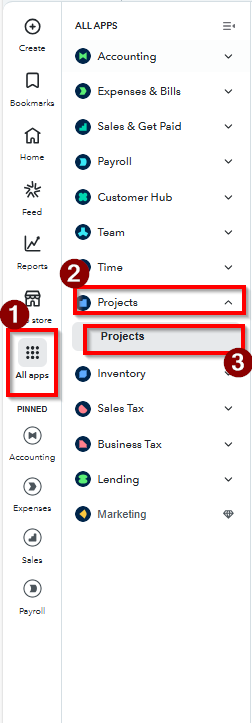
- Go to Projects in QuickBooks.
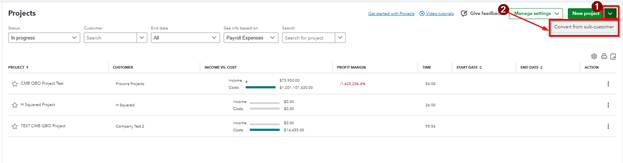
2. Click the down arrow beside New Project and select Convert from Sub-Customer
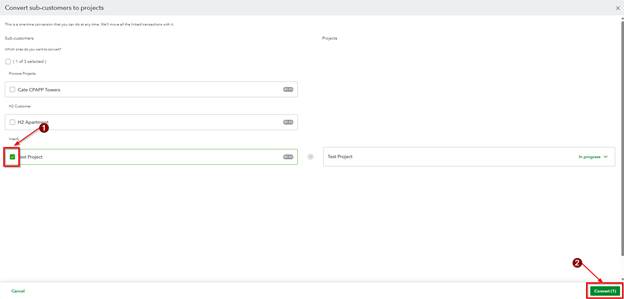
3. You can then select the current sub-customers that you want to convert to a QBO Project and click Convert. Please note that this is a one-time conversion that you can do at any time. QBO then will move all the linked transactions with it.
4. You will see a confirmation message once you have agreed and confirmed the conversion of the selected QBO sub-customer
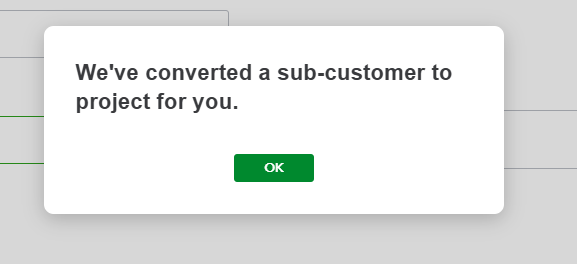
5. The new QBO Project will now be included on your QBO Projects list.