
Overview
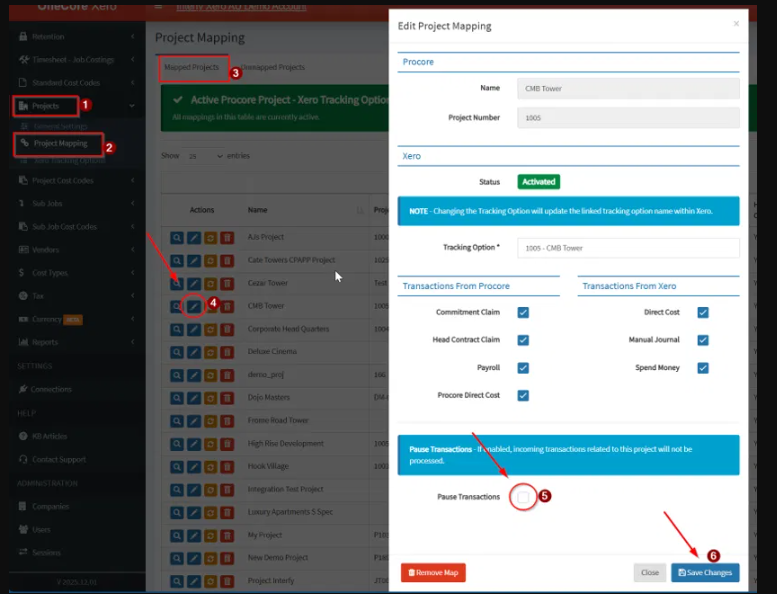
If you need to temporarily stop transactions syncing for a specific project, you can use the Pause Transactions option in the project mapping. While it’s enabled, incoming transactions related to that project from Procore or Xero will not be processed.
Steps
- In OneCore Xero, expand Projects in the left-hand menu.
- Click Project Mapping.
- Make sure you’re on the Mapped Projects tab.
- Find the project in the list and click the pencil (Edit) icon in the Actions column. The Edit Project Mapping window opens.
- Scroll down to the Pause Transactions section and tick the Pause Transactions checkbox.
- Click Save Changes.
Notes
- Pausing applies only to the project you edit. Other mapped projects continue to sync as normal.
- The project mapping stays in place while paused, so you don’t need to remove and recreate it.
- To resume syncing, repeat the steps above, untick Pause Transactions, and click Save Changes.