
Interfy Help
  • OneCore Status
  • Internal Login
  • Log Out
  1. Home
  2. Xero
  3. Mapping in OneCore
  4. How to setup default revenue/expense accounts for non-budgeted line items for OneCore Xero
Searching...

How to setup default revenue/expense accounts for non-budgeted line items for OneCore Xero

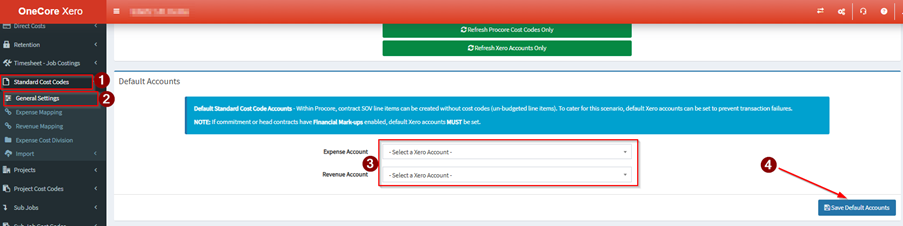
Default Standard Cost Code Accounts – Within Procore, contract SOV line items can be created without cost codes (un-budgeted line items). To cater for this scenario, default Xero accounts can be set to prevent transaction failures.

NOTE: If commitment or head contracts have Financial Mark-ups enabled, default Xero accounts MUST be set.

Global – this will apply to all projects

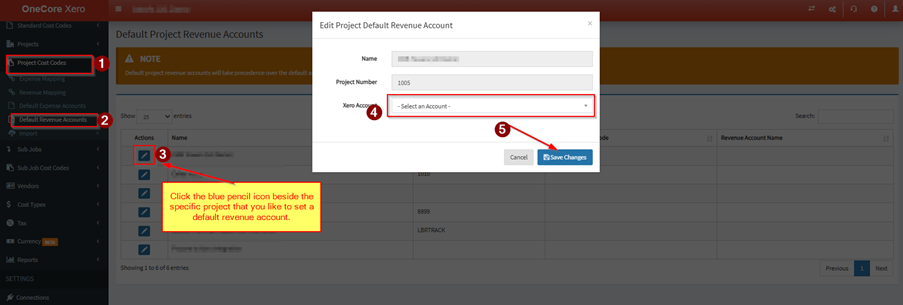
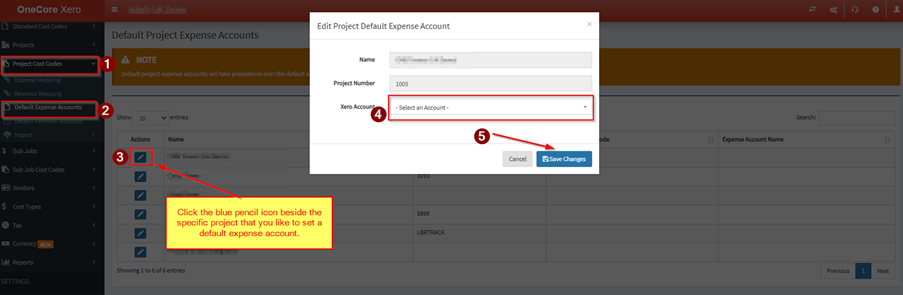
Project specific – this will apply to the specific project which will override the setting in Global

Global Default Revenue/Expense Accounts
Project Specific Default Revenue/Expense Accounts

Default Revenue Account
Default Expense Account
Updated on May 4, 2026
Tagged: Default ExpenseDefault Expense AccountDefault RevenueDefault Revenue AccountFinancial Mark-upsNon Budgetun-budgeted line items

Related Articles

  • Multi-currency setup for use with OneCore (XERO)
  • How to configure Default Cost type in Xero?
  • How to configure Many to One Cost Code Mapping in XERO?
  • When 2nd Xero tracking category is not available to map with Procore cost type?
  • How to map project specific cost codes in OneCore Xero
  • How to map Procore Vendors to Xero Contacts; vice versa
Interfy Help > Articles > Xero > Mapping in OneCore > How to setup default revenue/expense accounts for non-budgeted line items for OneCore Xero
© 2020 Interfy Pty Ltd
  • OneCore Status
  • Internal Login
  • Log Out