This article explains how to link a QuickBooks Online (QBO) Bill to a Procore Purchase Order (PO) or Subcontract using OneCore.
Prerequisites
Before proceeding, ensure that PO Bill Sync is enabled in OneCore and that your commitment accounting method and Cost Code Expense Mapping Type are correctly configured.
Enable PO Bill Sync in OneCore
- In OneCore, go to Invoices > Commitment Settings.
- Enable PO Bills Sync.
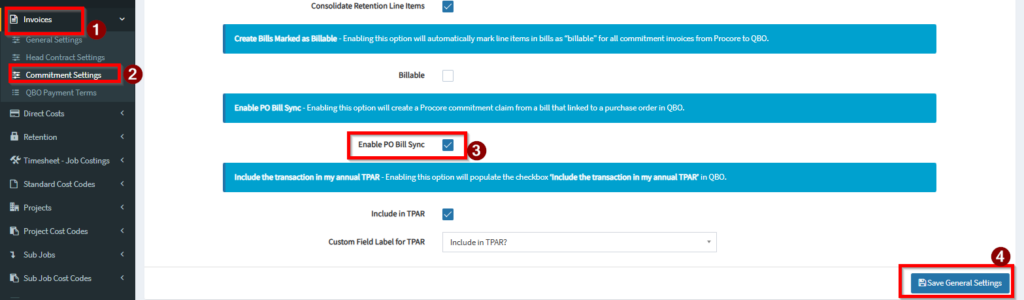
What this does:
Enabling PO Bill Sync allows OneCore to automatically create a Procore commitment claim when a QBO Bill is linked to a Purchase Order.
Commitment Accounting Methods
There are two accounting methods used for Procore Commitments (Purchase Orders and Subcontracts). Ensure your mapping type aligns with the accounting method used in Procore.
Accounting Method and Mapping Type
- Unit / Quantity-Based
- Required Mapping Type: Products/Services (Items)
- Amount-Based
- Required Mapping Type: Category (Chart of Accounts)
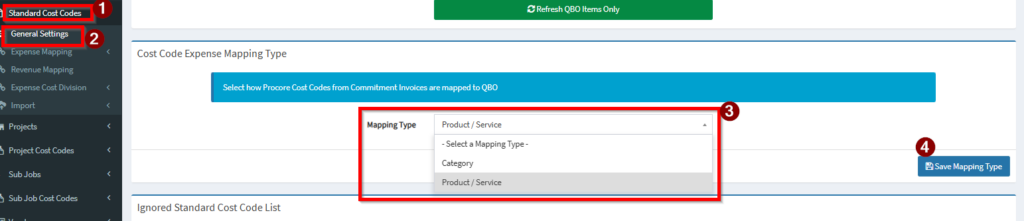
Verify Cost Code Expense Mapping Type
- Navigate to OneCore > Standard Cost Codes>General Settings.
- Confirm that the Mapping Type matches the Purchase Order or Subcontract’s Schedule of Values accounting method in Procore.
Steps to Link a QBO Bill to a Procore Commitment
Step 1: Create the Purchase Order or Subcontract in Procore
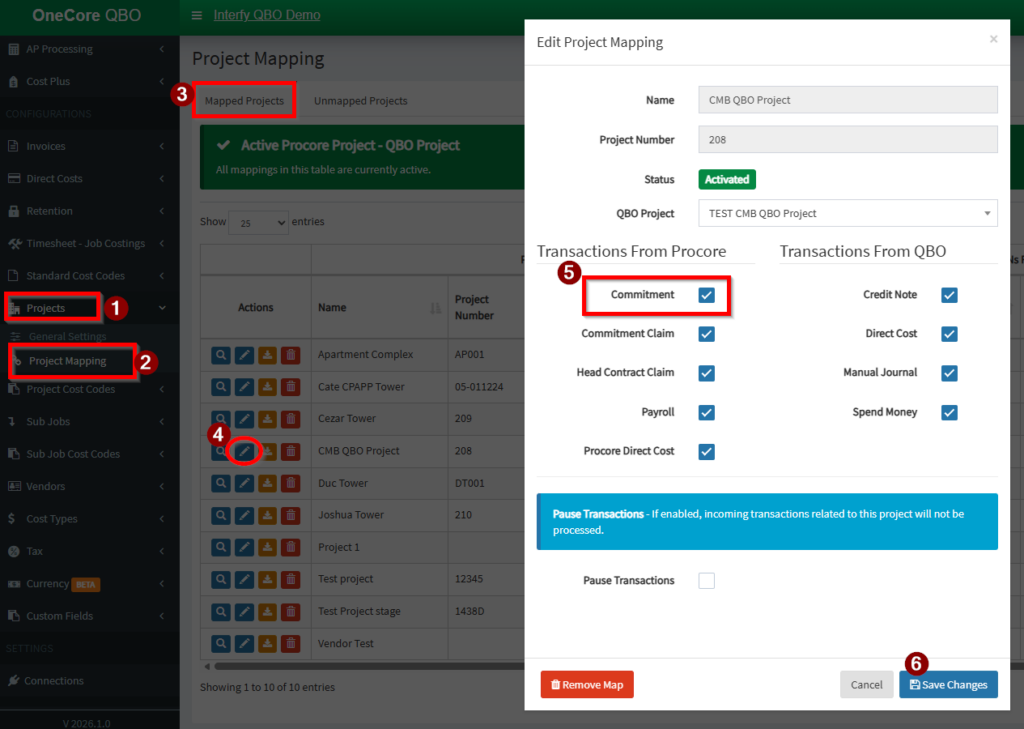
Create the Purchase Order or Subcontract in Procore. Once contract is approved, a corresponding Purchase Order will be generated in QBO. Make sure that the commitment transaction type is enabled in OneCore>Projects>Project mapping>Edit Project.
Step 2: Copy the Purchase Order to a Bill in QBO
- In QuickBooks Online, open the generated Purchase Order.
- Select Copy to Bill.
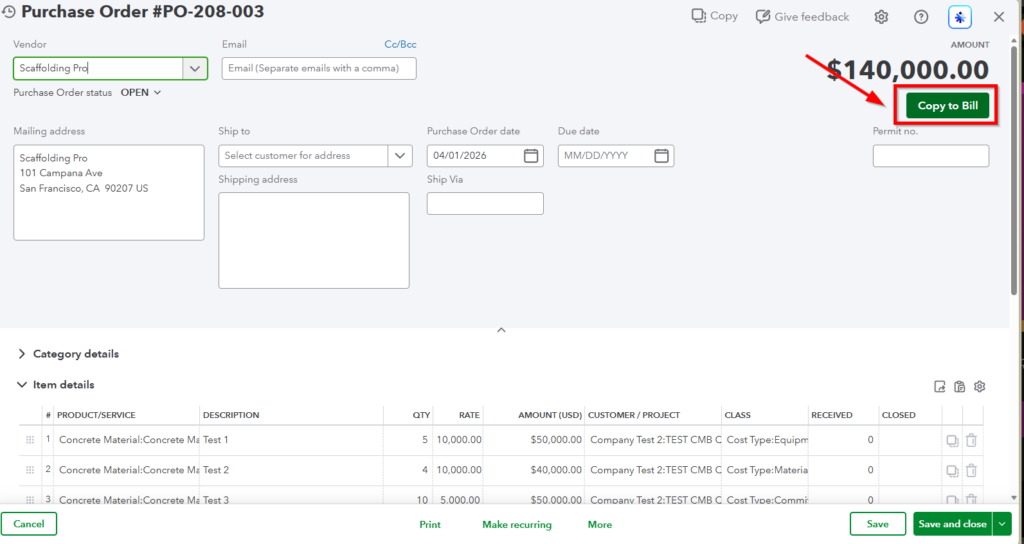
This action creates a draft bill that is automatically linked to the Purchase Order.
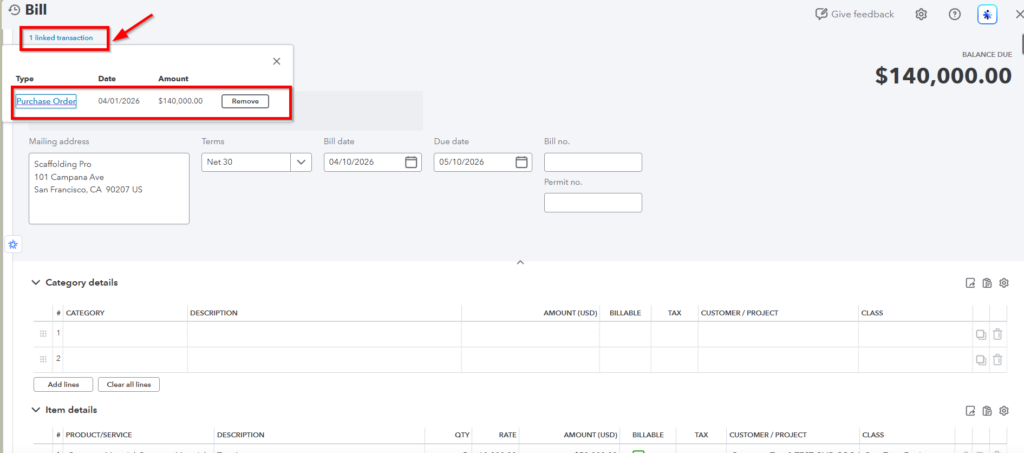
Step 3: Save the Bill to Trigger Sync
- Enter and update the required fields on the QBO Bill.
- Save the Bill.
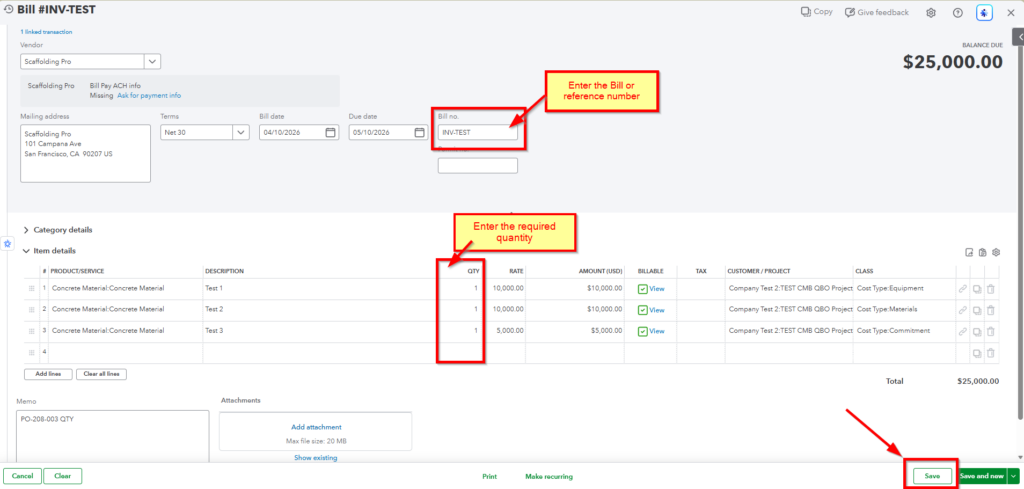
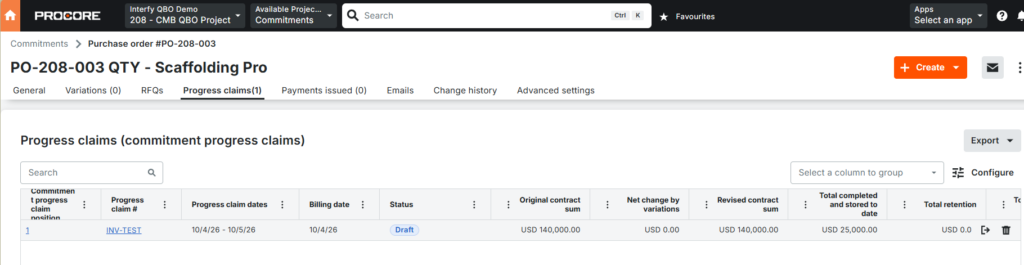
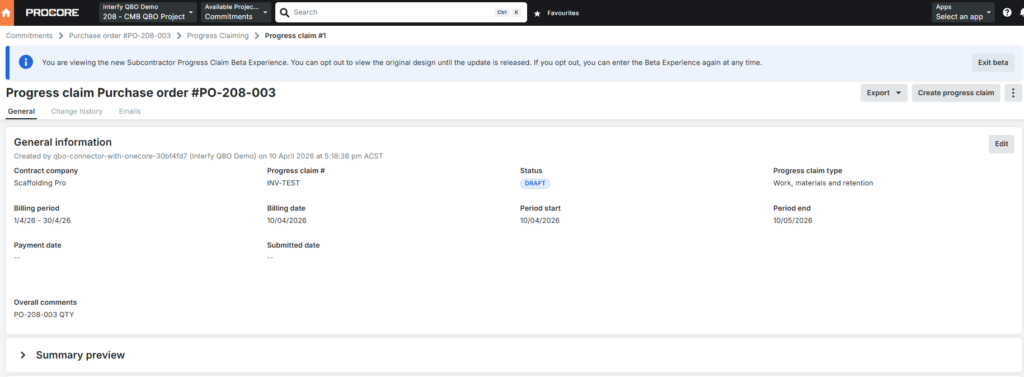
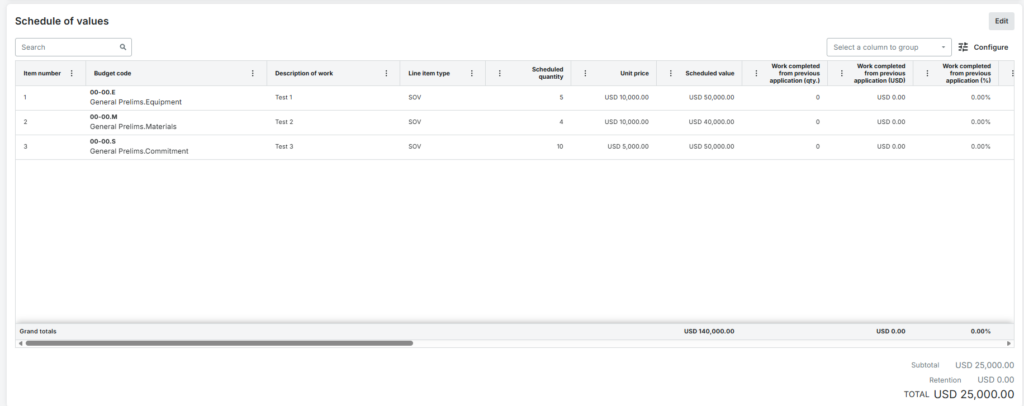
Saving the bill triggers the sync, creating a corresponding commitment claim in Procore.
A draft progress claim will then be generated in the linked Procore purchase order/subcontract.