
You will have two options for the Timesheet & Labor Job Costing integration: either Procore to QBO or QBO to Procore integration.
- Procore to QBO - Once a timesheet entry is created and approved in Procore, the integration can create a corresponding Payroll Direct Cost in Procore under the project selected, as well as send over the hours to QBO to create a Time Activity/Time Charge under the project/sub customer in QBO that you can use to run Payroll in QBO.
- QBO to Procore - Once a QBO time entry is created and approved, OneCore will then create a corresponding Payroll Direct Cost in Procore under the project.
Here are the initial steps to complete the setup:
1. Request Interfy support to activate the module via https://onecore.interfy.com.au/Support
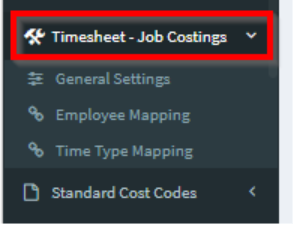
2. Once the module has been activated, the “Timesheet – Job Costings” menu will appear.
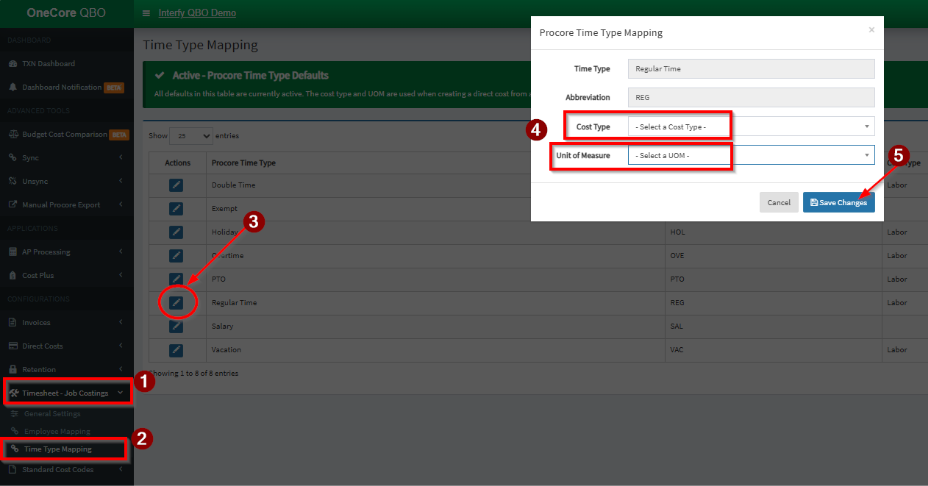
3. Select Time Type Mapping and click the Pencil icon to map the Procore Time Type with the appropriate QBO Cost Type and unit of measure. Click Save Changes.
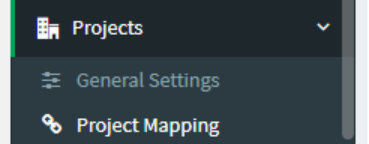
4. Navigate to Projects > Project Mapping
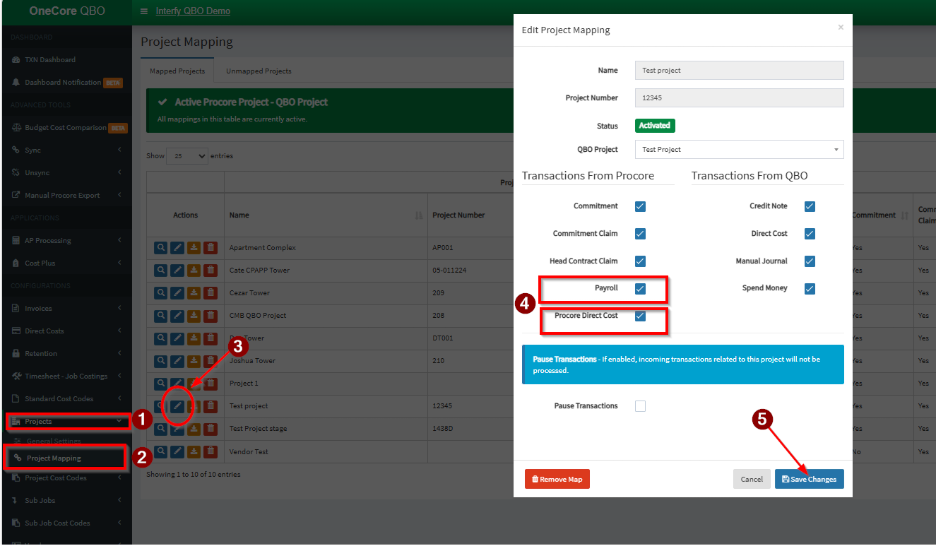
5. To activate this integration for each project, click on the Pencil icon on the desired Procore Project, and check the box for both “Payroll” and “Procore Direct Cost”. Click Save Changes once done.
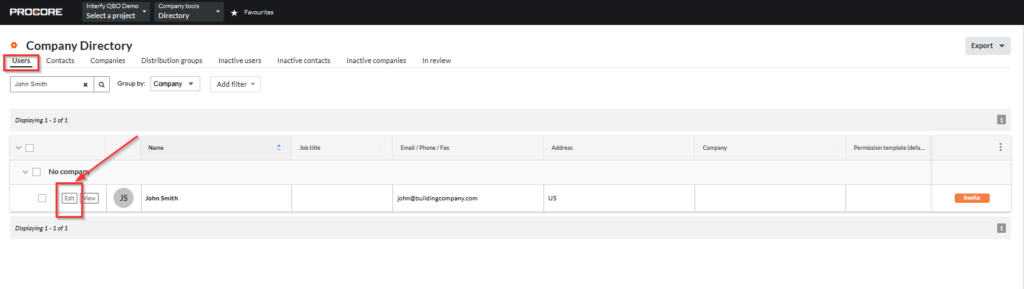
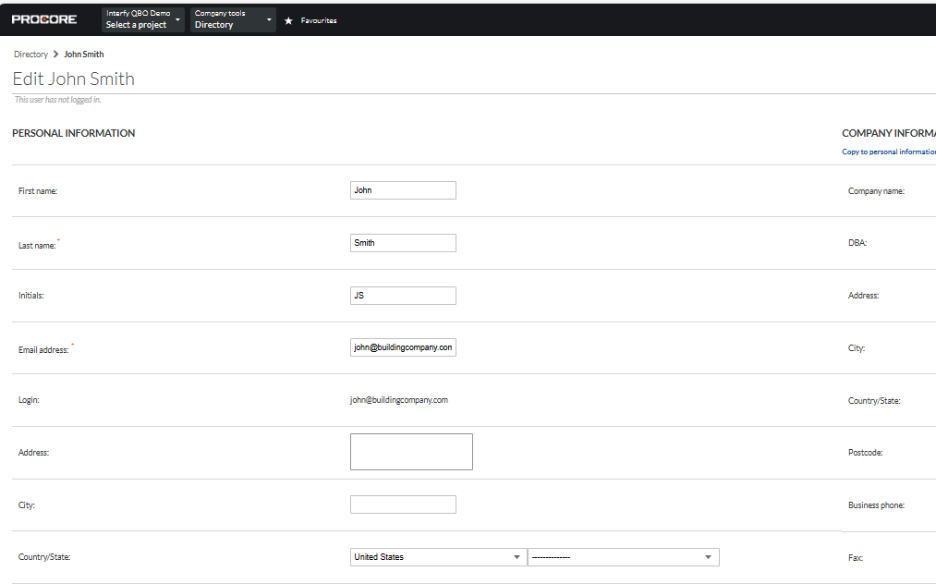
6. In Procore, ensure you have enabled users to be employees by navigating to the user and editing with a tick next to “Is Employee of (your instance)”- Directory/Users/
For example: Employee John Smith
Put a tick in the checkbox next to Is Employee of (Your Company):
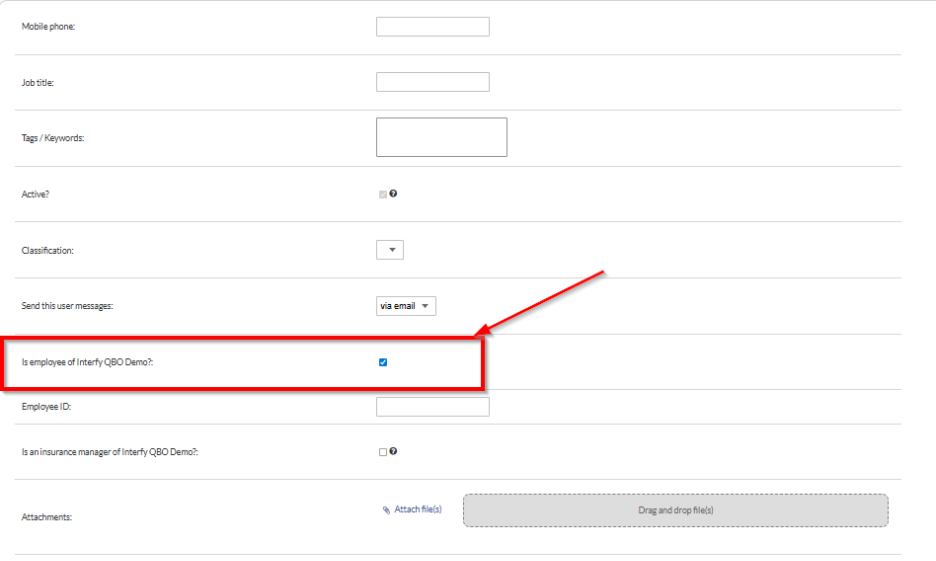
7. Go to General Settings and do a quick refresh of your Timesheet – Job Cost Data in OneCore to fetch all these changes made on your Procore employees.

Once the initial set-up is completed, the succeeding steps are now based on the specific integration type you require.
QBO to Procore Integration
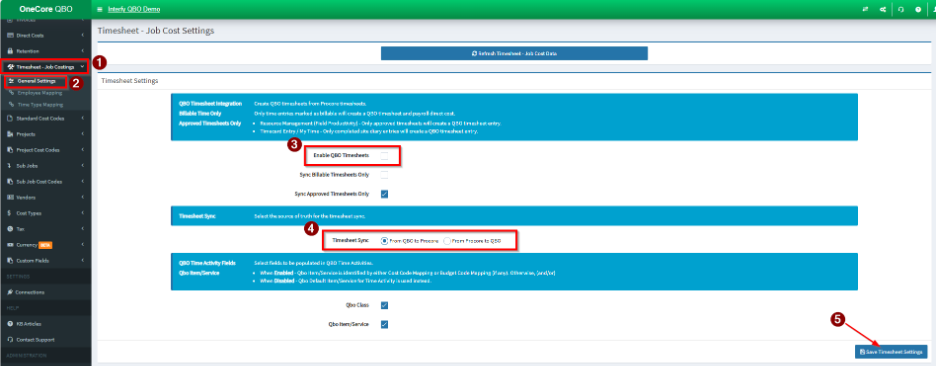
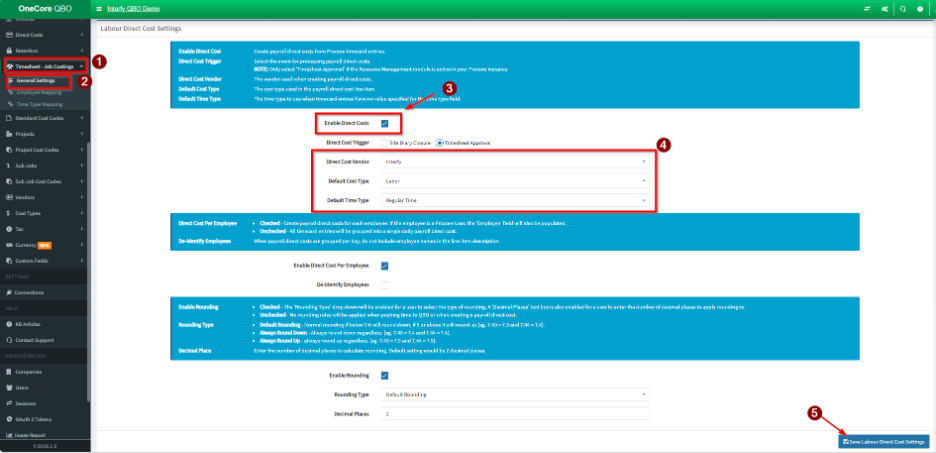
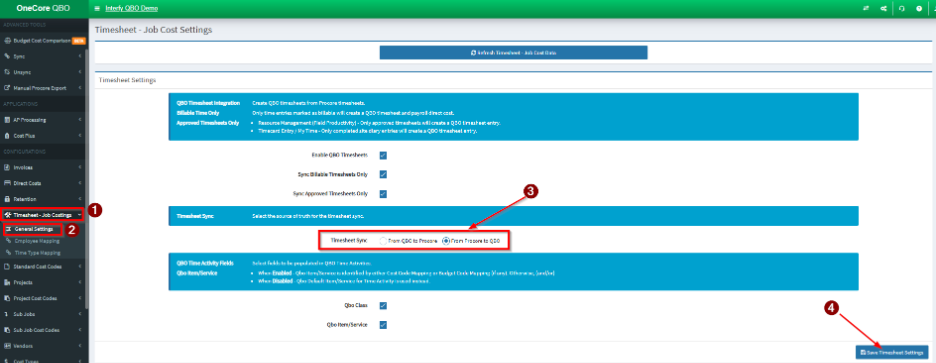
1. Select QBO to Procore as your Timesheet Sync option under Timesheet General Settings and disable the “Enable QBO Timesheet” option
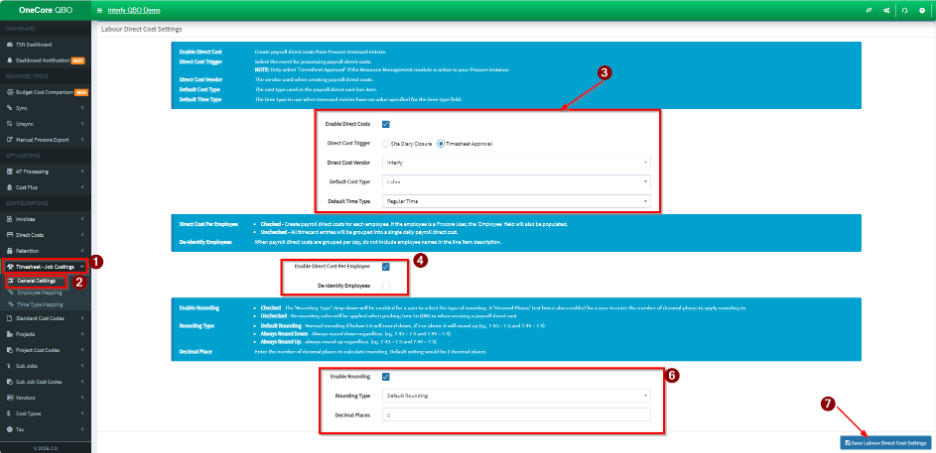
2. Configure your preferred Labor/Payroll Global Direct Cost settings that the integration will follow when creating the Payroll Direct Cost from your QBO Time Entries.
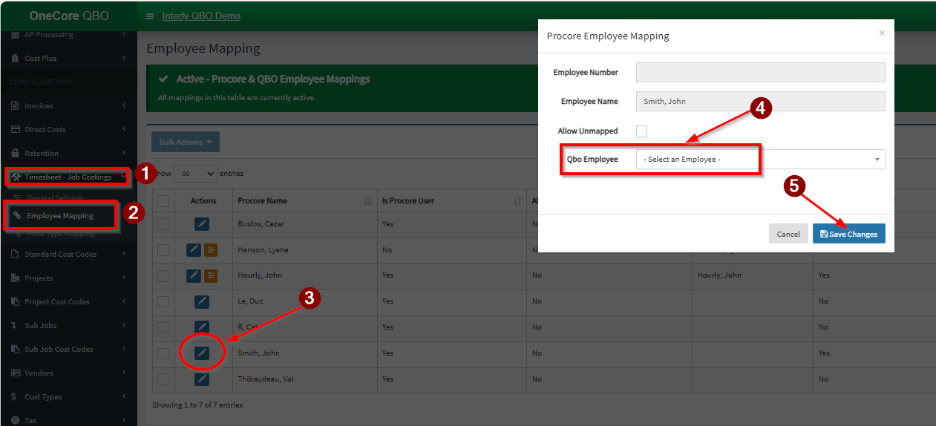
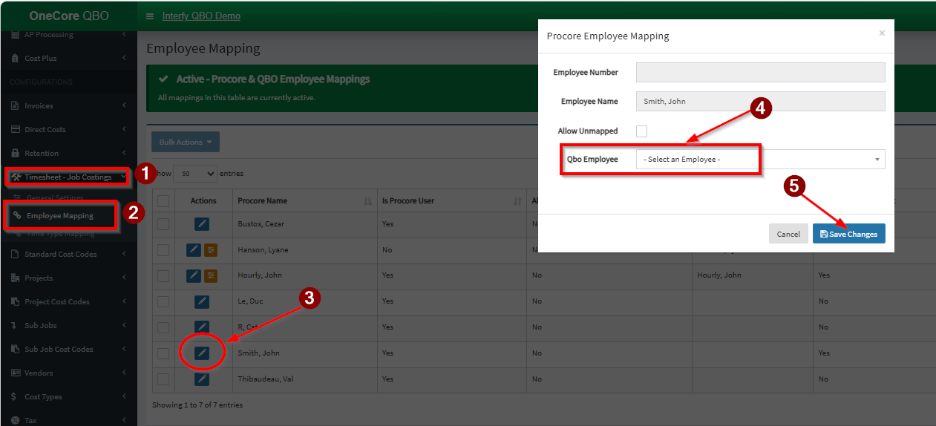
3. Go to Employee Mapping and click on the pencil icon of each Procore employee to map them to their corresponding QBO employee.
For Example: Employee John Smith
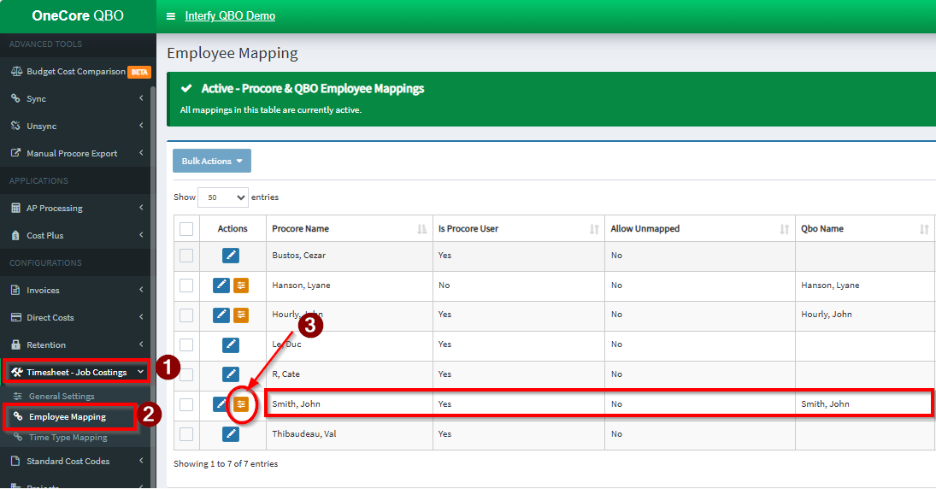
4. Once the employee is mapped, an orange icon will appear. Click this to open the employee settings.
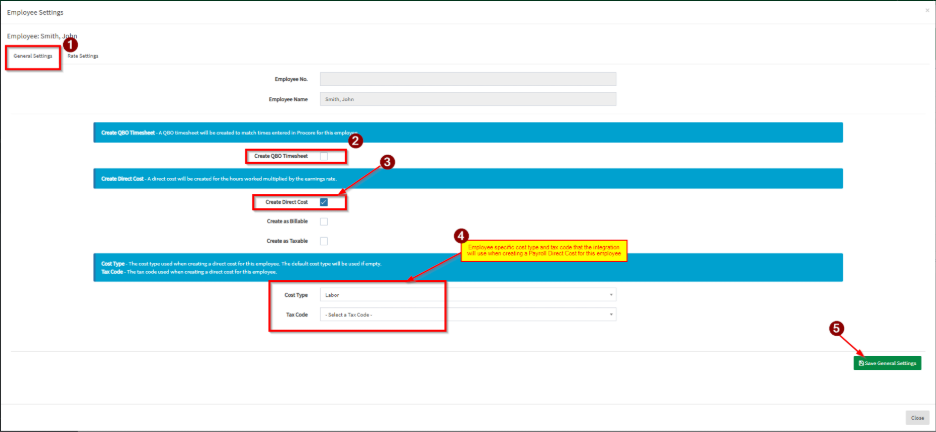
5. Under General Settings, you can configure the direct cost settings the integration will follow for this specific employee. Please note that this will override the global settings configured under Timesheet > General Settings. In case these were left blank, the integration will follow the settings configured on the global level.
Please note that QBO Timesheet should be disabled as the source will be coming from QBO.
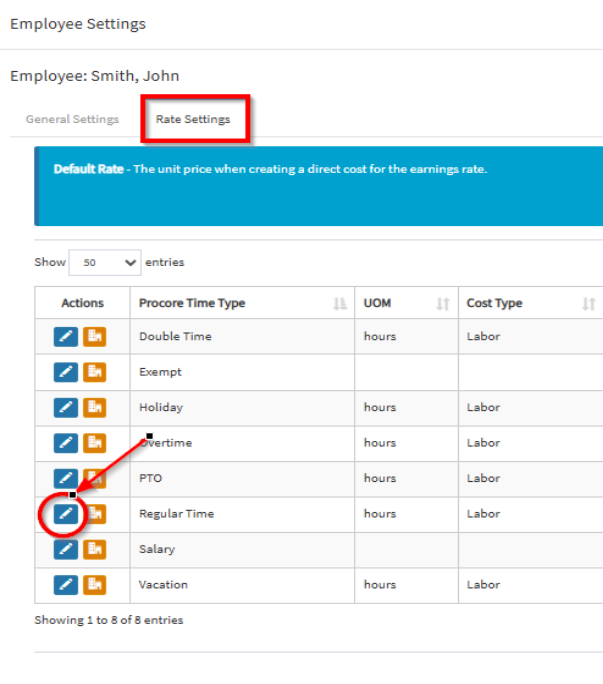
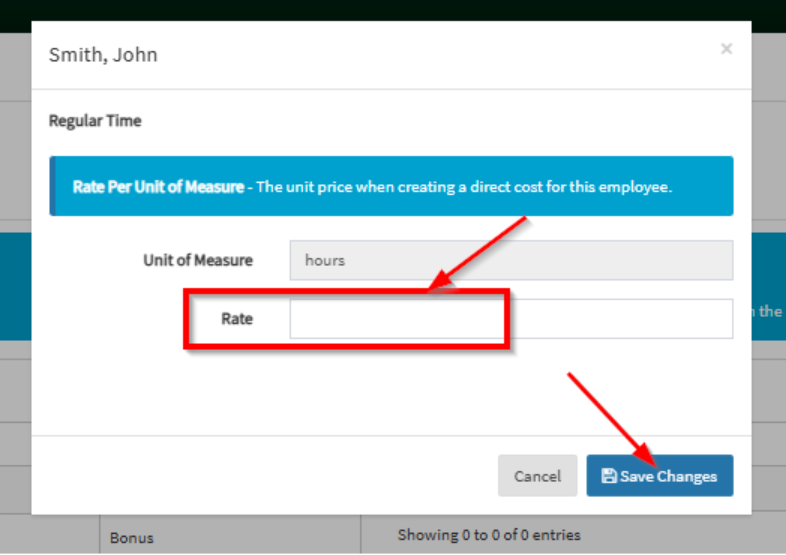
6. Go to the Rate Settings tab, and click the blue pencil icon for each Procore Time Type to configure the default rate settings. Click Save Changes.
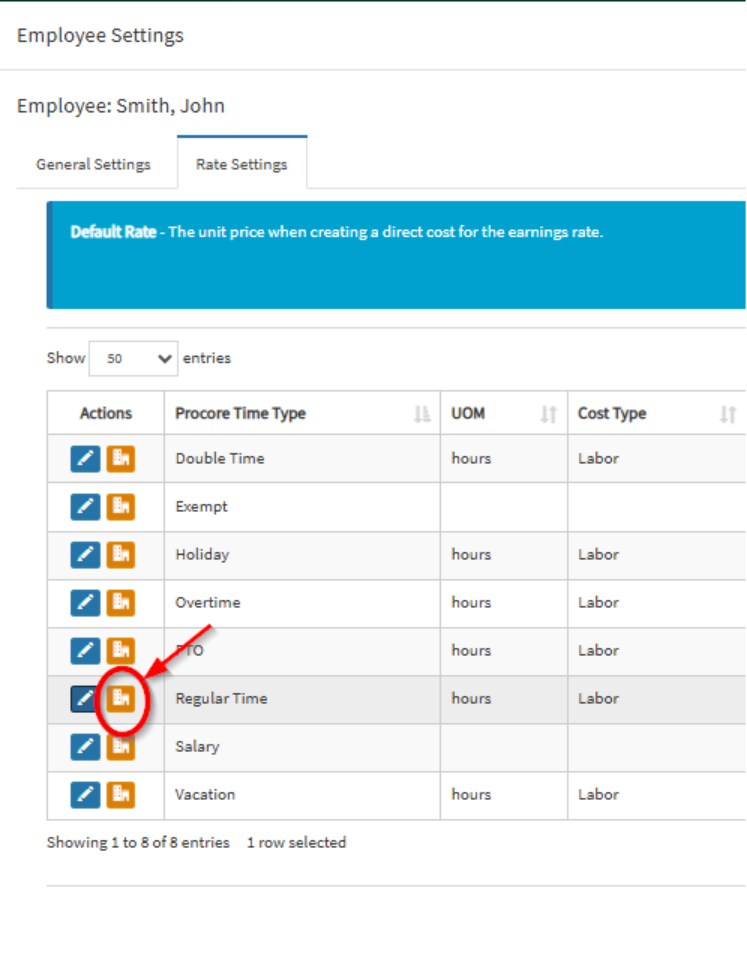
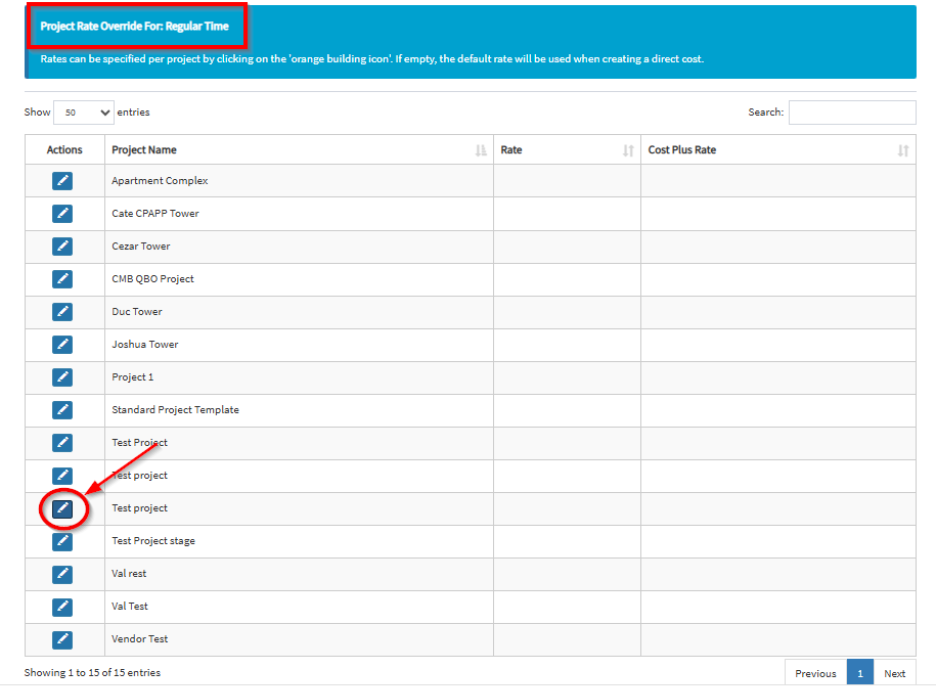
If the employee has a different rate per project, you can enter a project-specific rate by clicking the orange icon.
Once completed, you can start approving time entries created in QBO and they will flow through to the integration and create a Payroll Direct Cost under the project selected.
Procore to QBO Integration
With the Procore to QuickBooks Online (QBO) timesheet integration, OneCore can send hours as Time Activities by Customer in QBO and as payroll direct costs in Procore.
Procore Timesheets → OneCore → QBO Time Activities (by employee and customer/project)
Procore Timesheets → OneCore → Procore Project Payroll Direct Costs
1. Select Procore to QBO as your Timesheet Sync option under Timesheet General Settings
2. Configure your preferred Global Payroll Direct Cost settings that the integration will follow when creating the Payroll Direct Cost.
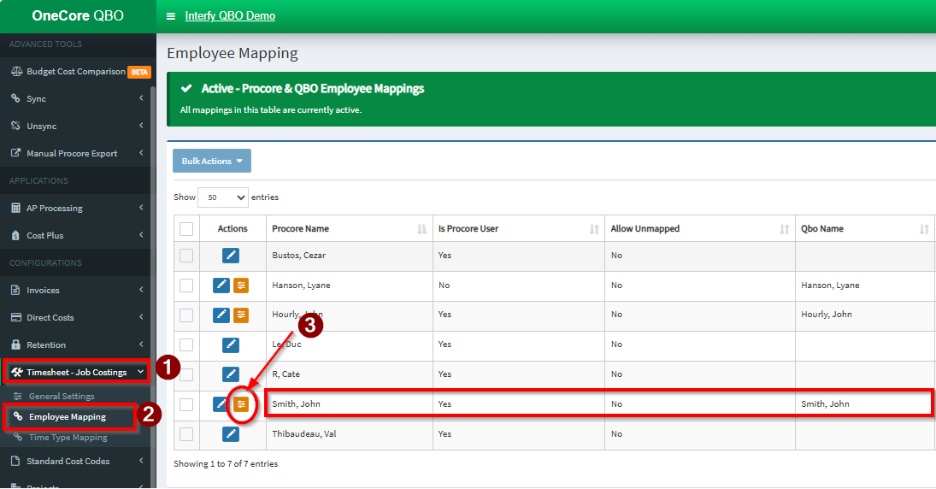
3. Go to Employee Mapping and click on the pencil icon of each Procore employee to map them to their corresponding QBO employee.
For Example: Employee John Smith
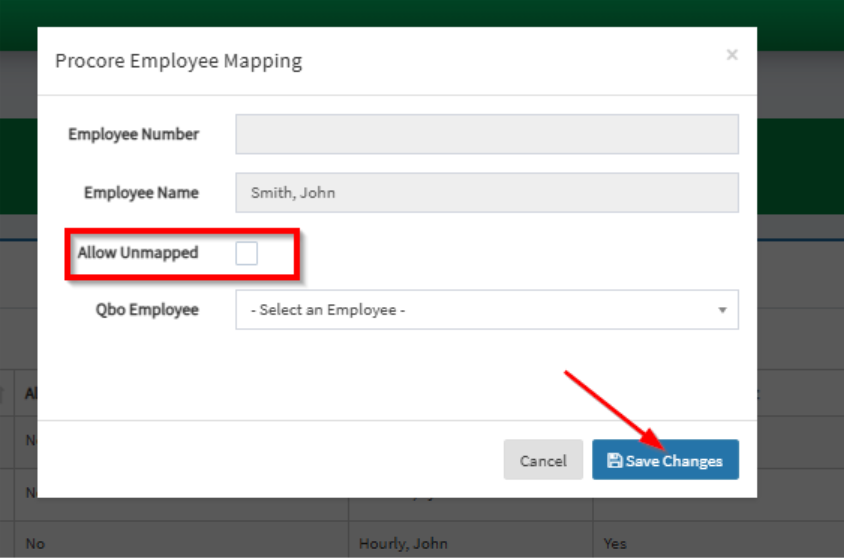
Note: If a certain employee does not need a QBO Timesheet, you can use “Allow Unmapped”.
4. Once the employee is mapped or if “allow unmapped” is selected, an orange icon will appear. Click this to open the employee settings.
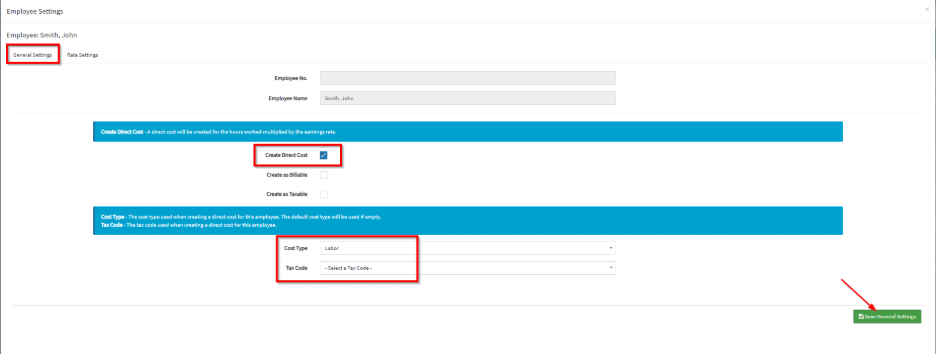
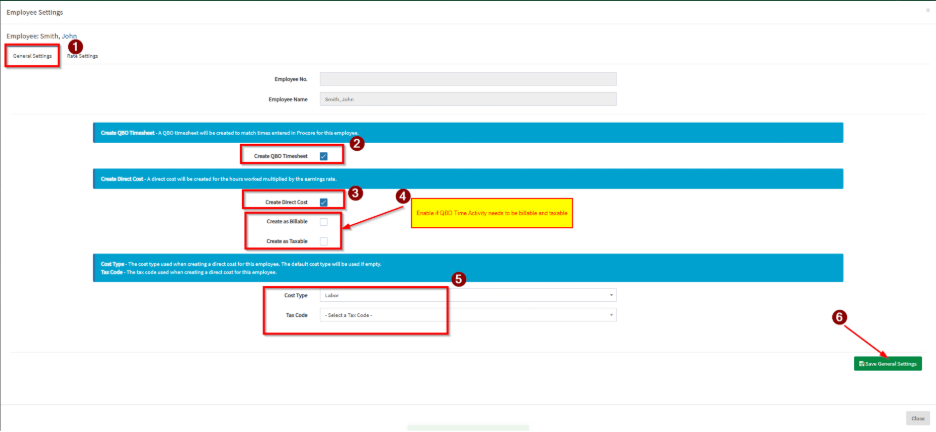
5. Under General Settings, you can configure the QBO Timesheet and Direct Cost settings that the integration will follow for this specific employee. Please note that this will override the global settings configured under Timesheet > General Settings.
- If Allow Unmapped is selected for the employee, tick the check box for “Create Direct Cost” and select the preferred employee-specific cost type and tax code that the integration will use when creating the Payroll Direct Cost
- If Mapped to a QBO employee, “Create Direct Cost” and “Enable QBO Timesheet” should be enabled. Also, you will need to configure the QBO Time Activity that will be created if it is Billable and Taxable.
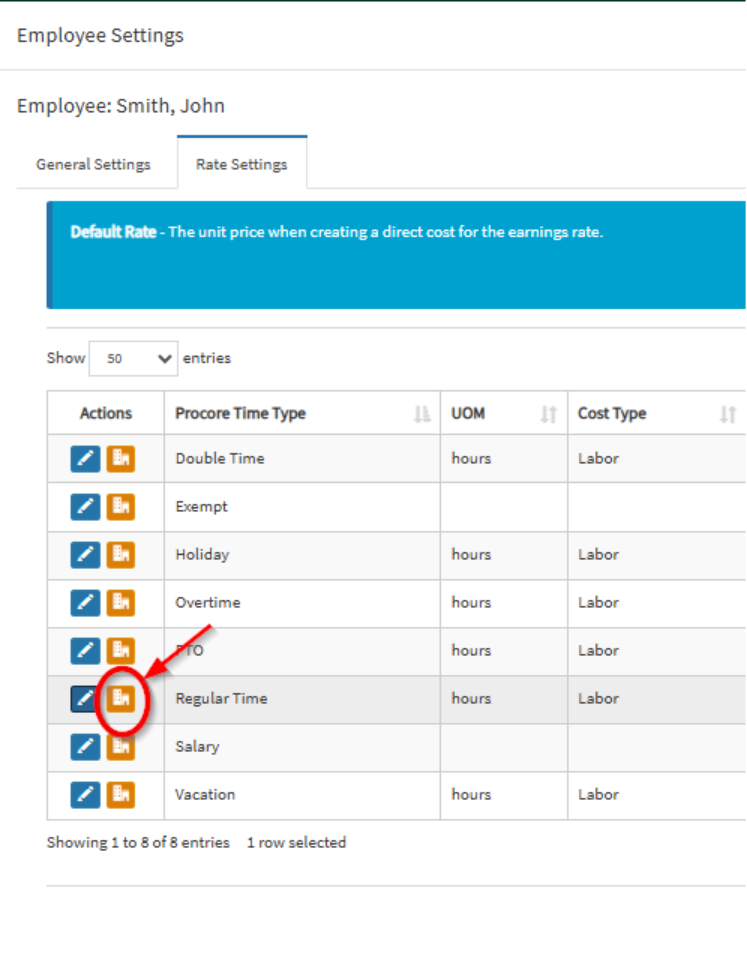
6. Go to the Rate Settings tab and click the blue pencil icon for each Procore Time Type to configure the default rate settings. Click Save Changes.
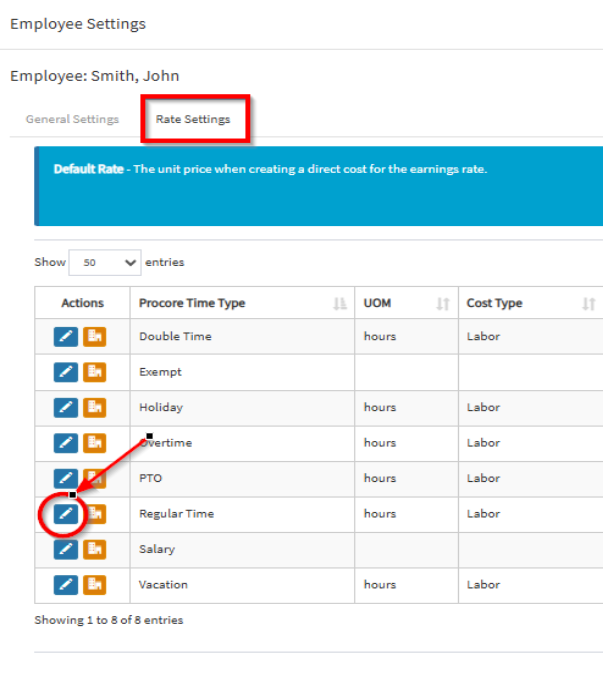
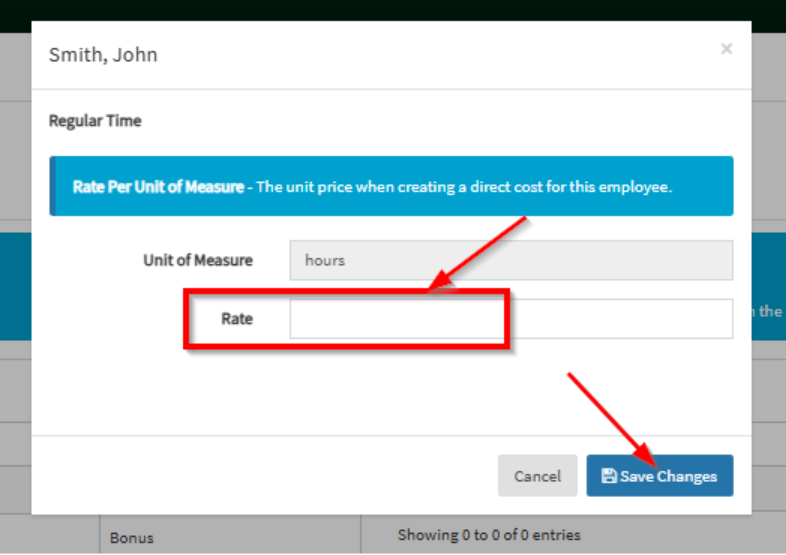
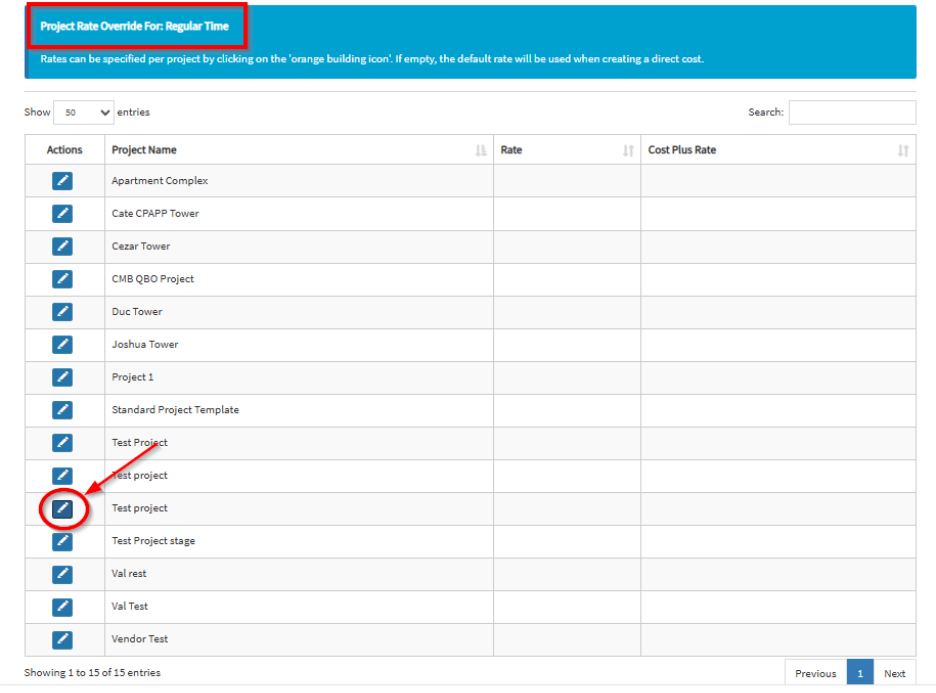
If the employee has a different rate per project, you can enter a project-specific rate by clicking the orange icon.
Once configuration is completed, any approved Procore timesheet will be processed by the integration and will create a corresponding Payroll Direct Cost and QBO Time Activity.
Please note that the rates configured in OneCore will be followed by the integration when creating the QBO Time Activity and will override the rates entered in QBO.