Requirements from OneCore Odoo:
- Mapped Vendor
- Mapped Project
- Mapped Cost Type
- Mapped Expense Cost Code at Project Level
To create
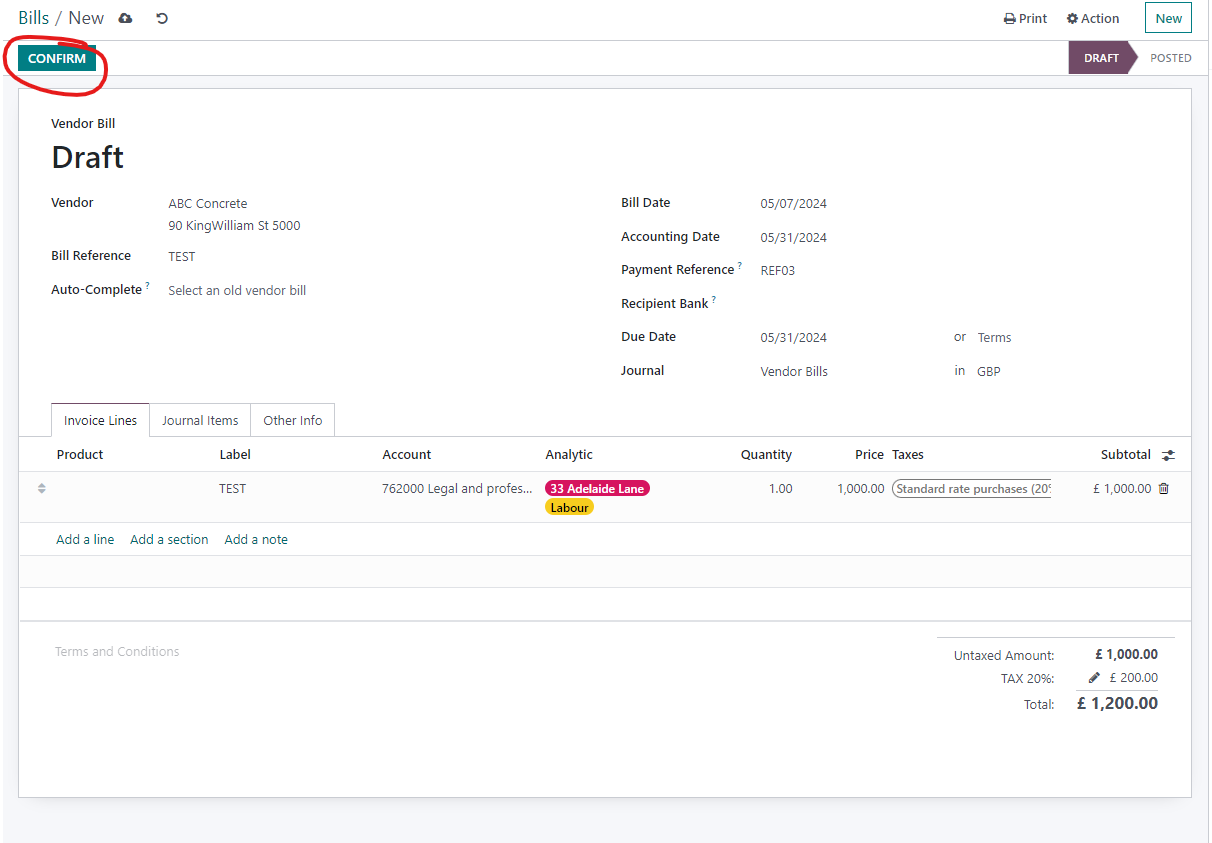
1. From Odoo, open New > Bill.
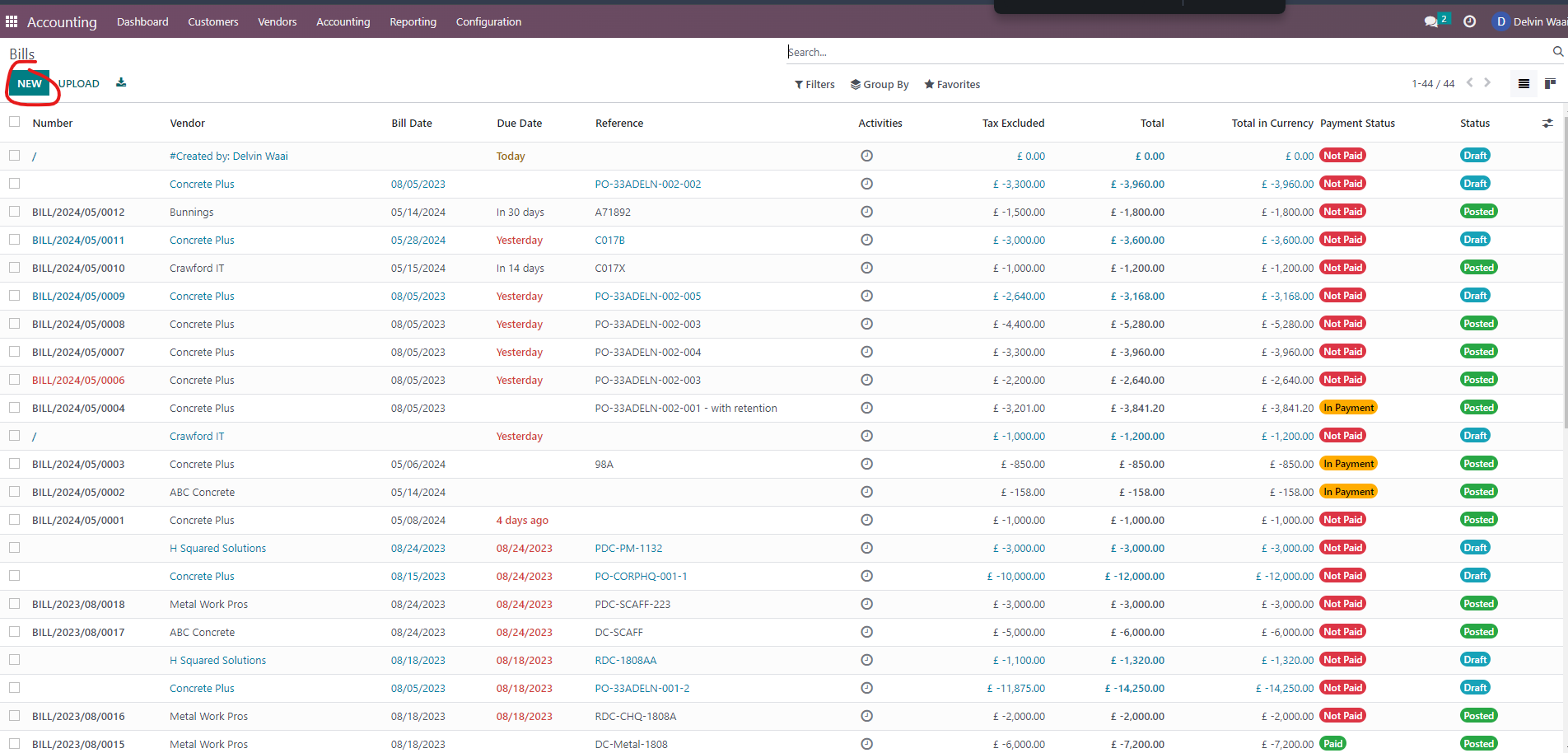
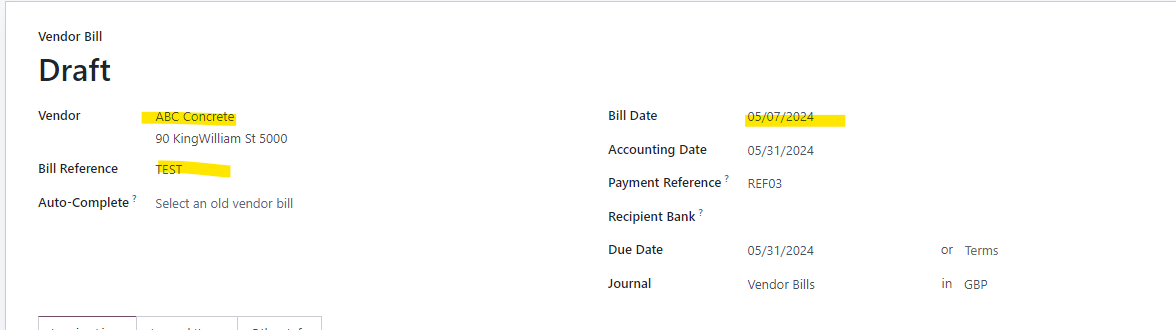
2. Select a vendor, due date, and enter a Bill no.
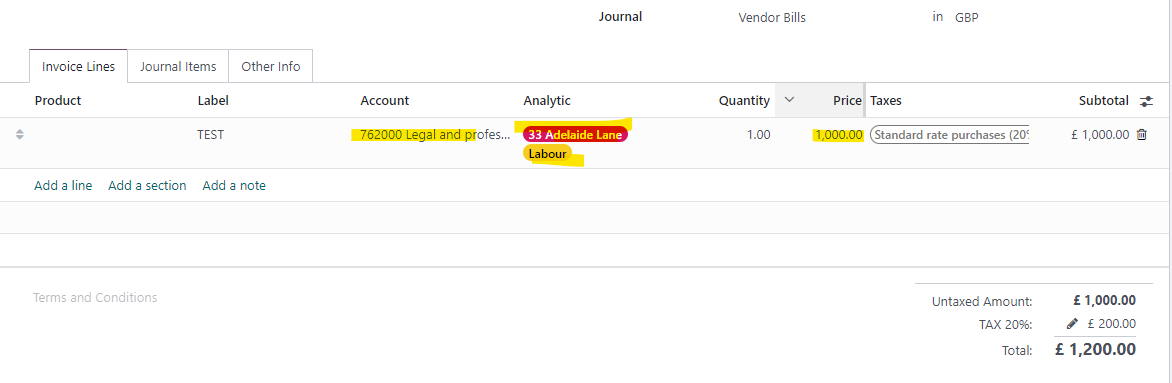
4. Enter the description, quantity, unit price, cost code account, project and cost type.
5. Click on Save once complete.
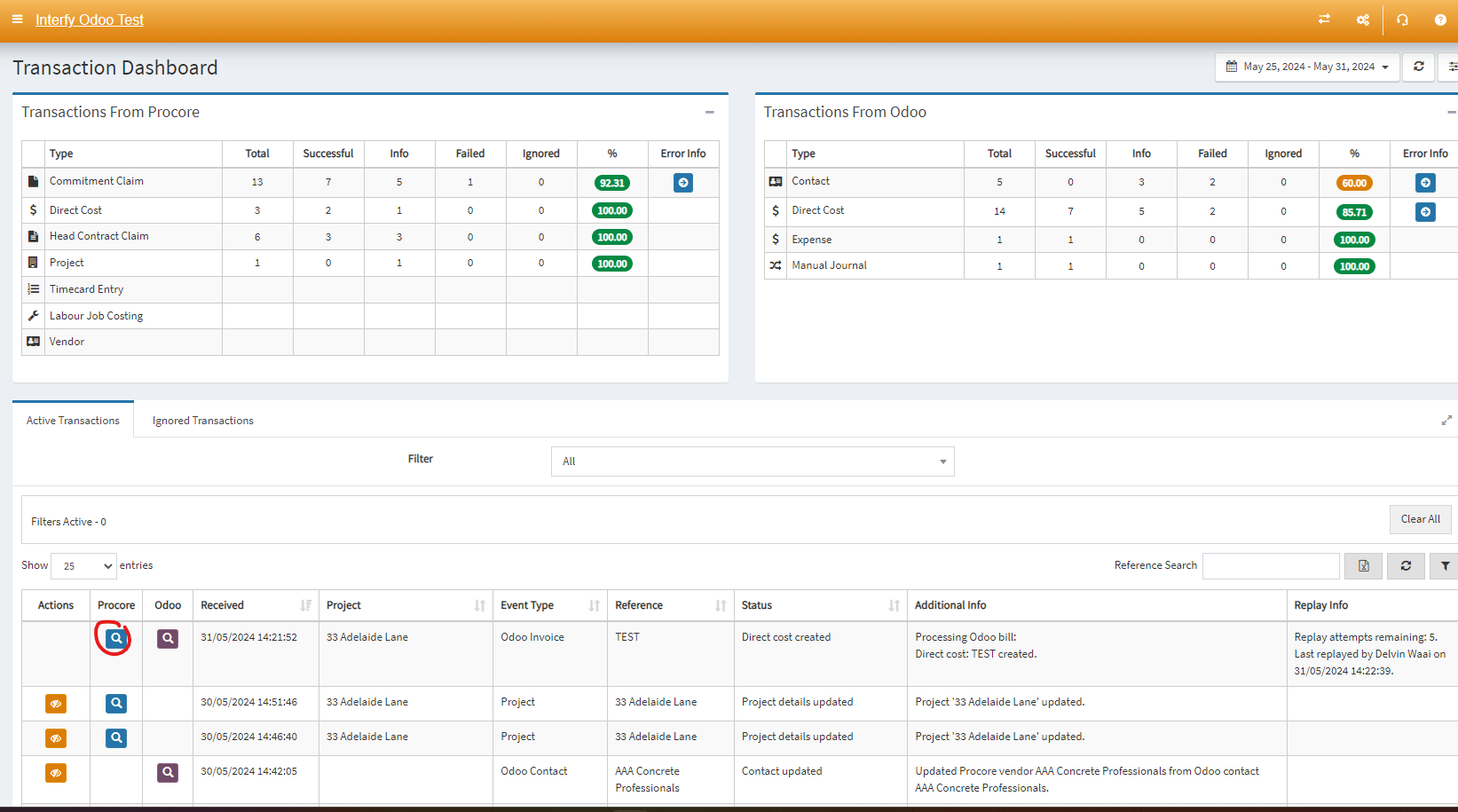
6. After 1 minute or so, navigate to OneCore Transaction Dashboard, click Search Icon in Procore column.
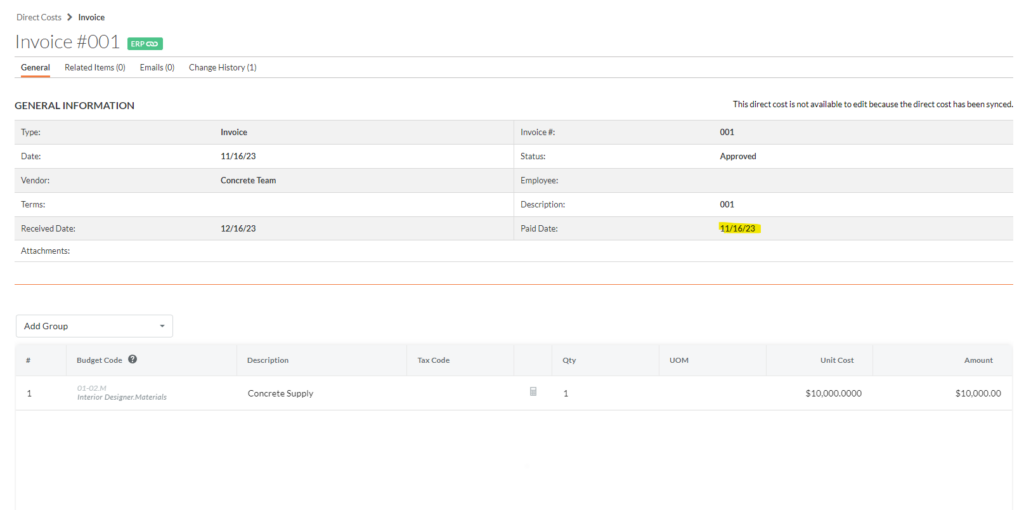
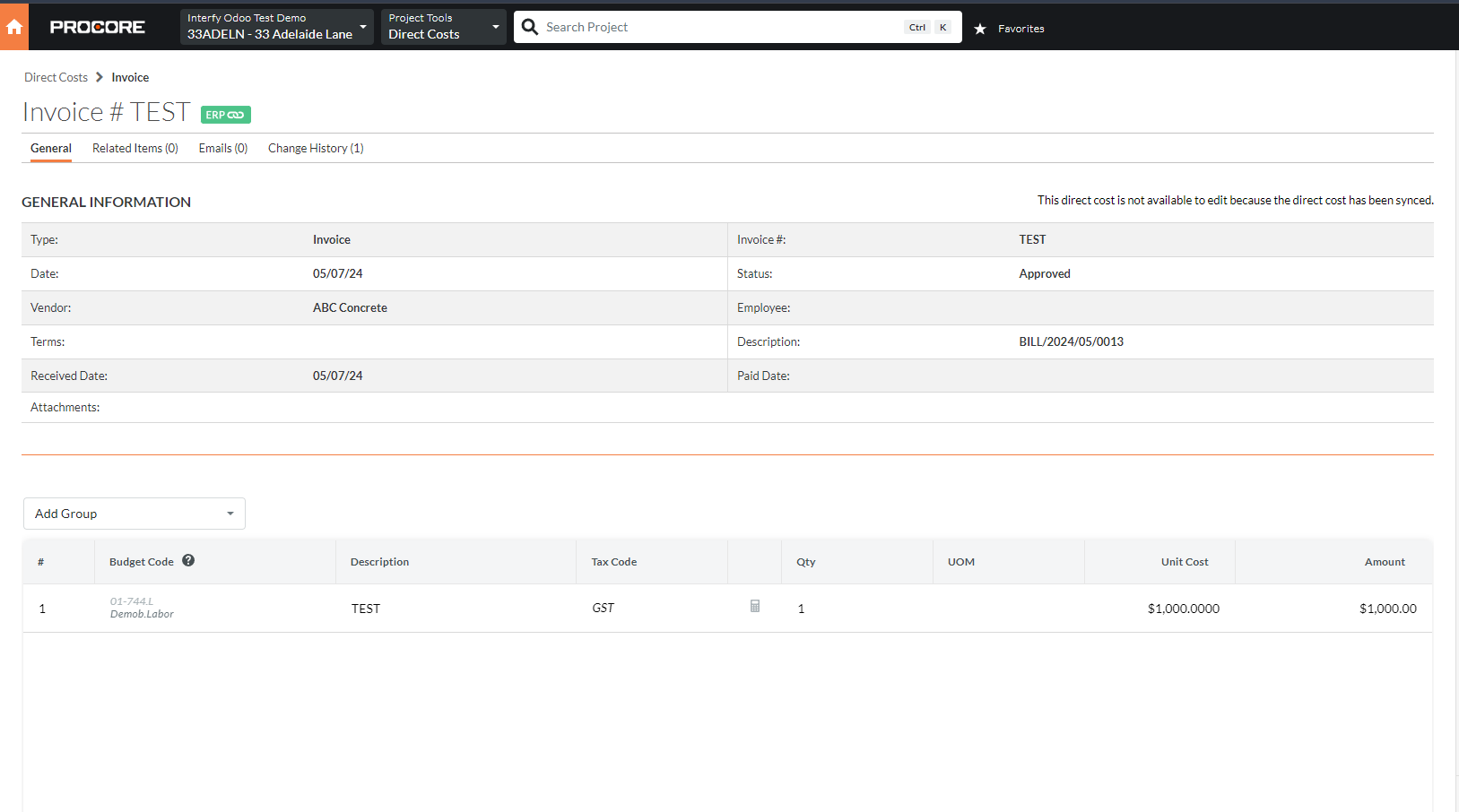
7. This is the sample invoice created from Odoo Bill that is being sent to Procore Direct Cost.
To pay
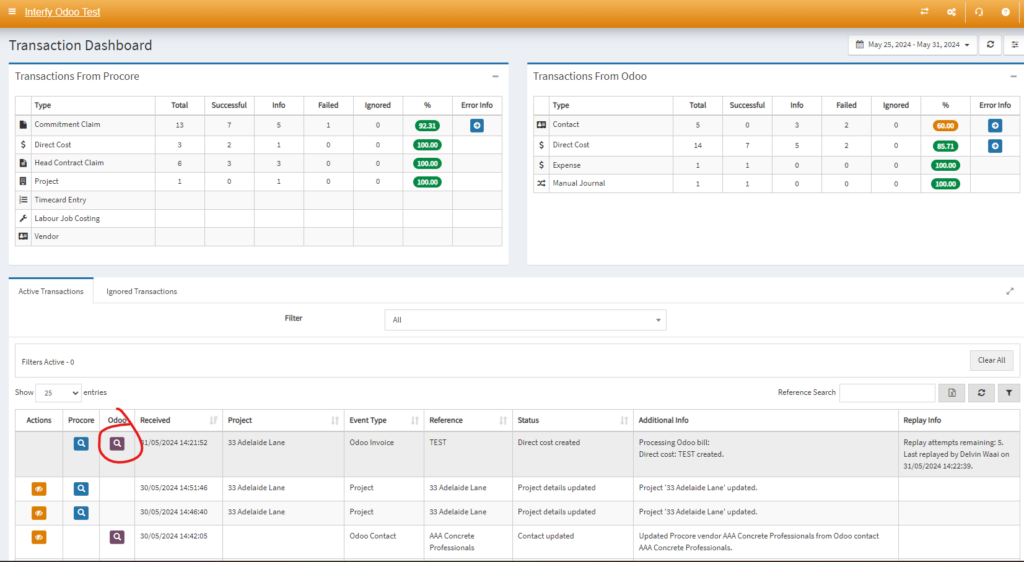
1. Navigate back to Odoo’s bill through OneCore Odoo Transaction Dashboard.
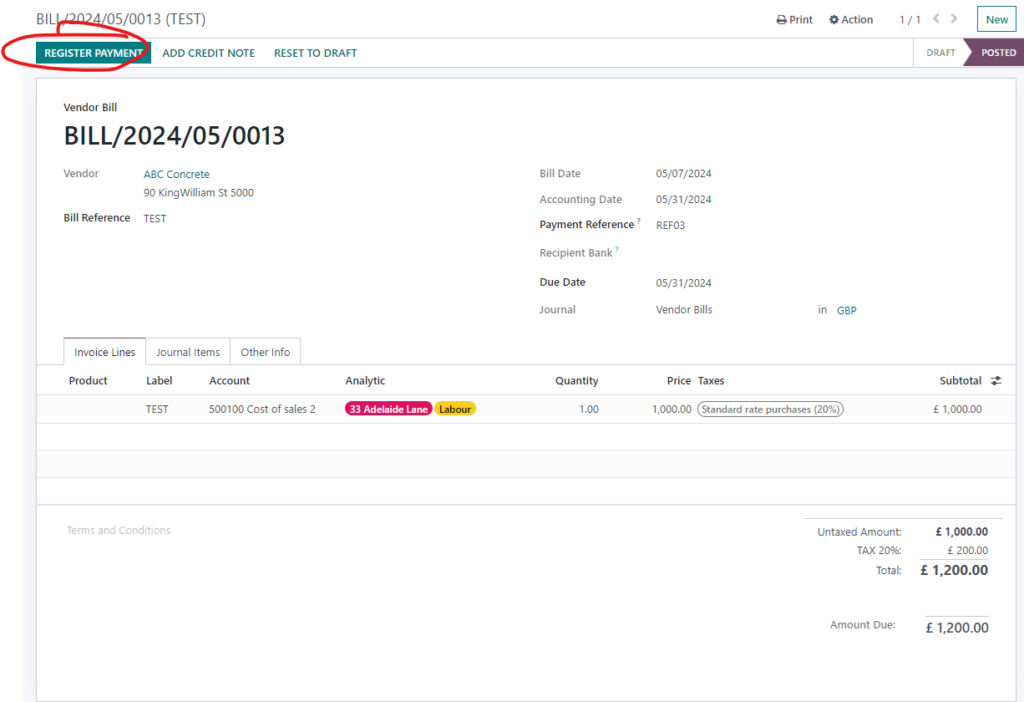
2. Click “Register Payment” in the Odoo Bill
3. Fill the payment details
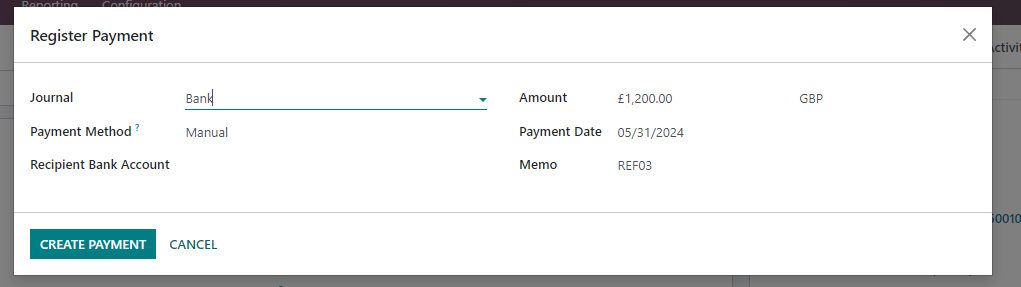
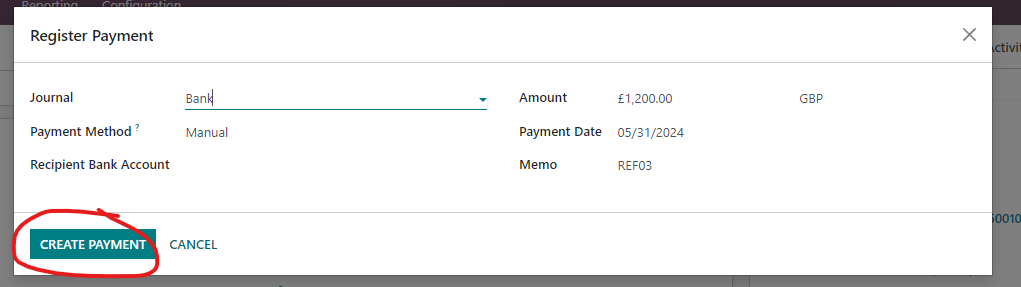
4. Click ‘Create Payment‘
5. After the bill is reconciled in the journal items (to mark the bill as paid), we will process the paid date of this bill.
NOTE
OneCore Odoo will not update the paid date back to direct cost unless it is shown as ‘Paid’ in Odoo invoice
6. After few minutes, direct back to OneCore Odoo, check the transaction.
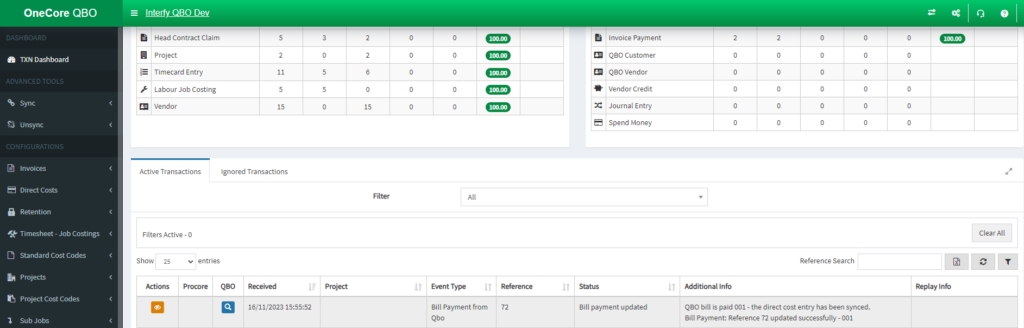
7. Open the direct cost that was being created in Procore, the paid date should be updated.