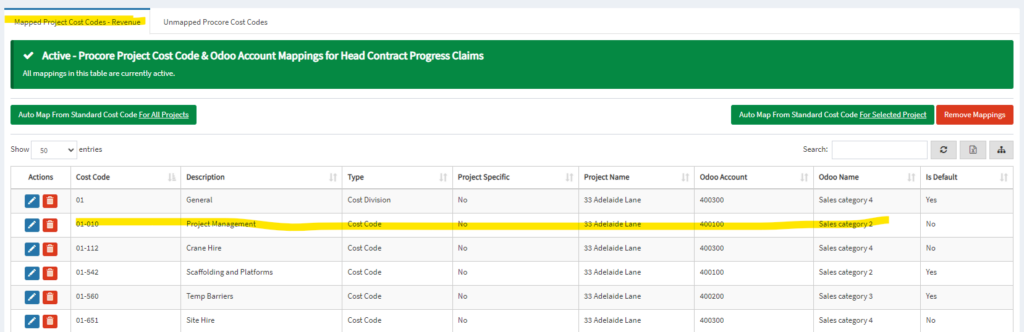
The following tutorial applies to Project Expense and Project Revenue Mapping.
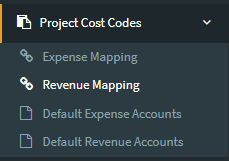
1. From Odoo, go to Project Cost Codes > Revenue Mapping.
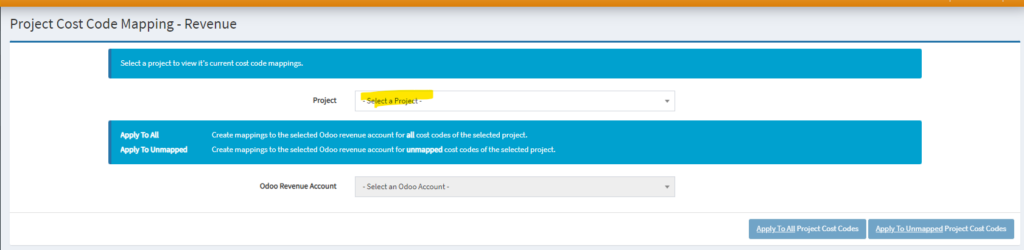
2. Select a project.
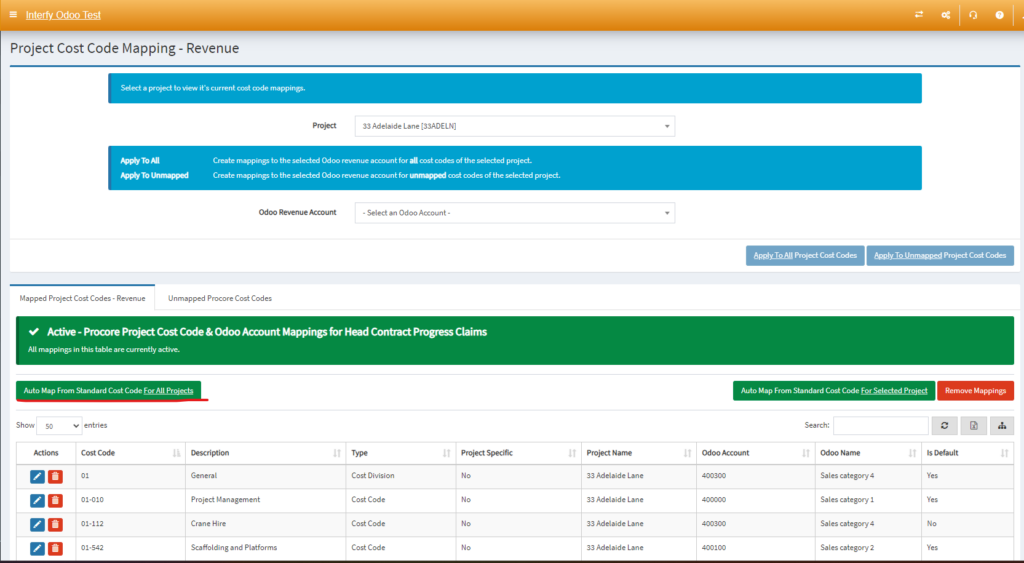
3. If the project cost codes are created from the standard cost codes, they can be auto-mapped by selecting the project/s and clicking auto map from standard cost codes for selected or all projects.
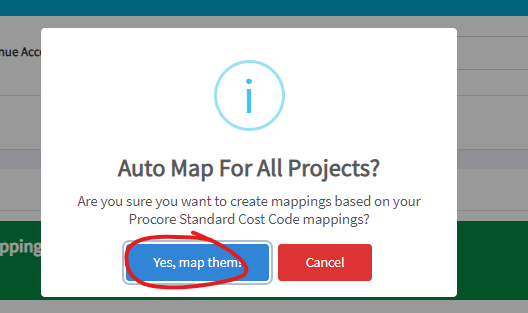
4. Click Yes to auto-map the cost codes. Once mapped the cost codes will appear under the Mapped Cost Codes tab.
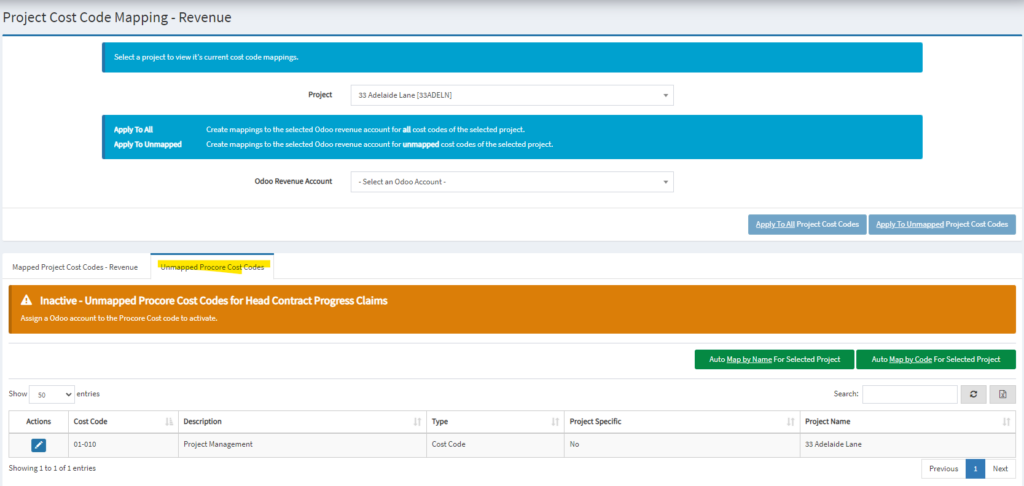
5. If the project cost codes are not created from the standard cost codes, they will need to be manually mapped. Select the Unmapped Cost Codes tab.
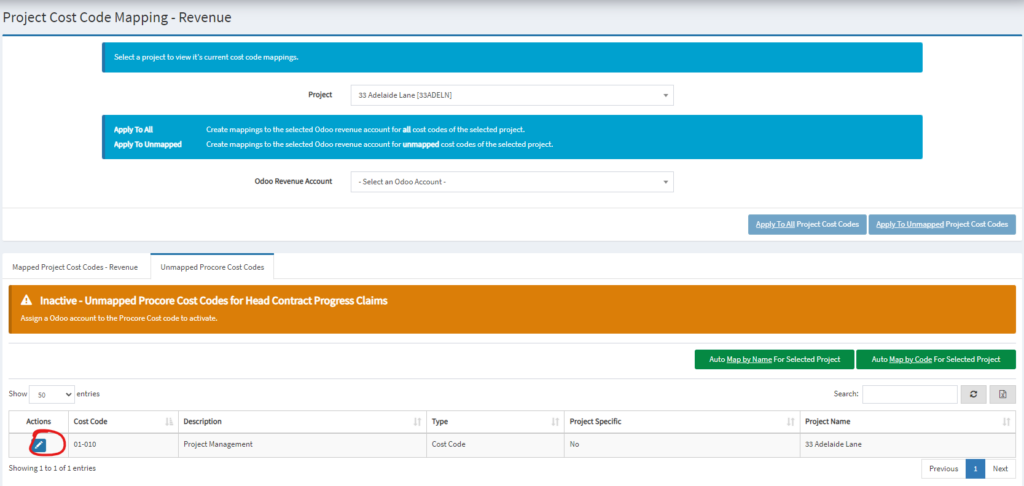
6. Click on the pencil icon to map the cost code.
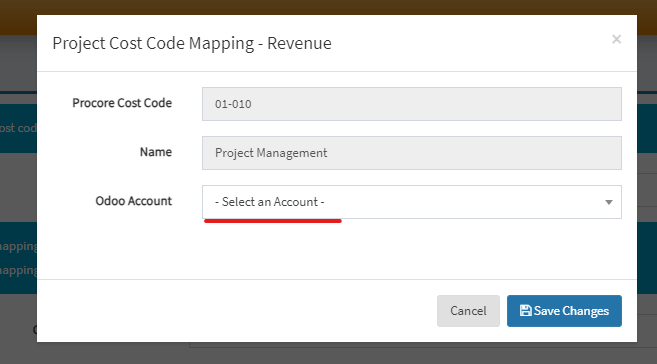
7. Select the Odoo Account to map the cost code. Click on Save Changes.
8. Repeat the steps to manually map the remaining cost codes. Once mapped the cost codes will appear under the “Mapped Cost Codes” tab.