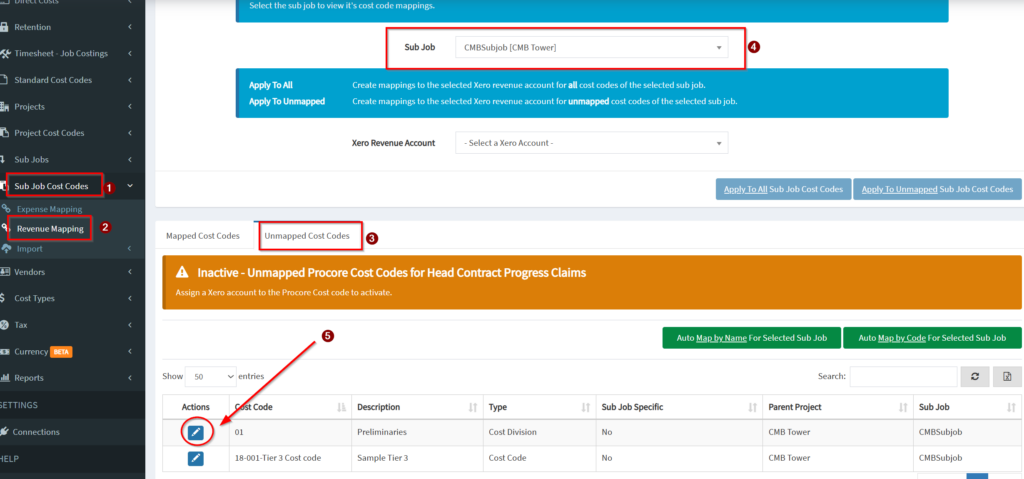
If ‘Sub Jobs’ are used in a Procore project, you need to complete the mapping as described below each time a new project is created.
Note: This is why we recommend the standard cost codes so that you can automate the cost mappings at sub jobs level.
Mapping Sub Job Cost Codes to Xero Accounts
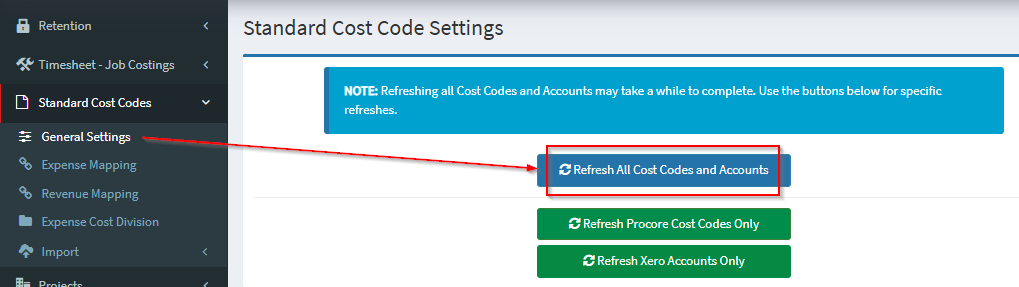
Sub Job cost codes need to be mapped to Xero accounts. Once these have been completed in Procore, log into OneCore and perform a refresh of cost codes by navigating to:
Standard Cost Codes -> General Settings
Press 'Refresh Refresh Cost Codes and Accounts'
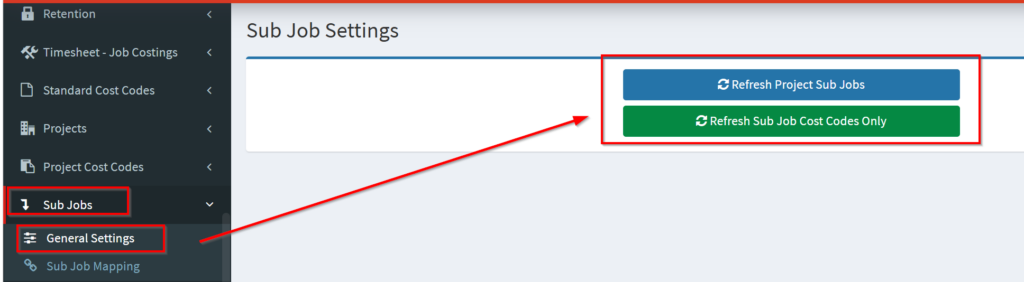
Sub Jobs -> General Settings
Refresh Project Sub Jobs and Refresh Sub Job Cost Codes
Working with Sub Jobs in Xero
Further setup needs to take place if:
- Sub Job reporting is required out of Xero.
- Direct costs for a Sub Job are to be raised in Xero.
NOTE: If a sub job is not mapped, the Tracking Option will default to the parent project mapping.
- Create a new Tracking Category Option in Xero for the Sub Job, under the ‘Project Tracking Category’

2. Map the Procore Sub Job to the Xero Tracking Option in OneCore, by navigating to:
Sub Jobs -> Sub Job Mapping
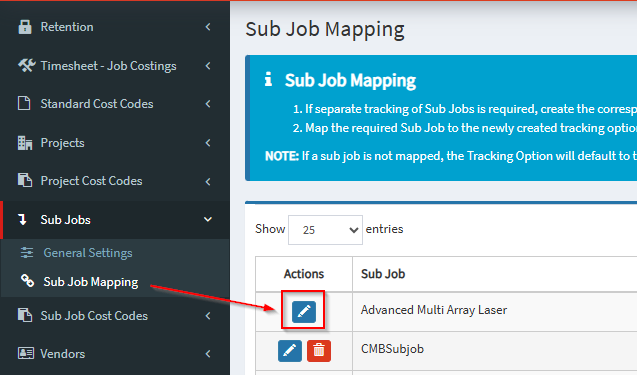
Select the Sub Job to map by pressing the blue ‘Pencil’ icon. A pop up will appear that allows a Xero Tracking Option to be selected.


Mapping Sub Job Cost Codes
Sub jobs are jobs within a job and come with its own set of cost codes. Best practice is to use cost codes from your standard cost codes list (where possible) so that mapping is straight forward.
Mapping needs to occur for both expense and revenue.
Expense Mapping
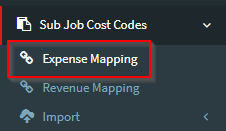
Sub Job Cost Codes -> Expense Mapping
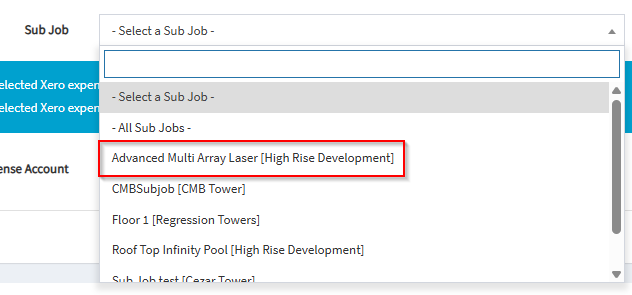
- Select the Sub Job from the drop down list.
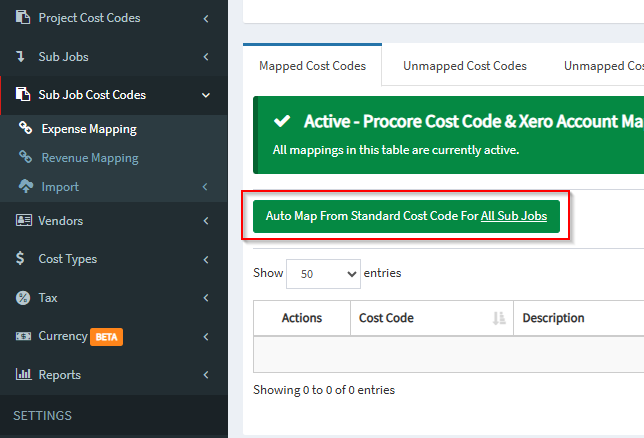
2. If Standard Cost Codes were used to create the sub job cost code list, press ‘Auto Map From Standard Cost Code for Selected Sub Job’

3. Alternatively, if there are multiple Sub Jobs that need to have cost codes mapped, press ‘Auto Map from Standard Cost Code for All Projects’
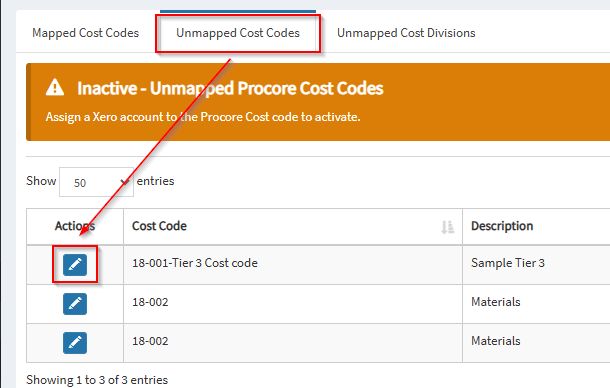
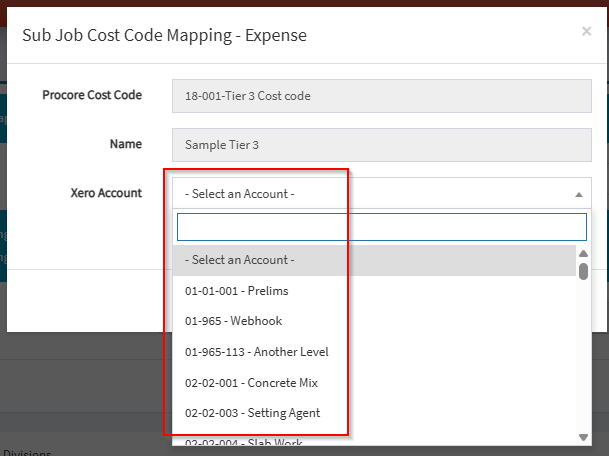
If Sub Job specific codes were used, click on the ‘Unmapped cost codes’ tab and map these individually by clicking on the blue ‘Pencil’ icon. A popup will appear that allows a Xero account to be selected.
Revenue Mapping
Sub Jobs Cost Codes -> Revenue Mapping
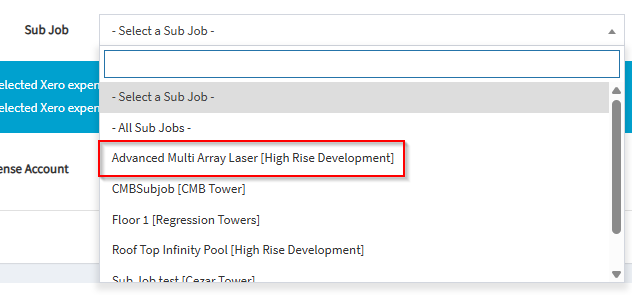
- Select the Sub Job from the drop down list.
2. For customers who report through a single Xero sales account, selecting this account in the “Apply to All” drop down and pressing “Apply to Selected Project” will complete the revenue mapping.

If there are sub job specific cost codes that require different sales account mapmpings, these will need to be mapped individually by selected the ‘Unmapped Cost Codes’ tab and mapping all cost codes.