
Users can upload invoices to AP Processing using a mobile phone or tablet (iOS or Android) through supported mobile browsers such as Google Chrome, Microsoft Edge, or Safari.
This guide explains how to directly access the upload page in OneCore and submit invoices using a mobile device.
Supported Mobile Browsers
Ensure your browser is updated to the latest version.
- Google Chrome
- Microsoft Edge
- Safari
Accessing the AP Processing Upload Page
Enter the appropriate URL in your mobile browser to open the invoice upload page directly in OneCore.
OneCore URLs
- For Xero Users:
https://onecore.interfy.com.au/ApProcessing/Upload/Index - For MYOB Users:
https://onecore-myob.interfy.com.au/ApProcessing/Upload/Index
Logging In
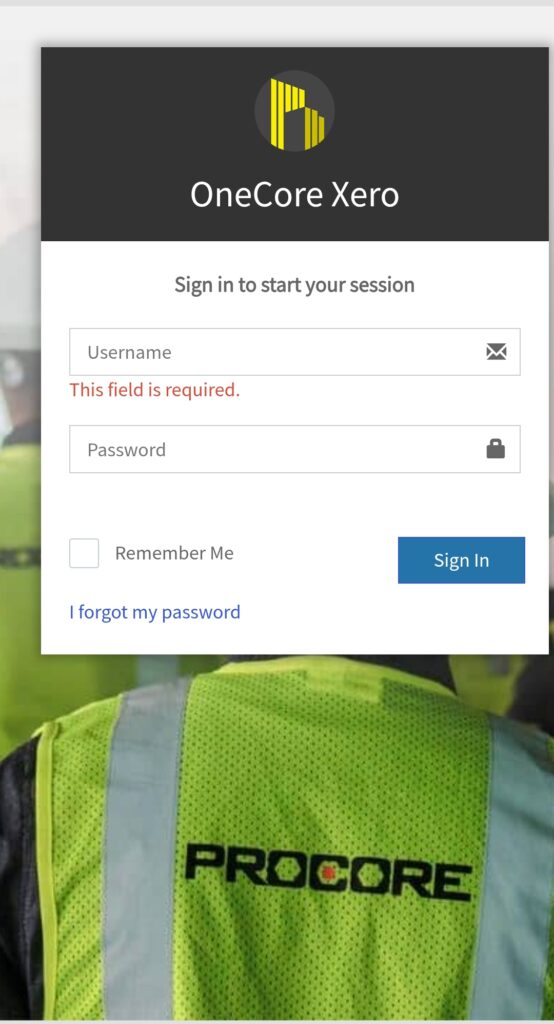
- Open the URL in your mobile browser.
- Log in using your OneCore login credentials.
- After successful login, you will be redirected to the Upload section of AP Processing.
Uploading an Invoice
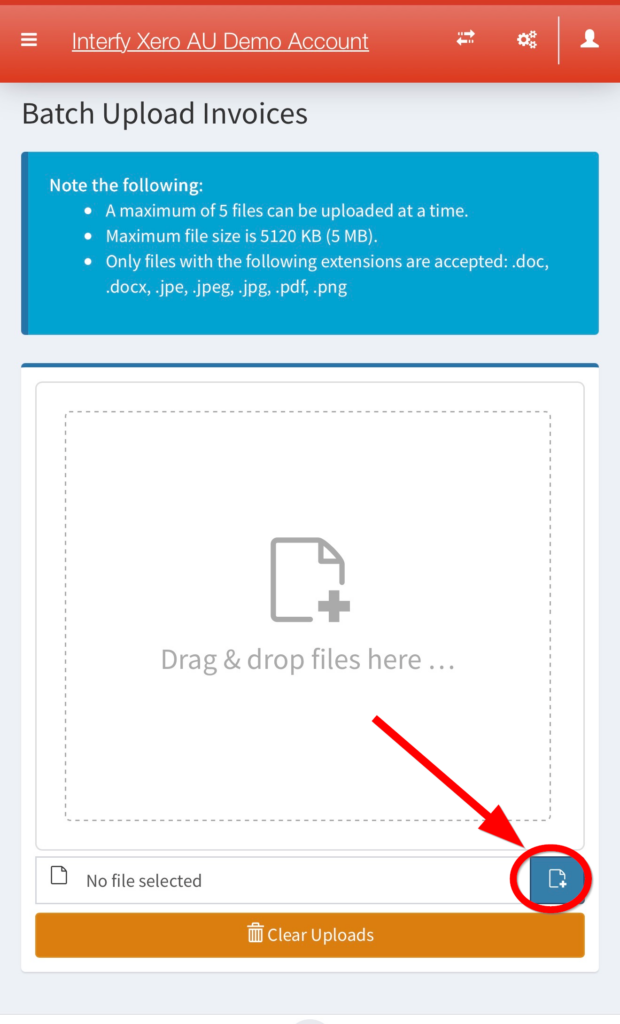
In the Upload section, tap the Browse or + Option.
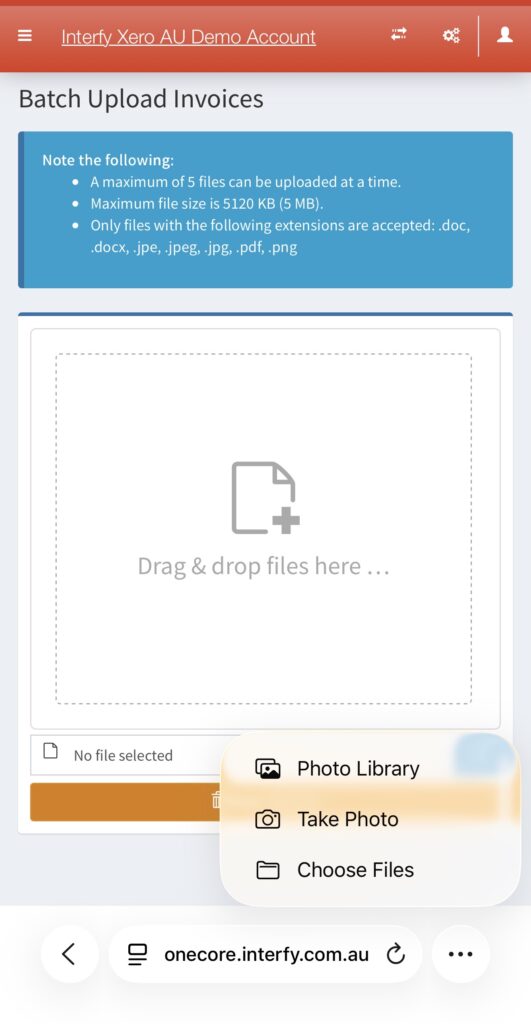
The following options will be available depending on your device and browser:
- Select invoice from Photo Library
Choose an existing image saved on your device. - Take a Photo of the invoice
Capture a new photo using your device’s camera. - Choose Files
Locate and upload an invoice from your saved files on the mobile device.
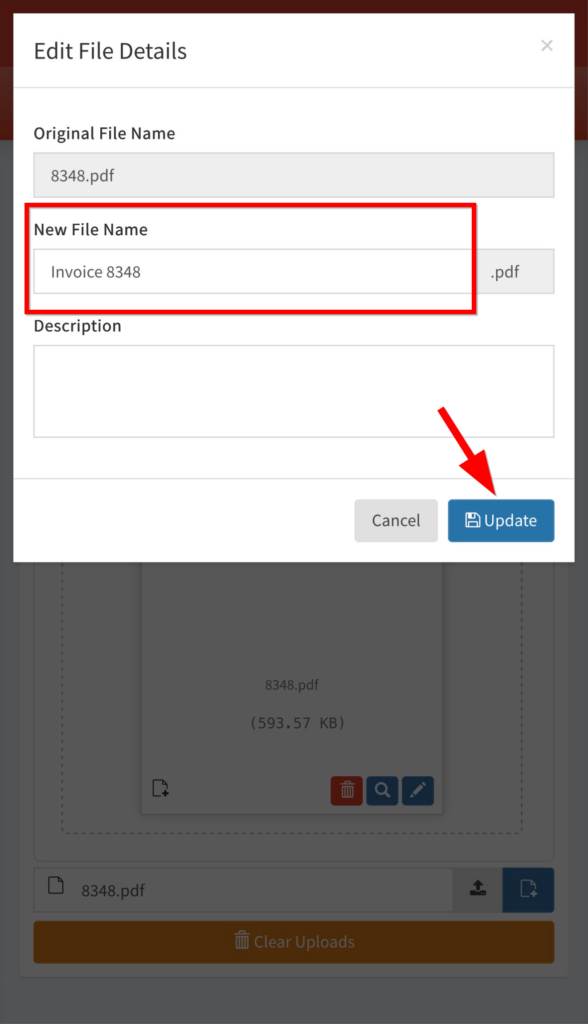
The selected file can also be edited/renamed by tapping on the pen icon.
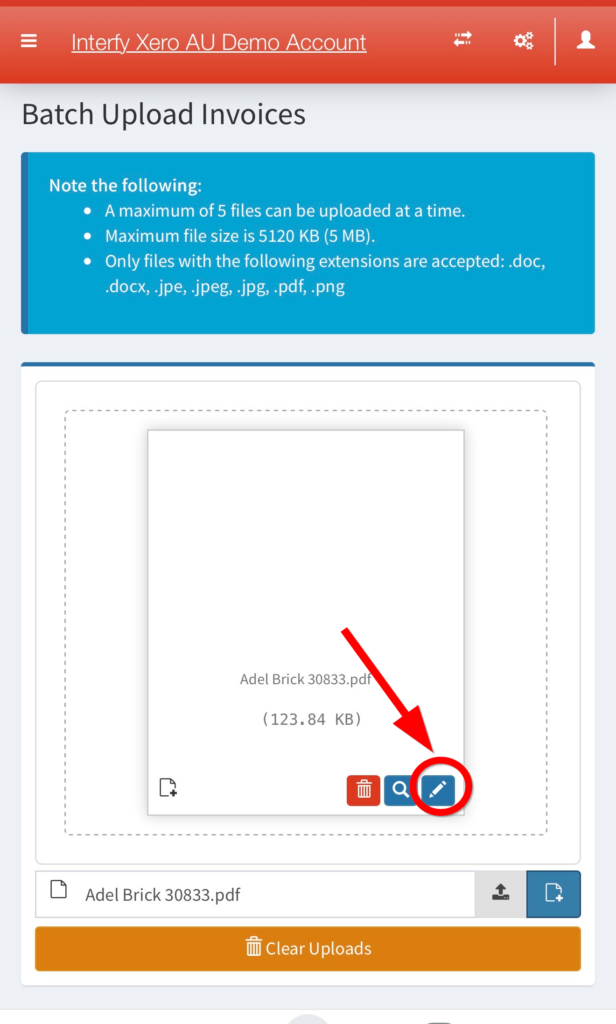
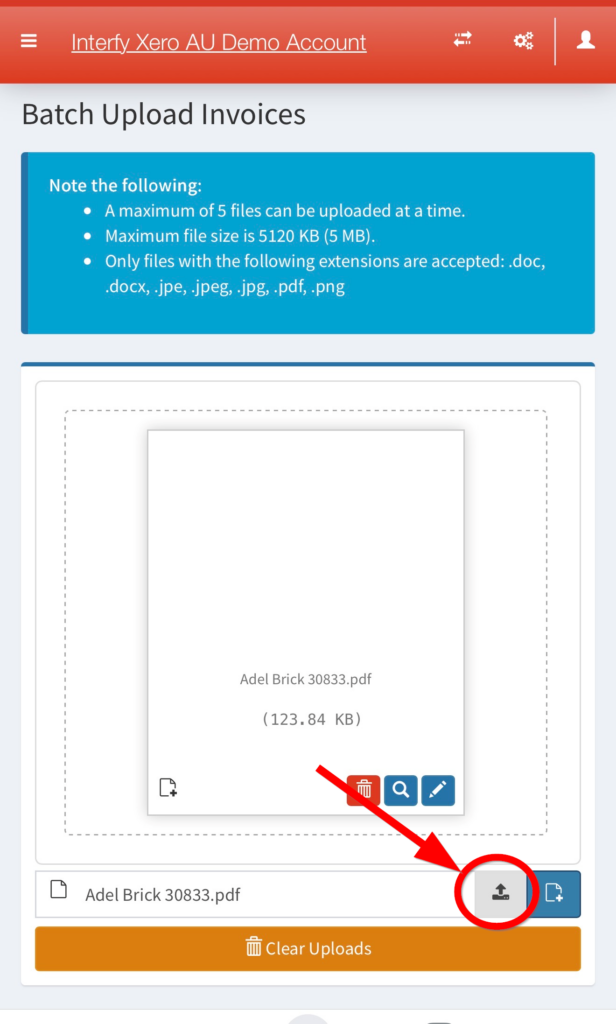
Once invoice/s is selected and finalised, tap the upload button.
Notes:
- Ensure the invoice image is clear and readable.
- Supported file formats depend on your organization’s AP Processing configuration.
- If you need additional help, contact support by sending an email to support@interfy.com.au