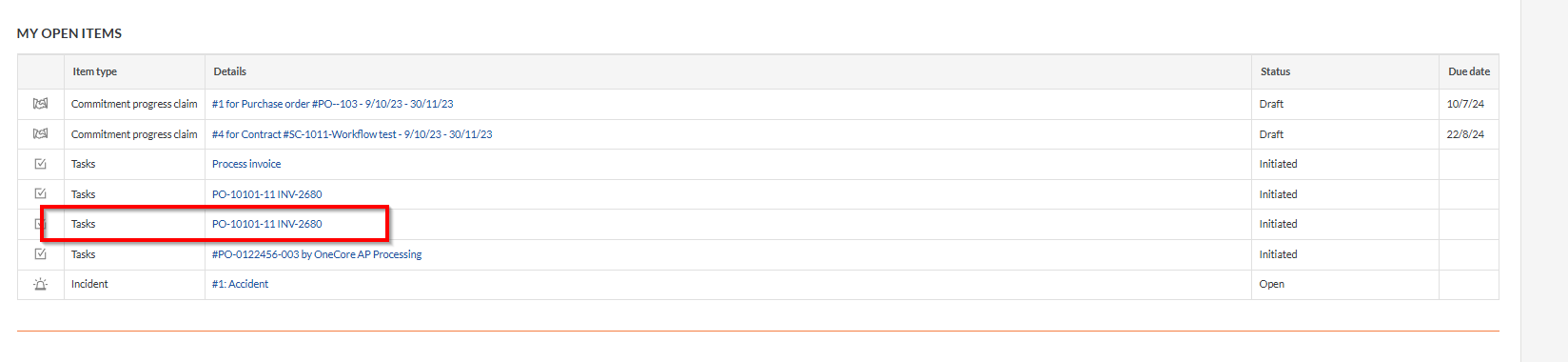
Overview
Project Assignees are Procore users who have access to the Tasks tool at the project level in Procore. These users can receive task notifications generated from AP Processing in OneCore, such as during invoice or commitment claim processing.
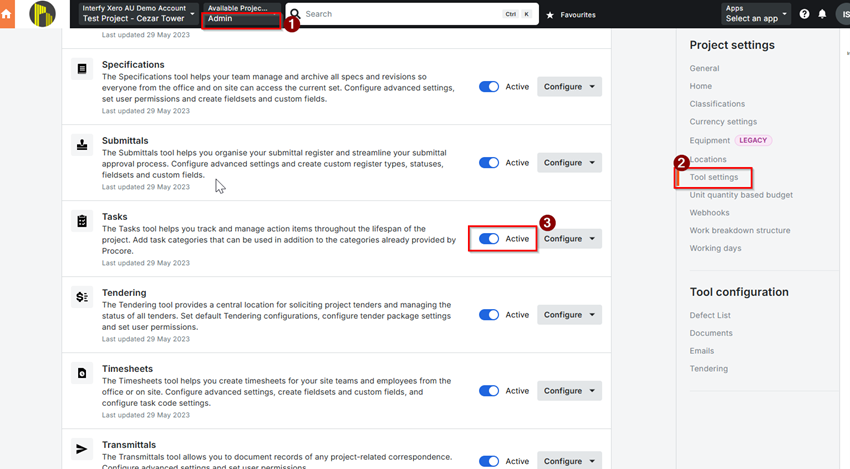
Enable the Tasks Tool in Procore
To allow Project Assignees to receive tasks, the Tasks tool must first be enabled at the project level.
Steps:
- Go to Project Level > Admin
- Select Tool Settings
- Locate Tasks
- Toggle the Tasks option to Active
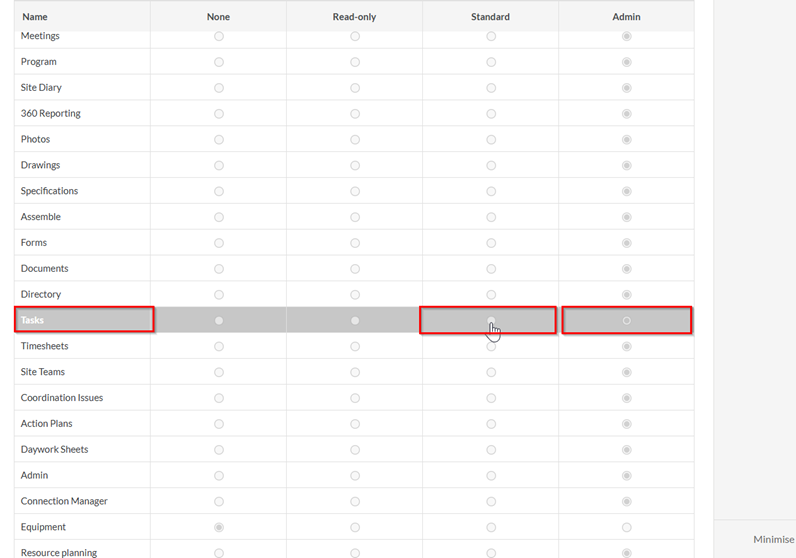
Configure User Permissions for the Tasks Tool
Important Notes
- Procore Admin users automatically have access to the Tasks tool.
- Non-admin users require manual permission updates.
- Users must have at least Standard or Admin permission to the Tasks tool.
Ensure the intended Project Assignees have the correct permission level before proceeding.
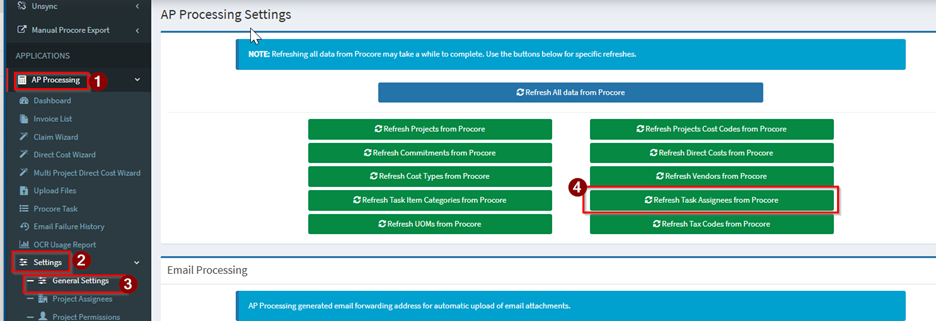
Refresh Project Assignees in OneCore
Once Tasks are enabled and permissions are configured in Procore:
- Navigate to OneCore > AP Processing > General Settings
- Refresh the Project Assignees list to sync the latest Procore users
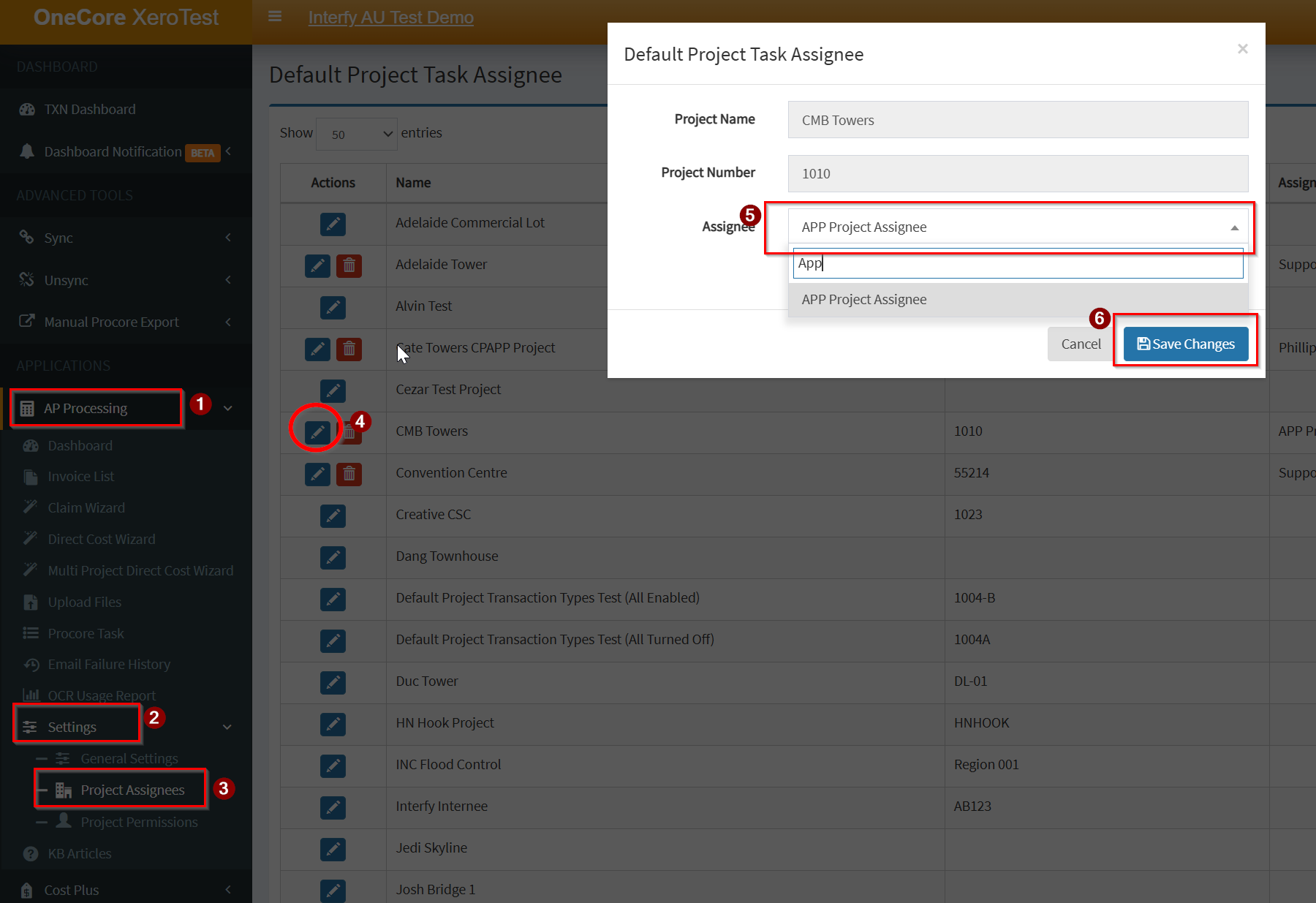
Select a Default Project Assignee
- You may select a default Project Assignee for AP Processing.
- This user will automatically be assigned to tasks generated during invoice processing.
Alternative Option
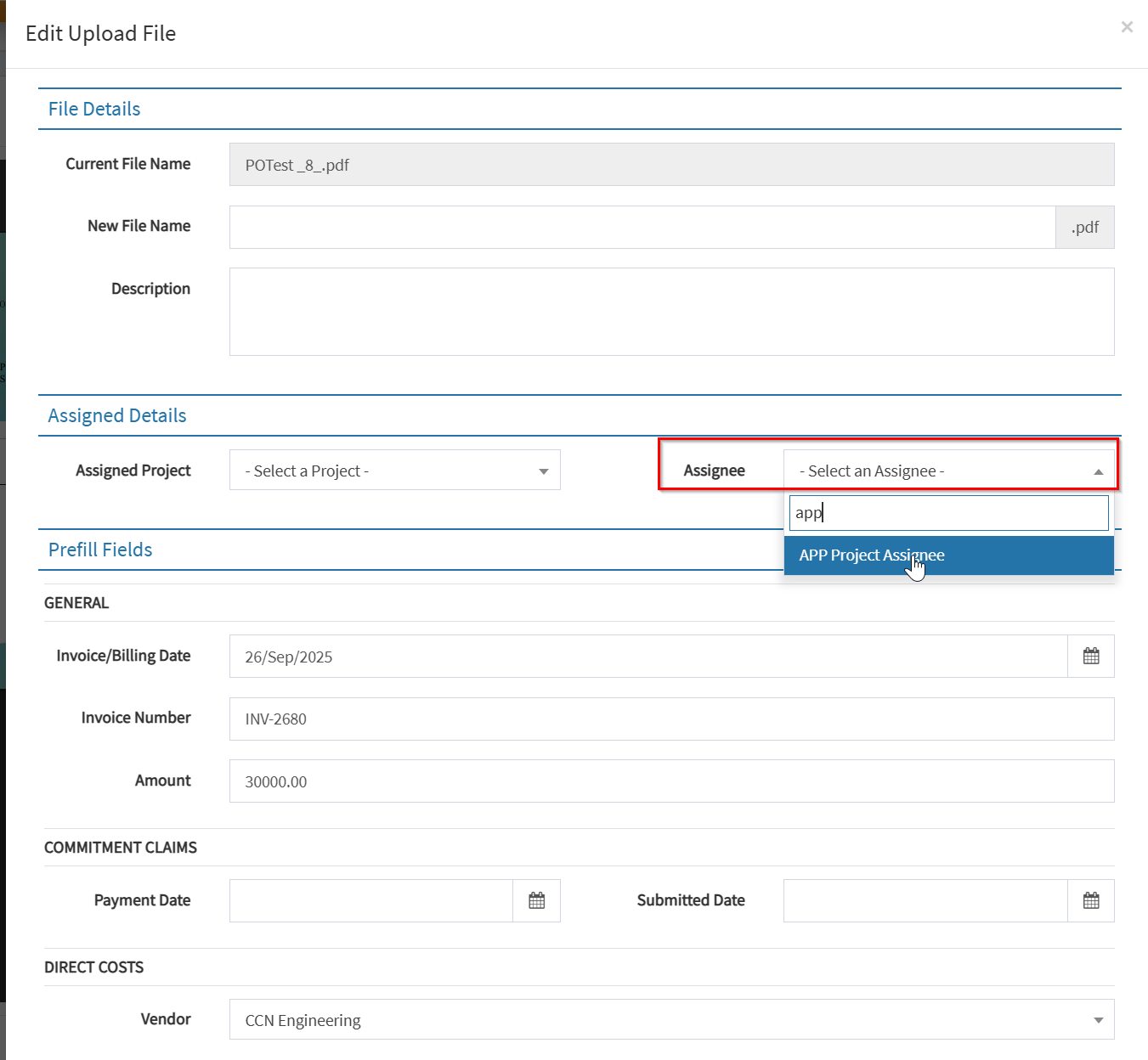
- Invoices can also be manually assigned to a Project Assignee during processing.
Task Creation During Invoice Processing
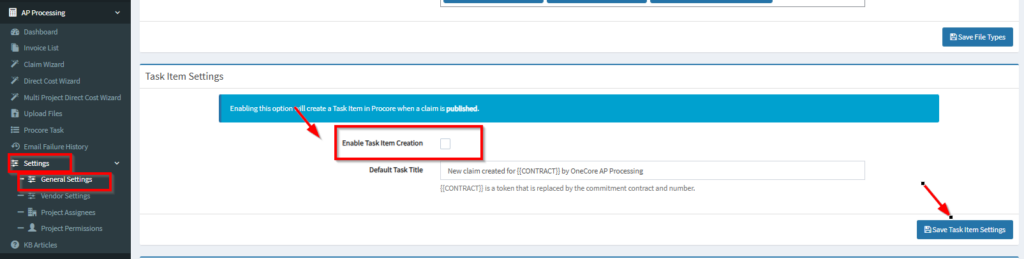
Enable Task Item Creation: Navigate to Settings>General Settings>Task Item Settings.
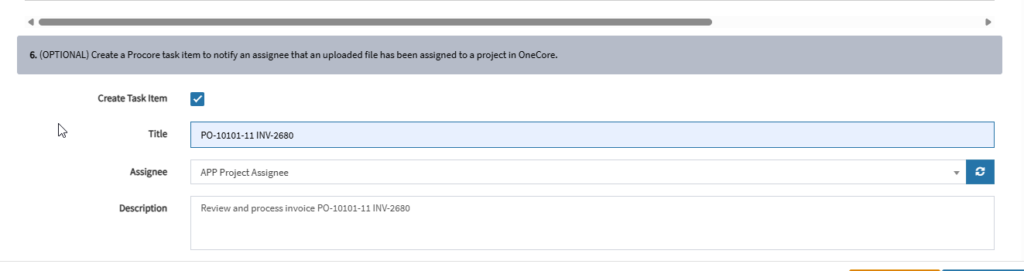
When processing invoices as a Commitment Claim, users can create a Task Item directly within the AP Processing Claim Wizard.
How It Works
- The task is created during the claim workflow.
- The assigned Procore user receives a notification in My Open Items at the project level in Procore.
Procore Task Notifications
- Task items appear under Project Level > My Open Items in Procore.
- Tasks function as notifications only.
Note: Task items do not include direct hyperlinks to the invoice or claim