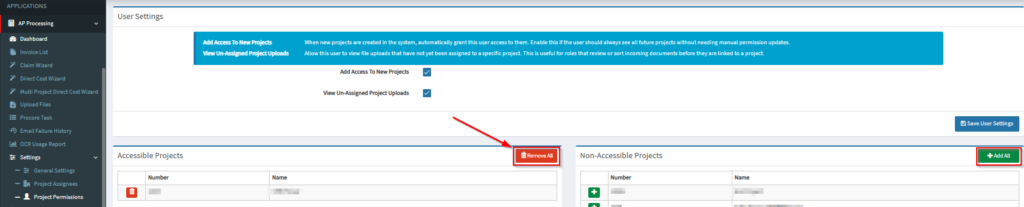
Note: This only works on accounts with the AP Processing is activated and has users that has “APP User” role.
Project permissions decide who is allowed to see and process invoices for each project in OneCore.
Setup
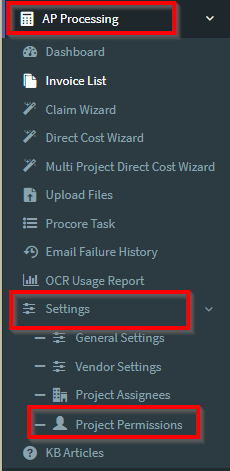
In OneCore, navigate to AP Processing > Settings > Project Permissions tab.
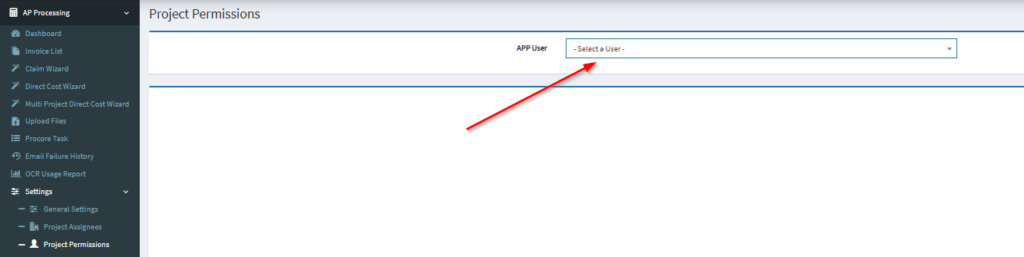
Under Project Permissions, choose the APP User on the drop-down menu.
Under “User Settings”, you can enable the:
Add Access To New Projects – this allows the APP User to have access when new projects are created. You should only enable this if the user should always see all future projects without needing manual permission updates.

View Un-Assigned Project Uploads – this allows the APP user to view file uploads that have not yet been assigned to a specific project. This is useful for roles that review or sort incoming documents before they are linked to a project.

Note: Make sure to click the “Save User Settings” button when updates are made under these settings.

Adding Projects:
Click the green + button beside the specific project under the “Non-Accessible Projects” that you like the APP User to gain access to. This project will be added under the “Accessible Projects” column.
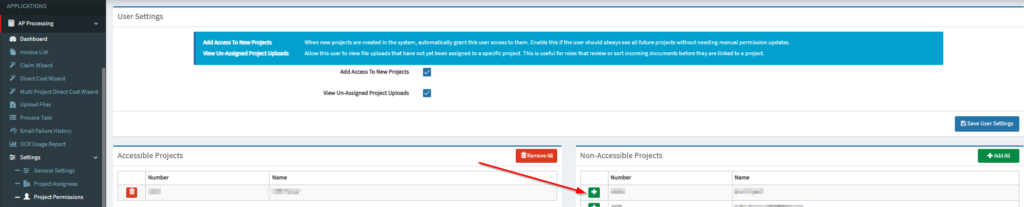
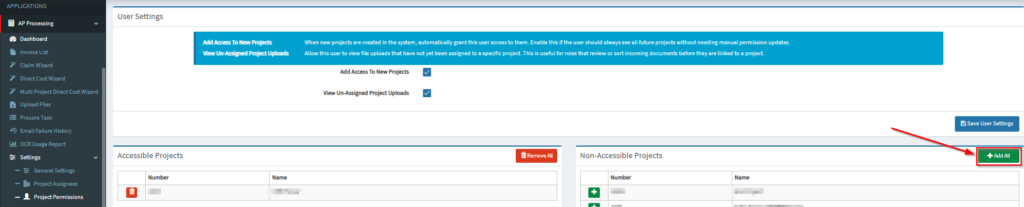
Alternatively, you can click the “+ Add All” button for the APP User to gain access to all projects.
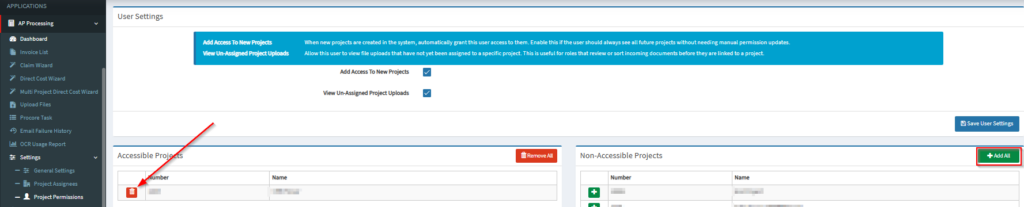
To remove a project access, click the “Trash Bin” icon beside the specific project that you like to remove access to the APP user.
Alternatively, you may click the “Remove All” button to remove access to all projects.