1. Request Interfy support to activate the module via https://onecore.interfy.com.au/Support
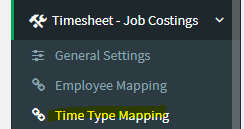
2. Once the module has been activated, the “Timesheet – Job Costings” menu will appear. Select the Time Type Mapping
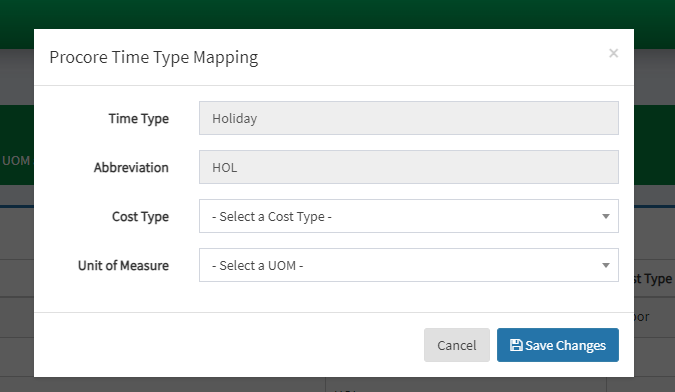
3. On the Time Type Mapping page, click the Pencil icon to map the Procore Time Type with the appropriate QBO Cost Type and unit of measure. Click save changes.
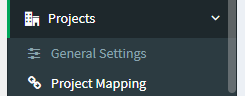
4. Navigate to Projects > Project Mapping
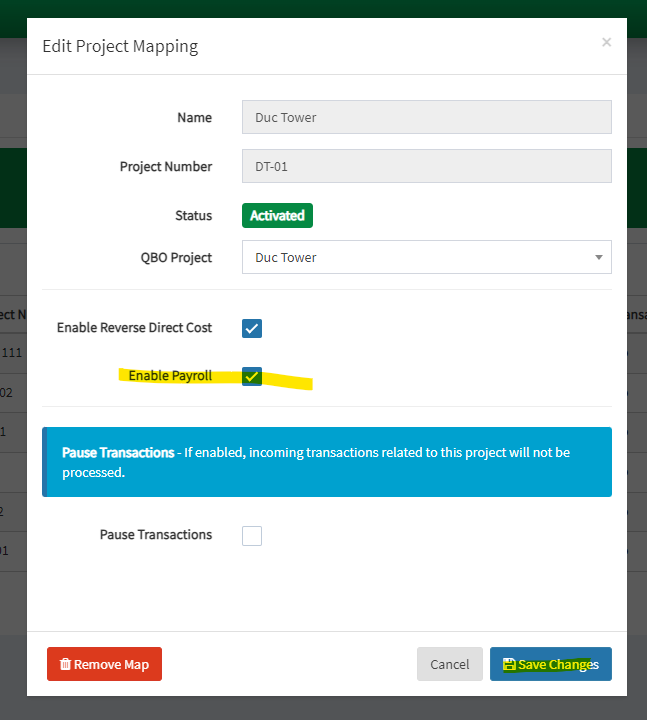
5. To activate “Enable Payroll“, click on the Pencil icon on the desired Procore Project. Click Save Changes
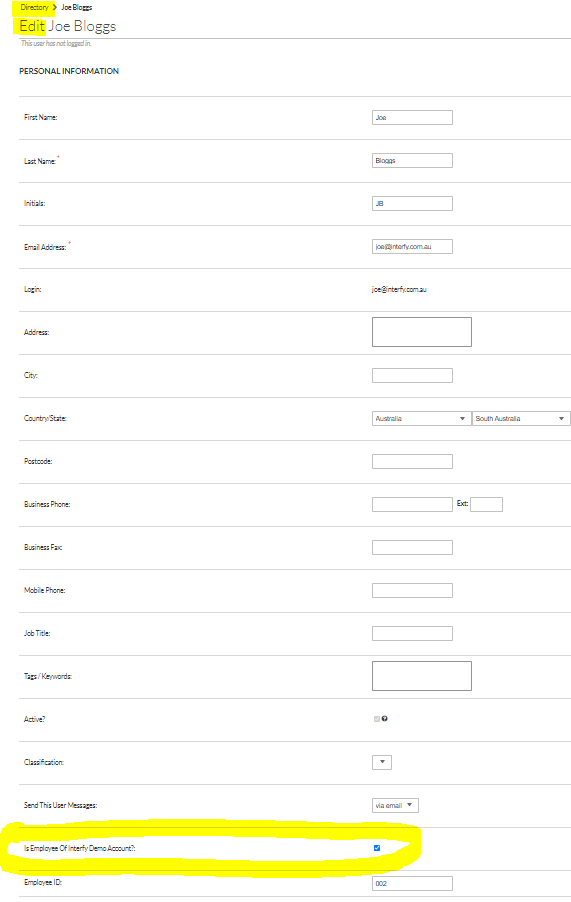
6. In Procore ensure you have enabled users to be employees by navigating to the user and editing with a tick next to “Is Employee of (your instance)”- Directory/Users/
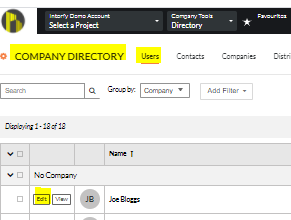
Put a tick in the checkbox next to Is Employee of xxxx:

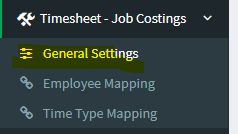
7. Go to General Settings to refresh your employee from Procore.

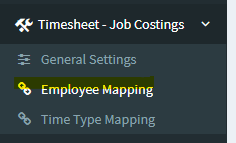
8. Select the “Employee Mapping” sub option.
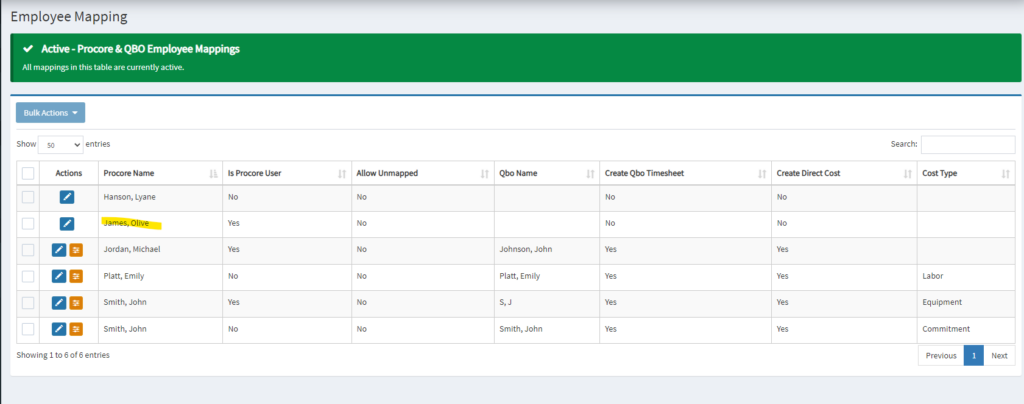
9. Click on the blue pencil next to the desired employee’s name.
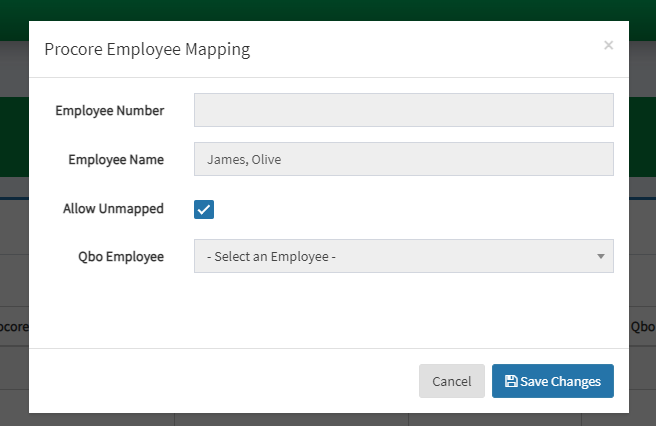
10. If you don’t want to create a time sheet for the employee in QuickBooks, select “Allow unmapped” and click “Save Changes”.
11. An orange box should now appear next to that employee’s name. Click this.

12. Click on the orange box, Tick “Create Direct Cost” option
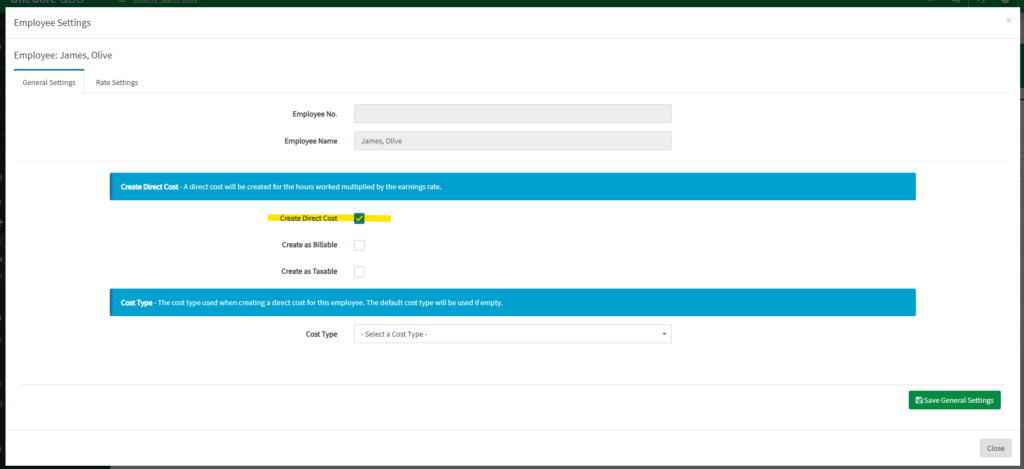
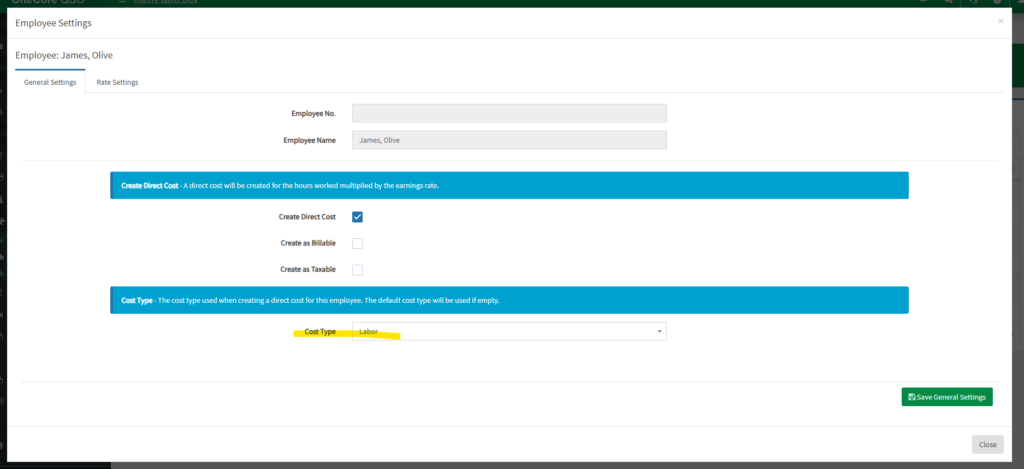
13. select “Labour” Cost Type from the dropdown, click Save General Settings.
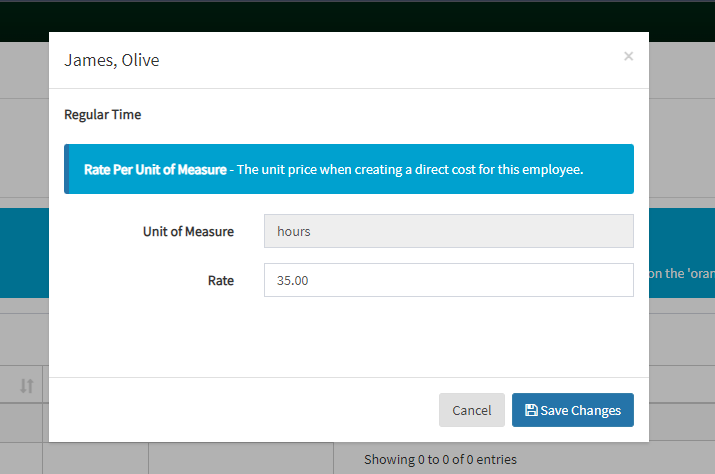
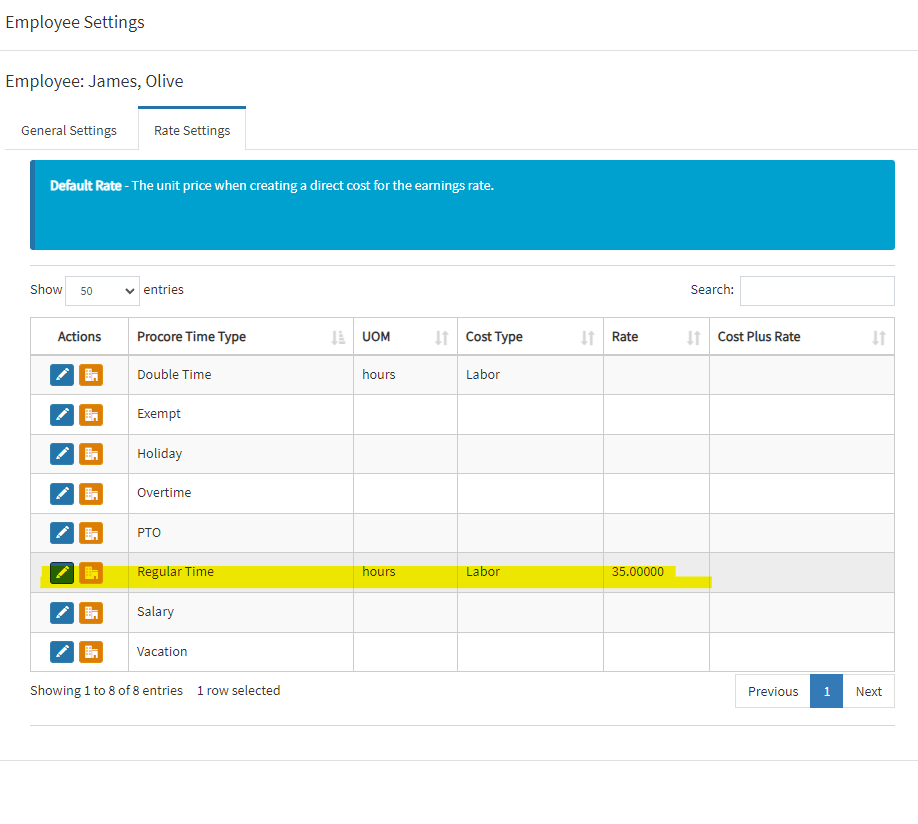
14. Go to the Rate Settings tab, and click the blue pencil icon to configure the default rate settings based on time type. Click Save Changes.
NOTE: this is only used when creating the ‘Payroll’ direct cost and has no bearing on the actual $$ rate an employee is being paid.
15. Go to Timesheet – Job Costings > General Settings
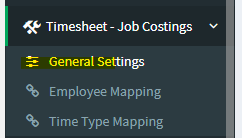
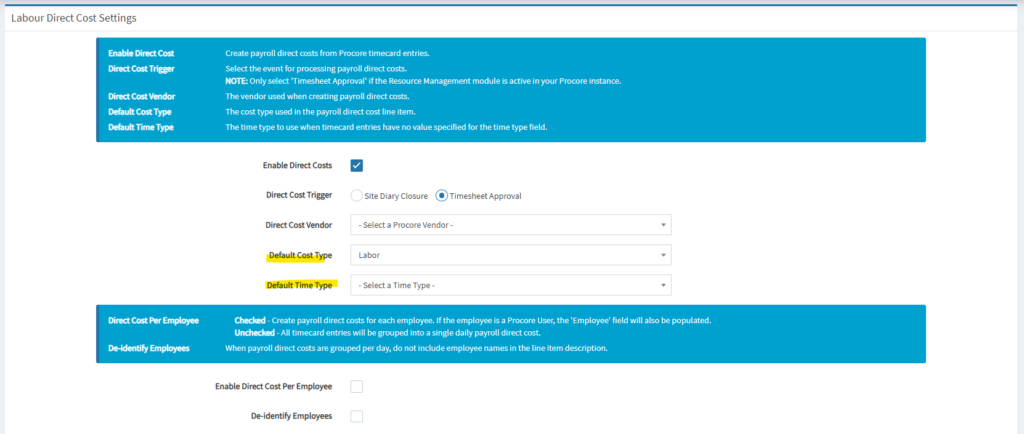
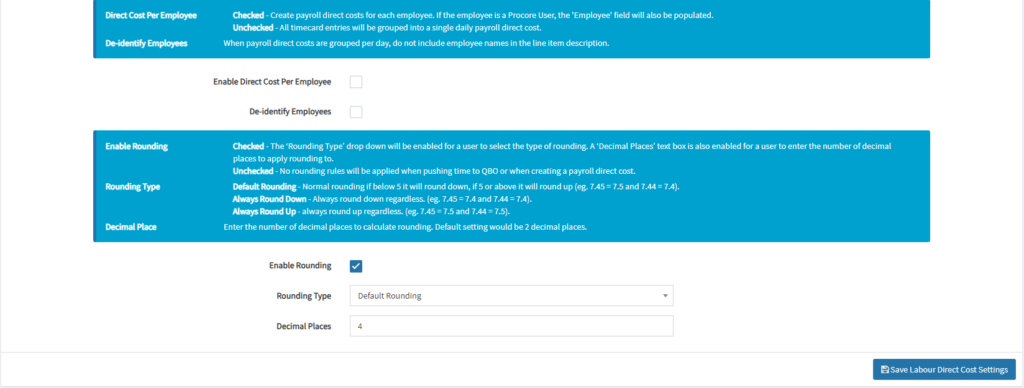
16. Configure timesheet-job costings general settings as required
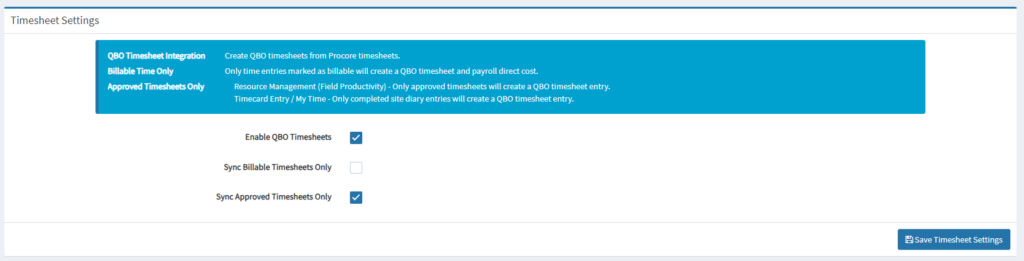
17. Configure the direct cost settings as required, according to your needs. Click Save Labour Cost Settings.