
Overview
Once you have had requested access to the Time Sheeting – Job Costing Module, follow the below steps to setup the this feature:
Instructions for Mapping in OneCore
Once the module has been activated by support for you, the timesheet – job costing menu item will become available in OneCore.
Follow the following steps to configure the settings:
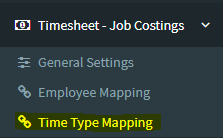
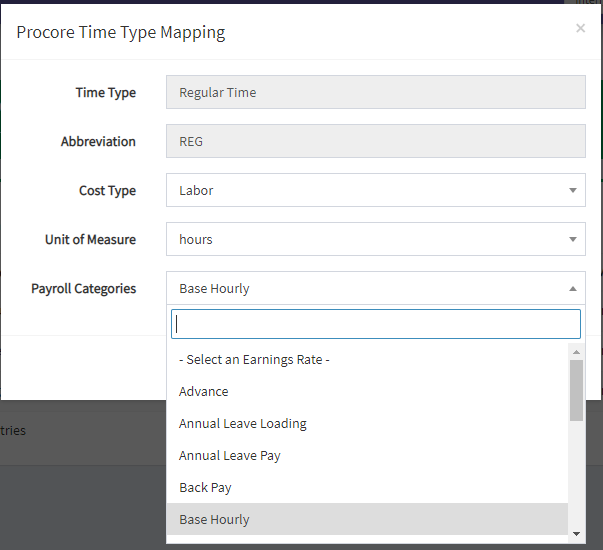
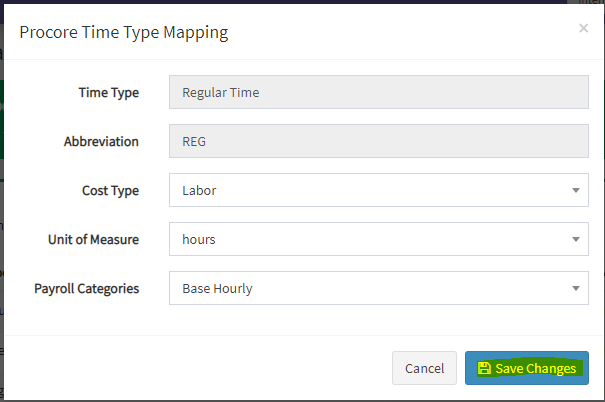
1. Goto Timesheet-Job Costings -> Time type mapping, click the blue pencil to map the visible Procore time types to your MYOB payroll category through drop down list and save changes.
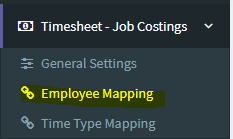
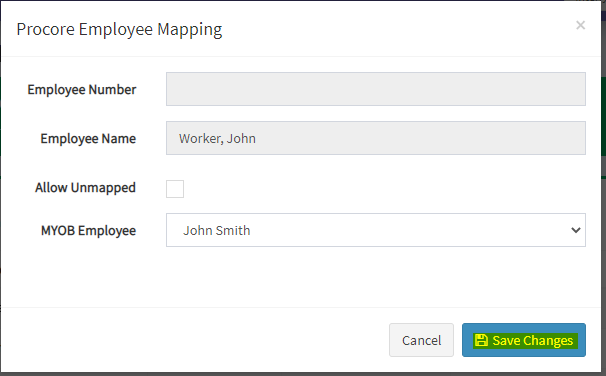
2. Goto Timesheet-Job Costings -> Employee mapping, click the blue pencil to map Procore employee name to the MYOB employee and save changes.
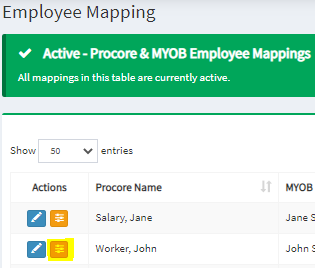
3. Click the orange button to get into the employee settings and configure:
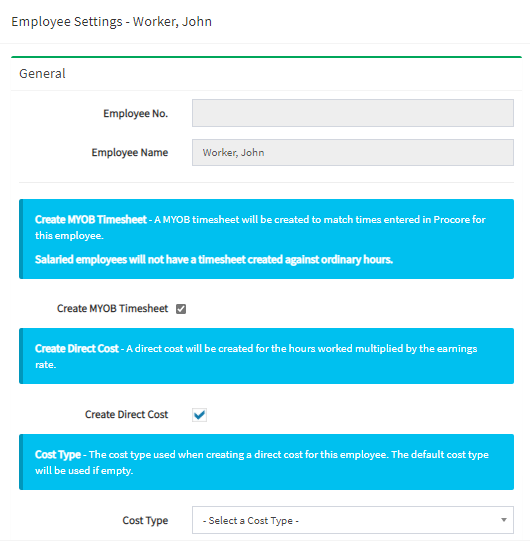
3.1 the general settings, select whether you want a MYOB timesheet created.
(Note: The salaried employees will not have a timesheet created for ordinary hours.)
3.2 the general settings, select whether you want a direct cost created.
3.3. nominate the cost type used when creating a direct cost for this employee, the default cost type will be used if left blank.
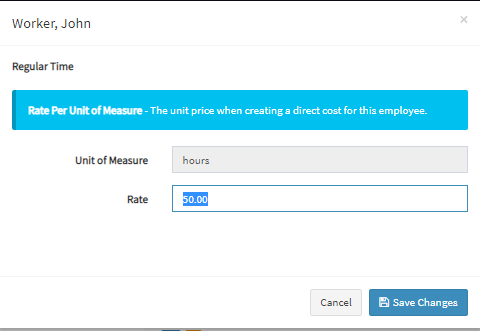
3.4 the rates by clicking the blue pencil to set the rates as desired and save changes.
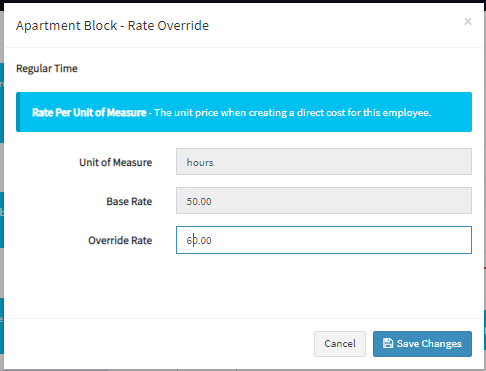
3.5 the project specific rates (if required) by going into the project rate override
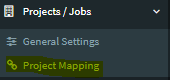
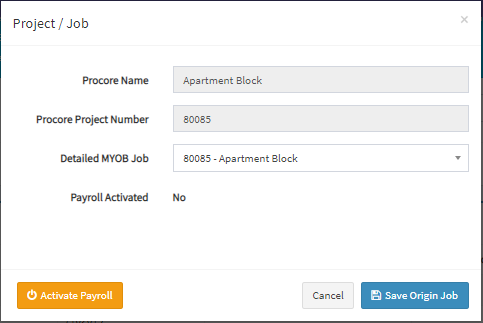
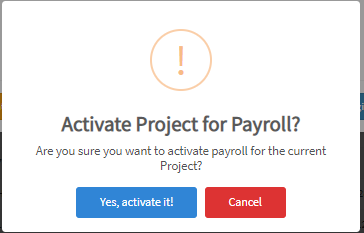
4. Go to projects/jobs menu -> project mapping, click the blue pencil in front of the project and activate the payroll.
Once you have completed the above configuration, when new projects are created in Procore, OneCore will automatically enable this module for the new project.