This guide explains how to map Procore tax codes to MYOB within OneCore to ensure accurate tax handling when syncing financial data.
Overview
Tax mapping allows OneCore to correctly translate Procore tax codes into MYOB tax rates when exporting transactions.
Supported transactions:
- Commitment
- Direct Cost
Note: If tax mapping is not configured, OneCore will use the default tax rate set on your Chart of Accounts.
Requirements
Before setting up tax mapping, ensure the following:
- Tax Codes are enabled in Procore
- Tax Codes are applied to the relevant projects
📌 For setup guidance in Procore, refer to:
https://v2.support.procore.com/faq-how-can-i-use-tax-codes-on-a-procore-project
Step 1: Refresh Tax Codes and Rates
To sync the latest tax data from Procore and Xero:
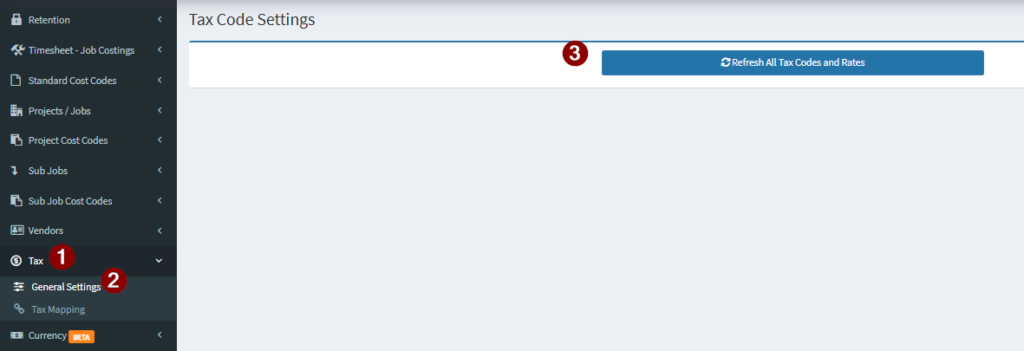
- Go to:
OneCore → Tax → General Settings - Click:
Refresh All Tax Codes and Rates
✅ This ensures OneCore has the most up-to-date tax codes and tax rates from both systems before mapping.
Step 2: Configure Tax Mapping
Once tax codes are refreshed:
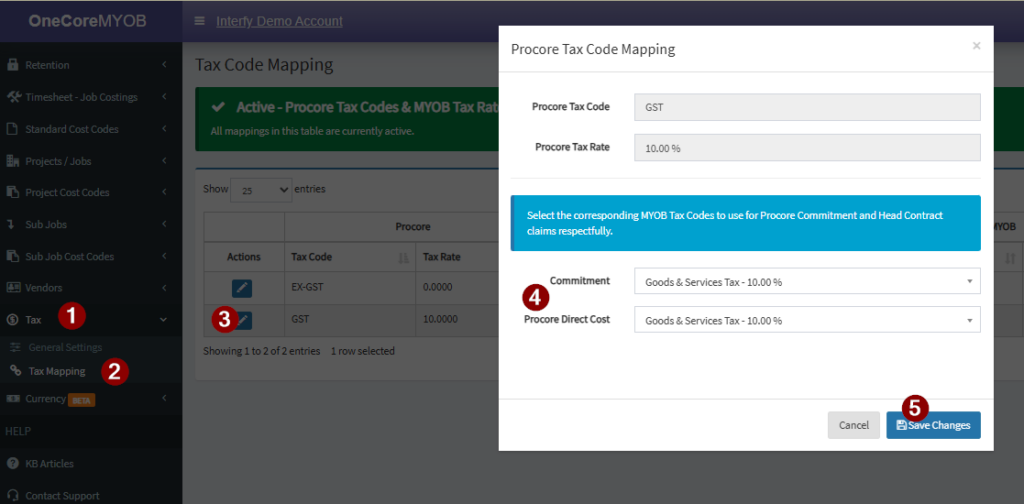
- Navigate to:
OneCore → Tax → Tax Mapping - For each Procore tax code:
- Select the appropriate MYOB tax rate
- Ensure mappings are accurate to avoid posting or reporting errors
- Save your changes