
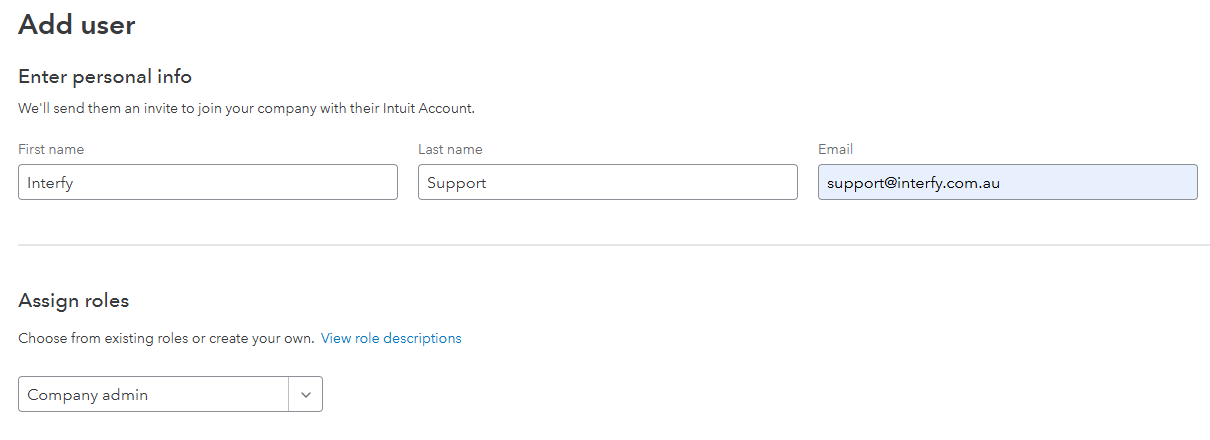
- Create a new user in your Procore instance with the email address: support@interfy.com.au
- Allow this user ‘administrator’ access at the company level, using the below screenshot as a guide. This will allow us to create the necessary service account with permissions and also assist us when we troubleshoot and provide support.

- Although not required, to assist us in with troubleshooting please allow this user access to all existing projects and any newly created ones with admin permissions:


SAGE INTACCT ONBOARDING TASKS
Step 1: Add OneCore as Web Services User
- Provide your Sage Company Id to support@interfy.com.au.
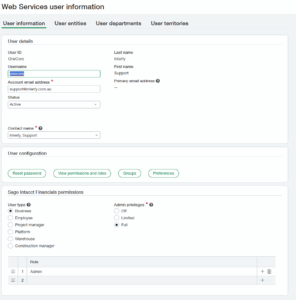
- Please add OneCore Support with the email address: support@interfy.com.au as Web Services User by navigating to Company > Admin > Web Services Users.
- Select “Business” for User Type and “Full” for Admin privileges
- Add Role of Admin for this User.

Step 2: Create an Intacct developer account and applications
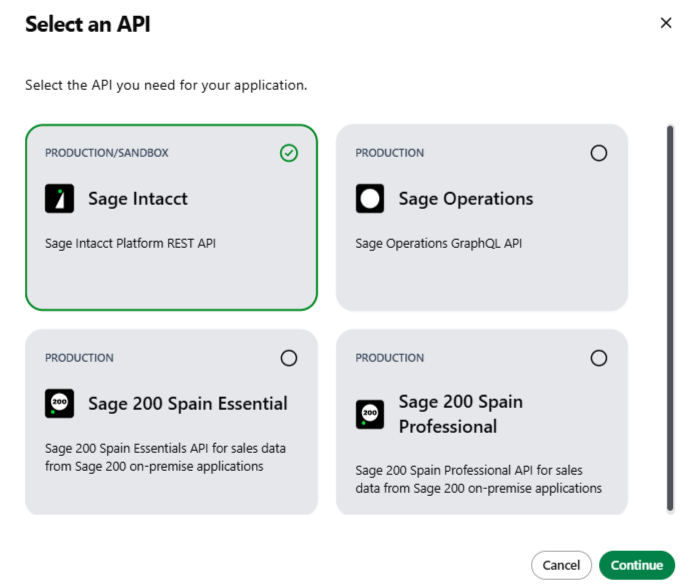
- Go to this endpoint to create or log in your developer console and manage your applications.
- Select “Applications” and click on “New application”.
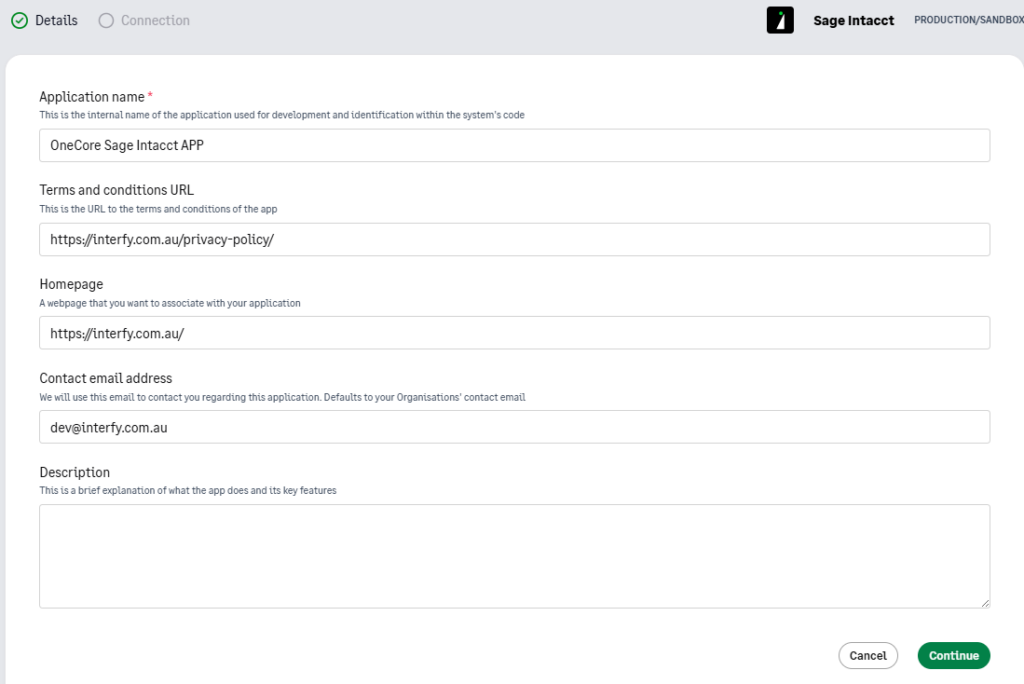
- In “Details” tab, complete the fields as follows:
Application Name: OneCore Sage Intacct APP
Terms and conditions URL: https://interfy.com.au/privacy-policy/
Homepage: https://interfy.com.au/
Contact email address: fill as needed
Description: fill as needed
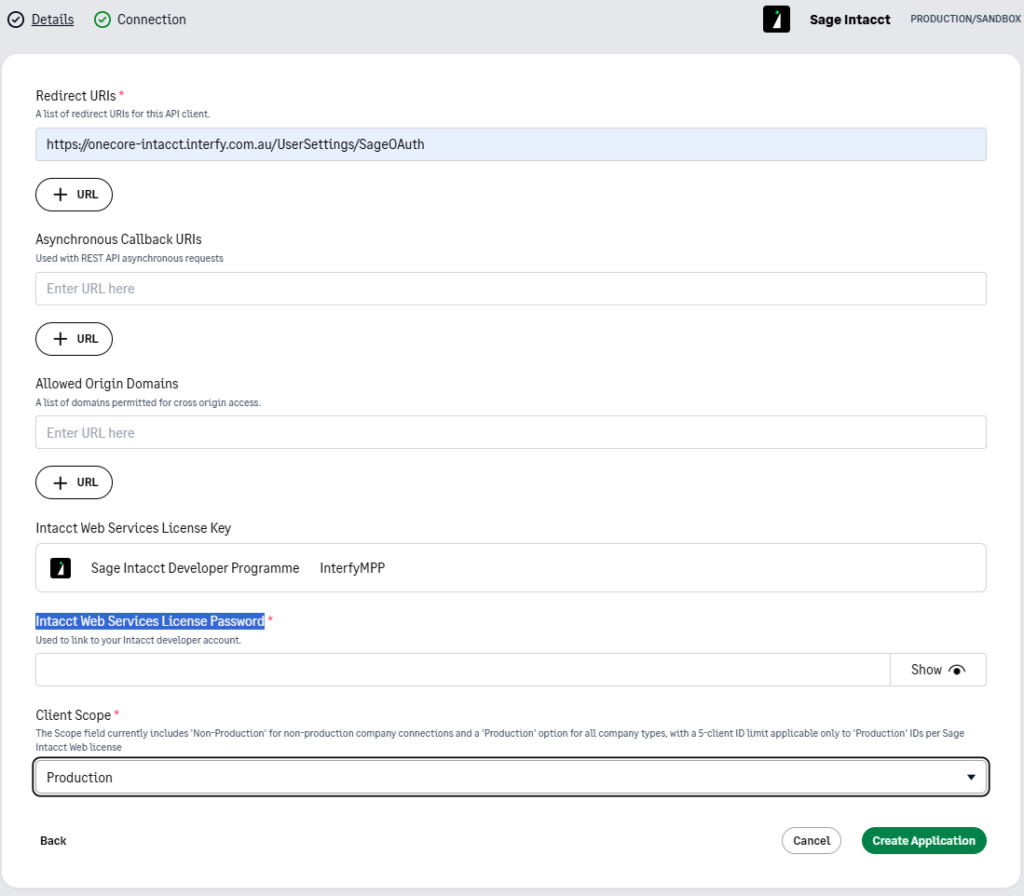
- In “Connection” tab, complete the fields as follows:
Redirect URIs: https://onecore-intacct.interfy.com.au/UserSettings/SageOAuth
Intacct Web Services License Password: enter the password
Client Scope: Production
Step 3: Set Sage Intacct Credentials in OneCore
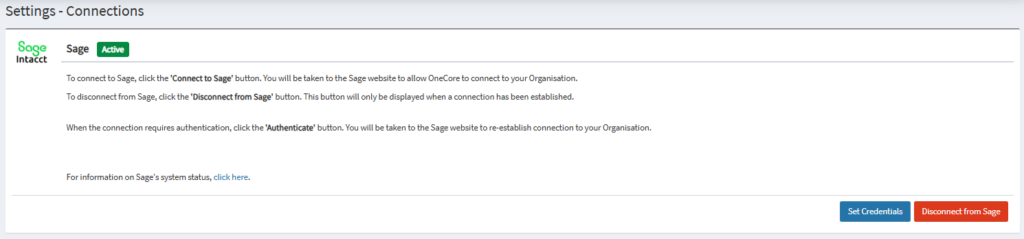
- Navigate to Connects in OneCore and Click “Set Credentials”
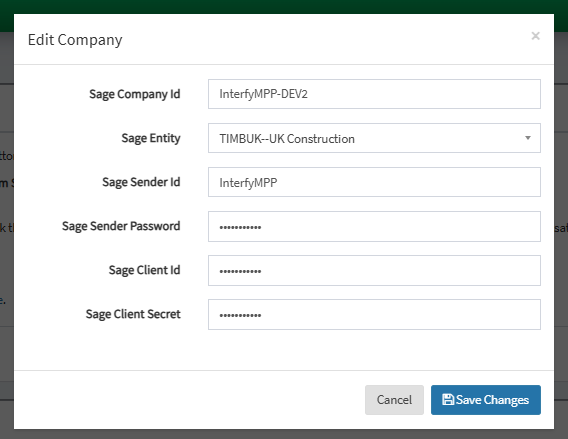
- Complete this form and Save Changes.
NOTE: Sage Client Id and Secret are from your Intacct application that was created in Step 2
Step 4: Configure Platform Services Trigger (Live Sync Transaction)
- A step by step guide will be sent by the onboarding team and assistance provided during the onboarding call.
PROCORE COST CODES AND SAGE COST
CODES
Ensure that all Procore Standard Cost Codes have an equivalent Sage Standard Cost Code catalog that it can be mapped to. This is a key requirement in ensuring transactions can be processed between both systems without issue.
MERGE DUPLICATE PROCORE COMPANY VENDORS
Removing duplicate company vendors from Procore is a recommended task as this will eliminate confusion when mapping to Sage vendors and customers.
A step by step guide is provided in the following link.
MERGE DUPLICATE SAGE INTACCT CUSTOMERS
Removing duplicate customers in Sage is a recommended task as this will eliminate confusion when mapping to Procore company vendors.
A step by step guide is provided in the following link.
CONTACT INTERFY SUPPORT
Once these tasks have been completed, contact us (support@interfy.com.au) to continue with getting the integration up and running.