When managing your Procore commitment claims and associated QuickBooks bills, it’s crucial to understand the impact of actions such as approval and deletion on both platforms. This guide will walk you through the process and ensure a clear understanding of the steps involved.
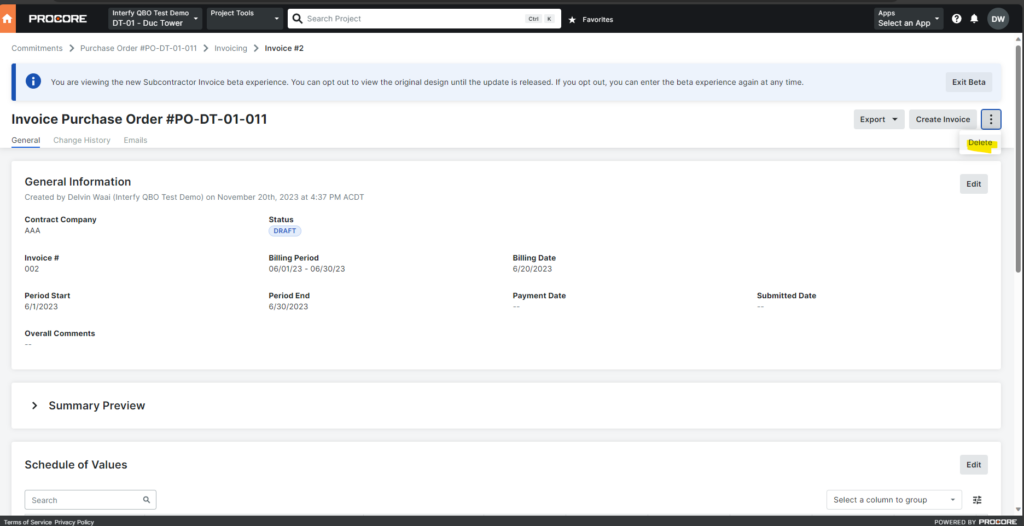
In this demonstration, we will show you how you can delete your invoice that is linked to the Commitment Claim.
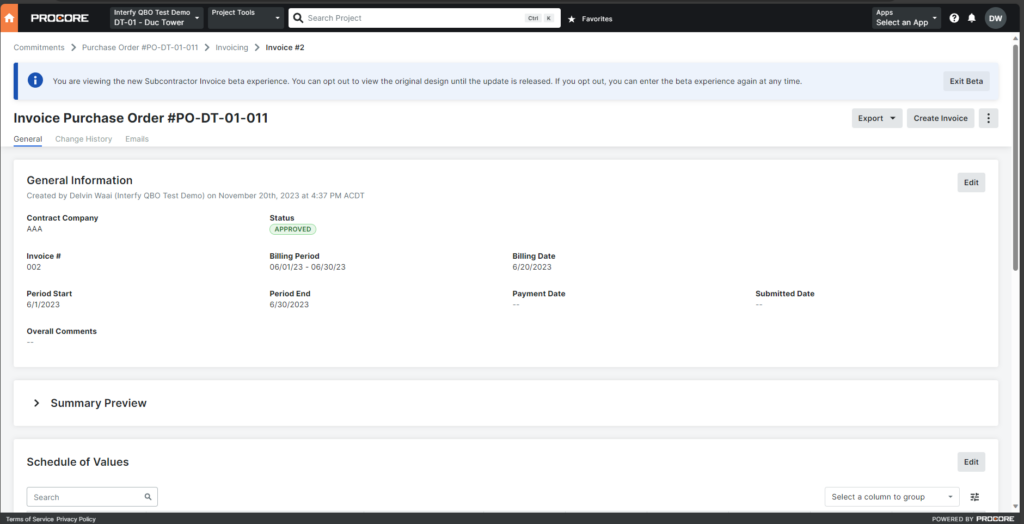
Suppose that I have a Commitment Claim that I no longer needed, but it is already in approved state.
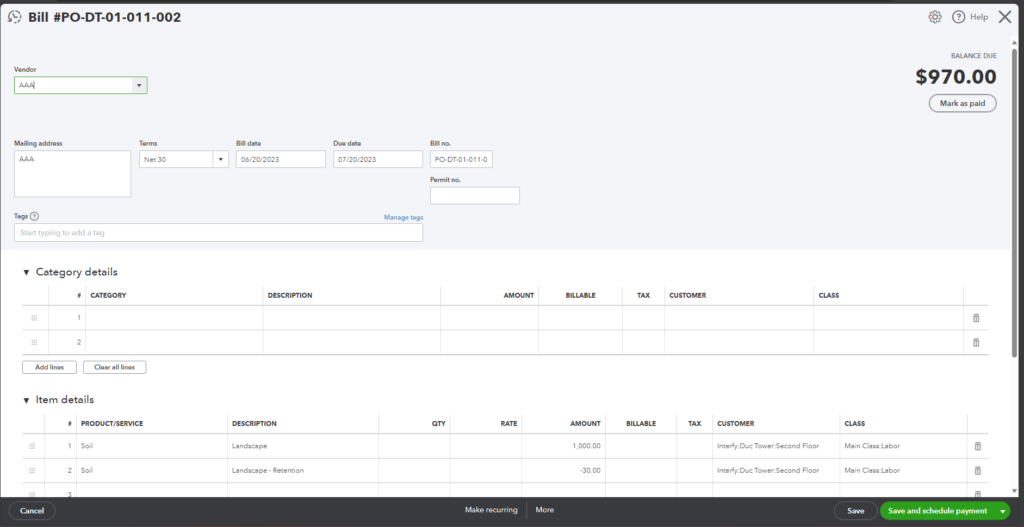
Also, the Bill created in QuickBooks. which is linked to the corresponding Commitment Claim.
Steps:
Deleting an Approved Commitment Claim without Payments in QuickBooks
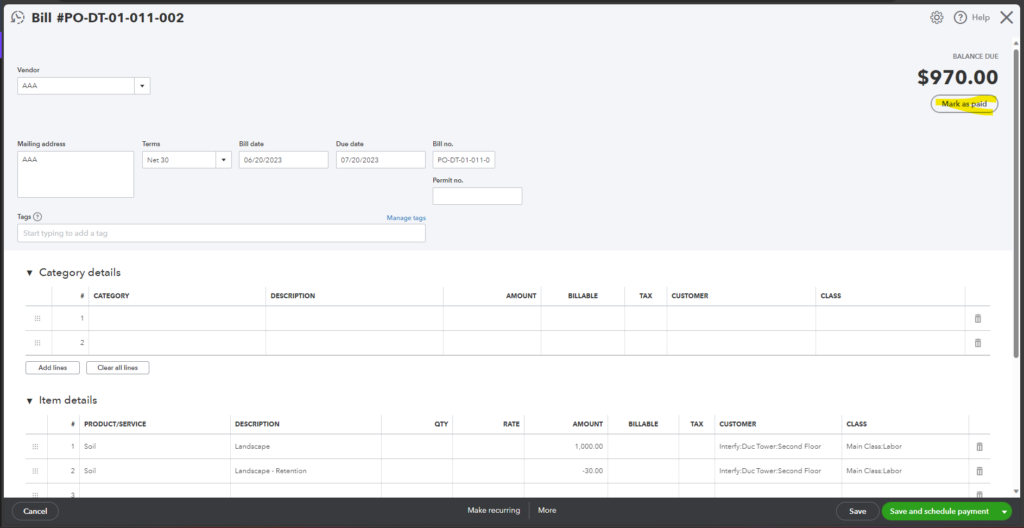
1) Check if the linked QuickBooks bill has any associated payments.
- Example: In the following scenario, no payments are associated with the bill.
2) Return to Procore and locate the corresponding commitment claim. Delete the commitment claim.
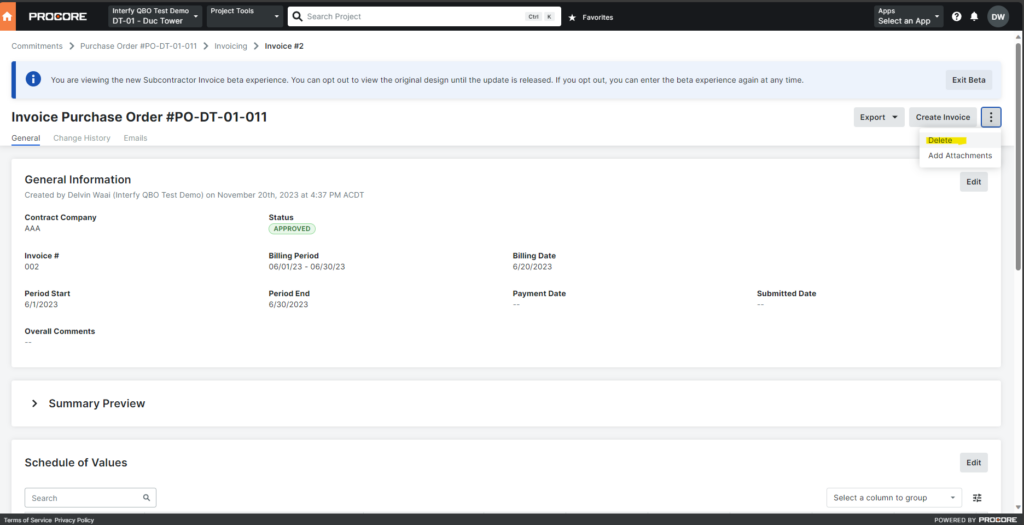
3) OneCore will automatically delete the linked invoice in QuickBooks.
Deleting an Approved Commitment Claim with Payments in QuickBooks
1) Confirm if the QuickBooks invoice has associated payments.
- Example: Navigate to the invoice in QuickBooks and check the top right corner.
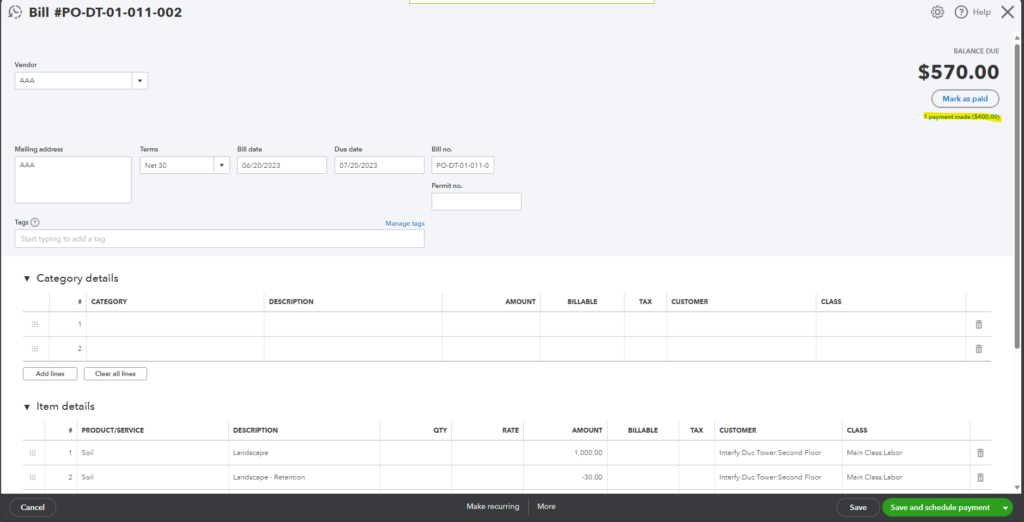
2) If payments are present and you still want to delete the bill, proceed to delete it from QuickBooks.
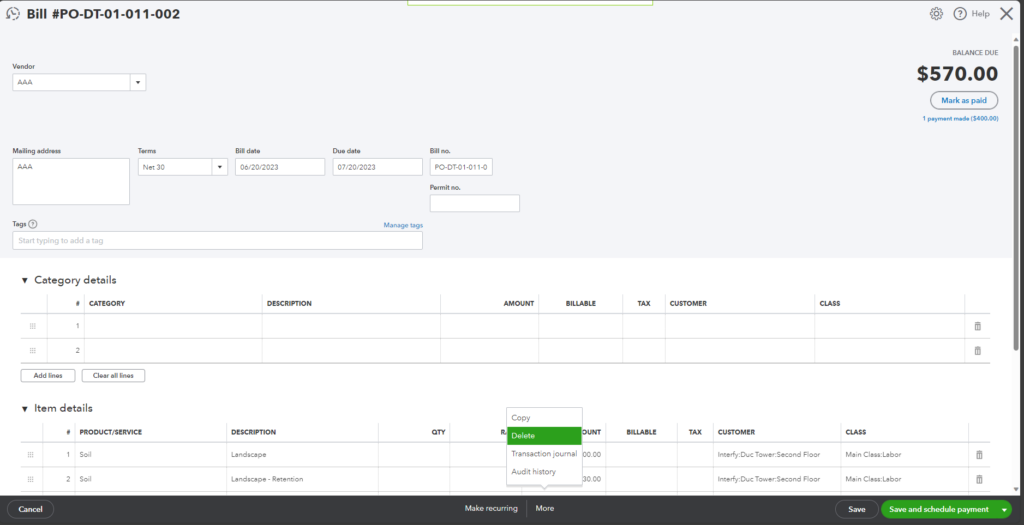
3) OneCore will automatically set the commitment claim in Procore back to draft status.
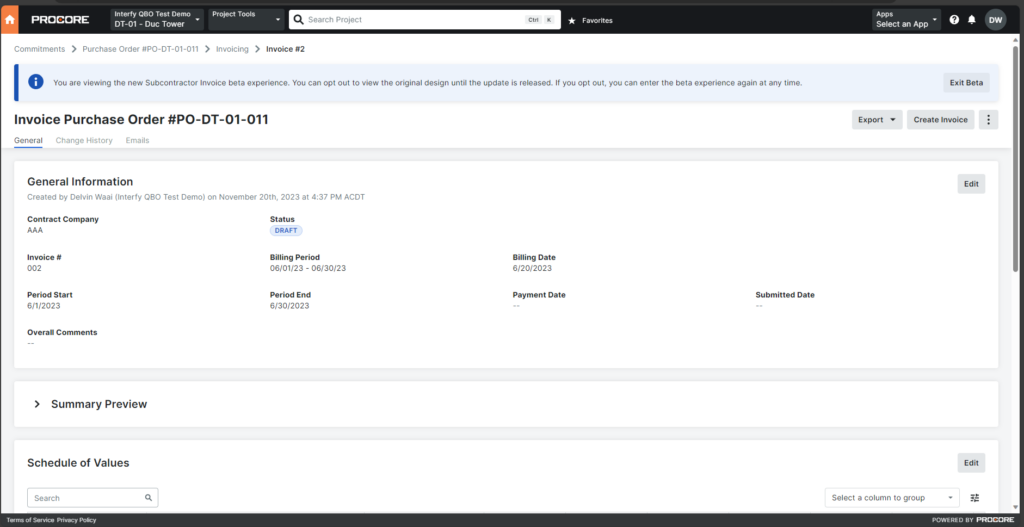
Additional information before proceeding to step 4.
If you wish to retain the Commitment Claim:
- Update the value in the Schedule of Values (SOV).
- Set the contract back to the approved status to activate the integration.
4) Now, if you no longer needed the contract, you may delete the commitmentclaim in Procore.