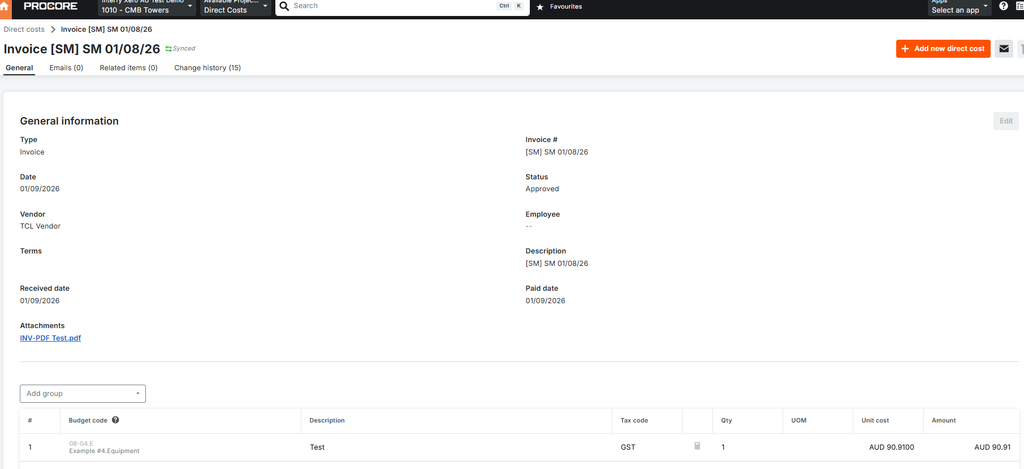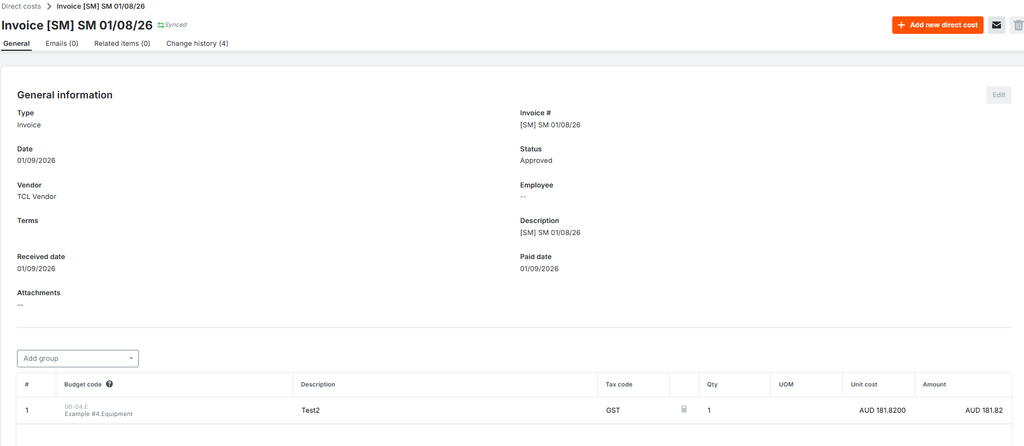
This article explains how Spend Money transactions entered in Xero can be synced to Procore as Direct Costs.
Prerequisites
Before syncing Spend Money transactions, ensure that:
- Spend Money Transaction Type is enabled – KB Article: How Do I Activate Spend Money, Credit Notes & Manual Journals in OneCore? – Interfy Help
- The supplier/contact used in Xero is mapped to a Procore vendor
- Job Tracking Option is mapped to a corresponding Procore project
- Cost Type tracking options are mapped to a corresponding Procore Cost Type
- Xero account is mapped to a corresponding Procore Cost Code
Create a Spend Money Transaction in Xero
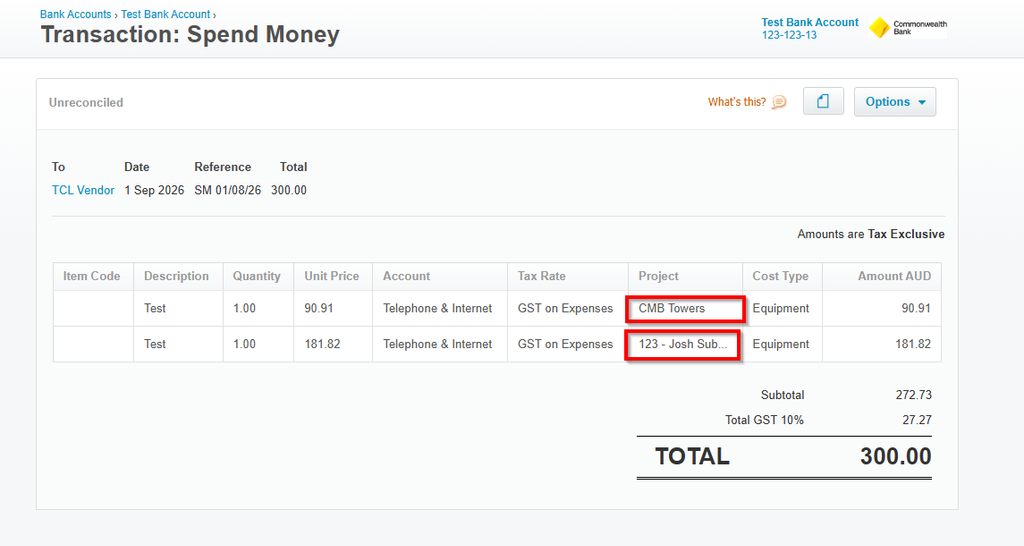
Log in to Xero.Navigate to Business > Bank Accounts.Select the relevant bank account.Click Spend Money.Complete the transaction details:
- Contact
- Date
- Reference
- Amount
- Account Code
- Cost Type
- Project/Job Category Option
- File Attachment/s if required
Save or approve the transaction.
Note: If the line items contain different Project Tracking Categories, separate Direct Costs will be created in Procore and allocated to their corresponding project mappings.
Line items without a project/job tracked will be ignored by the integration.
Spend Money:
Procore Direct Cost: