
Overview
The Disable Sync Banner Settings allows users to control whether OneCore displays sync banners and locks direct cost transaction types when data is synced between Procore and Xero vice versa.
⚠️ Use With Caution The recommended and default setting is to have sync banners enabled (checkboxes unchecked). Disabling sync banners may result in discrepancies between balances in Procore and Xero, since the banners are one of the ways users are alerted to sync issues that need attention.
Transaction Types Covered
The following transaction types can each be individually toggled:
- Xero Bill – Direct Cost created from a Xero Bill
- Credit Note – Direct Cost created from a Xero Credit Note
- Manual Journal – Direct Cost created from a Xero Manual Journal
- Spend Money – Direct Cost created from a Xero Spend Money
- Procore Direct Cost – Direct Cost entered in Procore
How to Update the Settings
Navigate to Direct Cost>General Settings
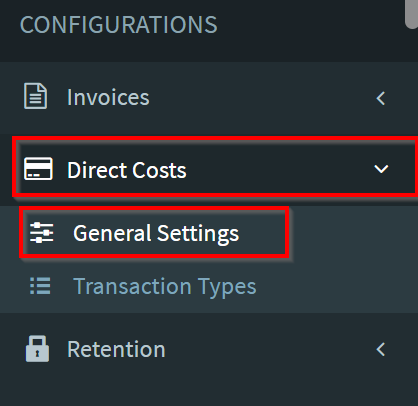
Navigate to the Disabled Sync Banner Settings Section
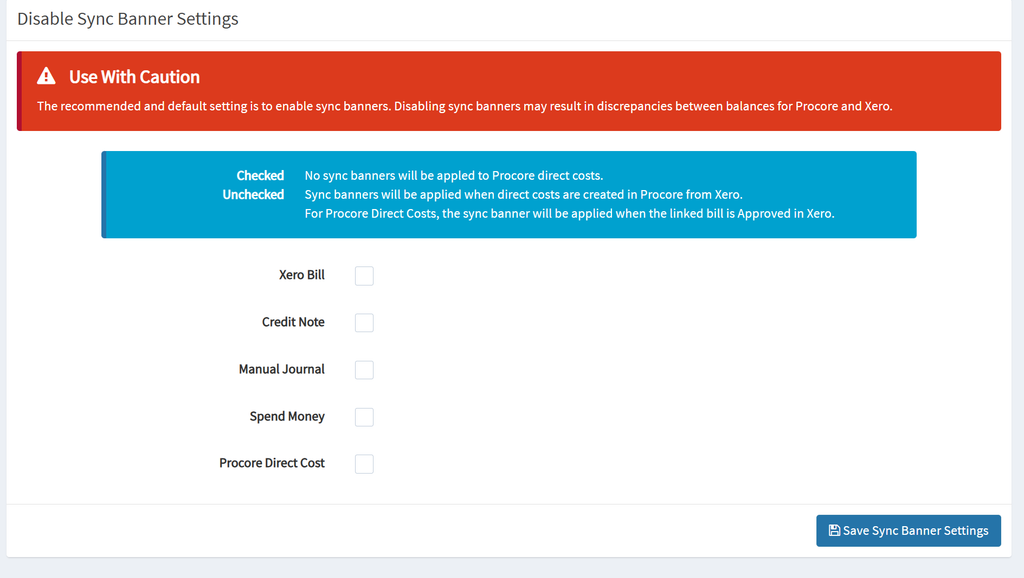
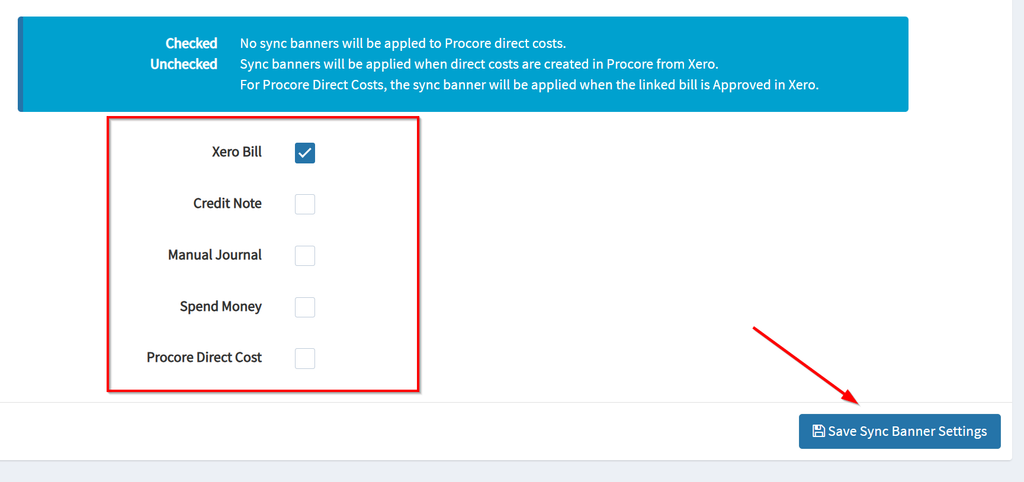
Check the box next to any transaction type for which you want to disable sync banners.
Leave unchecked any transaction type for which you want to keep sync banners active (recommended).
Click Save Sync Banner Settings in the bottom-right corner to apply your changes.
Note:
Checked – No sync banners will be appled to Procore direct costs.
Unchecked – Sync banners will be applied when direct costs are created in Procore from Xero.
For Procore Direct Costs, the sync banner will be applied when the linked bill is Approved in Xero.