
This article outlines common issues that may occur when syncing transactions from Xero into Procore, including Bills, Credit Notes, Spend Money, and Manual Journals.
Common Issues/Errors
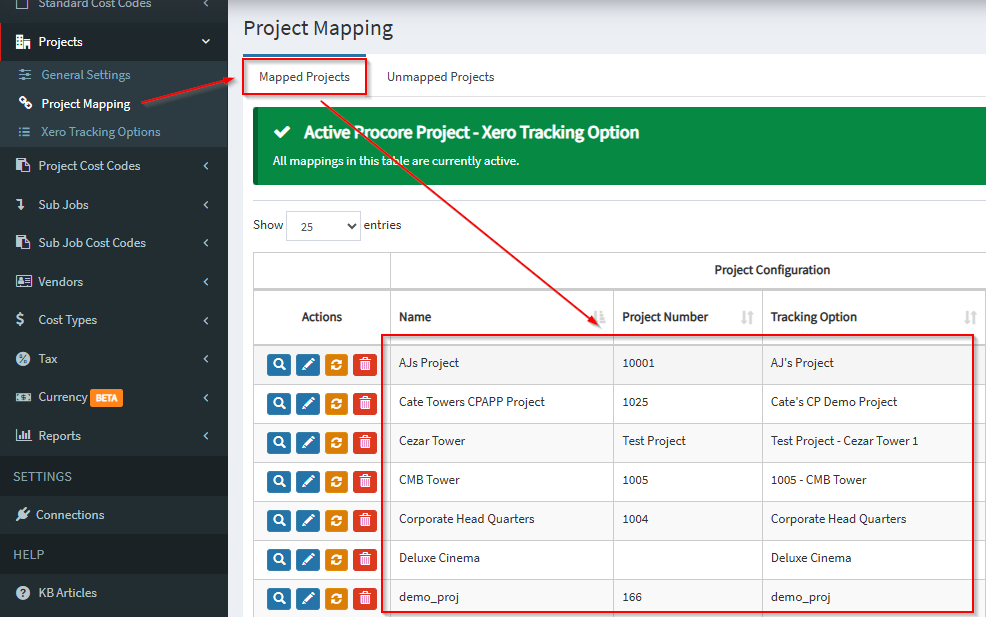
1. Unmapped Project – Ensure the project is correctly mapped in OneCore so transactions can sync properly. In OneCore, navigate to Projects>Project Mapping> and check to see if the project is listed under the mapped projects tab.
How to map to an existing project in OneCore Xero
https://help.interfy.com.au/index.php/knowledge-base/how-to-map-to-an-existing-project-in-onecore/
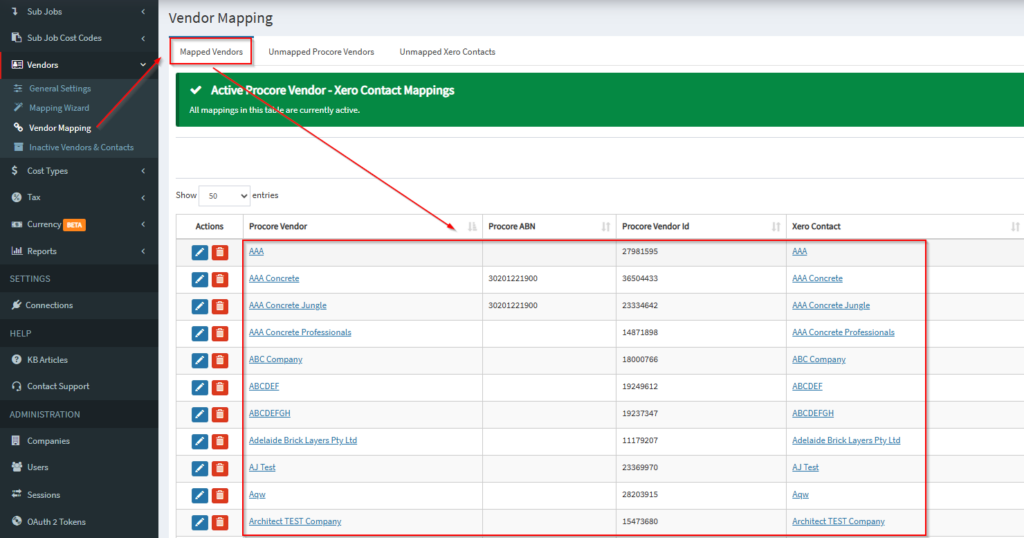
2. Unmapped Contact Verify that the Xero contact is linked to the appropriate Procore vendor or contact record. In OneCore, navigate to Vendors>Vendor Mapping> and check to see if the contact is mapped under the Mapped Vendors tab.
How to map Procore Vendors to Xero Contacts; vice versa
https://help.interfy.com.au/index.php/knowledge-base/how-to-map-procore-vendors-to-xero-contacts-vice-versa/
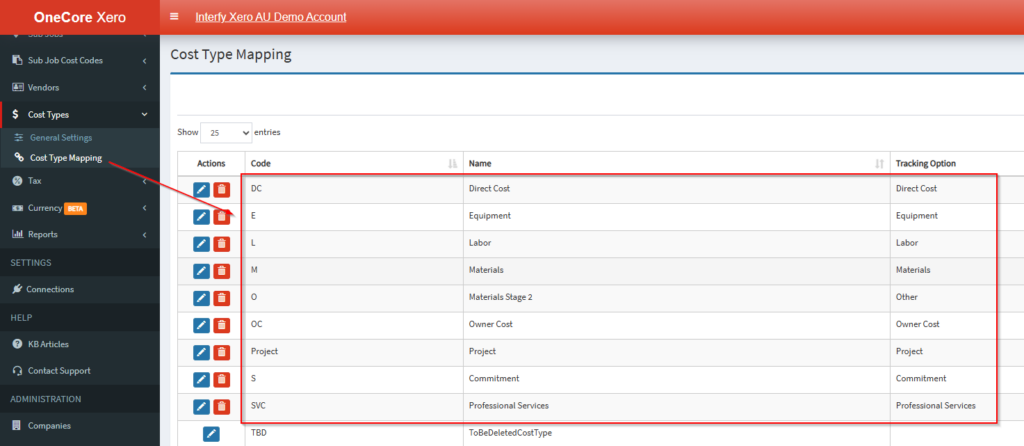
3. Unmapped or Missing Cost Type Confirm that the cost type exists in Procore and is mapped correctly to the transaction. In OneCore you can check the current cost type mappings by navigating to Cost Types>Cost Type Mapping>.
How to map to a new cost type in OneCore Xero
https://help.interfy.com.au/index.php/knowledge-base/how-to-map-to-a-new-cost-type-in-onecore/
4. Unmapped Line Item Account – Occurs when the account is not mapped to a Procore cost code or if corresponding cost code does not yet exist in Procore.
- To resolve unmapped accounts, expense cost codes must be mapped correctly:
- How to map cost codes to Xero accounts in OneCore Xero https://help.interfy.com.au/index.php/knowledge-base/how-to-map-cost-codes-to-xero-accounts-in-onecore-xero/
- How to re-map an expense cost code mapping in OneCore Xero https://help.interfy.com.au/index.php/knowledge-base/how-to-re-map-an-expense-cost-code-mapping-in-onecore/
- If corresponding cost code does not yet exist in Procore:
- Standard Cost Codes (Company‑level)
- Navigate to Company Settings → Work Breakdown Structure.
- Create or update the required cost code.
- Assign the cost code to relevant projects.
- Update the Procore cost code data in OneCore by navigating to Standard Cost Codes>General Settings> and hit the green Refresh Procore Cost Codes Only button at the top of the screen.
- Map the cost code in OneCore by navigating to Standard Cost Codes>Expense Mapping> and hit the Unmapped Standard Cost Codes tab. You will see the unmapped cost code here to map.
- Project‑specific Cost Codes (Project‑level)
- Go to Project Settings → Work Breakdown Structure.
- Add the cost code manually for that project.
- Update the Procore cost code data in OneCore by navigating to Standard Cost Codes>General Settings> and hit the green Refresh Procore Cost Codes Only button at the top of the screen.
- Map the cost code in OneCore by navigating to Projects Cost Codes>Expense Mapping>Select Project and hit the Unmapped Standard Cost Codes tab. You will see the unmapped cost code here to map.
- Standard Cost Codes (Company‑level)