Overview
Direct Costs are expenses incurred on a project that are outside of Commitments (such as Purchase Orders or Subcontract Work Orders). These are typically low-value purchases such as materials bought from suppliers like Bunnings.
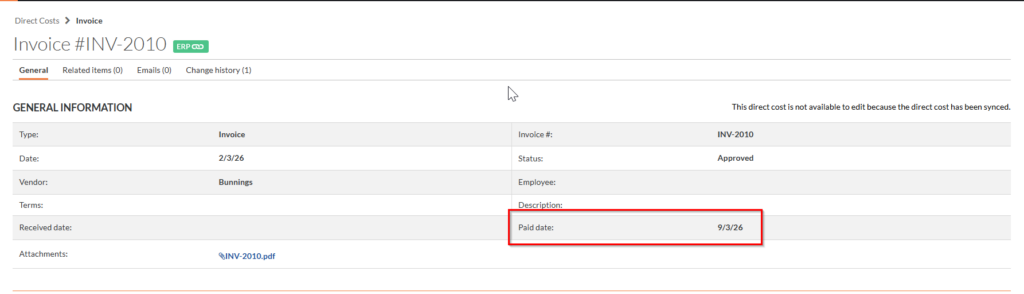
The workflow begins in Procore where the Direct Cost is created within a project. Once the Direct Cost is approved, the integration will automatically create a draft bill in Xero. After the bill is paid or reconciled in Xero, the paid date is synced back to Procore and applied to the Direct Cost.
Prerequisite
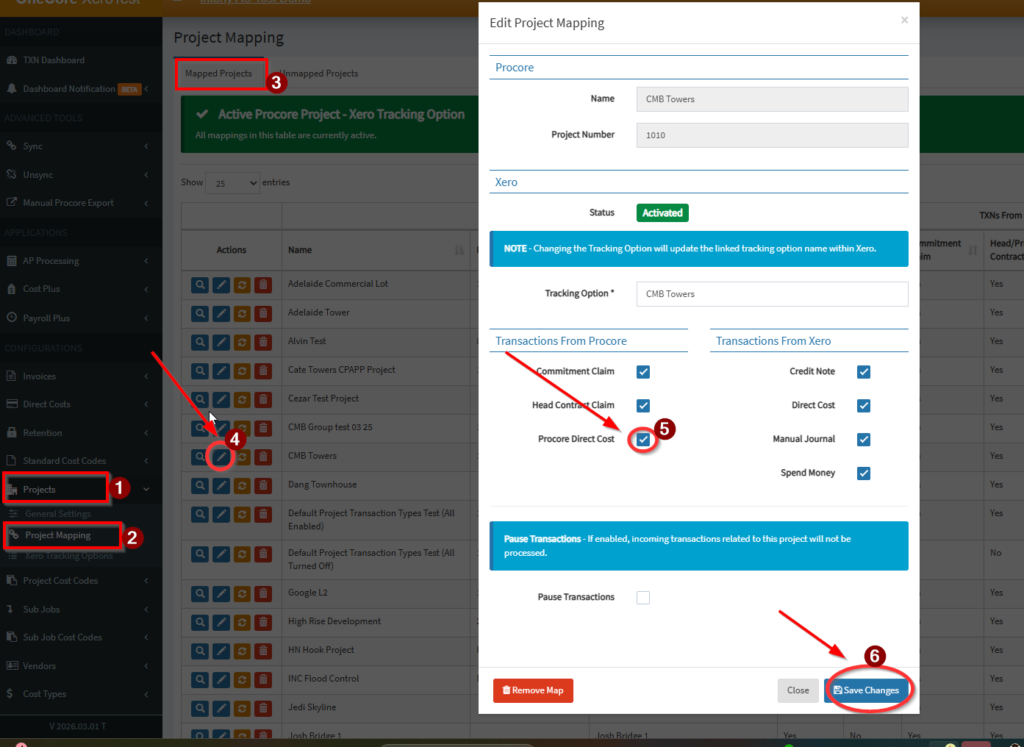
Before creating a Direct Cost, ensure that Procore Direct Cost transaction type is enabled for the required project.
To verify project mapping in OneCore:
- Navigate to Projects
- Select Project Mapping
- Enable Procore Direct Cost
Steps to Create a Direct Cost in Procore
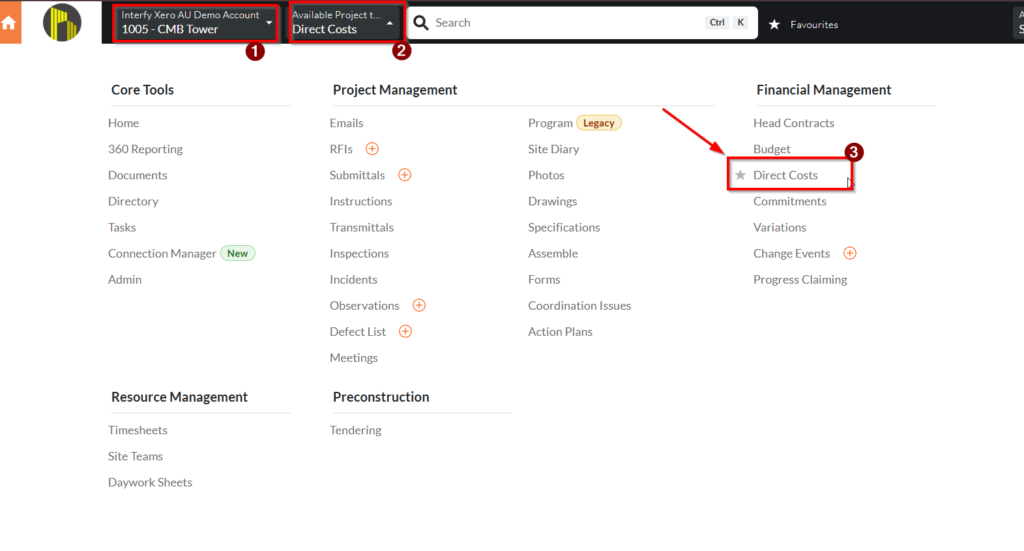
Step 1: Navigate to the Project
- Log in to Procore.
- Open the required Project.
- Navigate to the Financial Management tools.
- Select Direct Costs.
Step 2: Create the Direct Cost
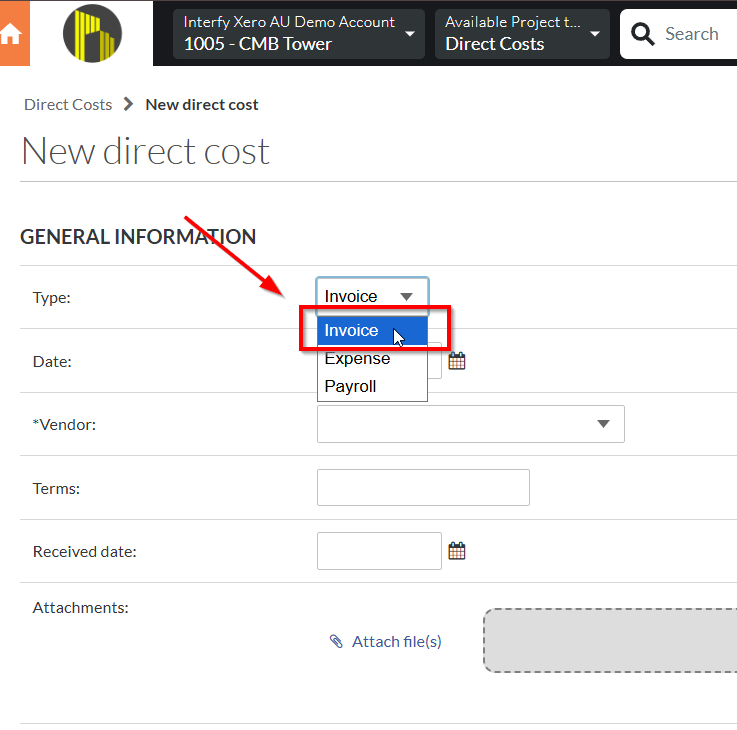
- Click Create Direct Cost.

- Select Invoice as the Direct Cost type.
Note:
- Only Invoice type is supported for Procore to Xero Direct Cost integration.
- Expense and Payroll types are not supported for syncing.
Step 3: Enter Required Information
Enter all required fields such as:
- Date
- Vendor
- Invoice number
- Cost code
- Amount
- Supporting attachments (if required)
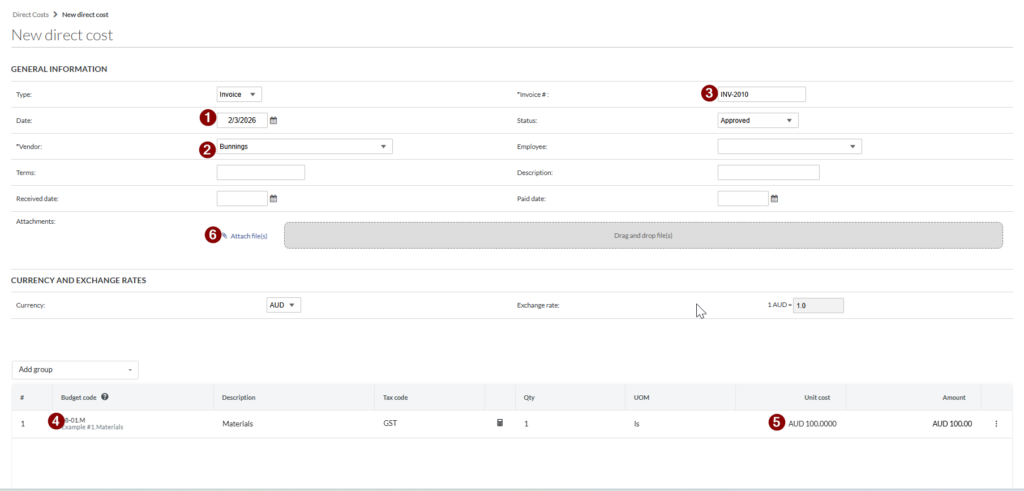
Step 4: Approve the Direct Cost
- Review the Direct Cost details.
- Approve the transaction.
Once approved:
- The Direct Cost will automatically sync to Xero.
- A draft bill will be created in Xero.
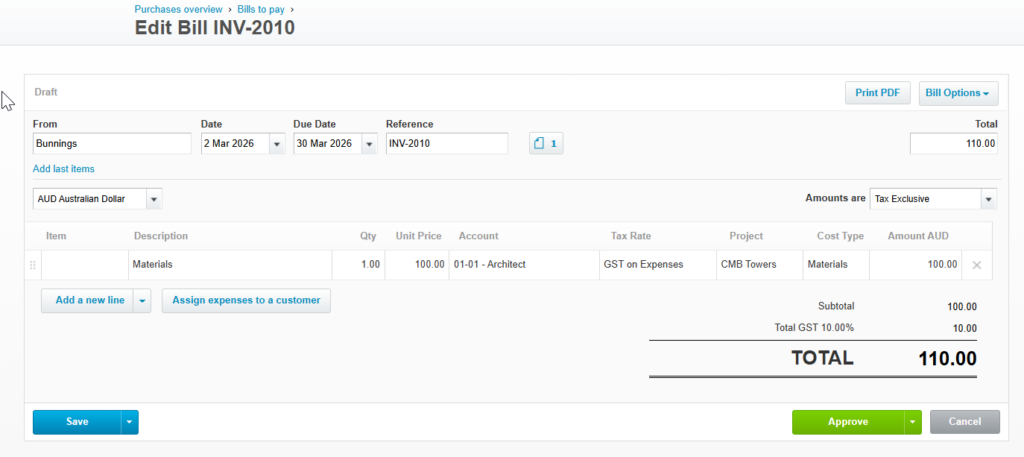
- Once the bill is paid in Xero, the paid date is synced back to Procore. Note that the Direct Cost will also become ERP linked.