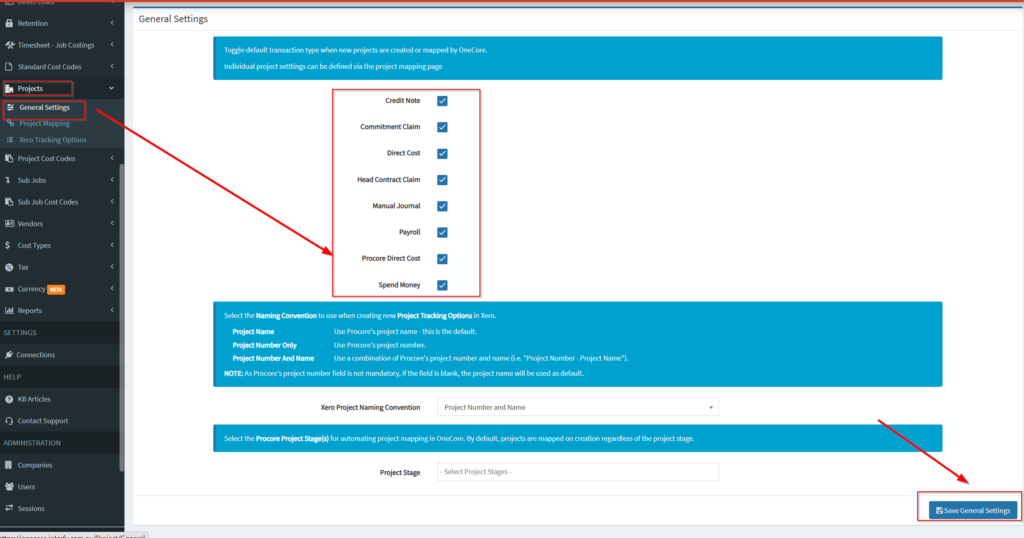
- From OneCore menu, go to Direct Costs>General Settings.

2. From ‘enable transaction types’ tick the transaction type you want to enable Click Save Transaction Types once done.

3. Once the transaction type is enabled, transactions will be scheduled to pull every 3 hours. Or you can click on the ‘sync’ button to request a manual sync which will queue transaction in the next available slot and set the next execution time in 3 hours.

Note the following:
- Spend money direct cost invoice # begin with [SM], credit notes begin with [CN], and manual journals [MJ].
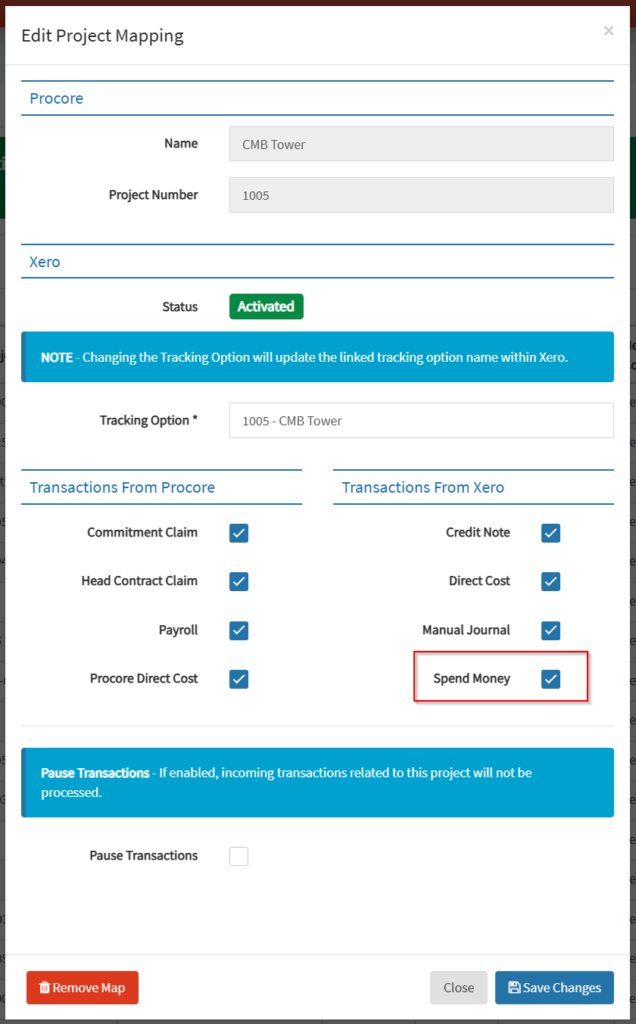
- You will need to ensure that you have enabled the required transaction types within each active project that is mapped in OneCore. This is done by navigating to Projects>Project Mapping> and hitting the Edit Current Map button alongside each of your mapped projects. From the new window you can mark the transaction types you wish to have tracked within the project. Remember to save changes once done.
4. Enable Transactions by default for new Projects.
In OneCore, specific transactions from Procore and Xero can be auto enabled for new projects created in Procore.
Navigate to Projects>General Settings:
Toggle default transaction type when new projects are created or mapped by OneCore.
Individual project setttings can be defined via the project mapping page