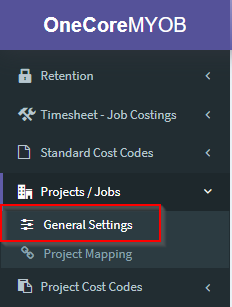
1. To map to an existing project from OneCore, go to Projects/Jobs>General Settings:
2. Click on Refresh Projects to refresh the projects list.

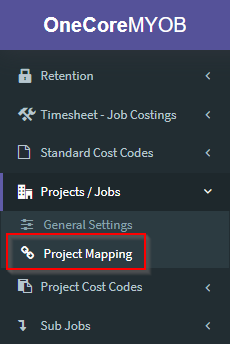
3. Go to Projects>Project Mapping.
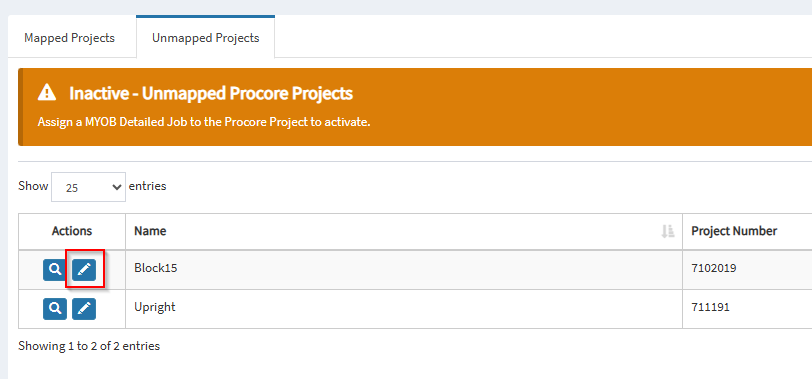
4. Click on the pencil icon next to the project you want to map.
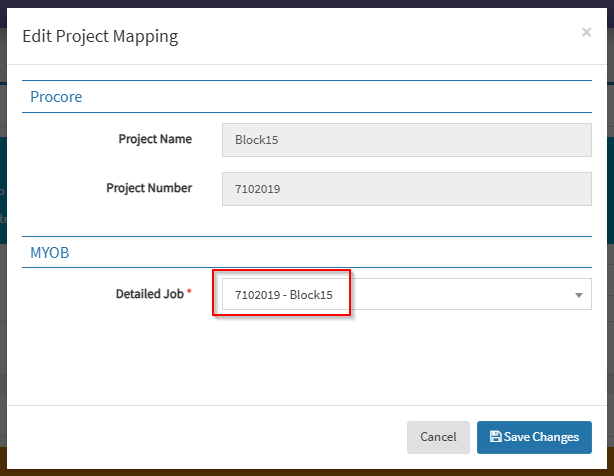
5. Select the MYOB Detailed Job from the list (if it’s not available it needs to be created in MYOB or it’s been mapped to another project).
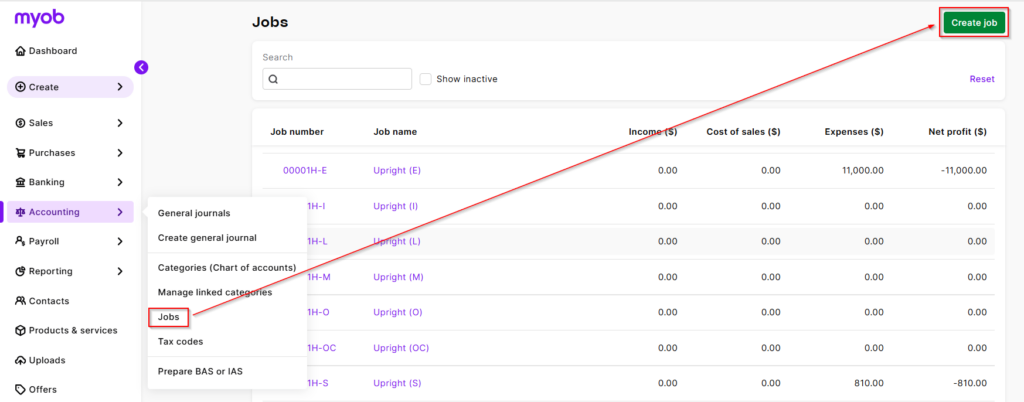
5a. To create a MYOB detailed job, navigate to Accounting>Jobs> and then hit the green Create Job button.
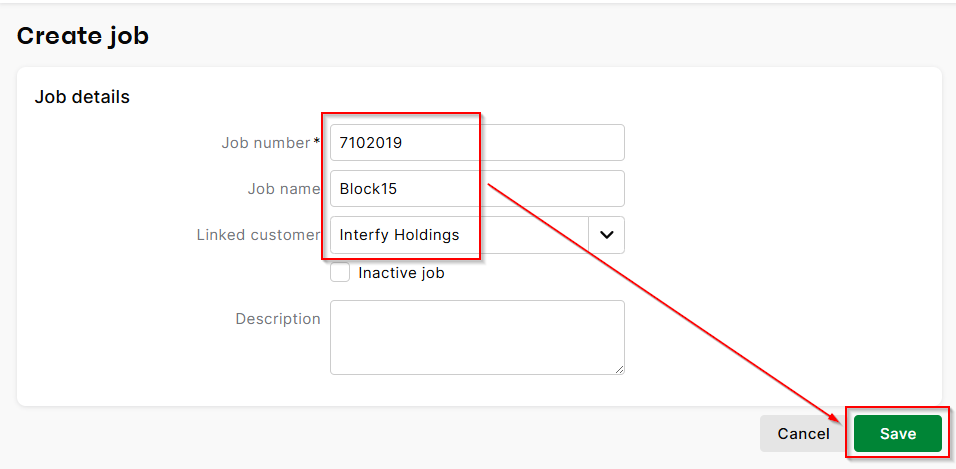
5b. Fill in the relevant job details and hit save once done.
5c. Back in OneCore remember to refresh the Job data so we can see the new detailed job in OneCore. Navigate to Project/Jobs>General Settings> and hit the blue Refresh Projects & Jobs button.

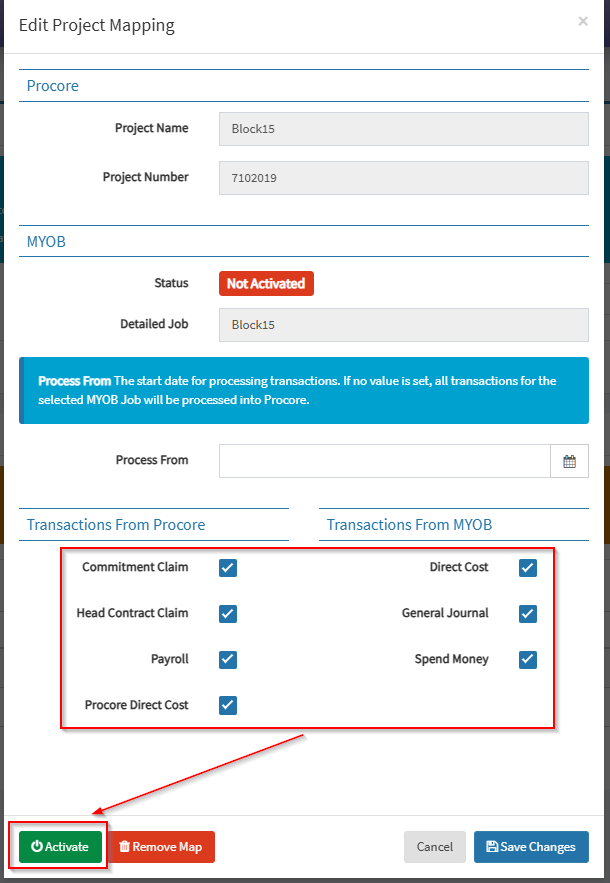
6. Once the mapping has been saved in OneCore, you will be given options on which transaction types from Procore and Xero you wish to be tracked. Make sure you tick all of the relevant options dependant on the workflows of the company (eg. if they use multi-mapping they likely won’t need to have Xero direct costs selected). Click on Activate to create a link between the project and tracking option.