1. From Onecore, go to Vendors>Vendor Mapping.

2. Select Refresh Vendors and Contacts to ensure you have an up-to-date list of vendors and contacts.

3. To map Procore Vendors, go to Vendor Mapping.

4. You will see three tabs – Mapped Vendors, Unmapped Procore Vendors and Unmapped Xero Contacts.
Select Unmapped Procore Vendors. This will show you a list of unmapped Procore vendors.

Select Unmapped Xero Contacts. This will show you a list of unmapped Xero contacts.

5. To manually map, click on the pencil icon next to the vendor or contact, to select the corresponding vendor or contact to map to. Click Save Changes once done.

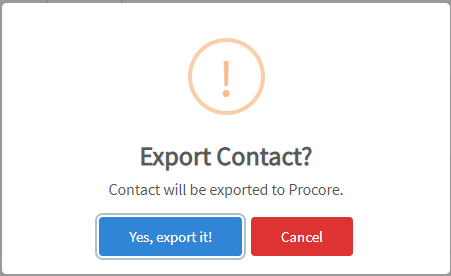
6. If there is not an equivalent mapping but the vendor or contact is required to be in Procore or Xero, you can click the Export button to create an automatic mapping.
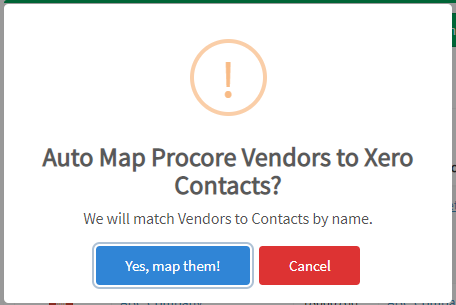
7. To auto-map contacts and vendors, go to the Mapped Vendors tab and click on Auto Map Vendors by Name. This will only work if the corresponding Procore vendor or Xero contact has been created and match exactly by name. Select Yes, map them! to map the vendors.