- From Xero, open Business>Bills to pay.

2. Click on New Bill.

3. Select a vendor, due date, and enter a reference number.

4. Enter the description, quantity, unit price, cost code account, project and cost type.

5. Click on Approve once complete.

6. To view the integrated direct cost Procore, select the project from the drop-down menu.

7. From Available Project Tools select Direct Costs to view the invoice.


How direct costs with line items from different projects on the same bill integrate to Procore
In Xero you can create a single bill that covers line items across multiple projects which will integrate to Procore. This is what it will look like.
Create the Xero bill in Xero with line items specifying the corresponding Procore project.
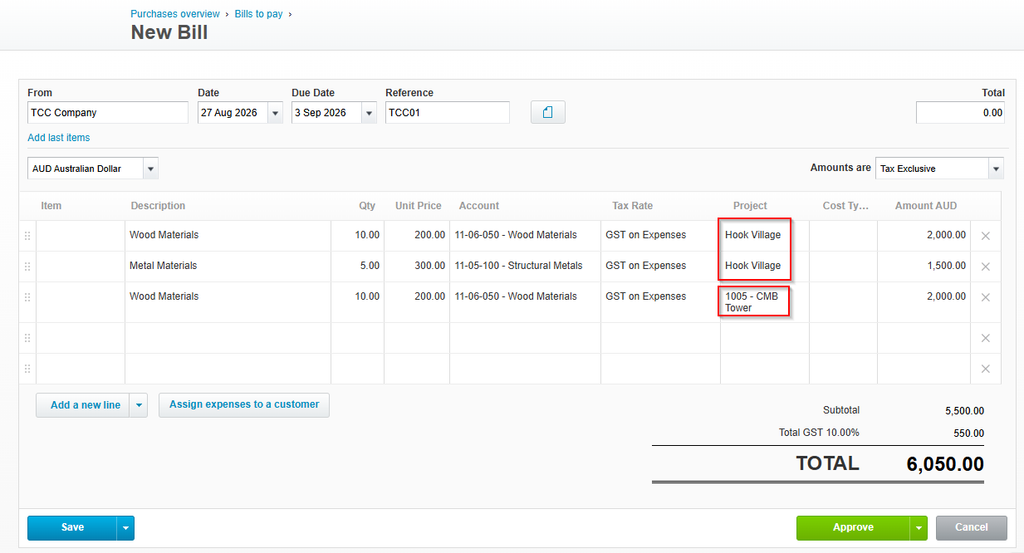
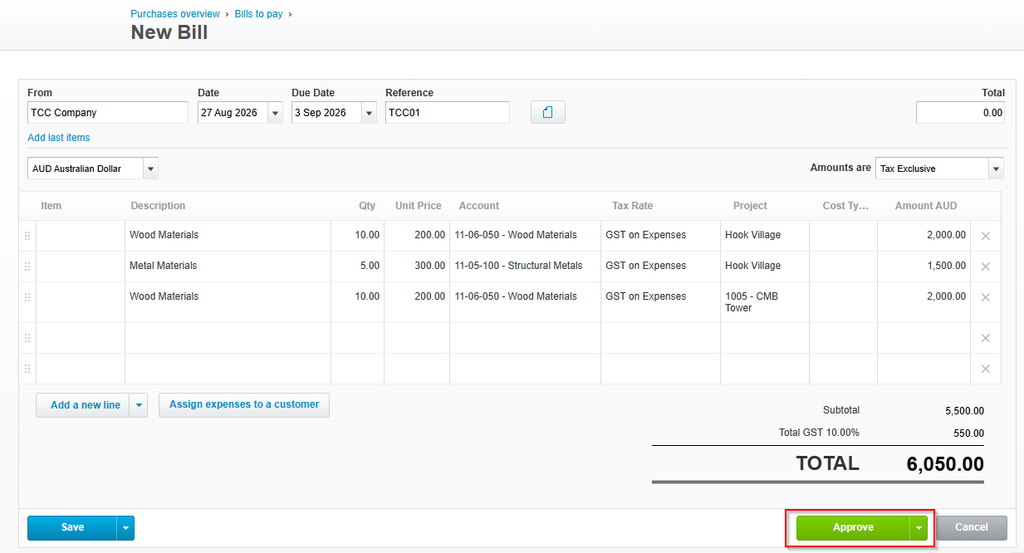
Once done, hit the green Approve to start the integration to Procore.
To view the integrated direct cost in Procore, select the project from the drop-down menu.

From the Available Project Tools menu, select Direct Costs to see the invoice.
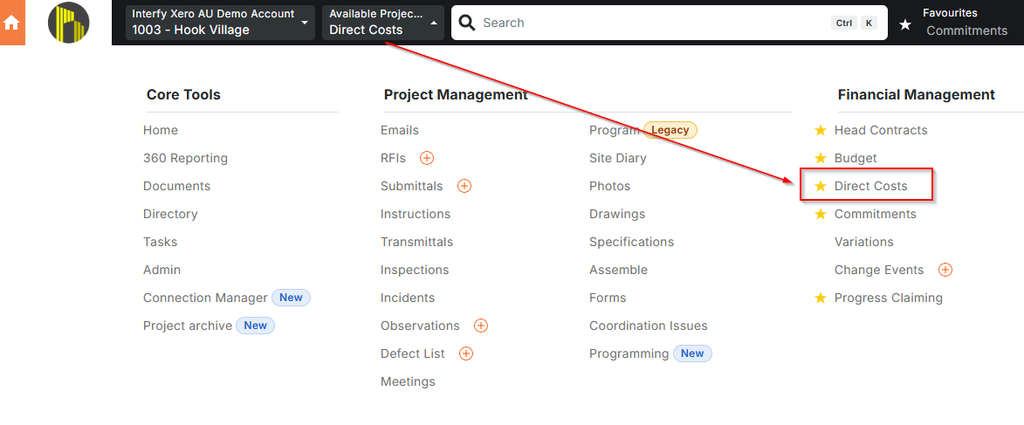
Here you will be able to see the integrated direct cost from the corresponding line item and relevant project.
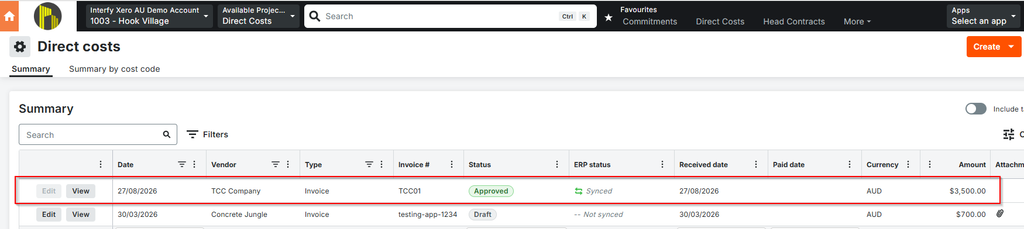
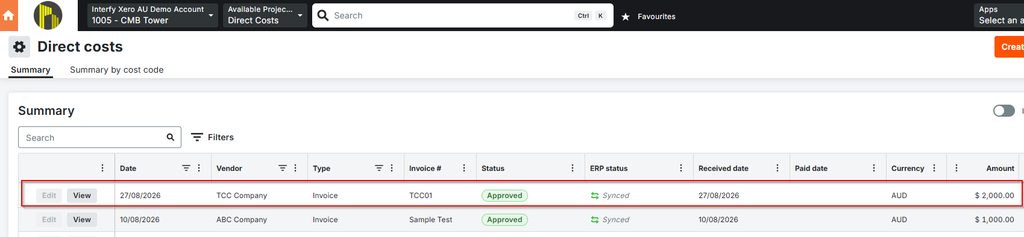
Payments on a Xero bill
Below is an example of a Xero bill and how it integrates back to Procore once it has been approved.
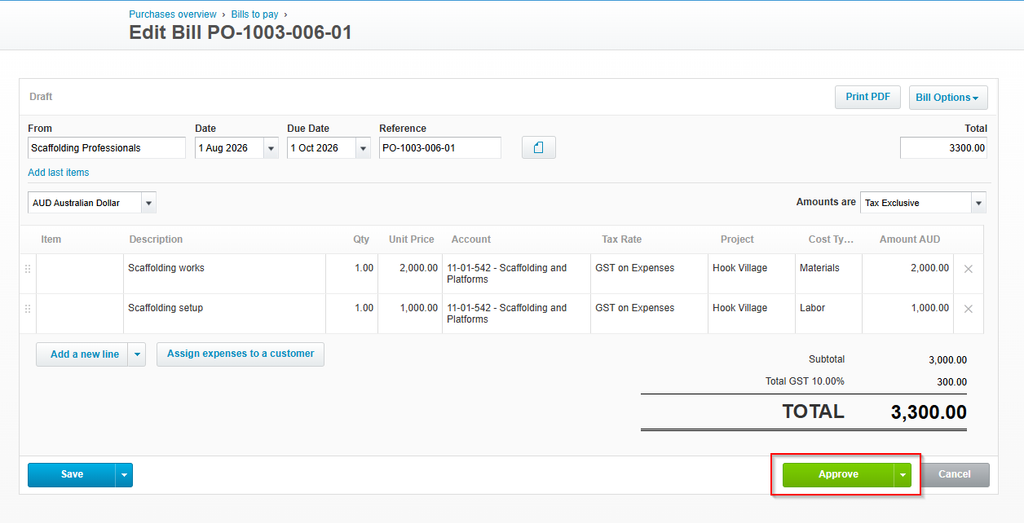
Once approved you can make payment on the bill.

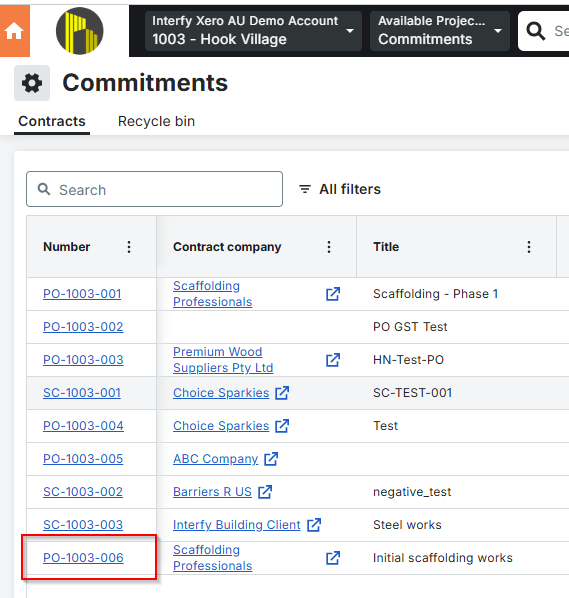
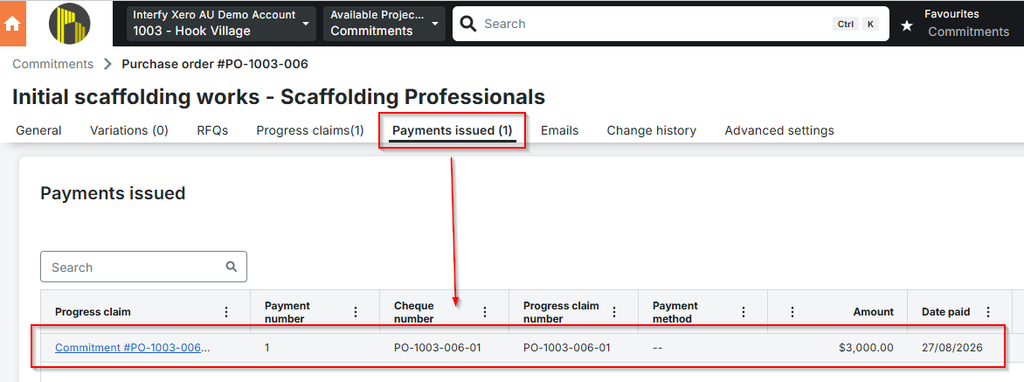
To view the approved payment in Procore, navigate to the corresponding project, and then select Commitments from the Available Project Tools menu.

Find the relevant commitment number and open it.
Select the Payments Issued tab and you will be able to see the approved payment details.
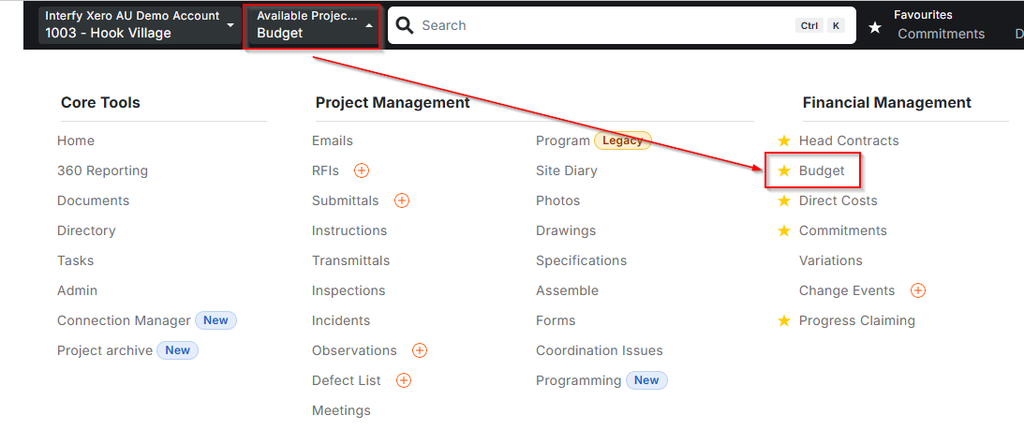
You can also view the synced costs in the Procore budget. Navigate to the Budget option under Available Project Tools.