
COST CODE & VENDOR MAPPING
Once the pre-onboarding tasks have been completed, our support team will import data from both Procore and Odoo into our integration platform (OneCore) where data can be mapped across both systems.
A login to OneCore will be created and supplied to begin the onboarding activities.
https://onecore-odoo.interfy.com.au
STANDARD COST CODE MAPPING
Standard cost codes must have an equivalent Odoo Account. This will allow invoice line items to be created and updated between both systems without issue.
Expense Mapping will be used when:
- A bill is created in Odoo from a Procore Commitment Progress Claim
- A Direct Cost is created in Procore from a bill in Odoo
Note: Only cost codes can be mapped.
Revenue Mapping will be used when:
- A sales invoice is created in Odoo from a Procore Head Contract Progress Claim Note: Both cost codes and cost divisions can be mapped.
Create a Mapping:
- Navigate to the Standard Cost Code -> Expense Mapping / Revenue Mapping
- Click on the ‘Unmapped Standard Cost Code’ tab
- Click the pencil icon in the table and select the equivalent Odoo account via the dropdown
- Click ‘Save Changes‘
- Navigate back to ‘Mapped Standard Cost Codes‘ tab to check your mapping
Click ‘Save’
Once all Standard Cost codes have been mapped, any existing or new Procore project that uses this standard cost code set will automatically receive the mappings.
VENDOR MAPPING
Procore vendors must have an equivalent Odoo Vendors. This will allow invoices to be created and updated between both systems without issue.
A mapping table is provided to assist with the process of mapping Procore vendors and Odoo Vendors by identifying any suggested mappings.
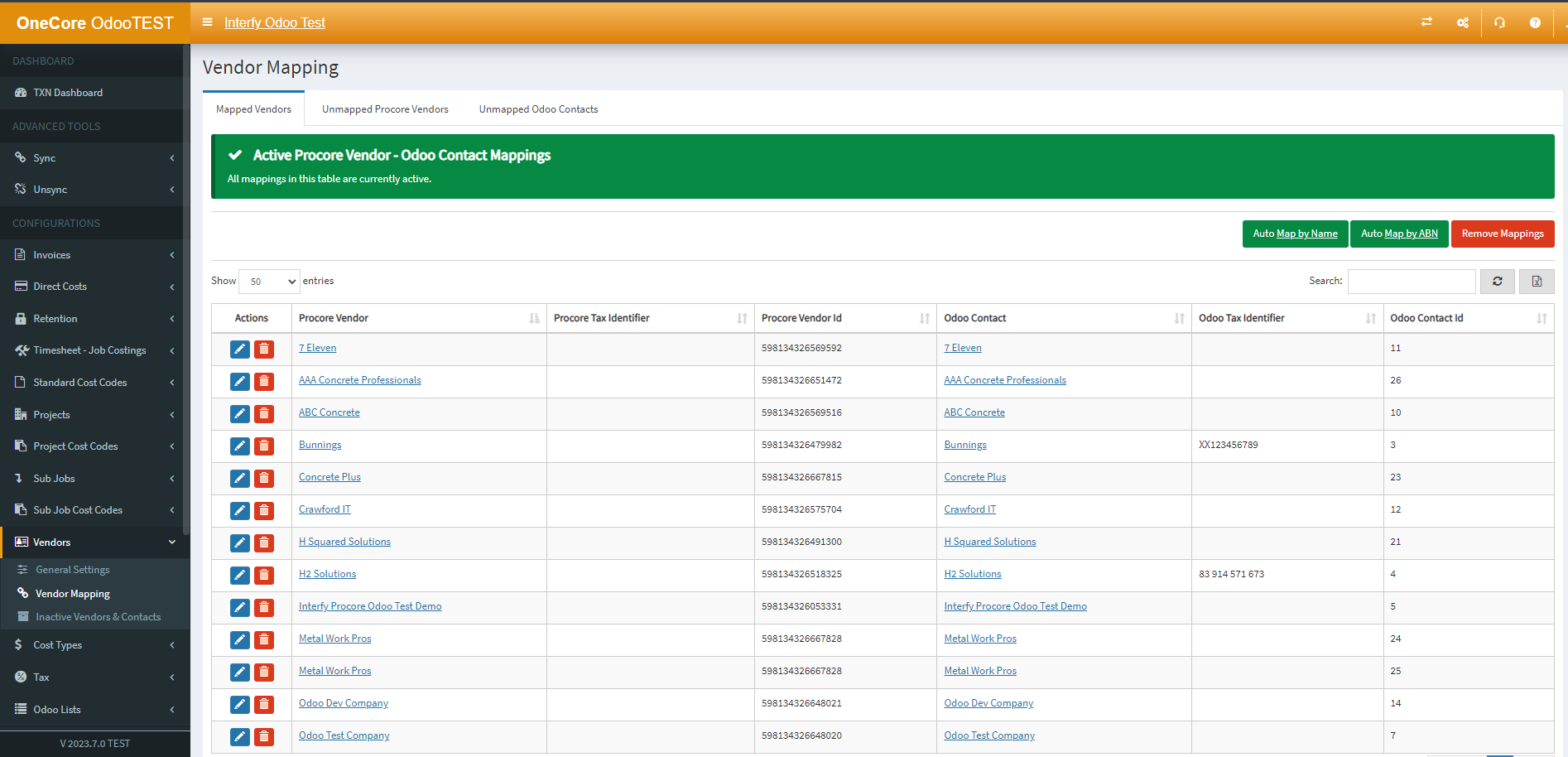
Create a Mapping:
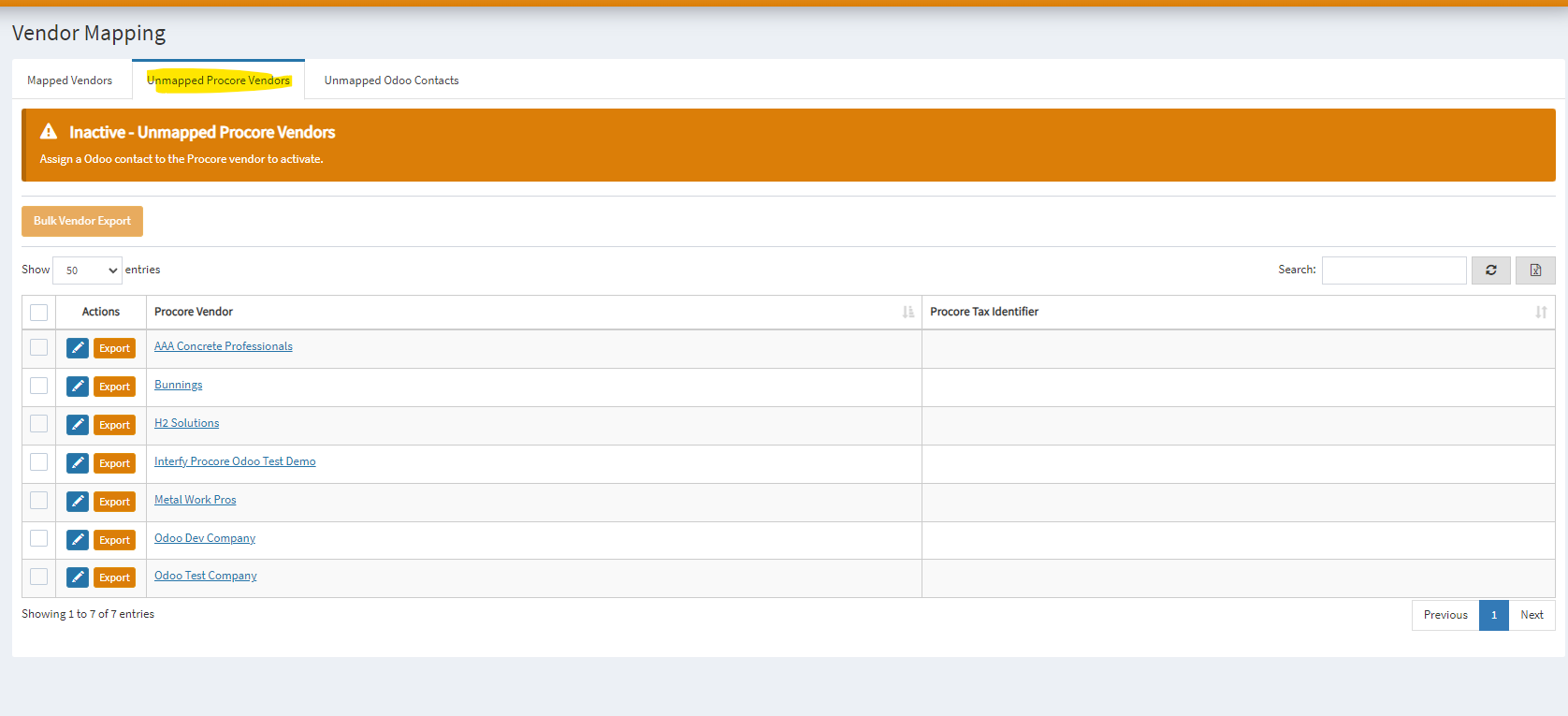
1. Select “Unmapped Procore Vendors” on the tab

2. Click on the pencil icon next to the vendor, select the appropriate vendor to map to.
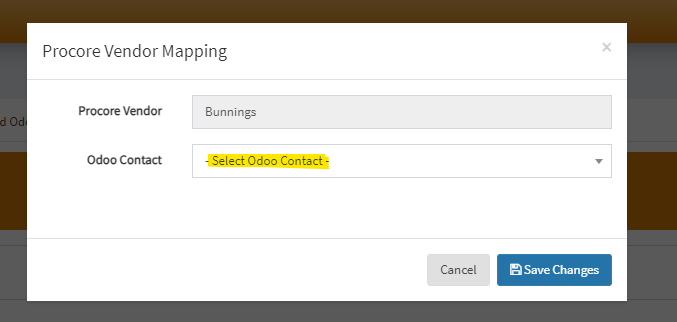
3. Click Save Changes once done.
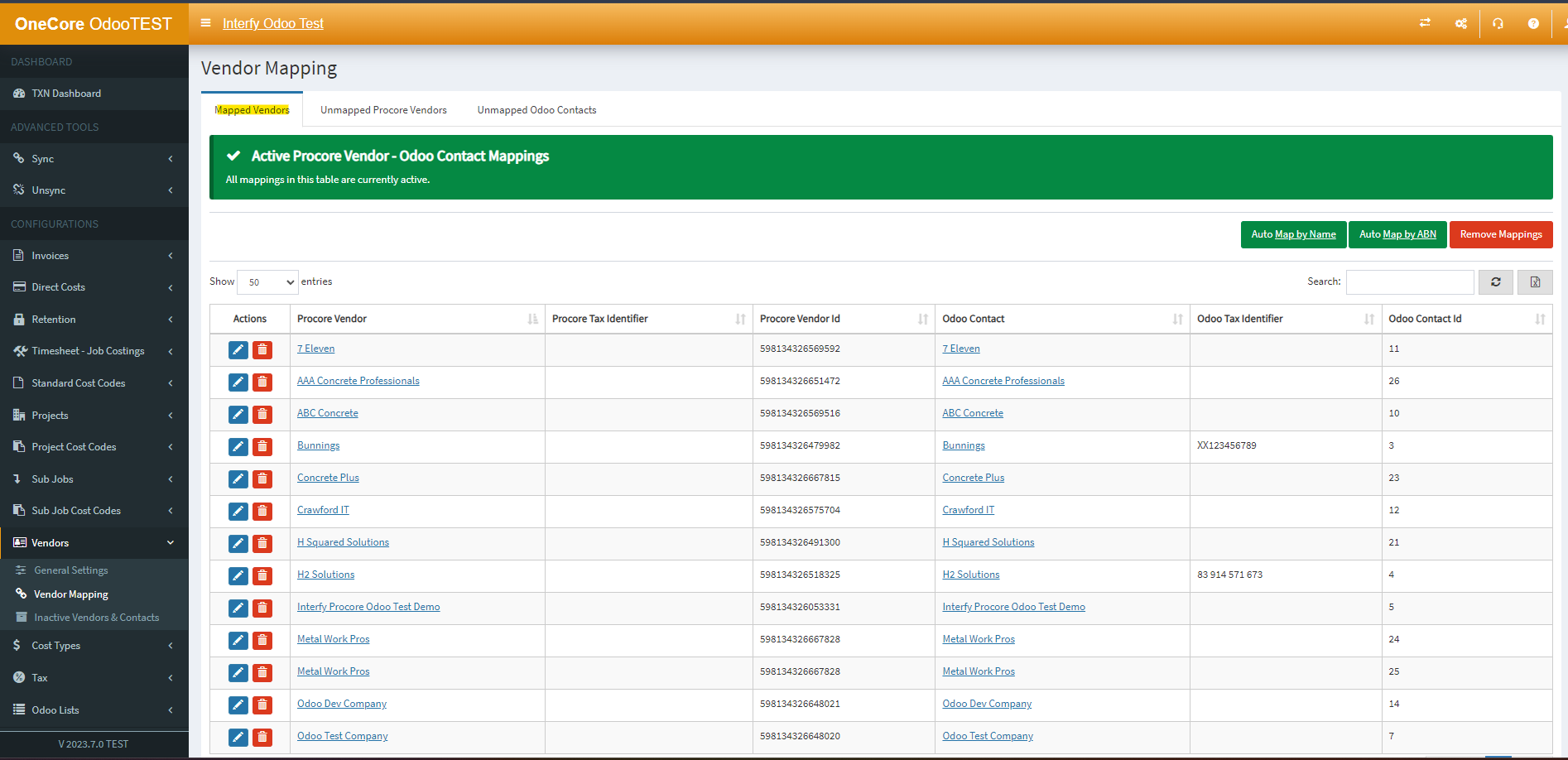
4. Navigate back to Mapped Vendors, you will see the selected Procore Vendor is established.
FINAL STEPS
Once all onboarding activities are completed, we will confirm with you which Procore Projects are to be integrated with Odoo and activate.
After activation:
- All new projects created in Procore will automatically be integrated.
- Procore vendor / Odoo Vendor names will be in sync.
Contact us (support@interfy.com.au) for any questions, feedback and support.