
Please contact support to enable the Advanced Tools Option which opens up additional options to allow users to unsync or resync individual Procore transactions.
Supported Procore Records
- Commitment Claim
- Head Contract Claim
- Direct Cost
- Claim payment
Caution: Unsyncing a Procore record will allow it to be modified or deleted and may result in discrepancies between balances for Procore and Xero.
Unsync Steps:
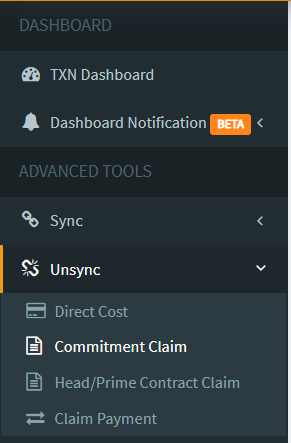
In OneCore, navigate to Unsync under the ADVANCED TOOLS> select if the item that needs to unsynced is a commitment claim, head contract claim, direct cost or claim payment.
In this example, Commitment claim.
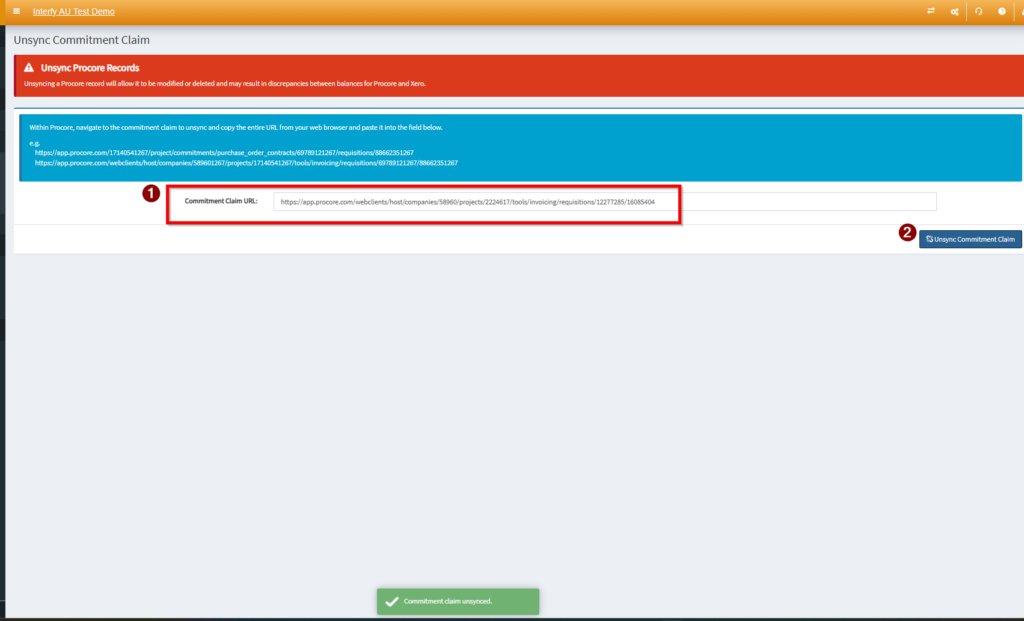
Copy and paste the URL/hyperlink of the claim in the URL box, and then click the “Unsync Commitment Claim” button.
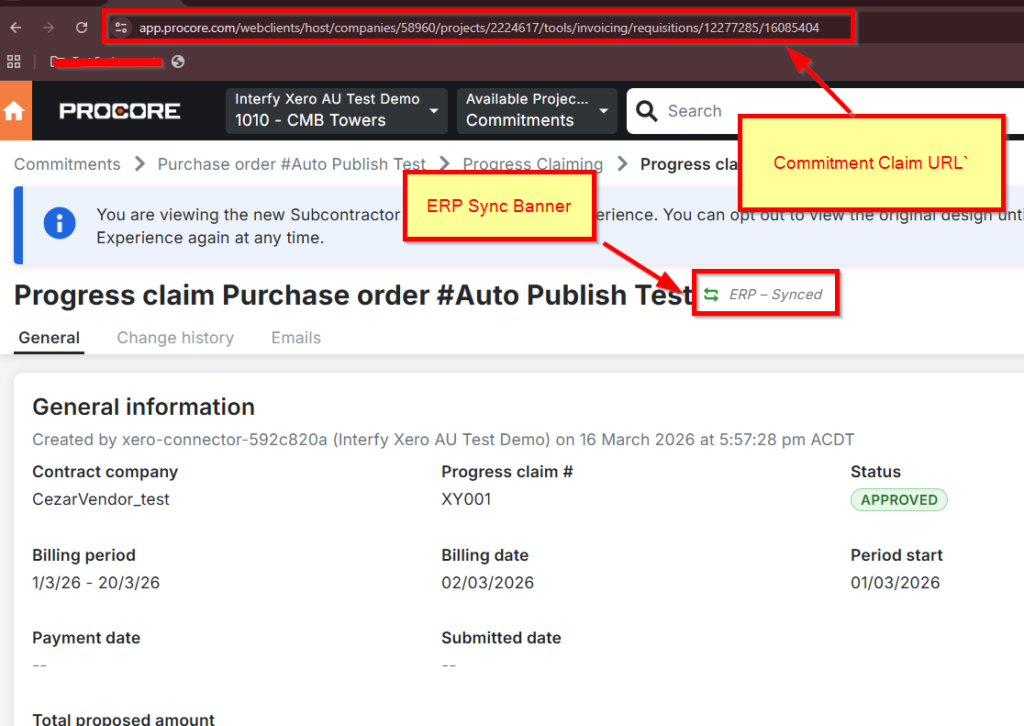
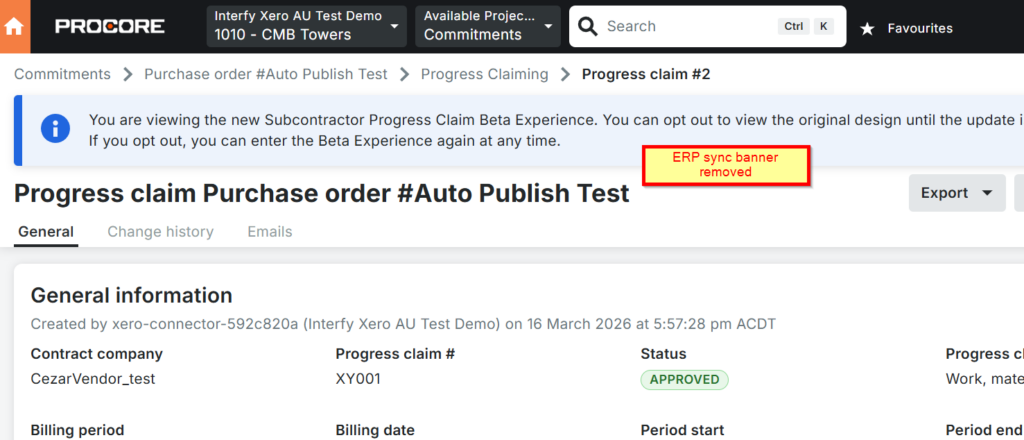
Refresh your browser and the ERP sync banner is now removed which will allow updates on the entry.
Sync Steps:
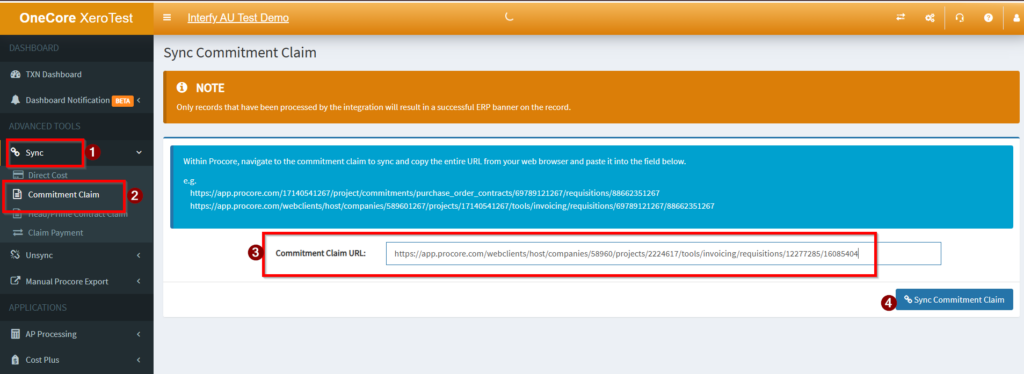
Once the necessary changes have been made, to Sync, in OneCore, go to Sync under the ADVANCED TOOLS> Commitment claim (refer to the Unsync example above)
Copy and paste the direct URL link of the claim in the URL box, and then click the “Sync Commitment Claim” button to restore the ERP Sync Banner.
How to Unsync Claim Payments:
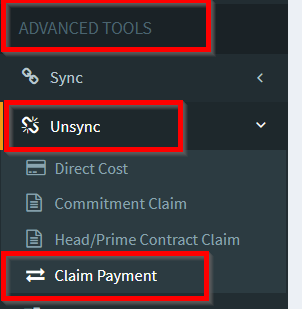
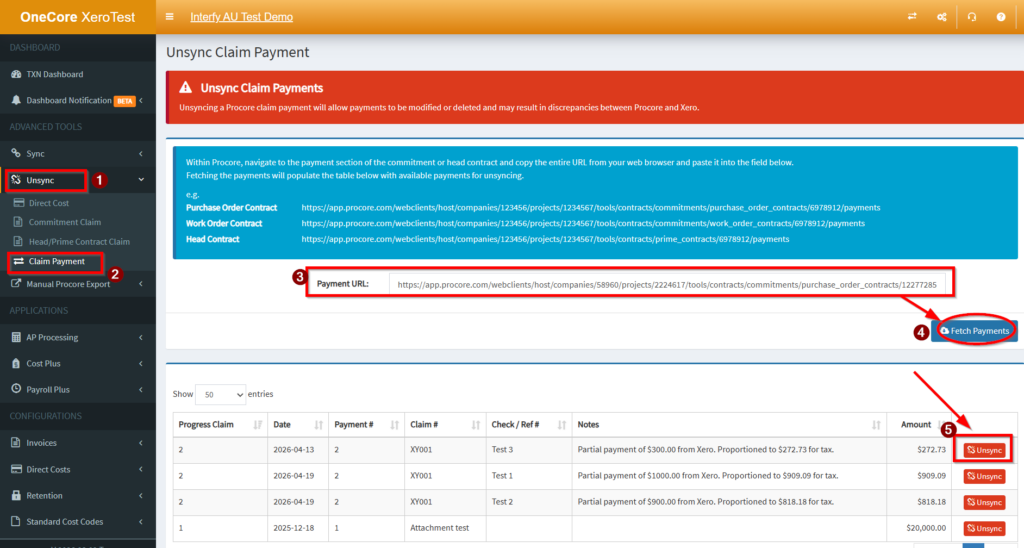
In OneCore, navigate to Advanced Tools>Unsync>Claim Payment.
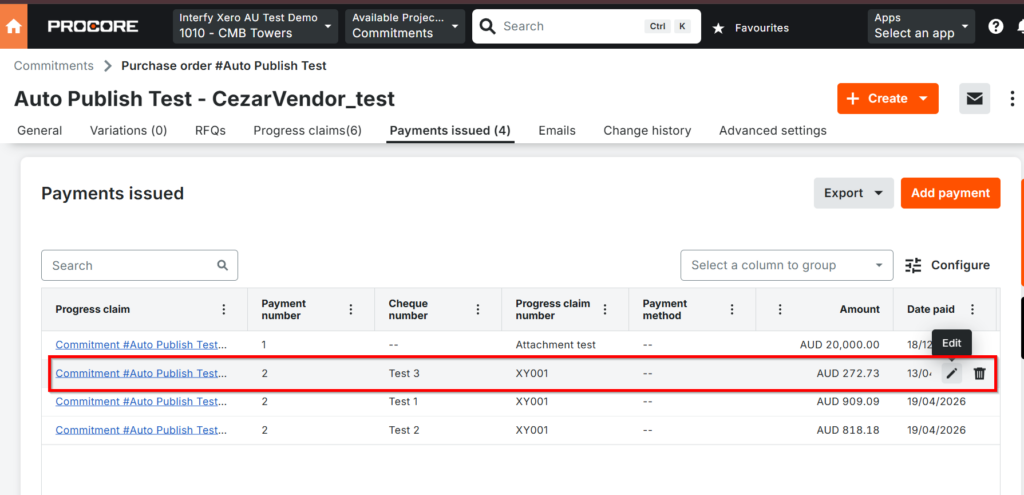
Navigate to the contract and open the Payments Issued Tab.
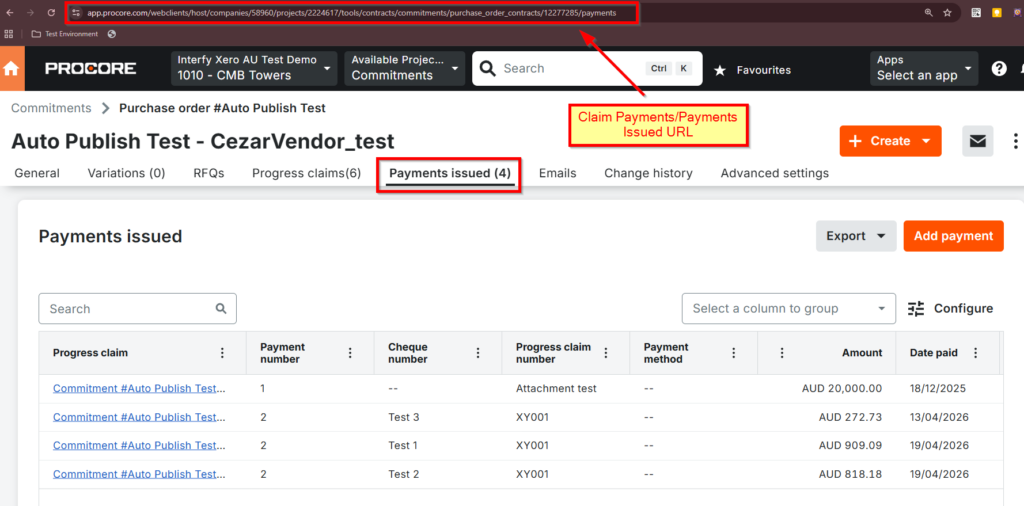
Copy and paste the payments issued URL.
Click Fetch Payments.
Select the payment and click unsync.
Refresh your Procore browser and the payment can be manually edited or removed.
Note that only edited payments can be resynced while deleting and manually entered payments cannot.