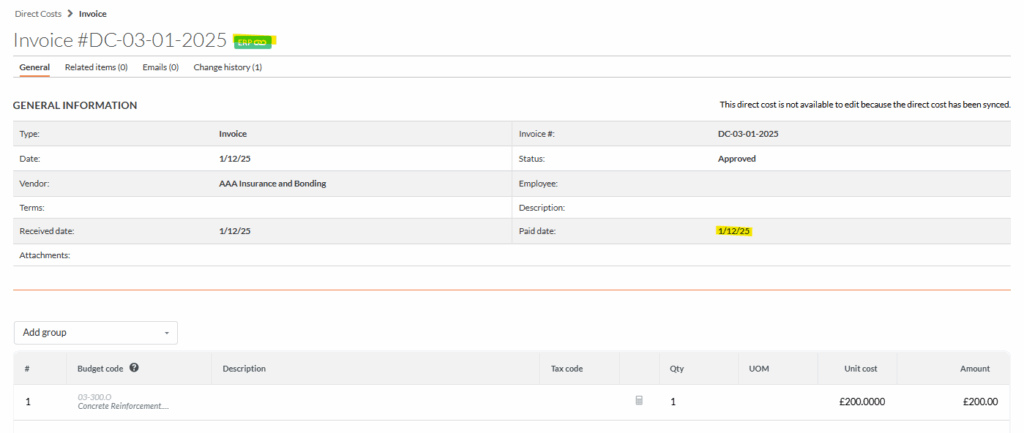
Requirements from OneCore Sage Intacct:
- Mapped Vendor
- Mapped Project
- Mapped Cost Type
- Mapped Expense Cost Code at the Project level
To create
- In Sage Intacct, navigate Account Payable > All > Bills and click the + button next to the text “Bills”.
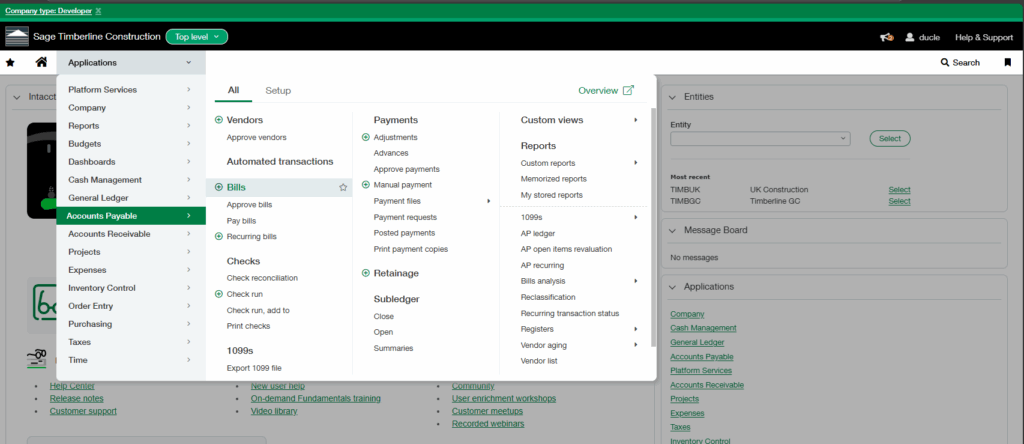
2. The following fields need to be entered for the integration to work properly:
- Date
- Vendor
- Bill Number
- Due Date
- Project
- Cost Code
- Cost Type
- Account
- Transaction Amount
- Location
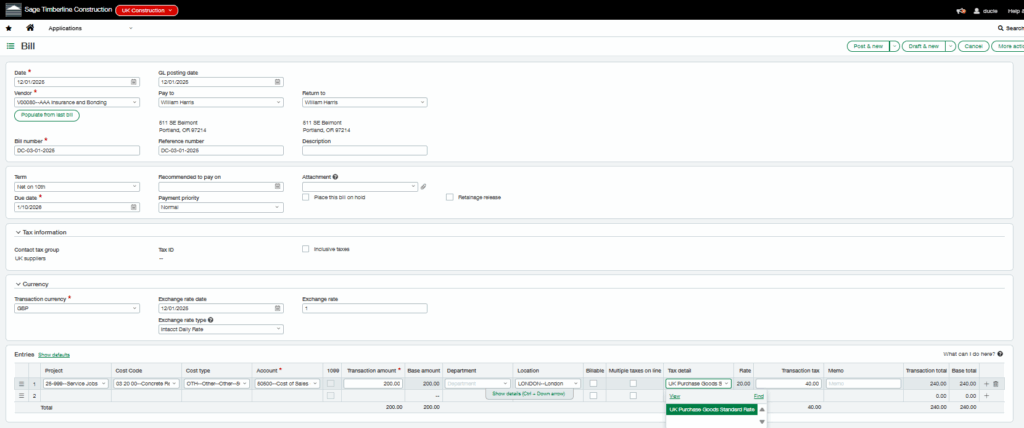
3. Click on Post once complete.
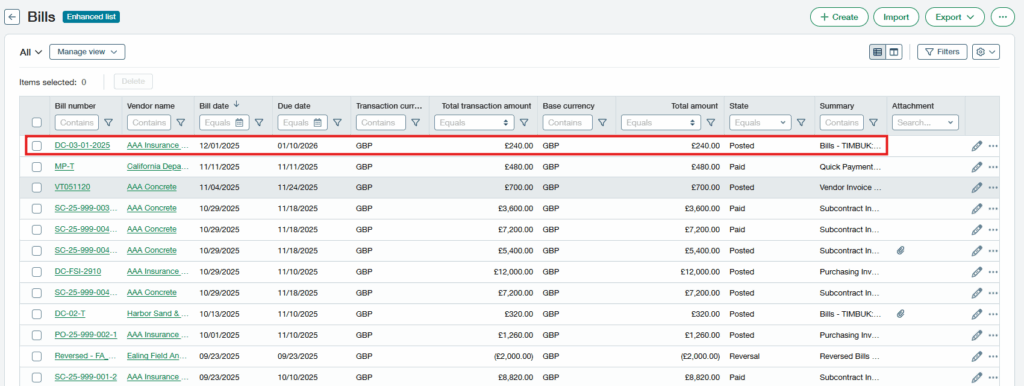
4. In OneCore Transaction Dashboard, the bill transaction should be shown. Click on the blue button to go to the created direct cost in Procore.

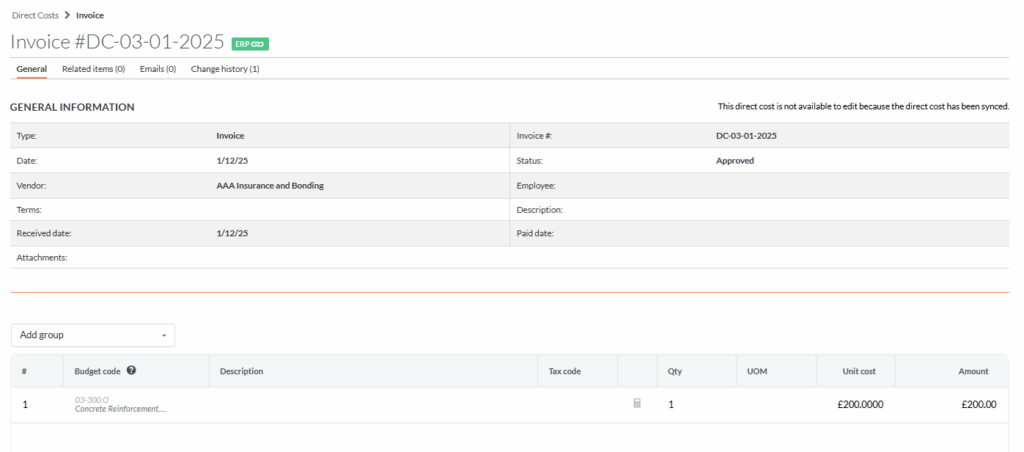
5. This is the sample invoice created from Sage Bill that is being sent to Procore Direct Cost.
To pay
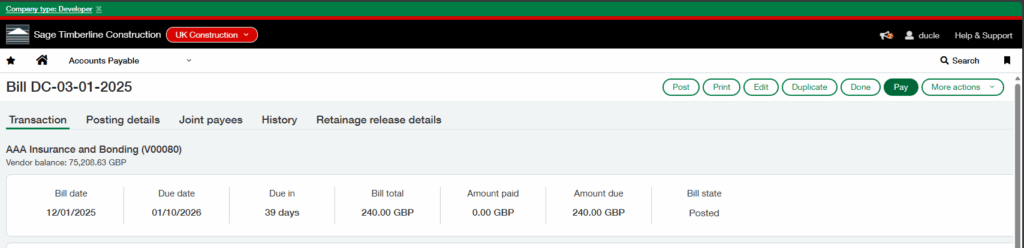
1. Navigate back to Sage Intacct bill and click on Pay button.
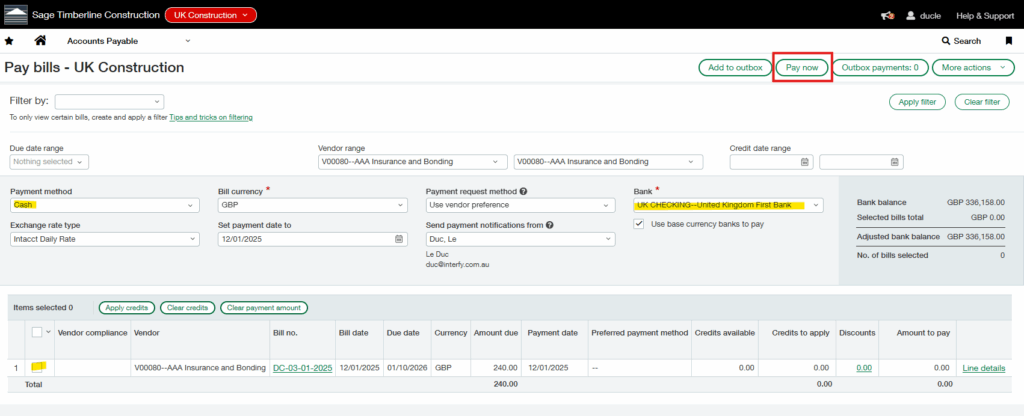
2. Select the payment method and bank, then Pay Now
3. Add more details and Save changes.

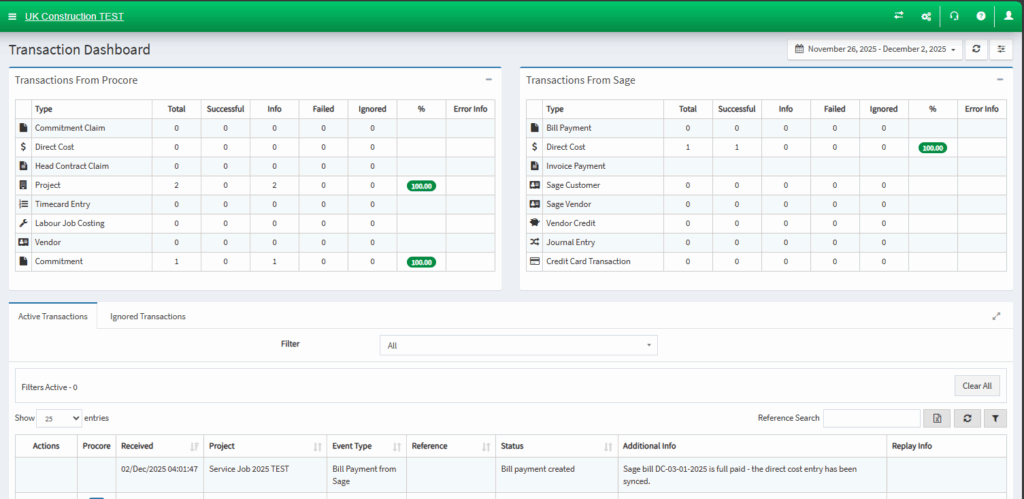
4. Direct back to OneCoreQBO, check the transaction.
5. Open the direct cost that was being created in Procore, the paid date and a sync banner should be updated.