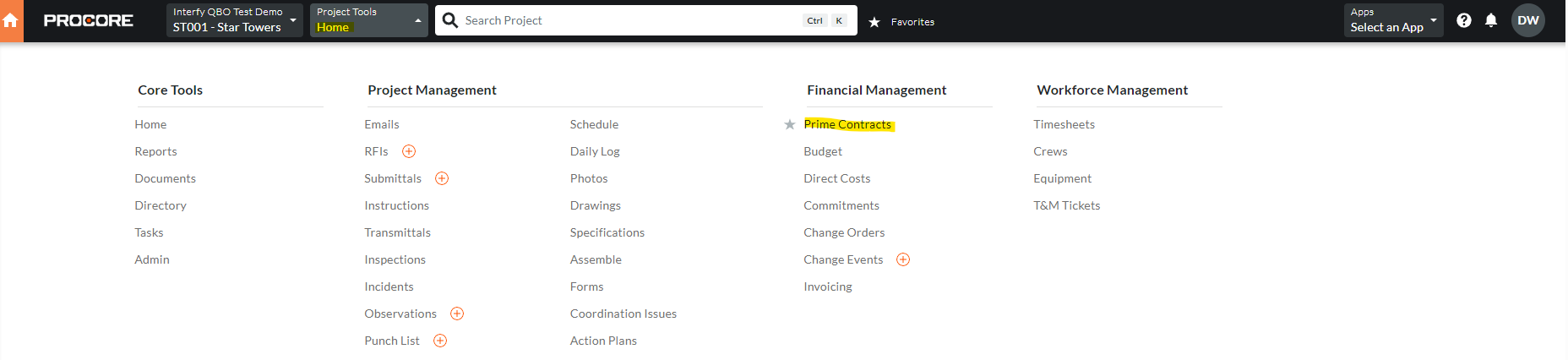
1. From Procore, select the project from the drop-down menu.
2. From Available Project Tools select Head Contract.
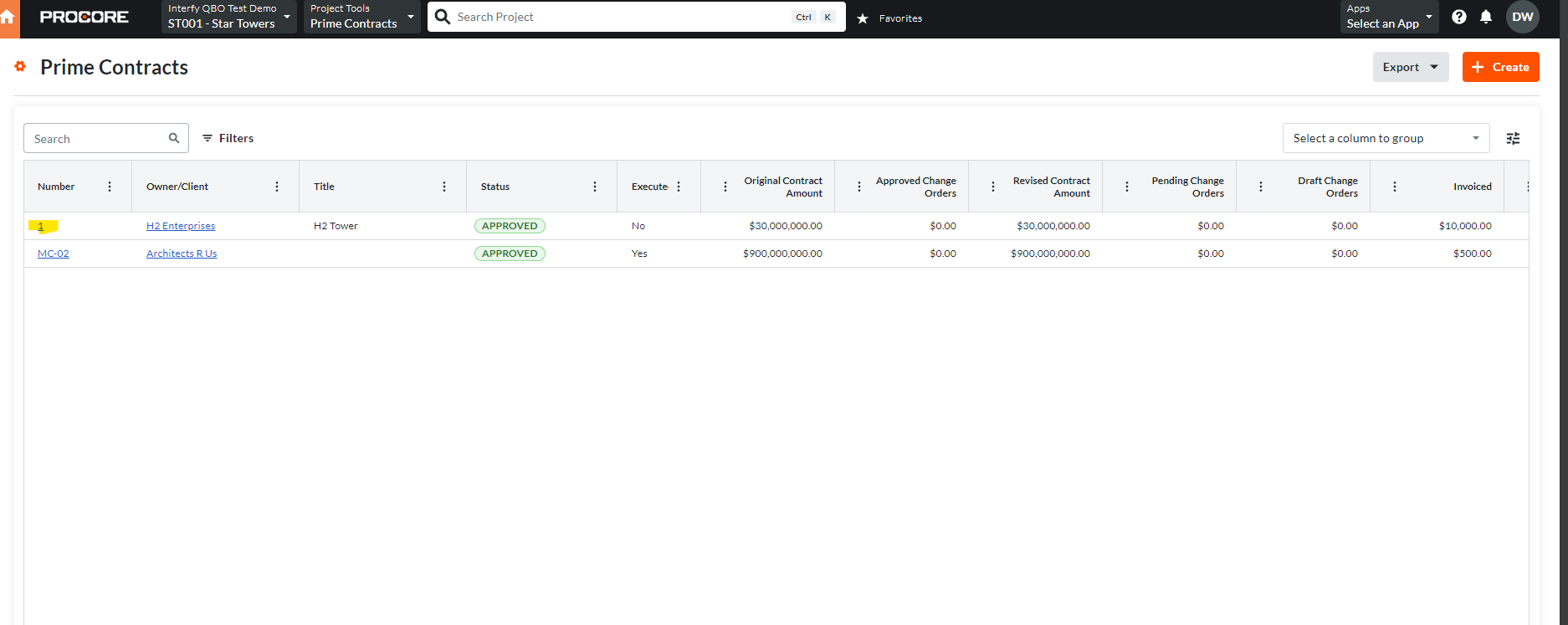
3. Click on the Number to open the head contract.
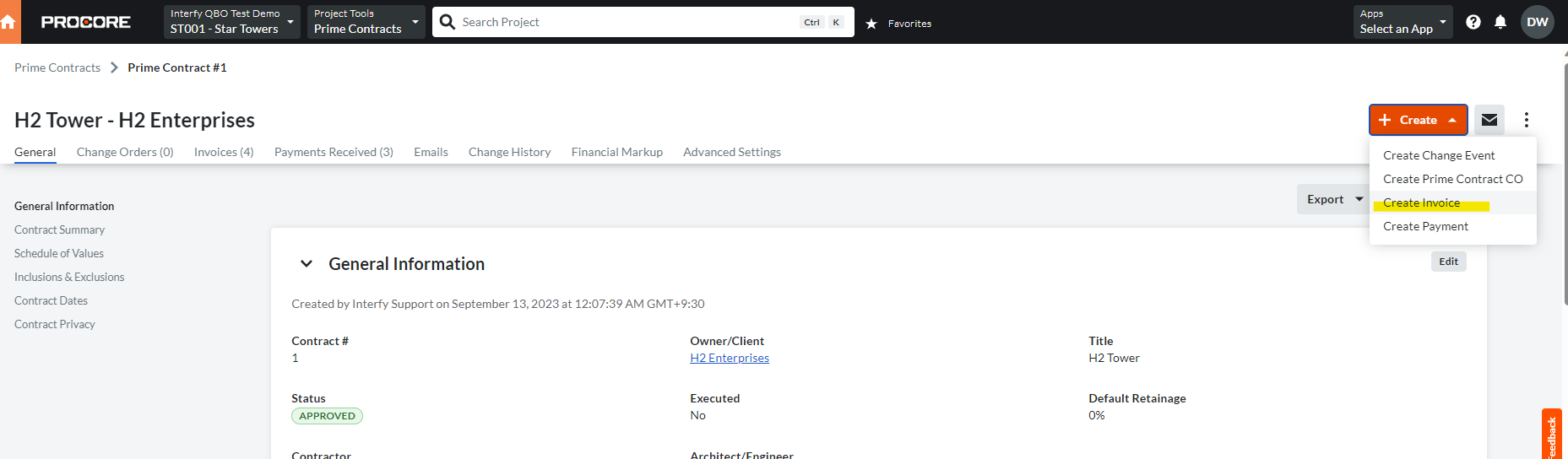
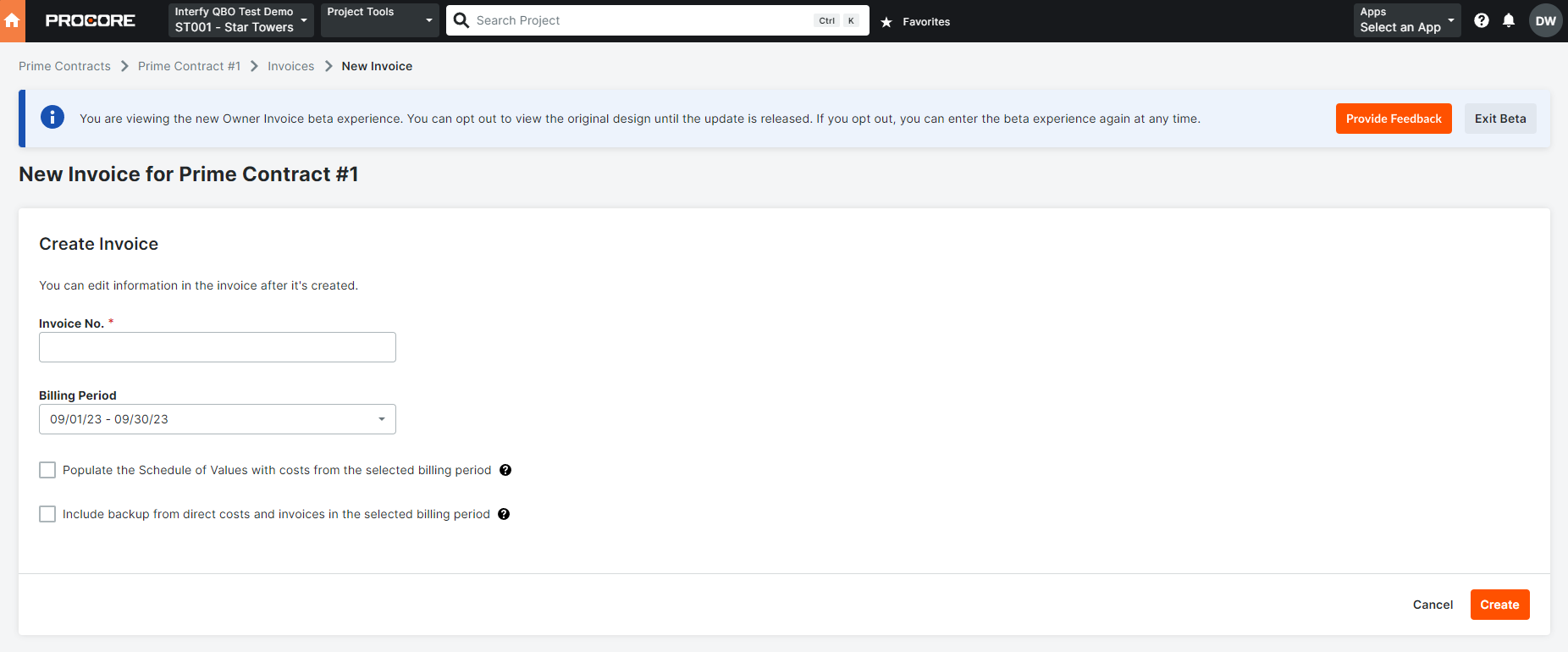
4. Click on Create Invoice
5. Enter the billing date and Invoice No click on Create to create the progress claim.
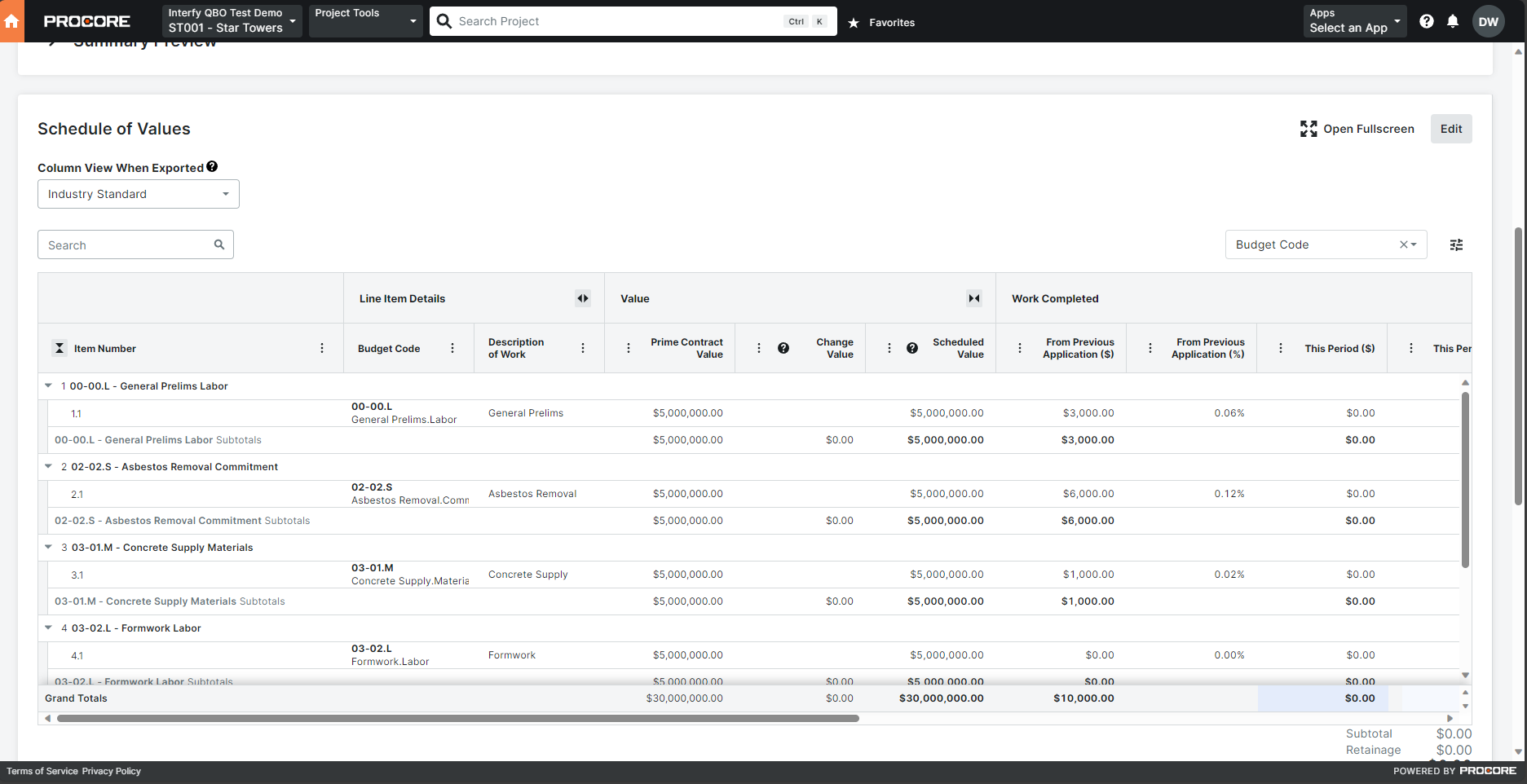
6. In Schedule of Values, then click on Edit.
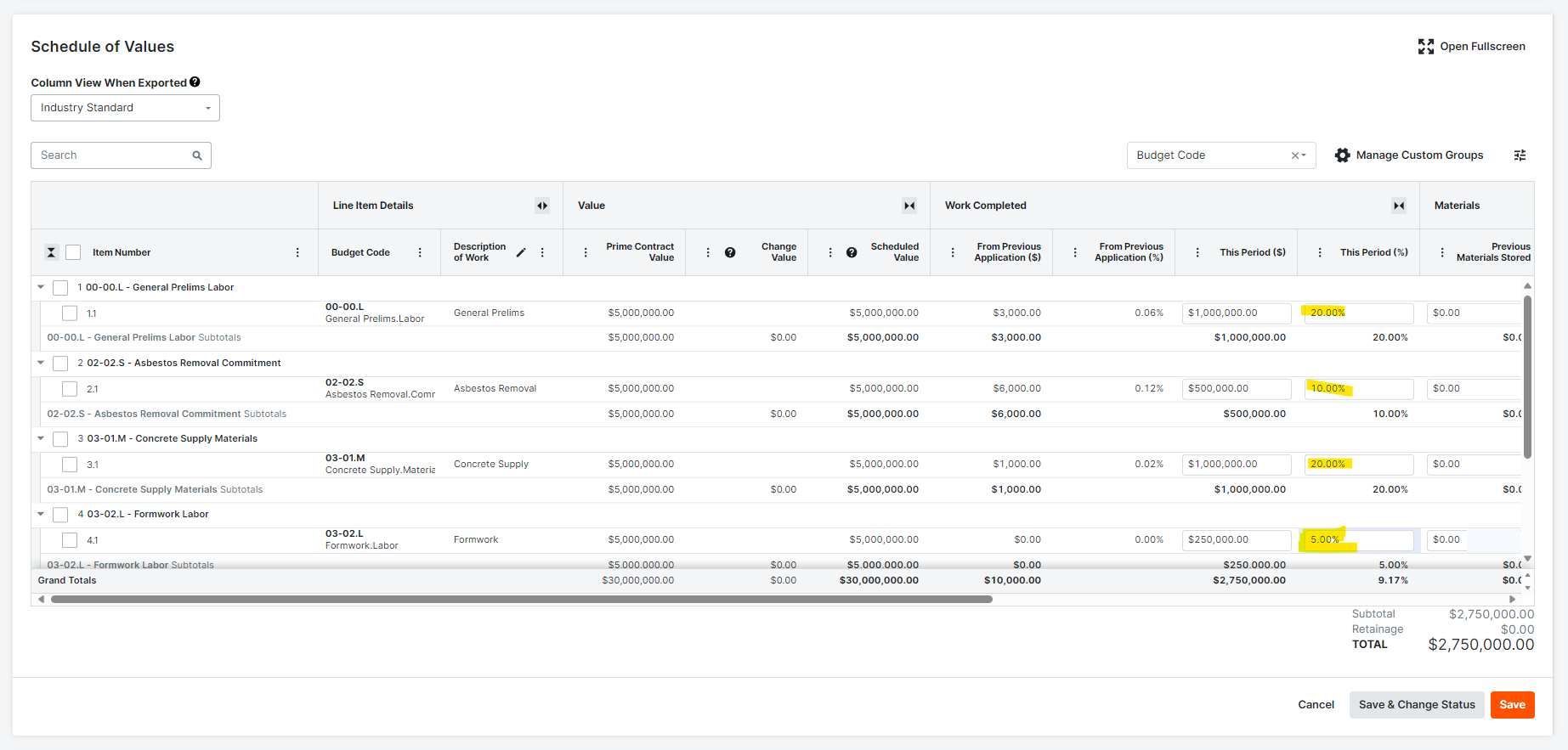
7. Under ‘this period’ enter the claim amount for each line item. Click on save once finished.
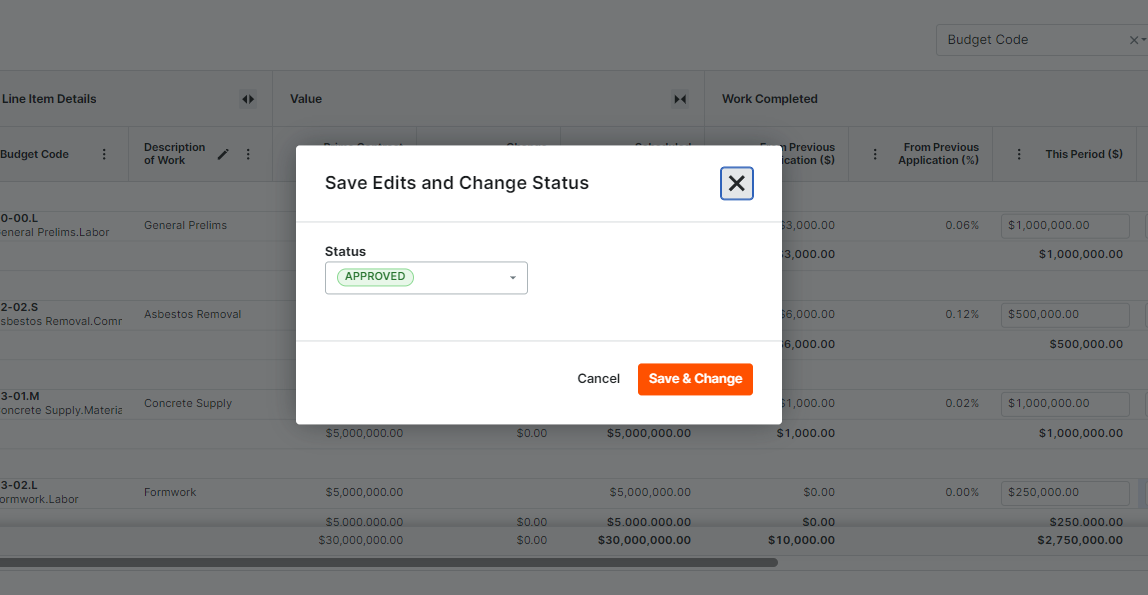
8. Click Save & Change Status
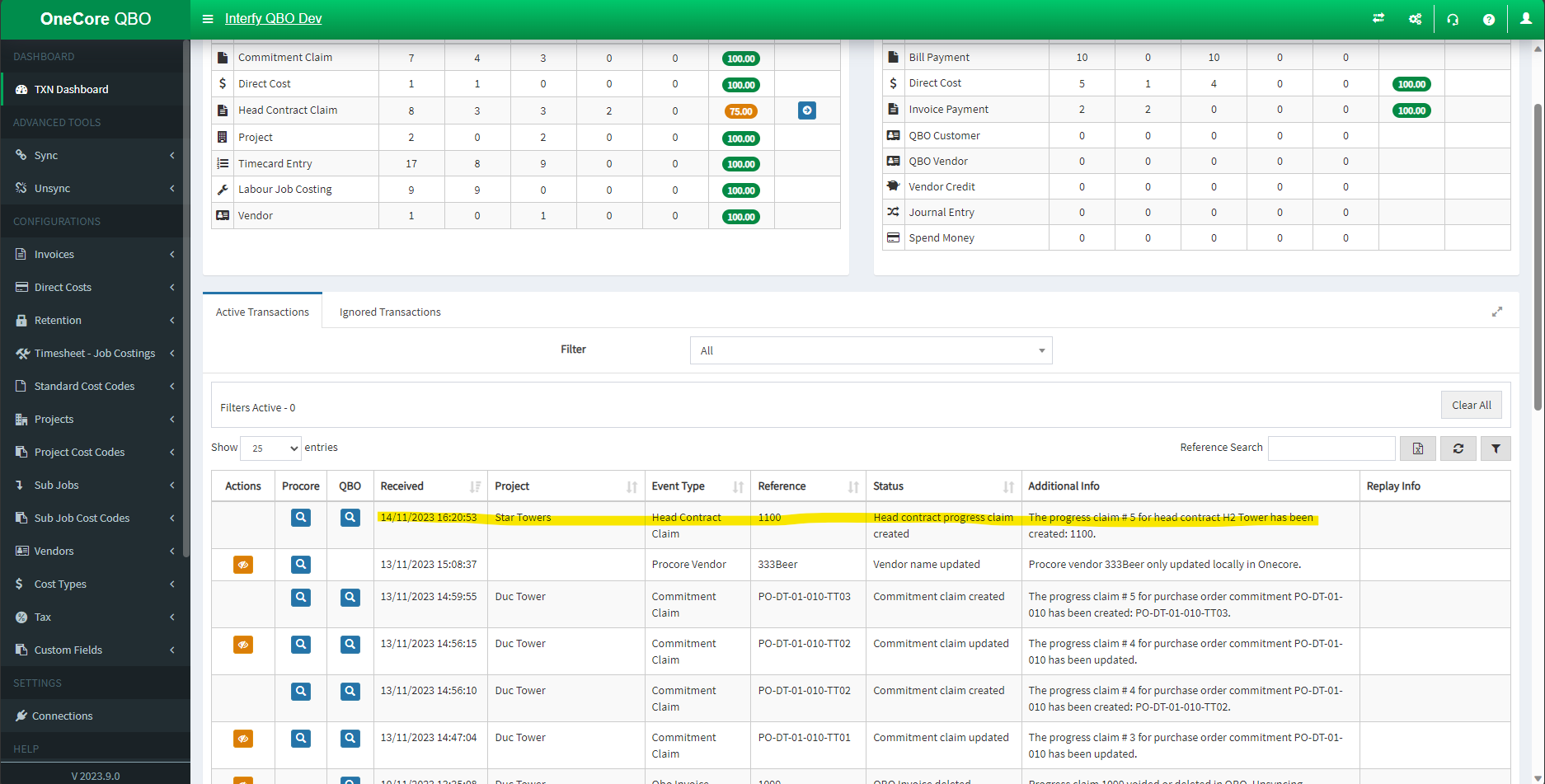
9. In the Transaction Dashboard from OneCore QBO, check for the transaction record.
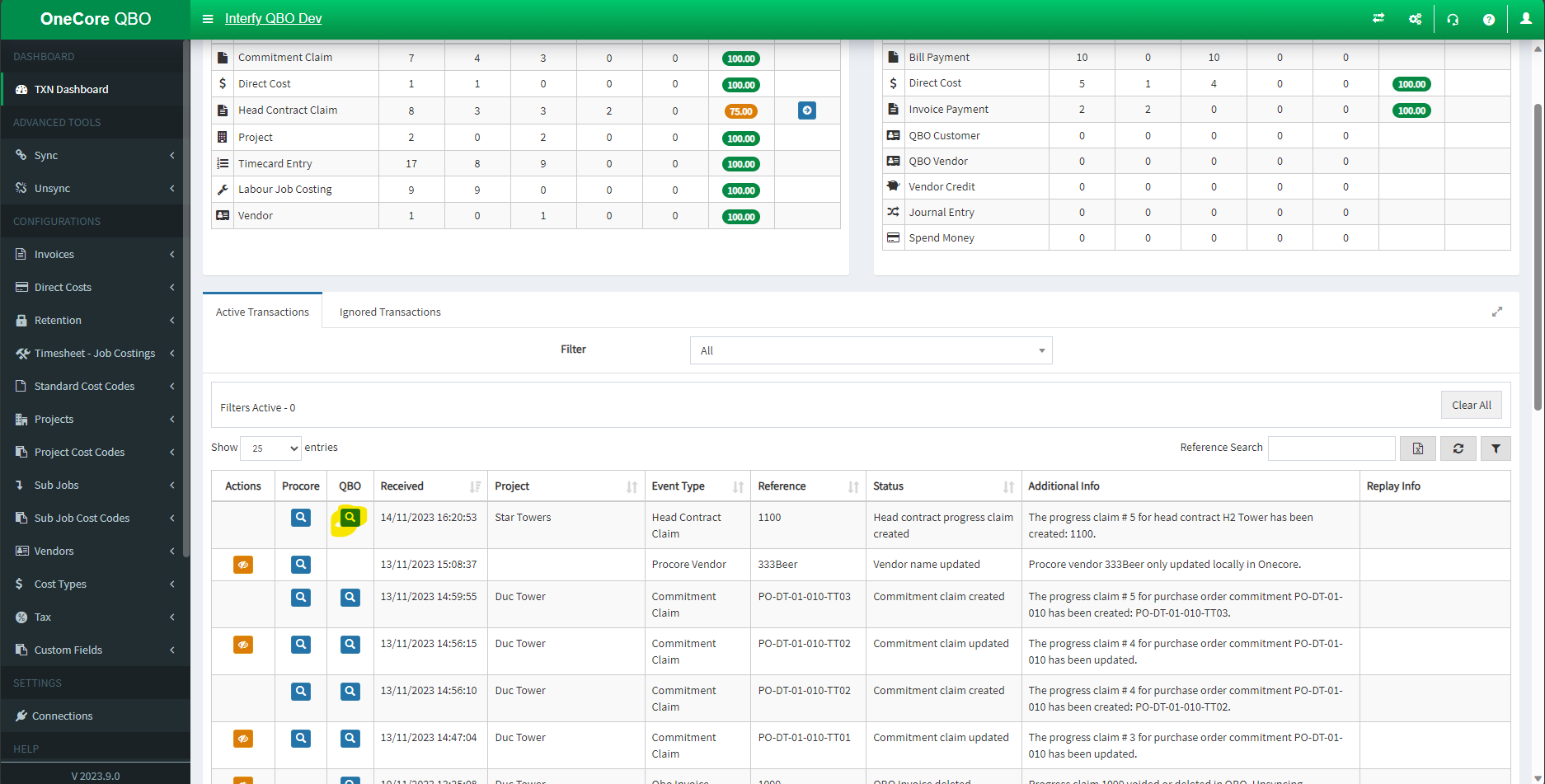
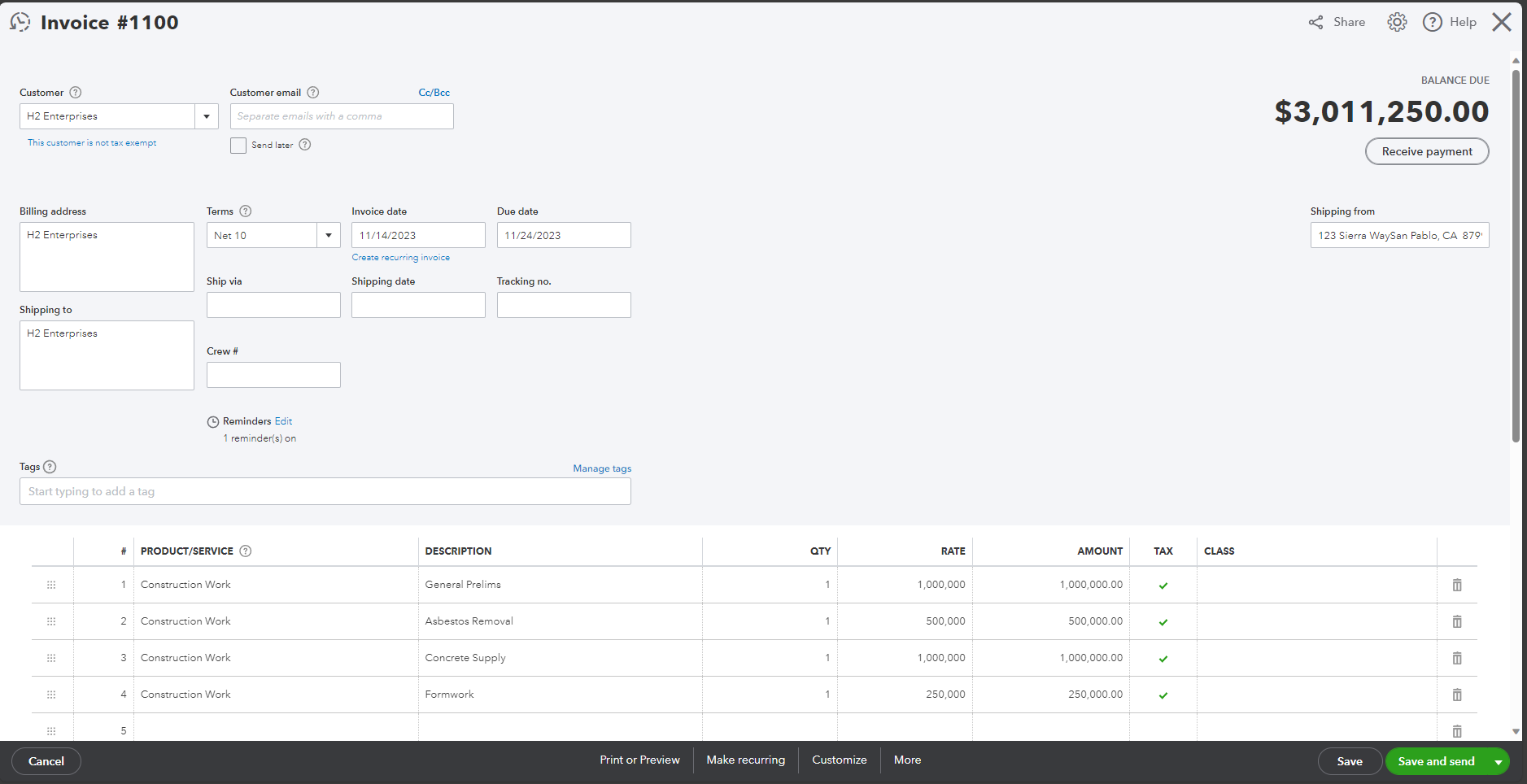
11. Click on the Search Icon in the QBO column to open the invoice.
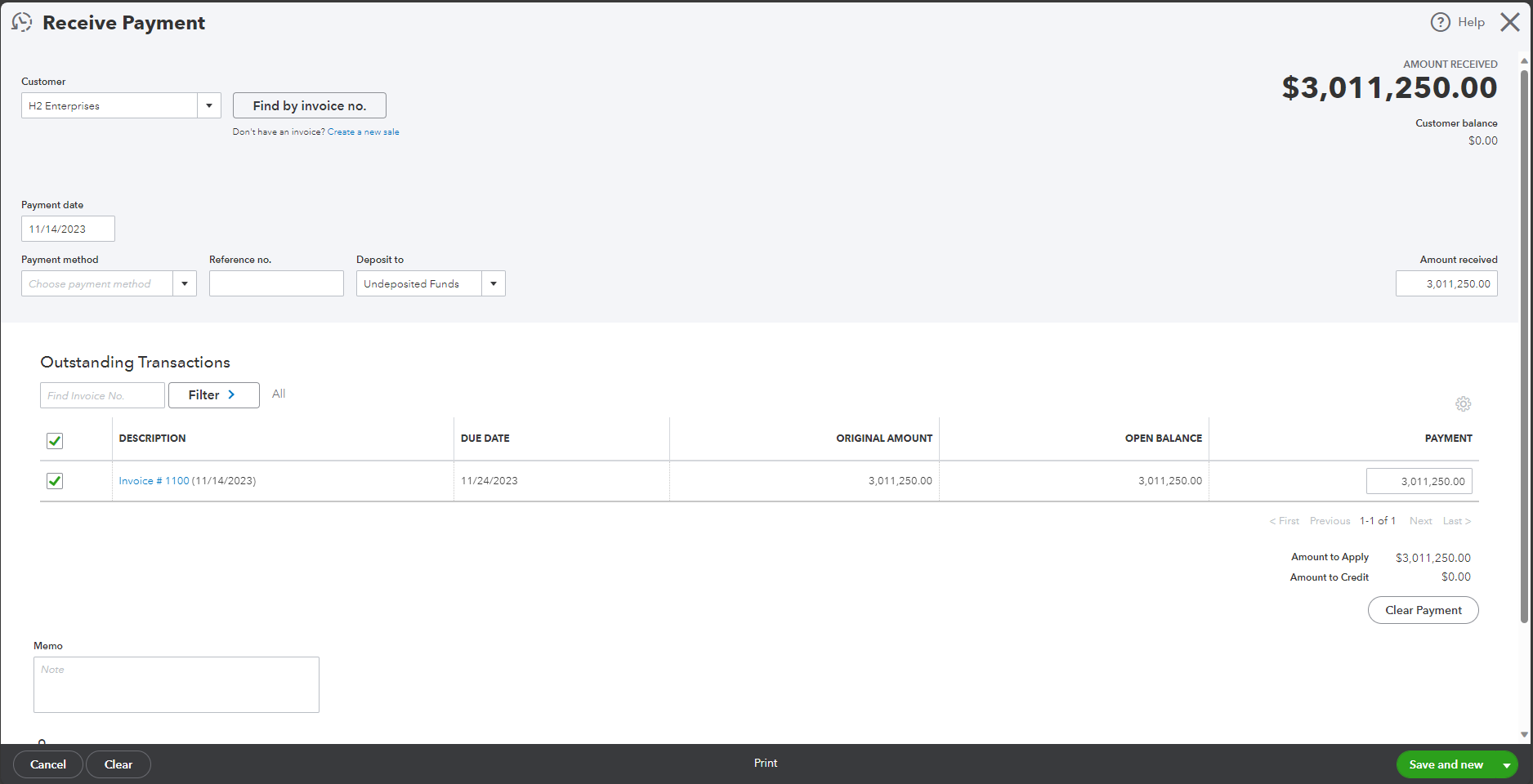
12. To receive the invoice, click “Receive payment” in QBO, enter the amount and click “Save and new.”
13. In the Transaction Dashboard from OneCore QBO, check for the invoice payment record.
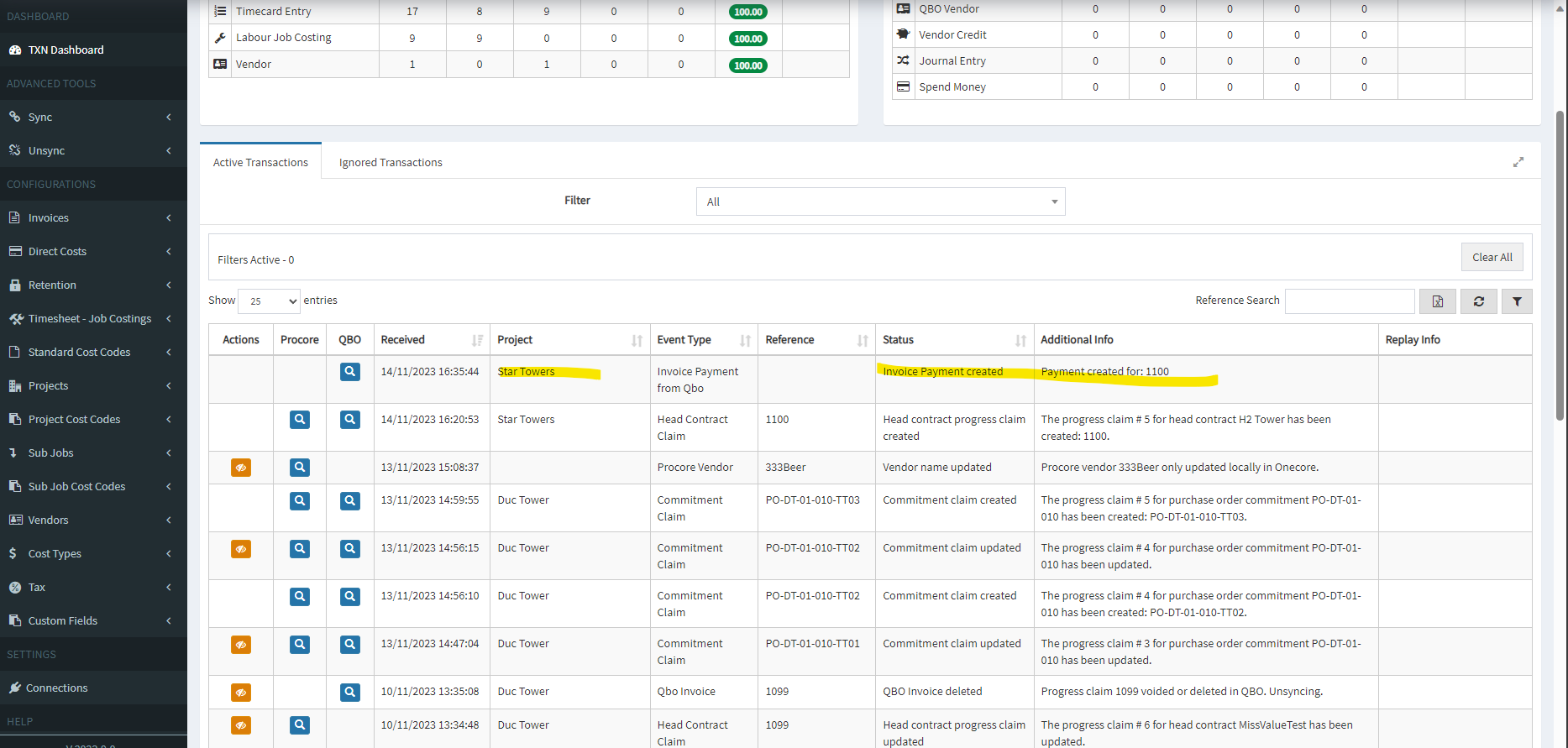
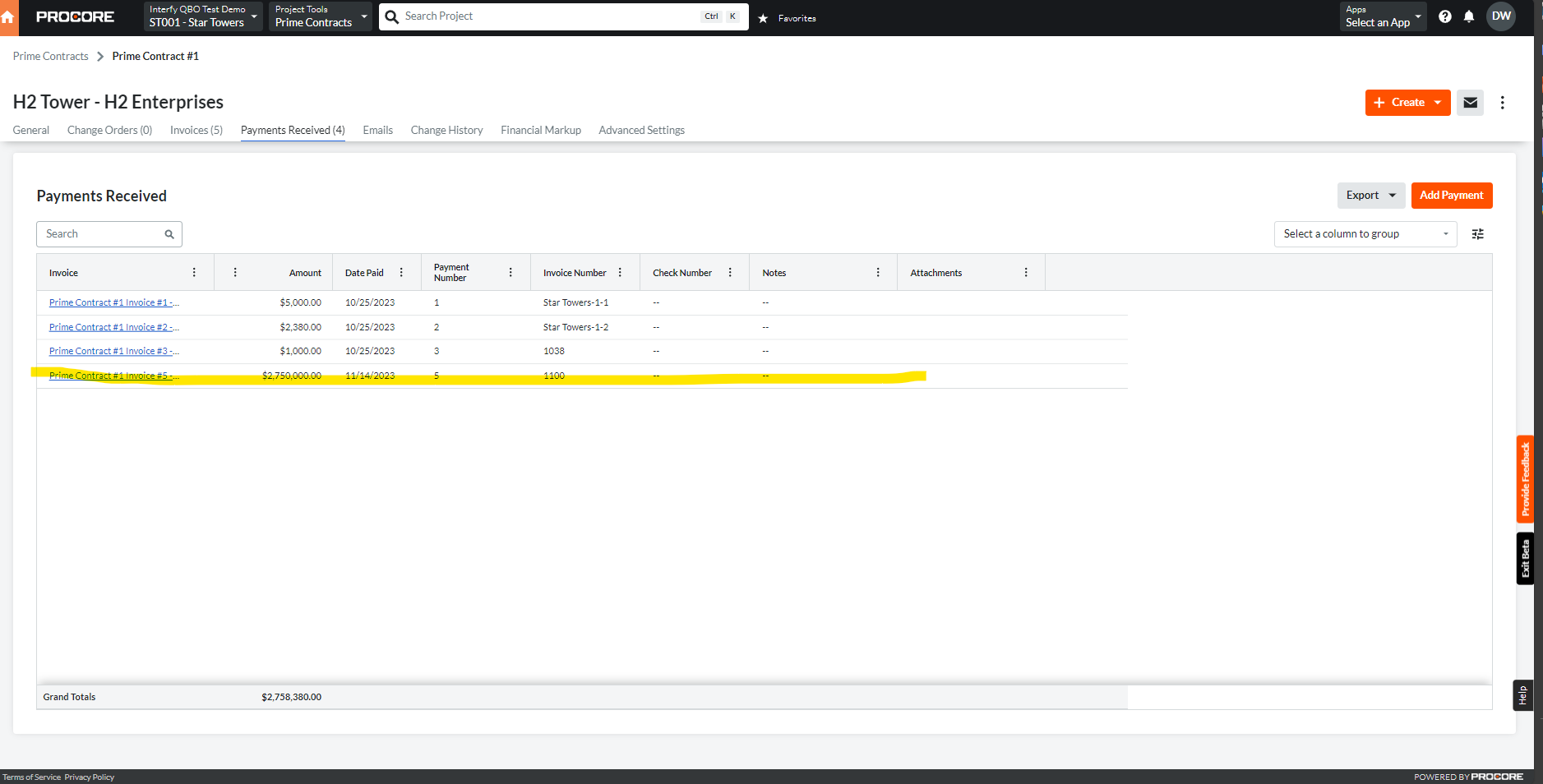
14. In Procore Head Contract Claim created, go to Payments Issued to view the payment. The payment will show the date paid as well as a green sync banner to also show it is synced with QuickBooks.