With OneCore, you can set up a default retention account/item that will be used by the integration a line item in an Autodesk entry has a retention value.
Note: This only applies to Autodesk-to-QBO transactions
There are two options to configure a retention account. This can either be done on the company level, where it will be applied to all projects in Autodesk or to the project level, where it will only be applied the specific project where it was configured.
How to configure retention accounts:
Company-level
1. Go to Retention > General Settings
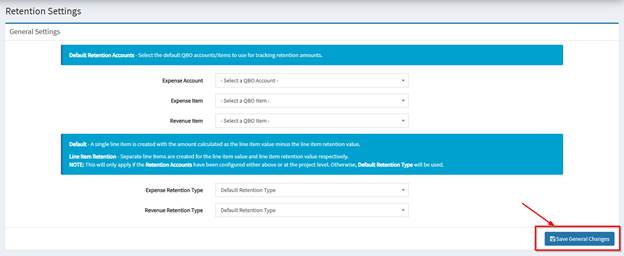
2. Select the specific retention Expense Account or Expense Item for your Autodesk Cost Payment Applications and Autodesk Expenses.
Note: It is not required to have both fields populated. This will depend on how you choose to have these retention amounts tracked in QBO.
- Expense Account – The retention amount will be tracked under the selected QBO GL account that will be selected.
- Expense Item – The retention amount will be tracked under the selected QBO Products & Services

3. Select the retention Revenue Item for your Autodesk Budget Payment Applications

4. With OneCore, you can also choose how the integration populates the retention in a QBO bill or invoice.

- Default Retention Type – A single line item is created with the amount calculated as the line item value minus the line item retention value.
- Line Item Retention Type – Separate line items are created for the line item value and line item retention value, respectively.
Note: Line Item Retention Type only applies Retention Accounts have been configured either above or at the project level. Otherwise, Default Retention Type will be used.
- Once all settings are configured, click Save General Changes.
Project-Specific Retention
- Expense
1. Go to Retention > Project Expense Retention and then select Account for Expense Account (GL account) and Item for Expense Item (Products & Services)
2. Click the pencil icon of the project and select the specific Expense Account/Item that will be used for the retention amounts of this project. Click Save Changes once completed.
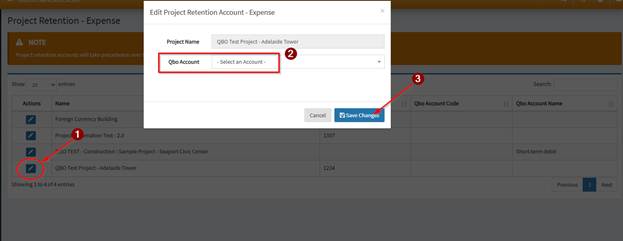
Note: The same steps apply for both Account and Item type.
B. Revenue
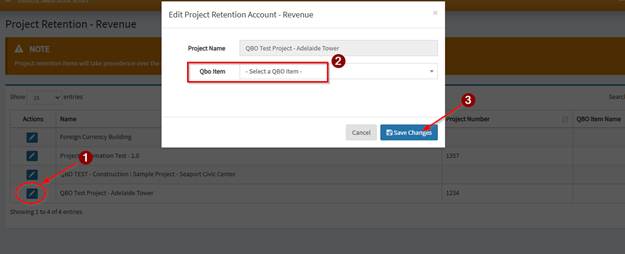
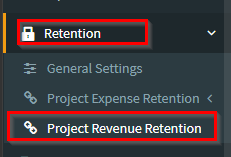
- Go to Retention > Project Revenue Retention
2. Click the pencil icon of the project and select the Revenue Item that will be used for the retention amounts of this project. Click Save Changes once completed.