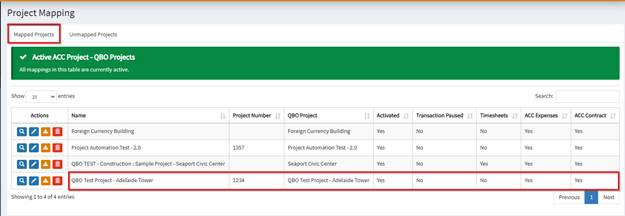
Autodesk Projects can either be mapped to a QBO sub-customer or a QBO Project. Note that only transactions under a mapped project in OneCore will flow through the integration.
How to map an existing Autodesk Project:
- Ensure that support@onecoreconnect.com is a member of the Project. This user should have Data Management, Build, Insight, and Cost Management enabled.
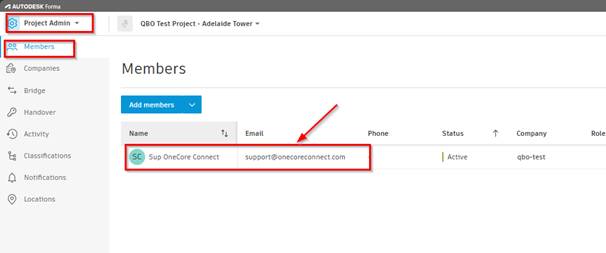
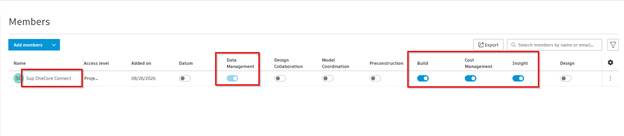
2. Once added to the project with the correct access permission, please ensure that the QBO sub-customer/project is also created in QBO.
3. After completing both sides, you can then refresh your OneCore Project Data to fetch these new project updates to OneCore.

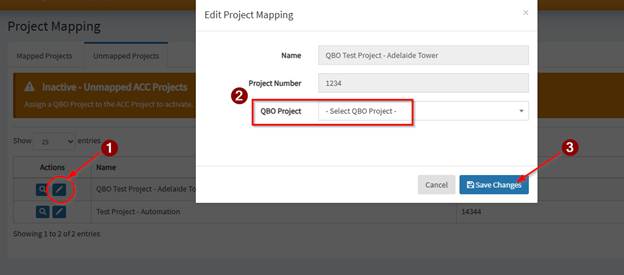
4. Proceed to Project > Project Mapping > Unmapped Projects and locate the new project fetched by OneCore from Autodesk
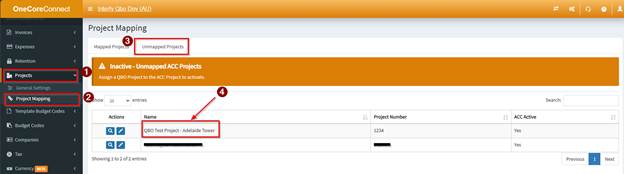
5. Click on the pencil icon and select the QBO Project/sub customer to where this Autodesk project should be mapped into and click Save Changes.
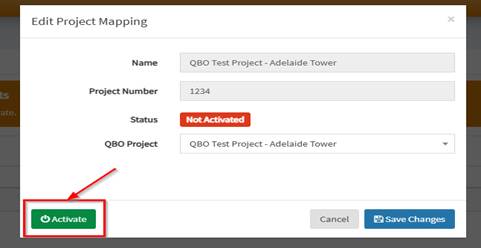
6. Click Activate to activate the Project in OneCore
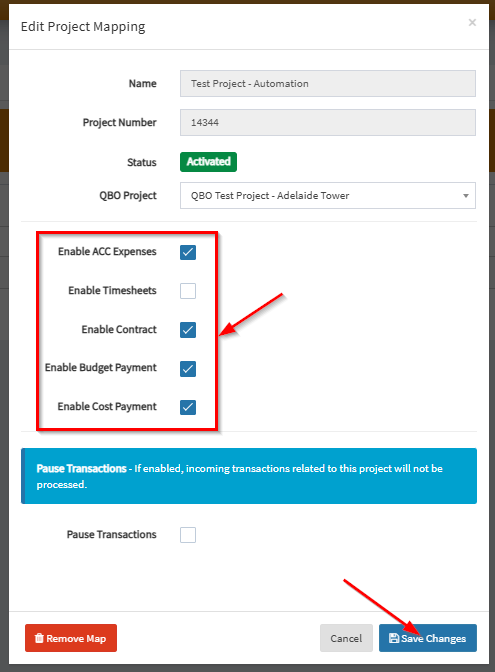
7. Once activated, enable the necessary transaction types required for the project and click Save Changes.
8. The newly mapped project should then appear on the Mapped Projects Tab