
This article outlines common issues that may occur when syncing transactions from Xero into Procore, including Bills, Credit Notes, Spend Money, and Manual Journals.
Common Issues/Errors
1. Unmapped Project – Ensure the project is correctly mapped in OneCore so transactions can sync properly. In OneCore, navigate to Projects/Jobs>Project Mapping> and check to see if the project is listed under the mapped projects tab.
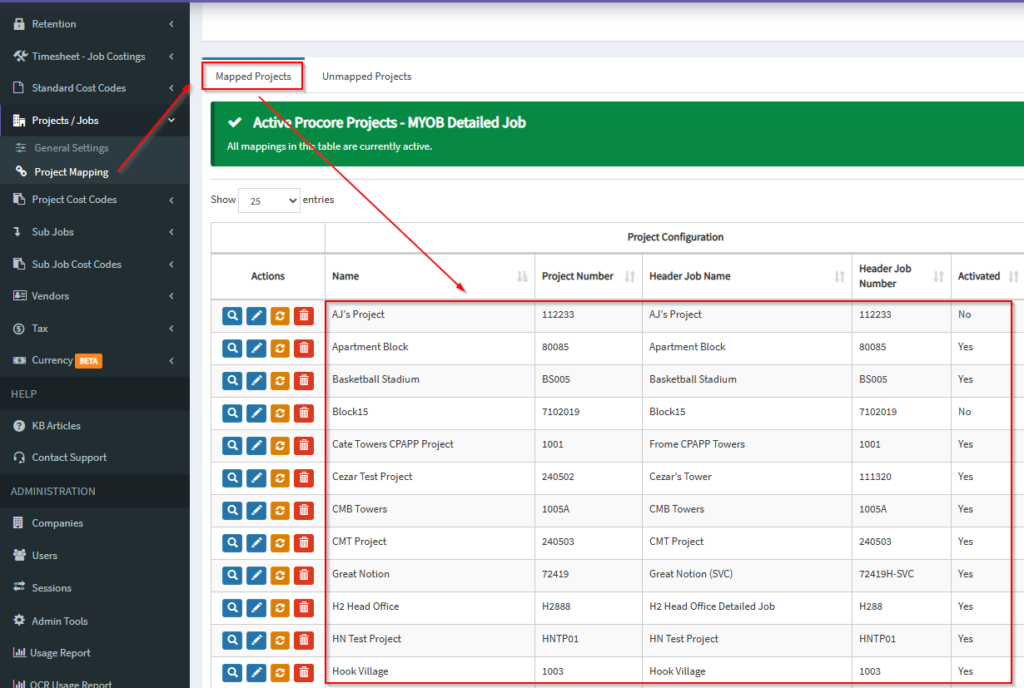
How to map to an existing project in OneCore MYOB
https://help.interfy.com.au/index.php/knowledge-base/how-to-map-to-an-existing-project-in-onecore-myob/
2. Unmapped Contact – Verify that the MYOB contact is linked to the appropriate Procore vendor or contact record. In OneCore, navigate to Vendors>Vendor Mapping> and check to see if the contact is mapped under the Mapped Vendors tab.
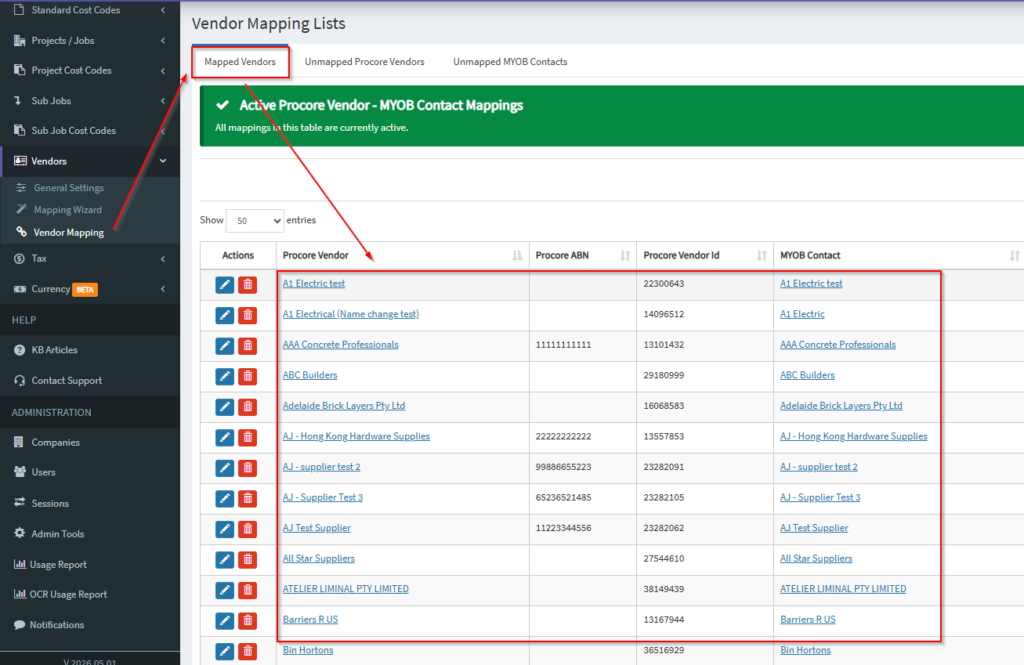
How to map Procore Vendors to MYOB Contacts; vice versa?
https://help.interfy.com.au/index.php/knowledge-base/how-to-map-procore-vendors-to-myob-contacts-vice-versa-2/
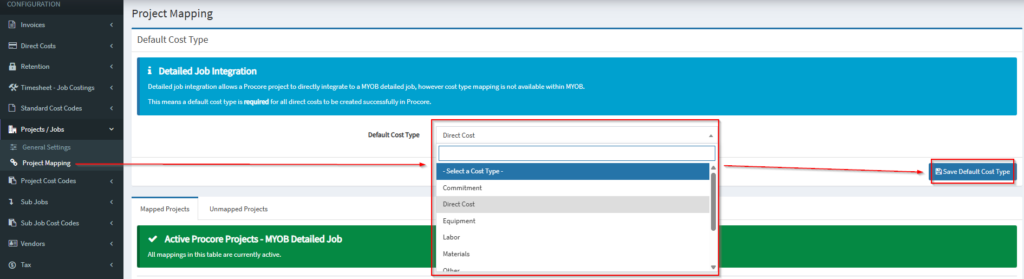
3. Unmapped or Missing Cost Type Confirm that the default cost type has been configured in OneCore. Navigate to Projects/Jobs>Project Mapping> where you will see the Default Cost Type dropdown menu. Ensure the settings is saved.
4. Unmapped Line Item Account – Occurs when the account is not mapped to a Procore cost code or if corresponding cost code does not yet exist in Procore.
- To resolve unmapped accounts, expense cost codes must be mapped correctly:
- How to Map Cost Codes to MYOB Accounts in OneCore MYOB
https://help.interfy.com.au/index.php/knowledge-base/how-to-map-cost-codes-to-myob-accounts-in-onecore-myob/ - How to re-map an expense cost code mapping in OneCore MYOB?https://help.interfy.com.au/index.php/knowledge-base/how-to-re-map-an-expense-cost-code-mapping-in-onecore-myob/
- How to Map Cost Codes to MYOB Accounts in OneCore MYOB
- If corresponding cost code does not yet exist in Procore:
- Standard Cost Codes (Company‑level)
- Navigate to Company Settings → Work Breakdown Structure (WBS).
- Create or update the required cost code.
- Assign the cost code to relevant projects.
- Update the Procore cost code data in OneCore by navigating to Standard Cost Codes>General Settings> and hit the green Refresh Procore Cost Codes Only button at the top of the screen.
- Map the cost code in OneCore by navigating to Standard Cost Codes>Expense Mapping> and hit the Unmapped Standard Cost Codes tab. You will see the unmapped cost code here to map.
- Project‑specific Cost Codes (Project‑level)
- Go to Project Settings → Work Breakdown Structure (WBS).
- Add the cost code manually for that project.
- Update the Procore cost code data in OneCore by navigating to Standard Cost Codes>General Settings> and hit the green Refresh Procore Cost Codes Only button at the top of the screen.
- Map the cost code in OneCore by navigating to Projects Cost Codes>Expense Mapping>Select Project and hit the Unmapped Standard Cost Codes tab. You will see the unmapped cost code here to map.
- Standard Cost Codes (Company‑level)