ONBOARDING
Assignar
Create a new Dashboard User in your Assignar instance with the email address: support@onecoreconnect.com.
Xero System Permissions
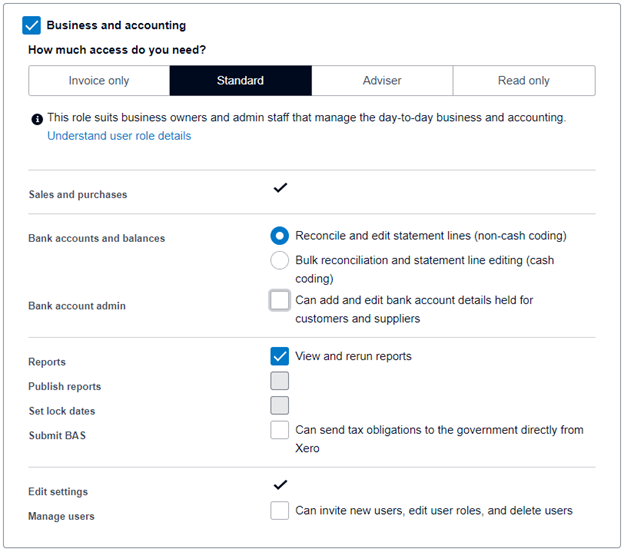
- Create a new user in your Xero instance with the email address: support@onecoreconnect.com
- Allow ‘Standard’ permissions:
Remove Duplicate Clients
Removing duplicate clients from Assignar is a recommended task as this will eliminate confusion when mapping to Xero contacts.
Merge Duplicate Contacts
Removing duplicate contacts from Xero is a recommended task as this will eliminate confusion when mapping to Assignar clients.
A step-by-step guide is provided in the following link.
https://central.xero.com/s/article/Merge-contacts
Xero Tracking Categories
Our integration requires the use of one tracking category. The tracking category allows a timesheet line to hold additional information:
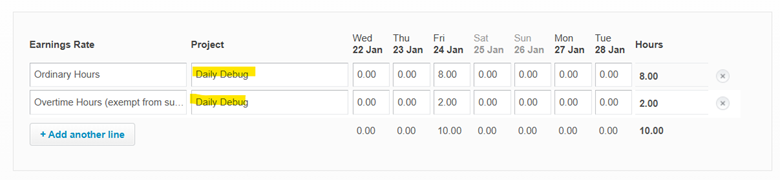
This allows us to map Assignar Projects.
If a project or job tracking category already exists, we can simply integrate into this.
Contact Interfy Support
Once these tasks have been completed, contact us (support@onecoreconnect.com.au) to continue with getting the integration up and running.
OPERATION
Configure sync options.
1. From OneCore, go to Sync.
2. Each transaction type here is scheduled to poll every 2 minutes. Clicking the corresponding Sync button will queue that transaction in the next available slot and reschedule the next transaction in 2 minutes.
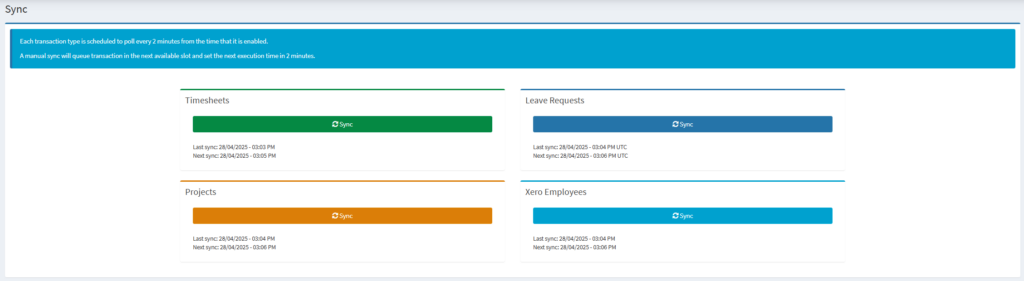
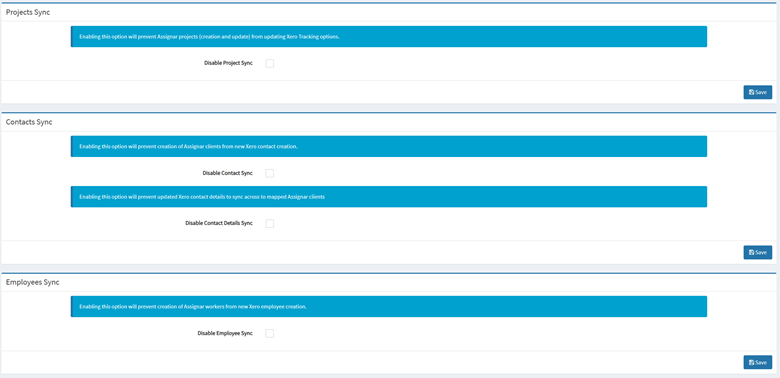
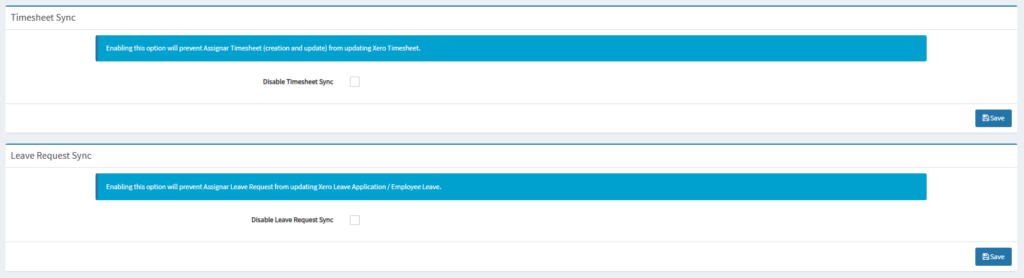
3. Enable/disable Sync Options as expected and click the corresponding Save button. Configuration meanings:
- Disable Project Sync: when checked, prevents the creation/update of Assignar Projects from creating/updating Xero Tracking Options.
- Disable Contact Sync: when checked, prevents the creation of Xero Contacts from creating Assignar Clients.
- Disable Contact Details Sync: when checked, prevents the update to Xero Contacts from updating corresponding Assignar Clients.
- Disable Employee Sync: when checked, prevents the creation/update of Xero Employees from creating/updating Assignar Workers.
- Disable Timesheet Sync: when checked, prevents the creation/update of Xero Timesheets from creating/updating Assignar Timesheets.
- Disable Leave Request Sync: when checked, prevents the creation/update of Xero Leave Application from creating/updating Assignar Leave Request.
Project
General Settings
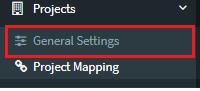
1. To fetch existing projects, go to Projects>General Settings:

2. Click on Refresh Assignar Projects to refresh the projects list. 
3. Choose a tracking category as the Project tracking category > Click Save Tracking Category.
4. Click on Refresh Xero Tracking Options to refresh the tracking options list. 
Project Mapping
1. Navigate Projects>Project Mappings>Unmapped Projects Tab.
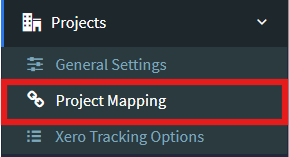

2. Click on the pencil icon of a project. 
3. Choose a Tracking Option corresponding to that project > Click Save Changes 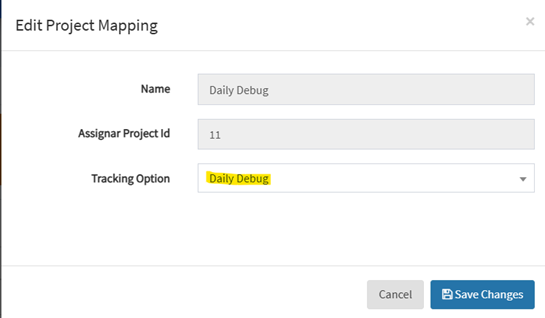
4. The project disappears from the unmapped list. You shall see the table correctly displays the latest mapping after navigating to Mapped Project.
Client
General Settings
1. Go to Clients>General Settings:
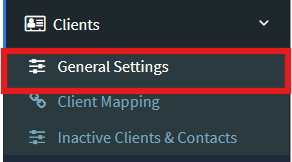
2. Click on Refresh all Clients and Contacts to refresh the clients and contacts lists.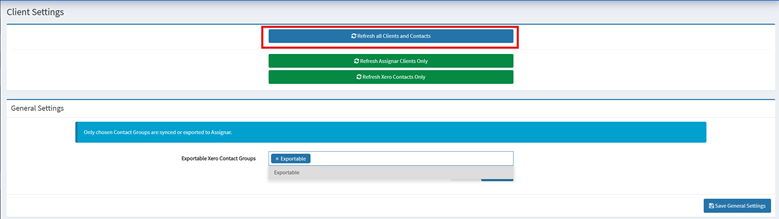
3. In the General Settings box, Exportable Xero Contact Groups are groups, whose contacts can be synced with Assignar clients. Select expected contact groups and click Save General Settings.
Client Mapping
1. Map existing Clients/Contacts.
How to map Assignar Clients to Xero Contacts; vice versa
1.1. To map Assignar Clients, go to Client Mapping.
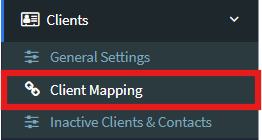
You will see three tabs – Mapped Clients, Unmapped Assignar Clients and Unmapped Xero Contacts.
1.2. Select Unmapped Assignar Clients. This will show you a list of unmapped Assignar clients.

Select Unmapped Xero Contacts. This will show you a list of unmapped Xero contacts.

2. To manually map, click on the pencil icon next to the client or contact, to select the corresponding client or contact to map to. Click Save Changes once done.
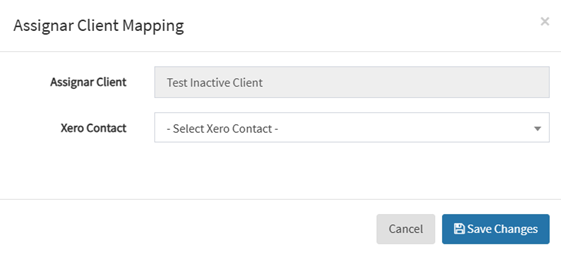
3. If there is not an equivalent mapping but the client or contact must be in Assignar or Xero, you can click the Export button to create an automatic mapping.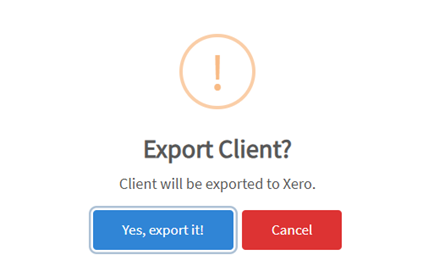
4. To auto-map contacts and clients, go to the Mapped Clients tab and click on Auto Map Clients by Name. This will only work if the corresponding Assignar client or Xero contact has been created. Select Yes, map them! to map the clients.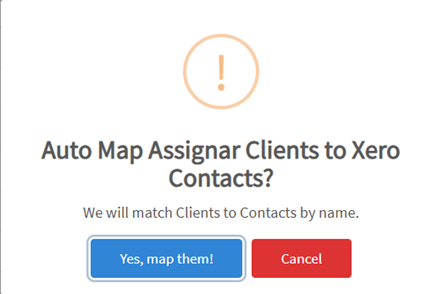
Timesheets
Xero Setup
1. Request Interfy support to activate the module via https://onecore.interfy.com.au/Support
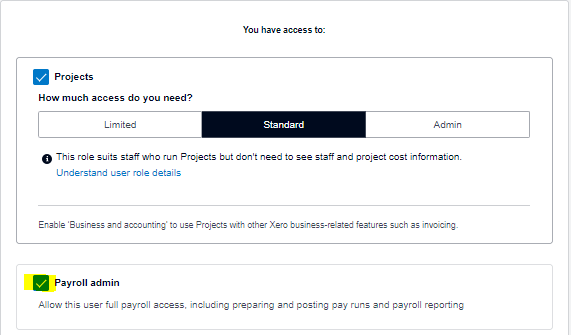
2. Give Interfy support user the payroll admin access.
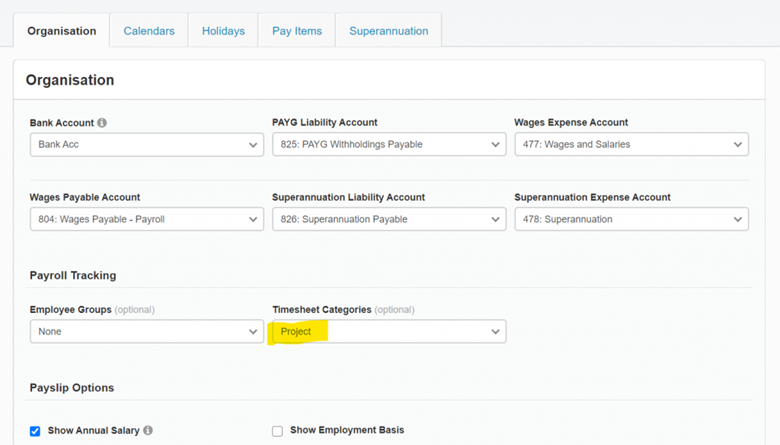
3. Update the Payroll settings in Xero to include the “Project” (or Job) tracking category as the “Timesheet Category.”
General Settings
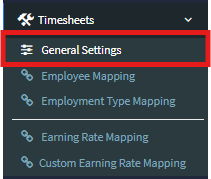
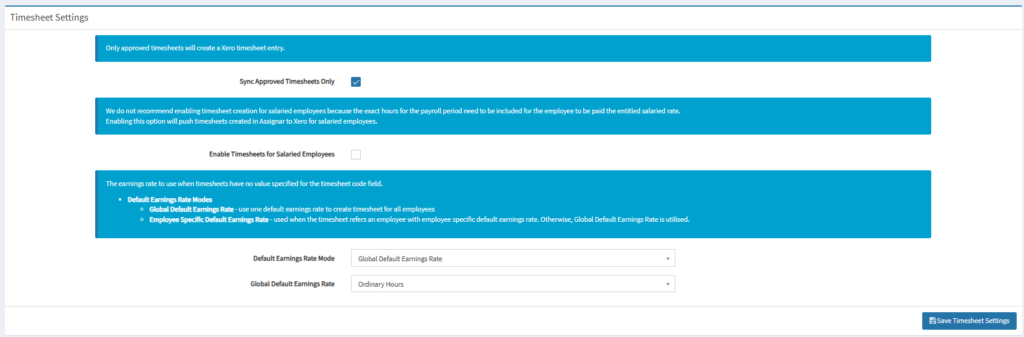
1. To fetch Payroll Data, go to Timesheets>General Settings:
2. Click Refresh Payroll Data
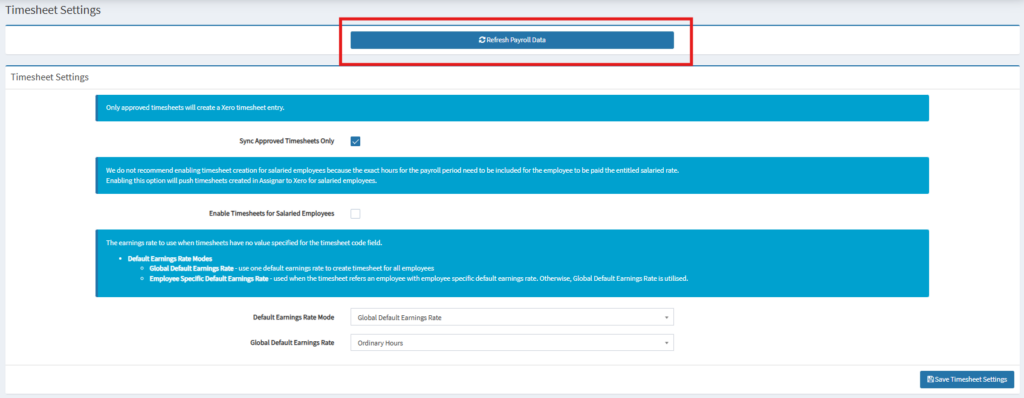
3. In Timesheet Settings, set the Sync Approved Timesheets Only, Enable Timesheets for Salaried Employees, Default Earnings Rate Mode and Default Earnings Rate (one of the alternative earnings rates applied to timesheet line entries when time codes are not yet applied to timesheets – unapproved timesheets or approved without overtime rules run) based on your requirements, click Save Timesheet Settings.
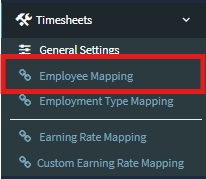
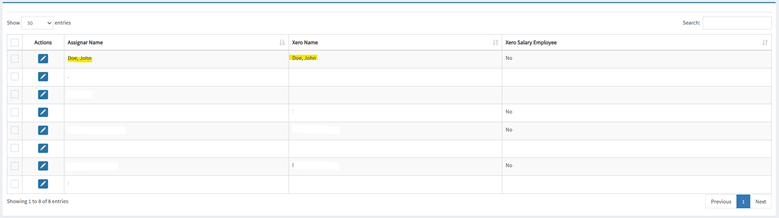
Employee Mapping.
1. Go to Timesheets>Employee Mapping.
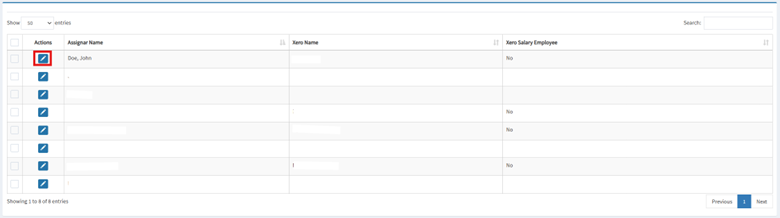
2. On Employee Mapping page, click the pencil icon to start mapping.
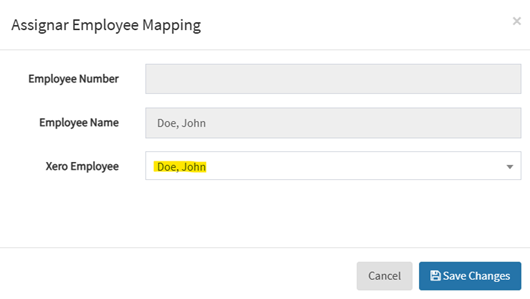
3. Choose the Xero employee to map to and click Save Changes.
4. You shall see the table correctly display the latest mapping.
Employment Type Mapping
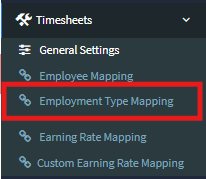
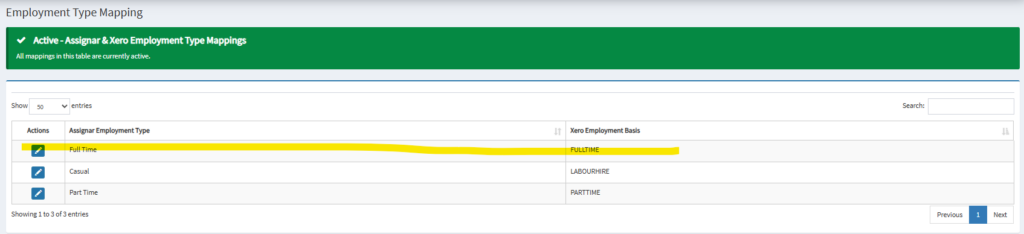
1. Go to Timesheets>Employment Type Mapping.
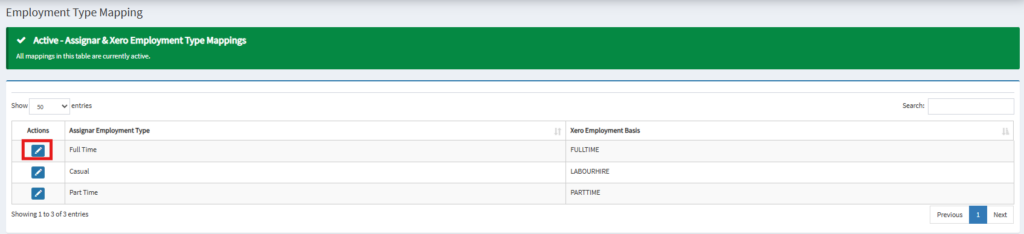
2. On Employment Type Mapping page, click the pencil icon to start mapping.
3. Select the appropriate Xero Employment Type from the select list.
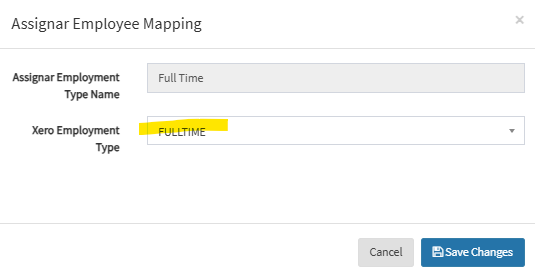
4. Click Save Changes. You shall see the updated mapping in the table.
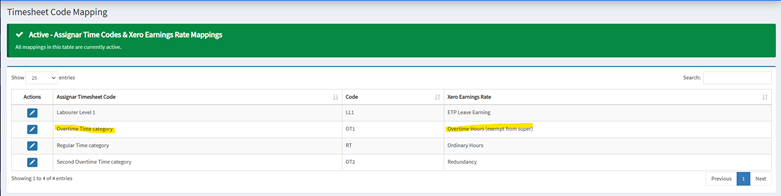
Earning Rate Mapping
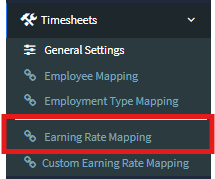
1. Go to Timesheets>Earning Rate Mapping.
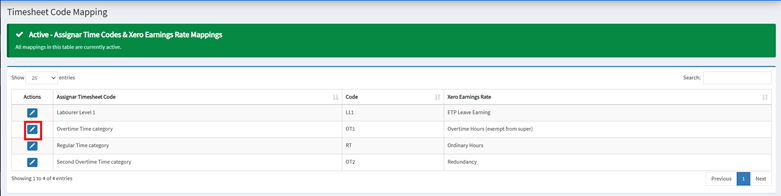
2. On Timesheet Code Mapping page, click pencil icon next to the desired Assignar Timesheet Code.
3. Select the appropriate Earnings Rate from the select list.
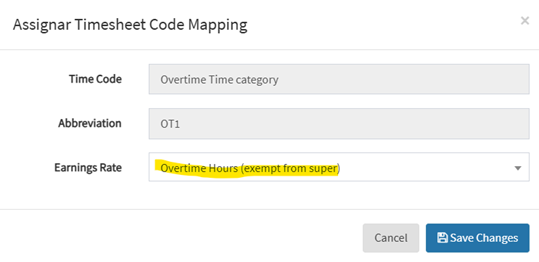
4. Click Save Changes. You shall see the updated mapping in the table.
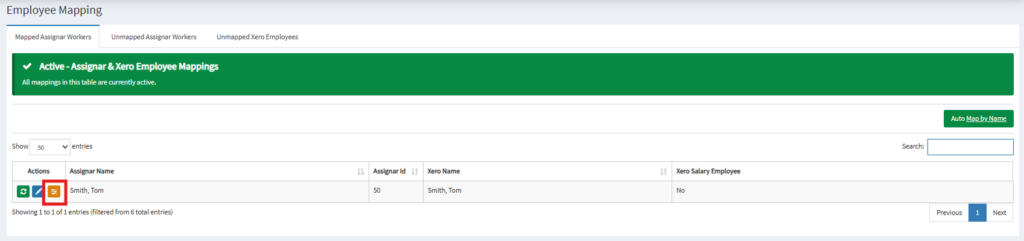
Employee-specific Timesheet Code settings
1. Go to Timesheets>Employee Mapping.
2. On Employee Mapping page, click the yellow slider icon to open employee setting modal.
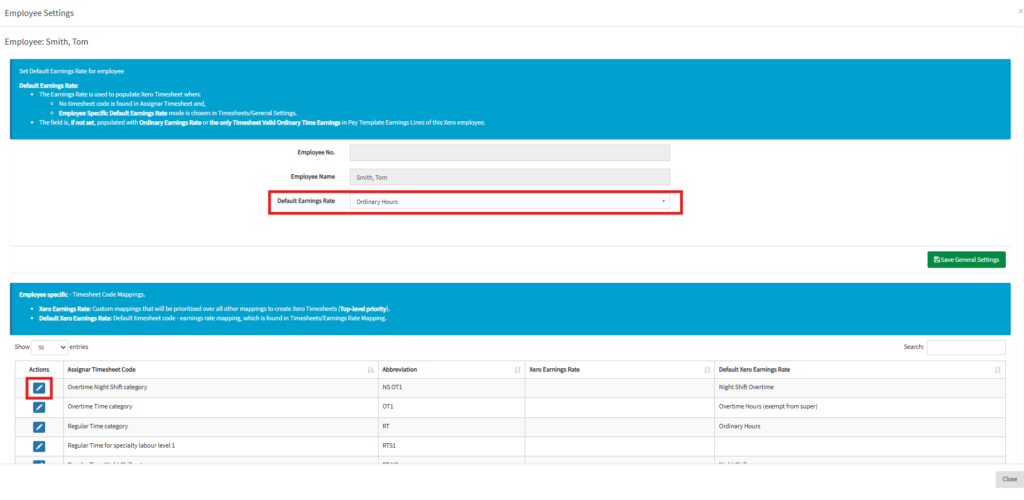
3. In the Employee Settings modal, set employee-specific Default Earnings Rate as expected. To edit employee-specific timesheet code mappings, click on the pencil icon of entries in the table below, and map as in Earning Rate Mapping.
Add/Edit Custom Earnings Rate Mapping
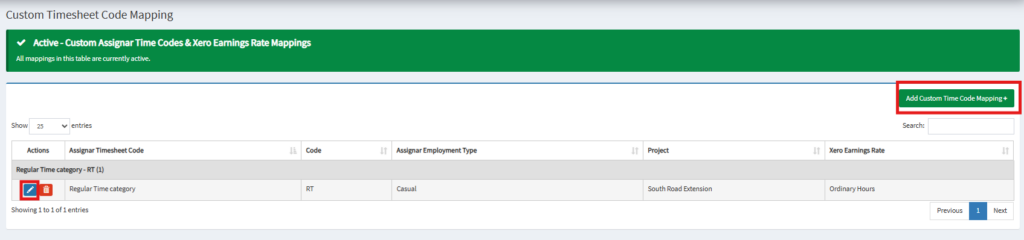
1. Go to Timesheets> Custom Earnings Rate Mapping
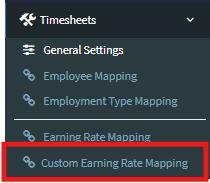
2. On Custom Time Timesheet Code Mapping page, click pencil icon next to the desired Assignar Timesheet Code to edit existing Custom Timesheet Code Mapping. Or, click “Add Custom Time Code Mapping” to add new Custom Timesheet Code Mapping.
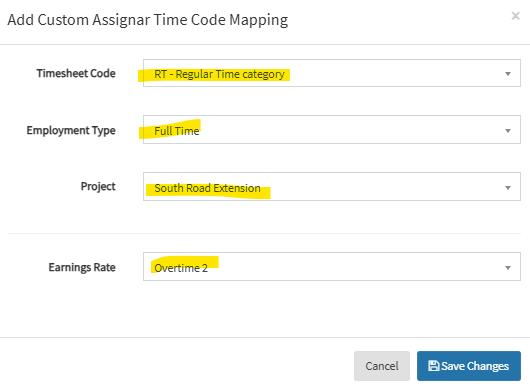
3. Select the appropriate Timesheet Code, one or both of Employment Type and Project, and Earnings Rate from select lists.
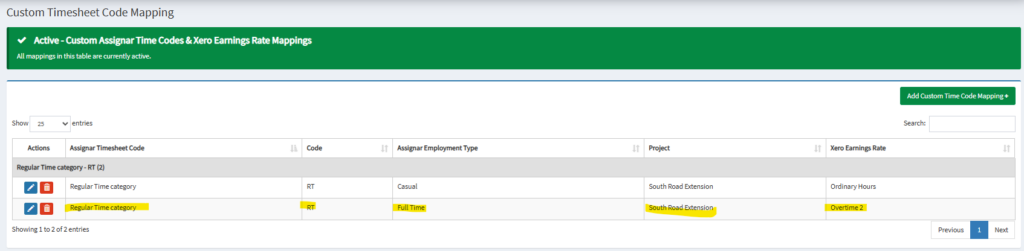
4. Click Save Changes. You shall see the updated mapping in the table.
Leave Requests
General Settings
1. Go to Leave Requests > General Settings
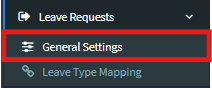
2. Click “Refresh Assignar Leave Types” or “Refresh Xero Leave Types” to refresh Assignar or Xero Leave Types correspondingly.

Leave Type Mapping
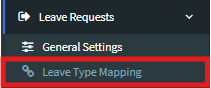
1. Go to Leave Requests > Leave Type Mapping
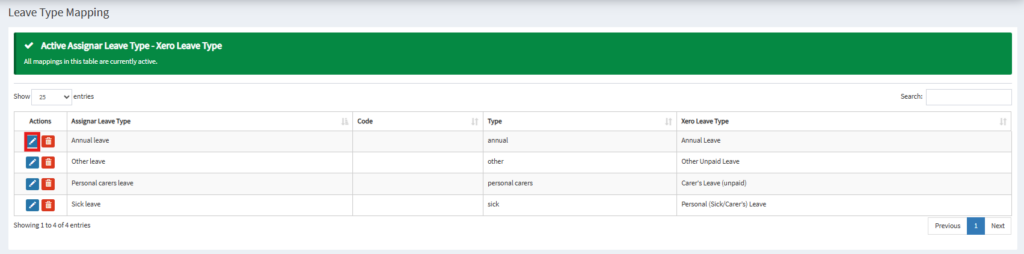
2. On Leave Type Mapping page, click the pencil icon to start mapping.
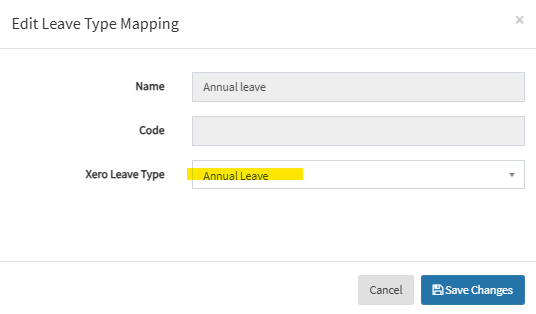
3. Select the appropriate Xero Leave Type from the select list.
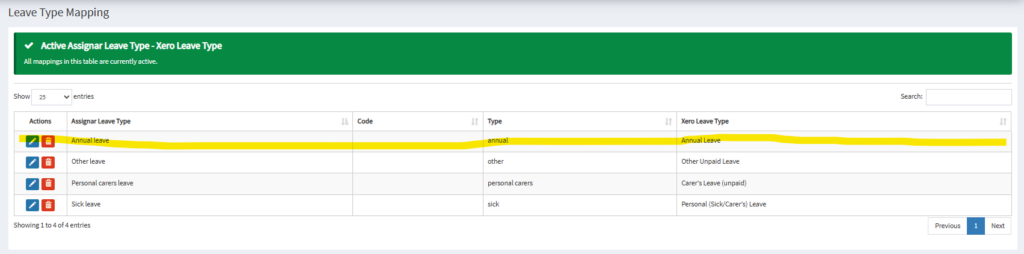
4. Click Save Changes. You shall see the updated mapping in the table.
Allowance
General Settings
1. Go to Allowance > General Settings
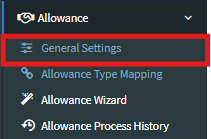
2. Click “Refresh Allowance Types” to refresh Allowance Types from Assignar and Xero.

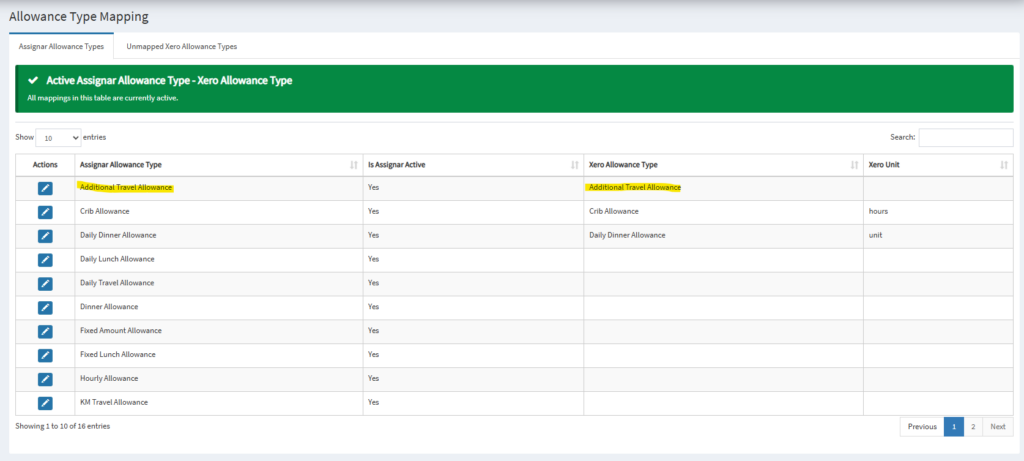
Allowance Type Mapping
1. Go to Allowance > Allowance Type Mapping
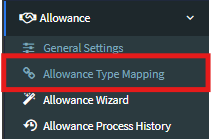
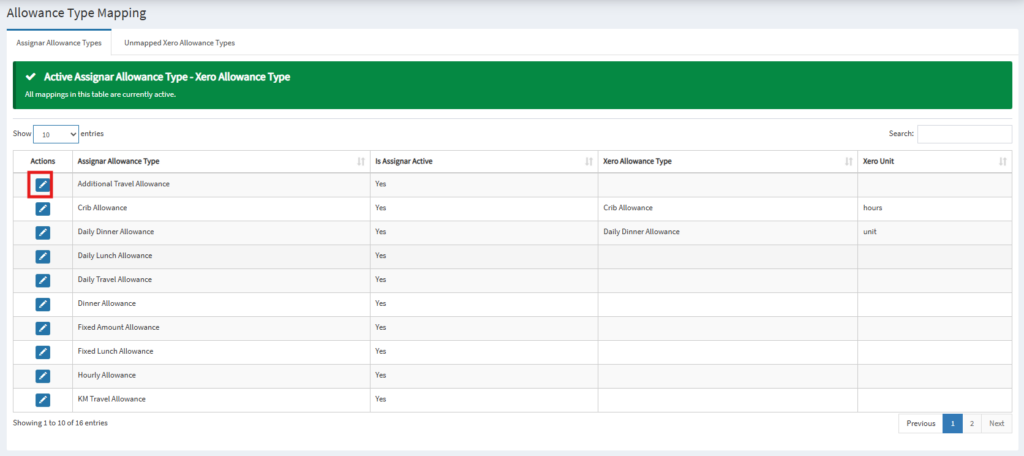
2. On Allowance Type Mapping page, click the pencil icon to start mapping.
3. Select the appropriate Xero Allowance Type from the select list.
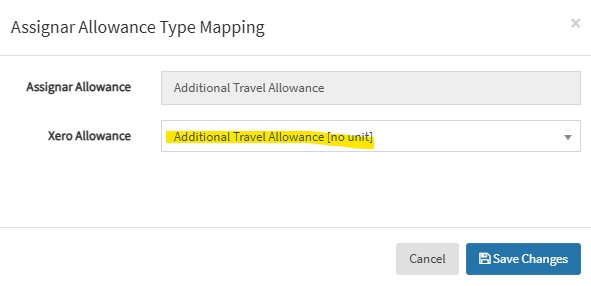
4. Click Save Changes. You shall see the updated mapping in the table.
Process Allowances
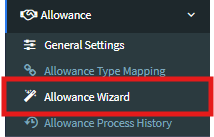
1. Go to Allowance > Allowance Wizard
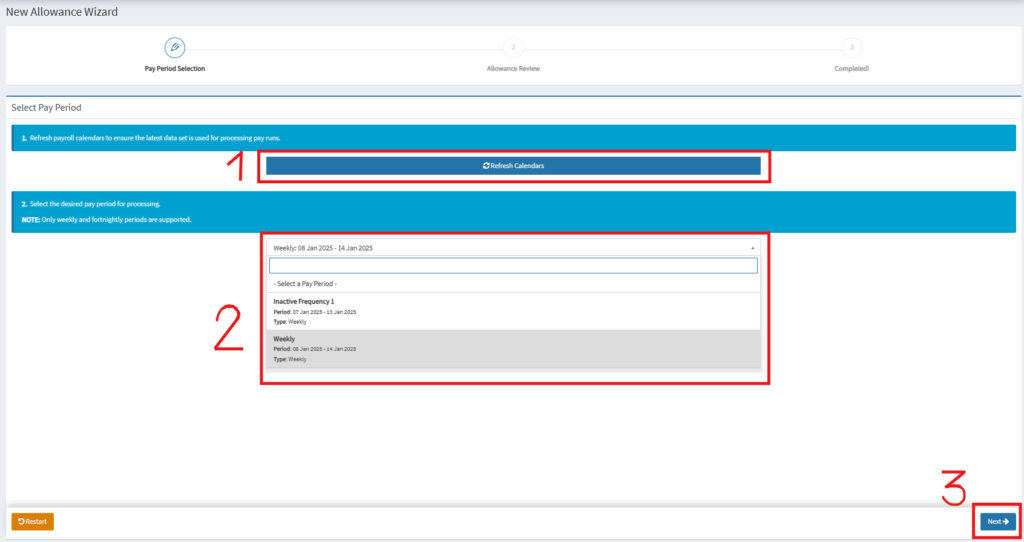
2. Click Refresh Calendars, then select the expected payroll calendar and click Next.
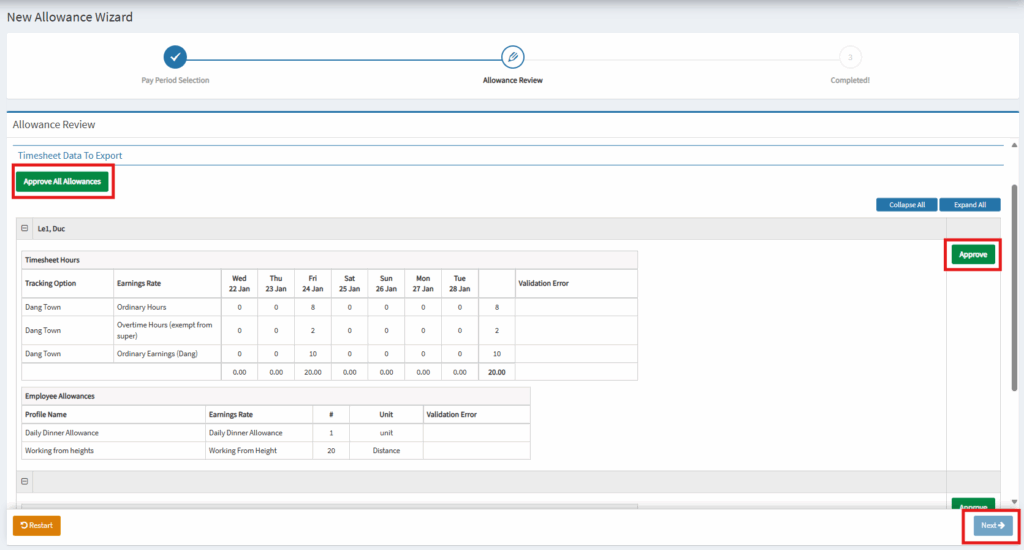
3. Approve timesheet and allowances for each employee by clicking Approve for corresponding employee or approve timesheets and allowances for all employees by clicking Approve All Allowances. Then click Next.
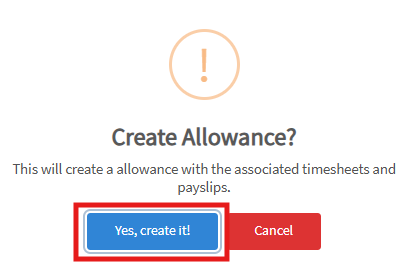
4. Click Yes, create it! when the confirmation model pops up.
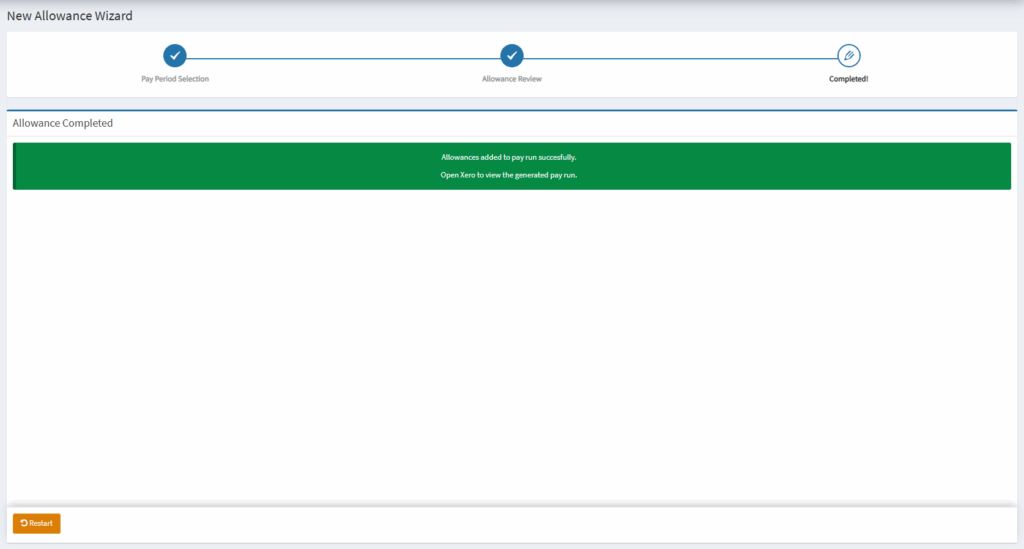
5. The Payrun with specified allowances is created to Xero.
Allowance Process History
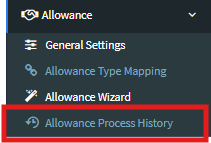
1. Go to Allowance > Allowance Process History
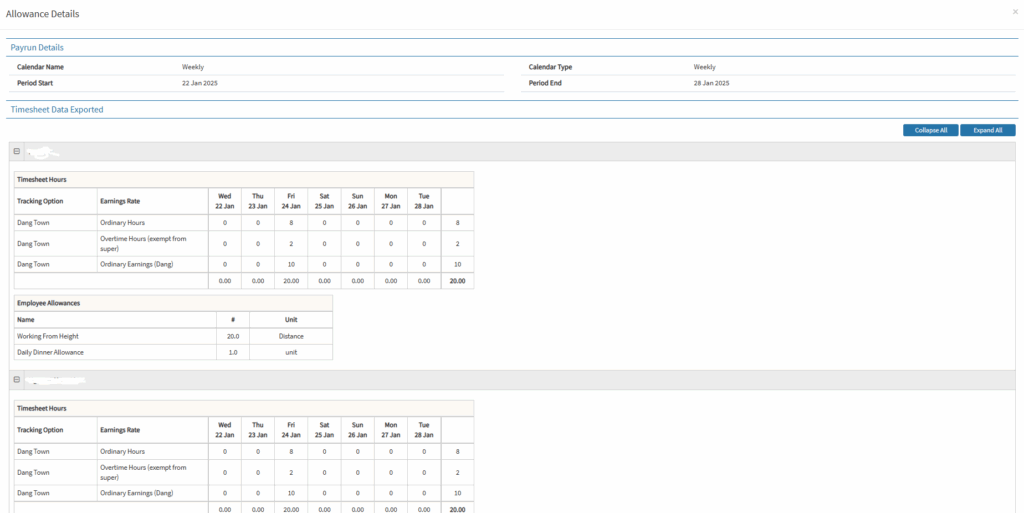
2. Select the desired Payroll Calendar and click Fetch History.

3. Click the search icon button of the corresponding payrun.

4. A modal pops up showing the desired Payrun with Allowances detail.